





 Cihat Murat Yüksel
17 min read
Contents 20 sections
Key takeaways
- Claude Code is Anthropic's agentic AI coding tool that reads a codebase, edits files and runs commands.
- Claude Code is not included in the free Claude plan and comes with Pro and higher plans.
- The terminal install of Claude Code needs at least 4 GB of RAM and an x64 or ARM64 processor.
- According to the Claude Code docs, enterprise deployments average $150–250 per developer per month.
Claude Code is Anthropic’s agentic AI coding tool that reads a codebase, edits files, runs commands and integrates with development tools to build features and fix bugs. It is not included in the free Claude plan; it comes with Pro and higher plans.
In our marketing team, every task starts with the file to change and the result we expect. Cleaning a link list and changing a page draft need different checks, so we state the material, the change and how we will check the result.
Lasting rules are written into CLAUDE.md; before any change is approved, its diff is read.
What is Claude Code?
Claude Code is an agentic coding assistant that carries out a development task on project files. We describe the task in plain language; it reads the codebase, finds the relevant files and makes changes within the permissions we choose.
For a landing page bug, we give the page name, the behavior we see and the result we expect. We review the change in the file diff, then check the page in a preview.
Its main uses are:
- Reading project files to add features and fix bugs.
- Writing tests, fixing lint errors and updating dependencies.
- Committing changes with Git and opening them for review.
- Connecting tools, packaging repeated work and scheduling it.
What is Claude Code used for?
Claude Code is used across the development process, from understanding code and editing files to committing changes and working through connected tools; we define the scope, the deliverable and the review point together.
Reading the codebase and making changes
Claude Code can read a codebase to build features, debug, write tests, fix lint errors, update dependencies and draft release notes. If the apply button on a campaign page points to the wrong section, we name the page, the current target and the correct one, and ask it to inspect the file before changing it. The test confirms the button target, the visible text and the existing page behavior. We never settle for a “fixed” reply; we compare the changed lines with the working page and question any edit to an unrelated file. Debugging a live web app through Chrome is supported too; we include the page address and the steps that reproduce the problem.
Git commits and pull requests
Claude Code can create branches, commits and pull requests with Git, and it helps resolve merge conflicts. A copy and link update on a service page is grouped under one task; before a commit, we read the files it covers and check the message. The pull request description states what changed, why and how it was checked. In a merge conflict, we decide which text to keep from the approved content and have the tool apply it. It also connects to GitHub Actions and GitLab CI/CD; we fit the automation to the team’s review and release order.
Connecting to Drive, Jira and Slack with MCP
Claude Code can work with the sources a task needs through . We explain the basic approach in our guide to what MCP is. When refreshing a campaign page, we bring the approved brief in Google Drive, the Jira ticket and the related Slack note into scope, and state which document counts as the source. When sources disagree, the latest approved brief wins. If the task is review only, we say so; changing a record or sending a message in an external tool gets its own instruction.
Repeated work with skills and hooks
Skills package repeated workflows; hooks run a shell command before or after an action. If we check campaign pages often, the title, link and handover note review goes into a skill, so each task only needs its file and special conditions. When an action needs a technical check, such as one that runs while a site file is edited, we set up a hook with our technical lead. We keep clear which files a skill covers and review its first output together.
Scheduled tasks and subagents
Claude Code can schedule recurring tasks and hand independent work to parallel subagents. Routines run in the cloud; scheduled tasks run on the desktop. For a weekly campaign report, we tie the source check and the report draft to a set workflow, watch the first run and specify the note to produce when data is missing. With subagents, we split page review from the link list check and run tasks that touch the same file in sequence. Each output is read against its own acceptance criteria: report numbers against the source file, page changes in a preview.
Where does Claude Code run?
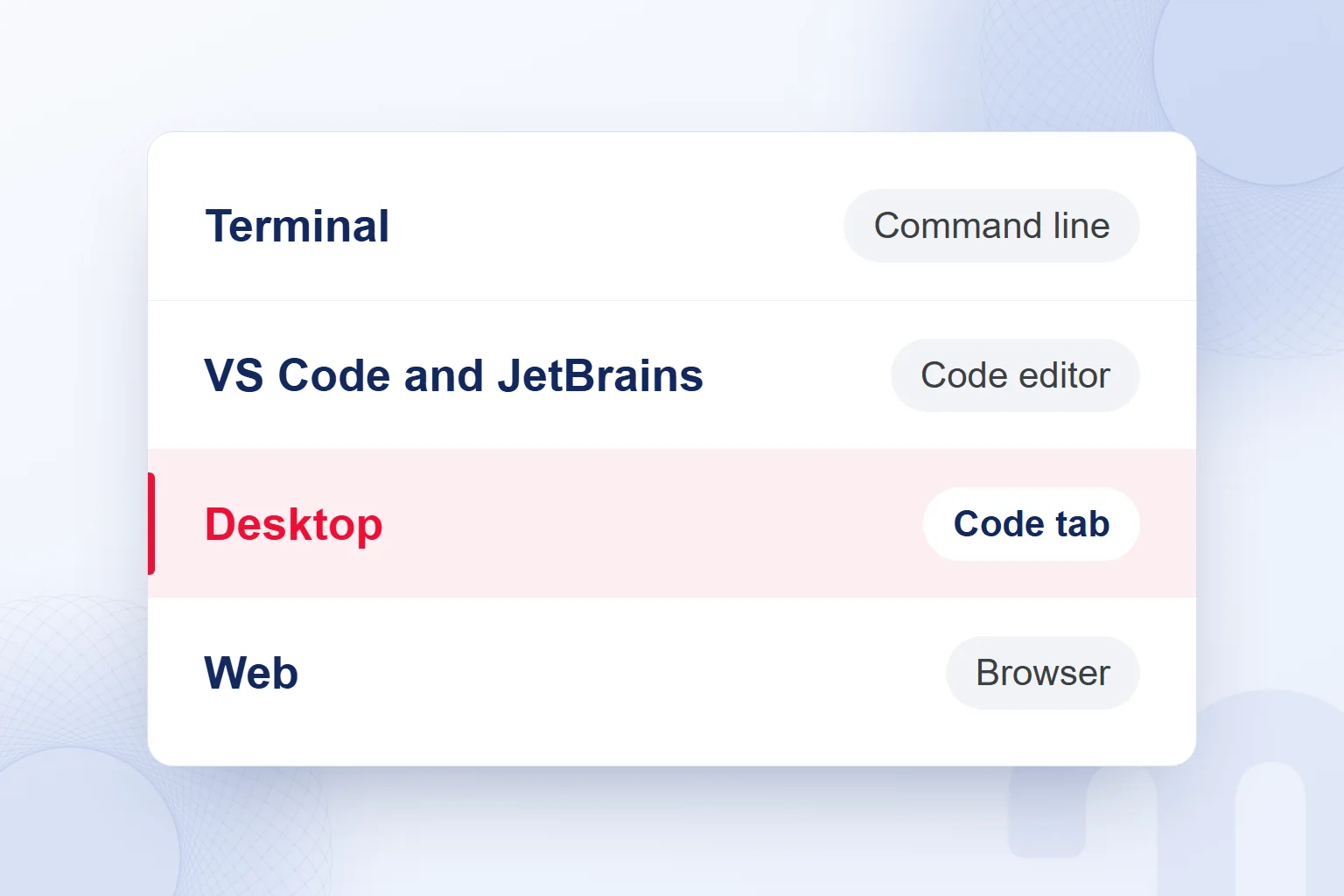
Claude Code runs in the terminal, in VS Code, Cursor and JetBrains, in the desktop app, on the web and in Claude’s mobile apps. The Claude Code CLI is its command-line version; in the terminal, we open the project folder and run the task within one session.
VS Code and Cursor use the extension, JetBrains its integration. In the desktop app, Chat is for conversation, Cowork for long agentic work and Code for software development; the Code tab needs no separate CLI install, but it needs a paid subscription.
In a web browser, the address is claude.ai/code; it is also available in Claude’s iOS and Android apps. Every surface uses the same engine, and a repository’s CLAUDE.md files, settings and MCP servers apply across them.
Each desktop conversation is a separate session with its own history and project folder, and several can run in parallel. We choose by where the files live and how we will review: the extension for a project open in the editor, the Code tab for diffs and a preview in one app. In parallel sessions, each task stays in its own folder.
Parallel sessions get separately named deliverables, such as a previewed page change and a report checked against its source. A handover names the project folder, the finished change and the pending check.
Is Claude Code free, and which plan do you need?
Claude Code is not part of the free Claude plan; it is used with a Pro, Max, Team or Enterprise plan or an Anthropic Console account. A Pro or Max subscription connects by signing in with our Claude account, and these plans also cover Claude Code in VS Code, VS Code forks and JetBrains.
With a subscription, usage is included in the plan; API usage through the Console is billed by token consumption. Plan features and prices are compared in the plan table of our what is Claude article. On a team account we check who holds which seat; on a personal account, which subscription is connected.
The cost figures in the Claude Code docs are enterprise averages; we settle the account type first so a cost per active day is never confused with a subscription fee.
We use these values as a reference for an API budget, adjusted for the files read, task length and model. If chat and coding share a subscription, we watch the shared pool.
How do you install Claude Code?
Claude Code is installed with the native install command for your operating system, through Homebrew or WinGet, or through the Code tab in the Claude desktop app. The recommended terminal route is the native install; on a Mac we follow the macOS row, on Windows the route that matches our shell.
| System | Route | Command or step |
|---|---|---|
| macOS, Linux, WSL | Native install | We fetch the install script with curl -fsSL https://claude.ai/install.sh and pipe the output to bash. |
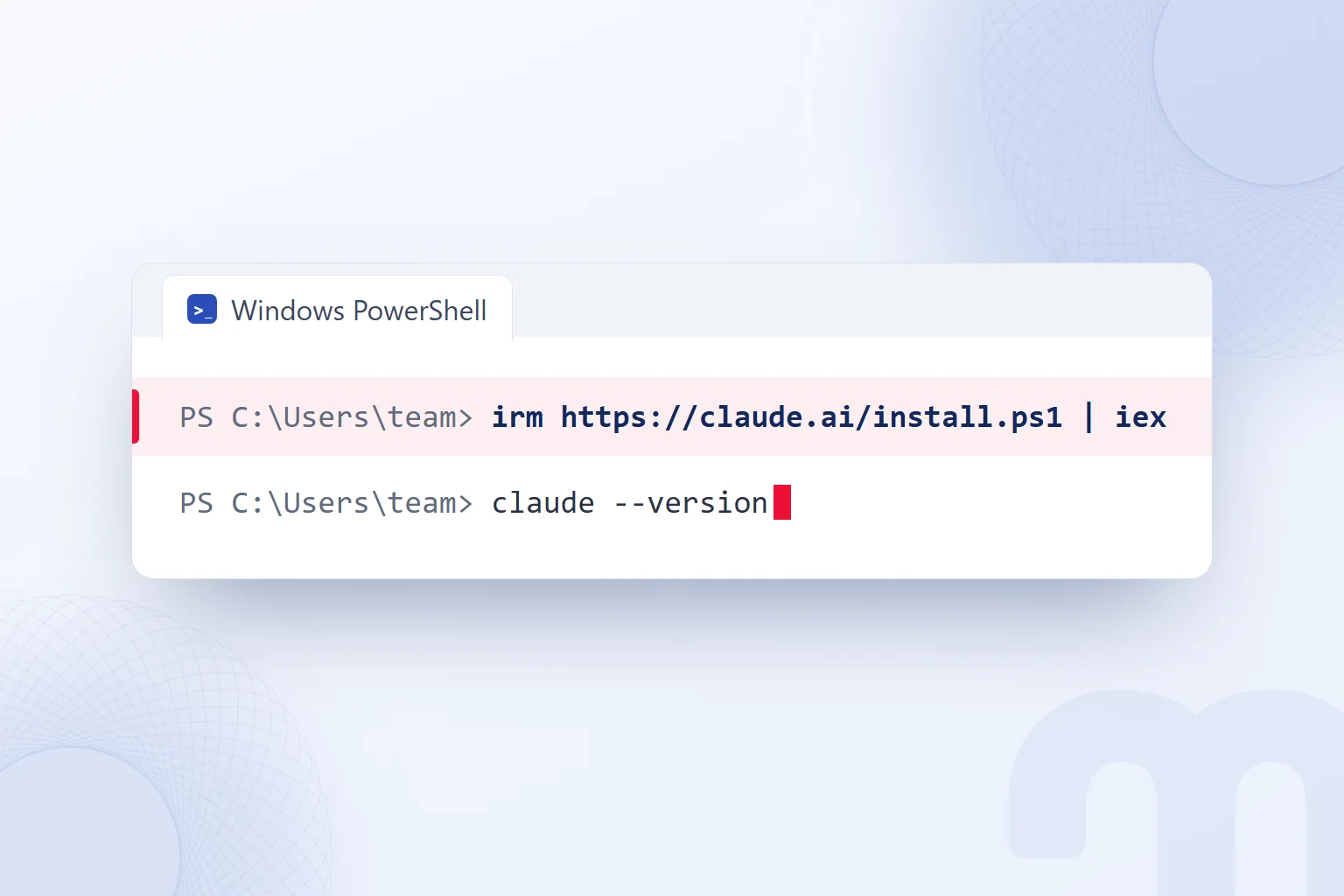
| Windows PowerShell | Native install | We fetch the install script with irm https://claude.ai/install.ps1 and pipe the output to iex. |
| Homebrew | Package manager | brew install –cask claude-code |
| WinGet | Package manager | winget install Anthropic.ClaudeCode |
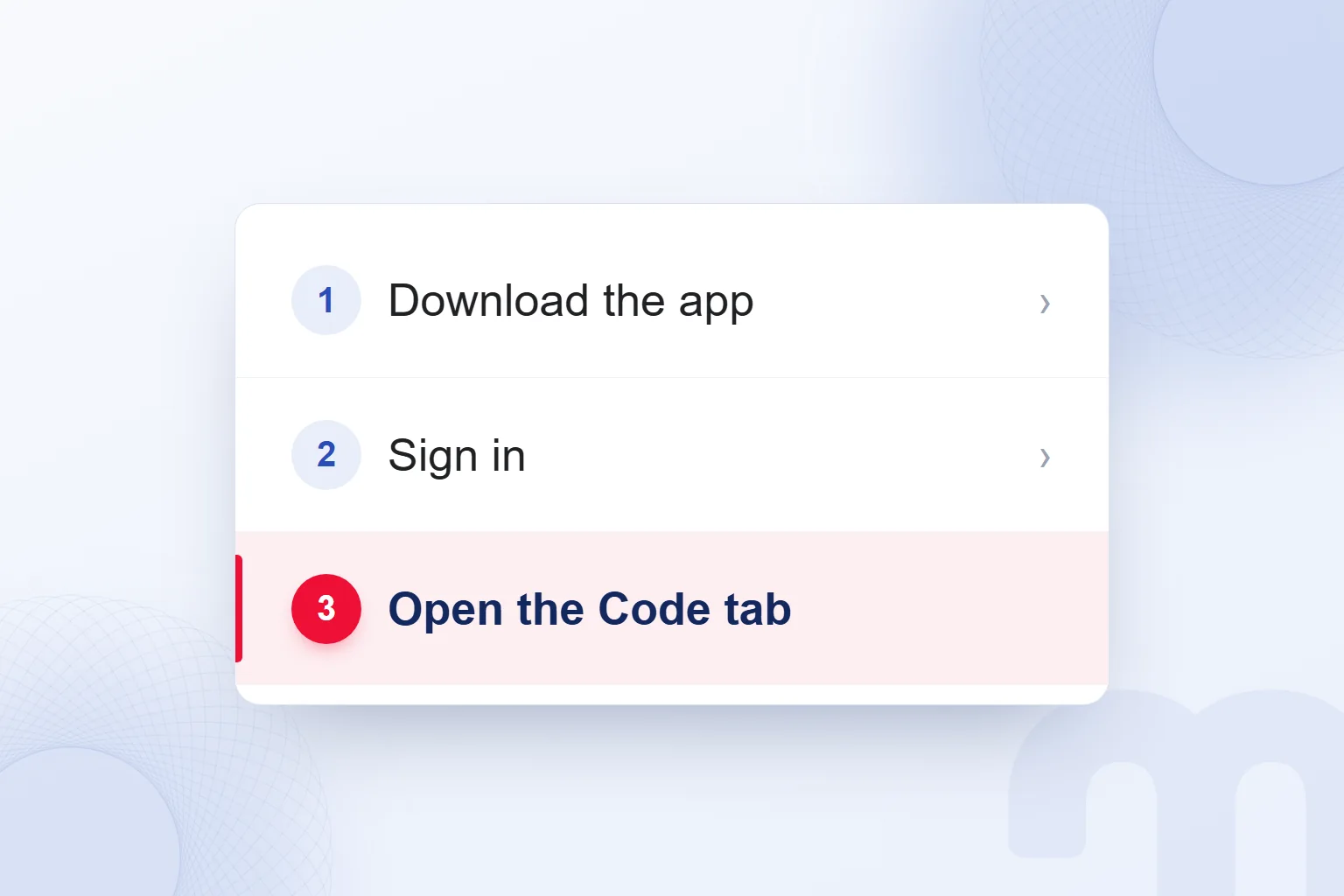
| Desktop app | Code tab | We download and open the Claude app, sign in and select the Code tab. |
| Terminal | Version check after install | claude –version |
| Terminal | Start in the project folder | claude |
The terminal install supports macOS 13.0+, Windows 10 1809+ or Windows Server 2019+, Ubuntu 20.04+, Debian 10+ and Alpine 3.19+. It needs at least 4 GB of RAM, an x64 or ARM64 processor, an internet connection and access from a supported country. Bash, Zsh, PowerShell or CMD can be used.
The native install updates itself in the background; Homebrew and WinGet installs are updated manually, so we record the route.
How do you install Claude Code on Windows?
On Windows, we open PowerShell and run the Windows command from the table, without administrator rights, then open a new terminal for the version check.
Git for Windows is optional and recommended; without it, Claude Code uses PowerShell as its shell tool. For a Linux environment on Windows, we follow the macOS, Linux, WSL row; WSL does not need Git for Windows.
The first session opens in the project folder, in Windows or WSL; the desktop Code tab needs no terminal install.
The first session after installation
After installing, we run the version check in a new terminal, then start Claude Code in the project folder. On first use, it asks us to sign in through the browser; then we write the task, the file and the expected result.
On the desktop, our starting order is:
- We download the desktop appWe install and open the Claude desktop app.
- We sign in with our Claude accountA Pro or Max subscription connects with the same account details.
- We open the Code tabWe switch to the workspace set aside for software development.
- We choose the project folderWe set the folder or repository Claude will work in.
- We set the permission modeWe choose how independently Claude may act.
- We keep the first task smallWe give a single-file job whose diff we can review.
Before the session starts, we choose the environment, project folder, model and permission mode; on the desktop, local, cloud, SSH and, on Windows, WSL options set where the work runs. The first task is one we can compare with the original file, such as fixing one link in a page draft.
How do you use Claude Code?
We use Claude Code by describing a specific task in plain language inside the project folder, reviewing the proposed approach and testing the change. The request includes the file or page name, the current problem, the expected result and the definition of done. A vague request like “improve this codebase” leads to broad scanning and more token use; a specific request narrows what gets read.
For a campaign page, we write: “Replace the apply button’s link with the approved target; keep the button text, and report the changed files and the check you ran.” We add the page name and the target, and ask it to flag missing information first.
For work across several files, we choose plan mode first; it reads and explores without editing, showing which files will change and why, and how the result will be checked. Once we accept the approach, we switch to an editing mode and read each step’s diff and test result.
We choose how to proceed based on the state of the session:
- The task is unclear → We explain the target file, the expected behavior and the acceptance criteria, and narrow the area to scan.
- The change spreads across several files → With plan mode we see the approach first and set the order in which files change.
- The session has grown long → When moving to unrelated work we reset context with /clear; when continuing the same work we summarize history with /compact.
If a test fails, we pass the error output with the task, state which behavior is still wrong and rerun the same check. The final handover is a short note listing changed files, completed checks and open work; it starts the next review.
Our team in Turkey prompts in Turkish. Claude can process input and respond in most languages that use standard Unicode characters, so we state the expected language explicitly, especially for page copy and handover notes.
What is CLAUDE.md, and what does it do?
CLAUDE.md is the persistent instruction file that passes project and team rules to Claude Code at the start of a session. Into we write what we would otherwise explain again. Every session starts with a fresh context; CLAUDE.md files and auto memory carry the knowledge across.
We write the instructions; auto memory holds notes Claude keeps from our corrections and preferences. Both load when a session starts. Claude Code can also read a project’s AGENTS.md; we make sure instruction files do not conflict.
This keeps the file readable and focused. In a site project, we write short instructions on folders, copy language, review order and handover. A single-task campaign brief goes in the session; a correction we keep repeating becomes a lasting rule.
The organization scope carries managed policies, the user scope personal preferences; a project-scope file is shared through version control, the local scope is personal. Each rule goes in the scope where it applies.
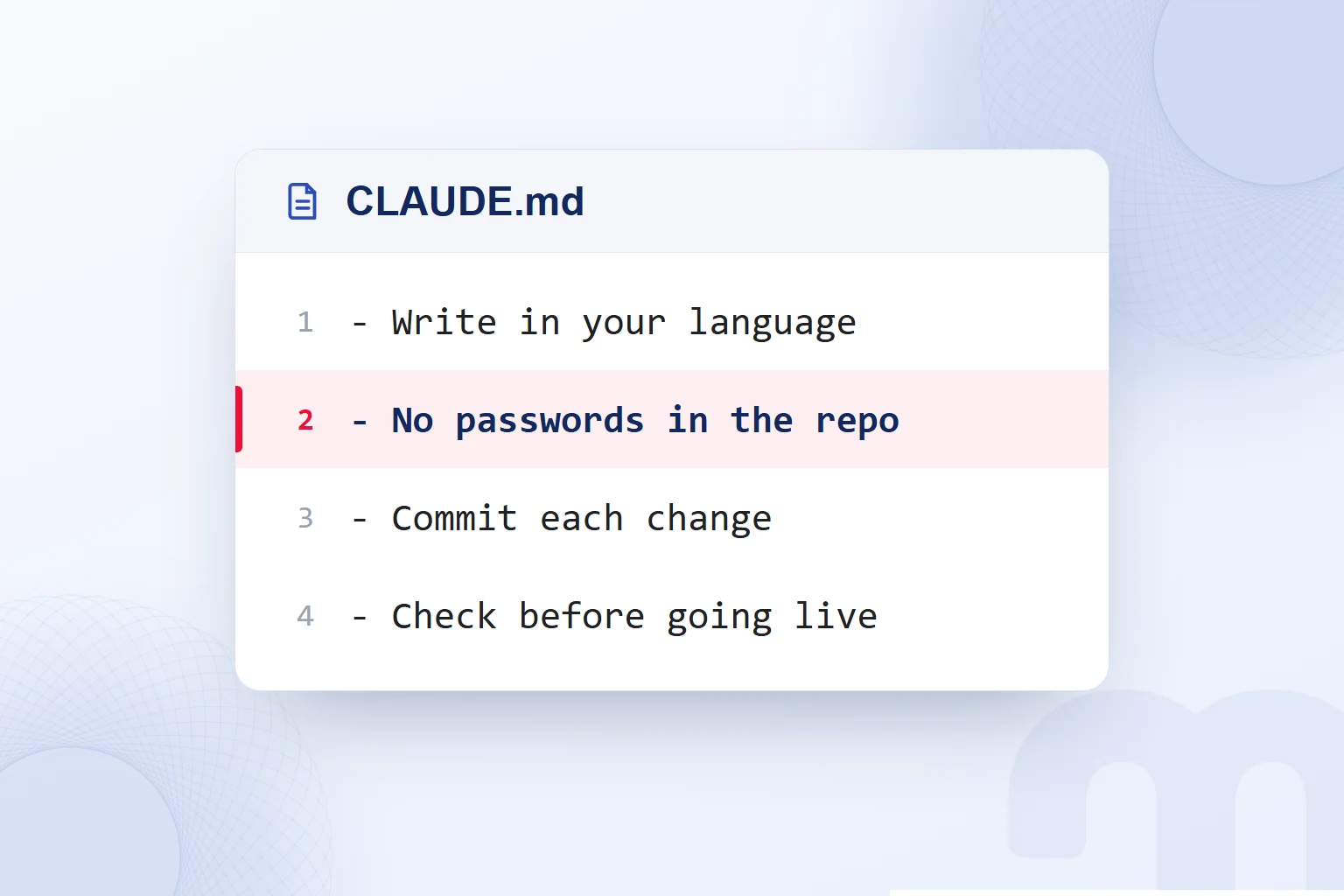
The CLAUDE.md at the root of the markention repository carries the team rules, folder layout, log and handover steps and trigger words. Every Claude Code session starts with this file, and the rule that passwords, tokens and keys never enter the repository is written here too.
We state each rule as an action: whether “Compare copy going live with the approved brief” was followed can be checked. Without long explanations and single-task details, the core decisions stay visible.
How do tokens and usage limits work in Claude Code?
In Claude Code, subscription usage is drawn from the plan; API usage is billed by token consumption. On Pro and Max, Claude chat and Claude Code share a usage pool, so we watch total usage.
On Team and Enterprise, consumption comes out of a seat allowance, shared with Claude chat and Cowork, that resets in 5-hour and weekly windows. We open /usage, see which limit is filling up on the plan bars and plan around the reset window.
To manage usage, we narrow the scope first; a bug on one page never becomes a request to improve the whole codebase. Resetting context, summarizing long sessions and keeping CLAUDE.md short keep the material read in check.
Model choice affects cost too. According to the Claude Code docs, Sonnet handles most coding tasks well and costs less than Opus. We define the review the job needs, then choose the model; a link fix and a review of interconnected site files are not the same scope.
The docs give an average monthly cost of $150–250 per developer in enterprise deployments. This is a budget reference for API consumption, not a Pro or Max price, and the per-active-day figures read the same way. We track our own tasks and cut repeated scans and needlessly long sessions. At a limit, we note the pending work, the completed step and what is needed to continue.
Which three jobs does a marketing team use Claude Code for?
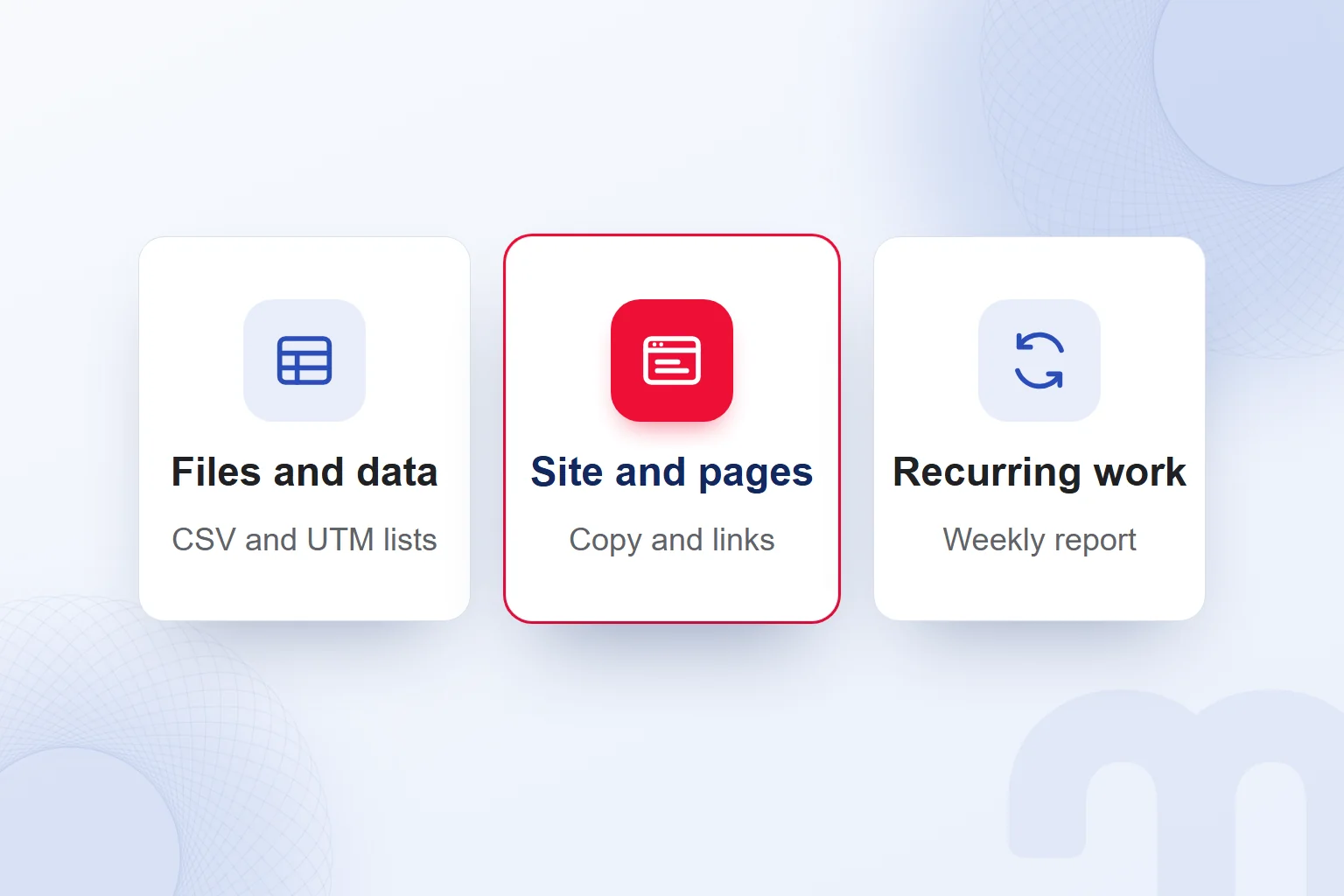
A marketing team uses Claude Code for file and data cleanup, site and page fixes, and automating recurring work; with the first job, we also decide how its output is checked.
| Job | Example | Check |
|---|---|---|
| Files and data | Cleaning up a list of UTM-tagged links, removing duplicate rows in a CSV | We compare the output with sample rows |
| Site and pages | Fixing copy and links in a landing page draft | We review the diff and open it in a preview |
| Recurring work | A script or scheduled task that prepares the weekly report | We watch the first run together |
For file and data work, we define up front which rows count as duplicates, checking campaign details in links that look identical. We keep the source file and compare the output with sample rows; the deliverable shows which row changed and why.
For site and page work, we check the copy placement and the link target. On the desktop we review and comment on diffs and preview the running app in the browser panel. After changing a button link, we check that other links on the page were not affected; lines beyond the requested scope show up on the diff screen.
For recurring tasks, we define the source, the output and the run order, and watch the first run of the weekly report together. When a source is missing, no estimated data is added; the handover note shows which data was used and which field stayed empty. Only a change whose preview has been reviewed goes to the live site.
How do we manage permissions and security in Claude Code?
In Claude Code, we manage permissions with a permission mode and rules that decide which actions need approval. Read-only actions and search need no approval; in the default mode, shell commands, file edits, web fetch and web search ask for approval.
| Mode | What it does |
|---|---|
| Manual (default) | Asks on the first use of each tool that needs approval. |
| acceptEdits | Accepts file edits automatically. |
| plan | Reads and explores; does not edit source files. |
| auto | Skips routine approval prompts; a background classifier checks that each action fits the request. |
| bypassPermissions | Skips permission checks; used only in isolated environments such as a container or virtual machine. |
We tie the approval decision to the action’s impact:
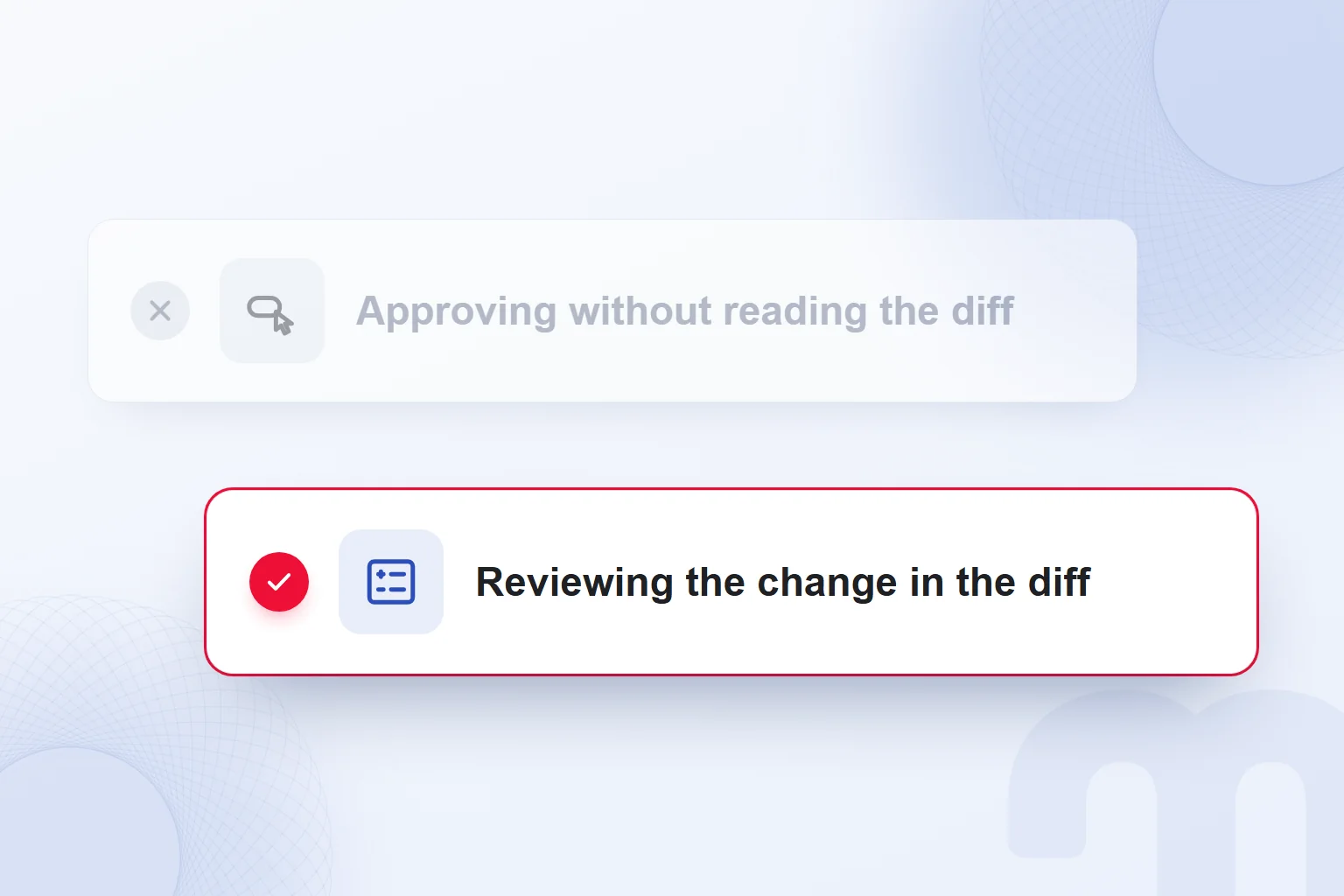
- The change stays in a local file → We read the diff and approve if it matches the task.
- The change will reach the live site → We check the diff and the preview, and run the release as a separate step.
- The action will delete files or send data out → We decide after reviewing the affected files, the content to be sent and the destination.
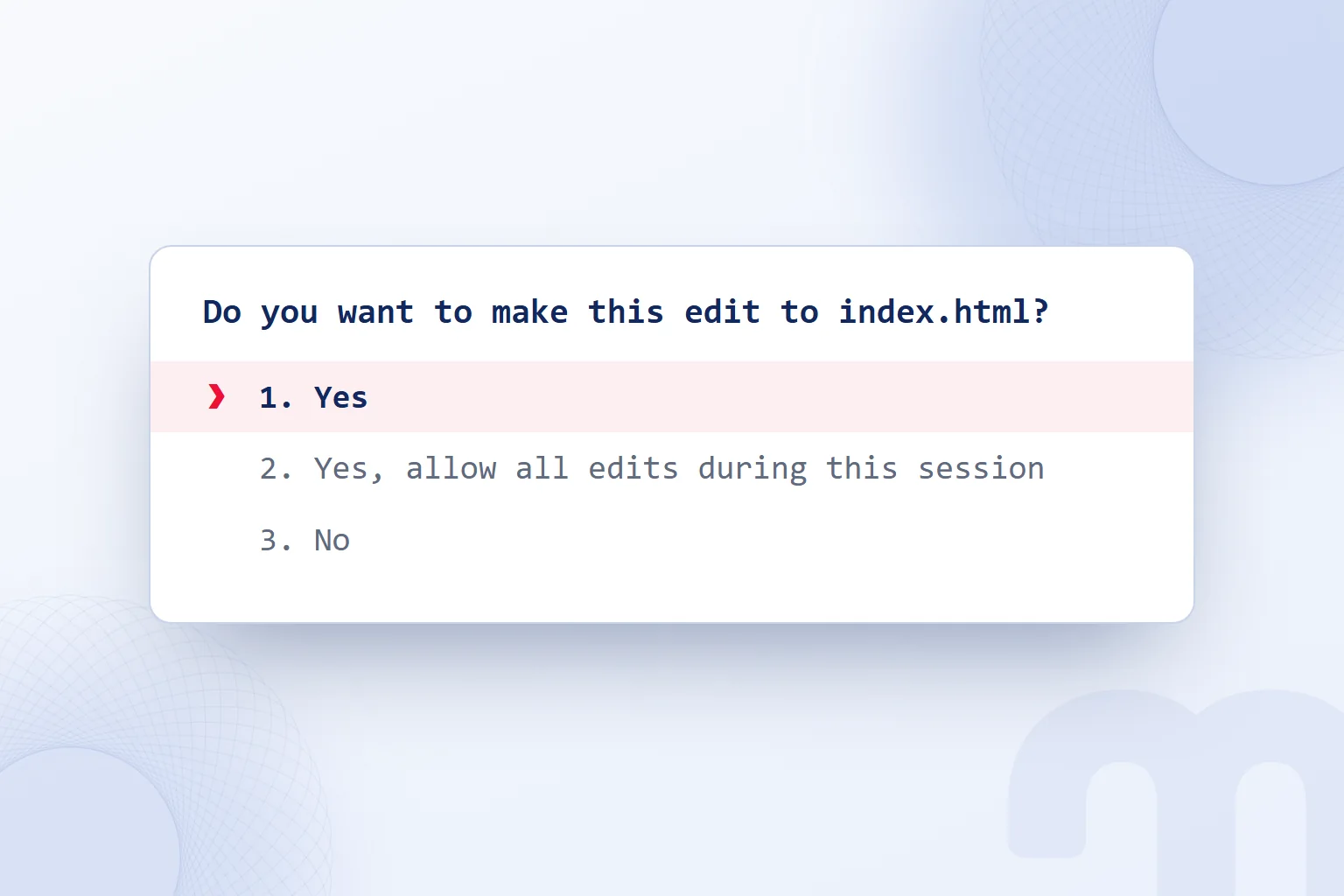
If the work drifts, we stop it, name the wrong file or behavior and read the current changes before continuing. On the approval screen, we choose between a single edit and all edits for the session by scope; in a small first task, we decide on each edit alone. We never write passwords, tokens or API keys into the chat or the repository.
CLAUDE.md instructions are treated as context. To block an action technically, we use a . Permission rules can be committed to version control and shared with the team; we define them with the technical lead and confirm they apply.
What is the difference between Claude Code, Cursor and Codex?
We choose between Claude Code, Cursor and Codex based on the working environment the task needs and the division of work in the team. Claude Code is an agentic coding tool that reads and edits project files, runs commands and works across several surfaces. Cursor describes itself as a coding agent for building ambitious software. Codex is OpenAI’s agent, accessed through ChatGPT, that runs in the ChatGPT apps, the Codex CLI, an IDE extension and Codex Cloud.
Claude Code can also be installed in Cursor as an extension, which we use for projects inside Cursor. For terminal work or diff review in the desktop Code tab, we open the matching Claude Code surface; for work with the agent in ChatGPT, we move to Codex.
At markention, we use Claude and Codex in the same repository with a division of work: Claude plans, Codex writes, Claude verifies. The approved brief and the file to edit are the shared material; the plan follows the file scope, the writing the brief, the verification the handover criteria.
When refreshing campaign page copy, we define the sections to change and the information to keep, then review the returned copy for sources and language. Whichever tool edits the file, the questions stay the same: did the requested section change, does it match the brief, were the links kept?
We never decide by the tool’s name. We define the task file, the access, the surface and the reviewer, then use the tool that fits and judge the result by the same acceptance criteria.
Where do we start with Claude Code?
We start Claude Code with a small file task whose result we can read and verify: we choose the material, write down the expected change and name who checks it. Fixing a page link or cleaning a link list by a defined rule makes a good start.
| Situation | What we do |
|---|---|
| No one on the team writes code | We start with the desktop app’s Code tab and a small file task. |
| The work depends on data in other tools | We add the needed source to the session through a connection and limit the material to be read. |
| The output will reach a client or the live site | We proceed with engineering oversight and check the diff and the preview. |
We learn at our own pace with the free introductory and hands-on Claude Code courses in Anthropic Academy. We apply them in small tasks and ask for an explanation before approving any change we do not understand; scope widens only where the same check order holds.
At the end of the first session, we record the changed file, the source and the check. A repeating rule moves into CLAUDE.md; a task-specific note stays in the handover description.
Work whose output goes live or to a client is handled under our vibe coding services with engineering oversight. Tool choice and team working methods are covered task by task in our AI articles.
Frequently asked questions
What is Claude Code?
It is Anthropic’s agentic coding tool that reads a codebase, edits files, runs commands and integrates with development tools to build features, fix bugs and automate work.
Is Claude Code free?
The free Claude plan does not include Claude Code. It needs a Pro, Max, Team, Enterprise or Anthropic Console account; subscription usage comes from the plan, API usage is billed by token consumption.
How do you install Claude Code?
It is installed with the native install command for your operating system or through Homebrew and WinGet. The desktop app’s Code tab needs no separate CLI install.
Does Claude Code work on Windows?
Yes, through PowerShell or in WSL, with no administrator rights needed. Git for Windows is optional and recommended; WSL does not need it.
Can Claude Code work in languages other than English?
Yes. Claude handles most languages that use standard Unicode characters; we prompt in Turkish and state the response language explicitly.
What is the difference between Claude Code and Cursor?
Claude Code is a coding tool that reads and edits project files across several surfaces; Cursor describes itself as a coding agent for building ambitious software. Claude Code can also be installed in Cursor as an extension.
How do Claude Code token limits work?
On a subscription, usage comes from the plan and is shared with Claude chat; on the API, token consumption is billed. On Team and Enterprise, the seat allowance resets in 5-hour and weekly windows.
Is Claude Code safe?
We manage safety through the permission mode, the task scope and change review. In the default mode, read-only actions need no approval; file edits and shell commands ask for approval.

 What is Perplexity? How to use it, free plan, Pro, Comet vs ChatGPTRead article

 What is Nano Banana? Gemini image creation, editing and promptsRead article
 What is Grok and how do you use it? X’s AI, its plans and differencesRead articleMost read
 What are AGI and ASI? The steps from general AI to superintelligenceRead article
 What is Claude? How to use it, its plans and the ChatGPT differenceRead article
 What is artificial intelligence? How AI works, types and examplesRead article
 Free AI tools: which one for which job, and what are the limits?Read article
 What is Gemini? How to use it, the free plan, Gemini Omni and ChatGPTRead article
Questions & answers
0 commentsNo questions yet; you can ask the first one.