





 Cihat Murat Yüksel
12 min read
Cihat Murat Yüksel
12 min read
What is a browser? Browser examples and setting a default browser
What a browser is, common browser examples, how to open one on a phone, default browser settings, and how a browser differs from a search engine.Pro
Contents 17 sections
A browser is software that requests web pages from a server and processes the HTML, CSS, JavaScript and image files it receives into a usable page on a computer or phone screen. Drawing the page is the job of the .
When we check a site, we assess the browser’s name, the device and the session state together. A page that looks different on one phone and old files that stay on screen call for different checks. We describe the difference first, then work through cache, extensions, engine and version in that order, so we isolate the condition that changes the result before deleting all browsing data.
To find out why the same site looks different, cache and session state are checked and the page is compared on real devices.
What does browser mean, and what is a web browser?
A browser is the internet program that opens web pages and shows them on screen. Google Chrome, Safari, Microsoft Edge, Mozilla Firefox, Opera, Samsung Internet and Yandex Browser are examples. “Web browser” and “internet browser” describe the same function; browser names refer to the specific app we use.
What is a browser, in short?
A browser is the app used on a computer or phone to open websites. When we type an address, it fetches the page’s files and builds a readable, usable view. The browser’s name and the site it opens are separate things; in the Chrome app we view Google search results just as we view any other site.
In the address bar, we look at whether we are typing a full address, a search phrase or part of an address:
- We have the full address → We type it and open the site directly.
- We are looking for a topic → We type the words and go to the default search engine’s results.
- We remember only part of the address → We start typing and pick it from suggestions drawn from history and bookmarks.
We explain the parts of an address in our what is a URL post. This distinction shows why the same bar sometimes opens a site and sometimes opens search results.
What is a browser on a phone, and how do you open it?
On a phone, a browser is the app that opens web pages; you open it by tapping its icon on the home screen or in the app list. It does the same basic job as a desktop browser: it fetches site files, processes them and shows them on screen.
The general order is:
- We find the app. We look for the installed browser’s name, such as Chrome or Safari, on the home screen or in the app list.
- We tap its icon. We select the address bar; its look and position vary by browser.
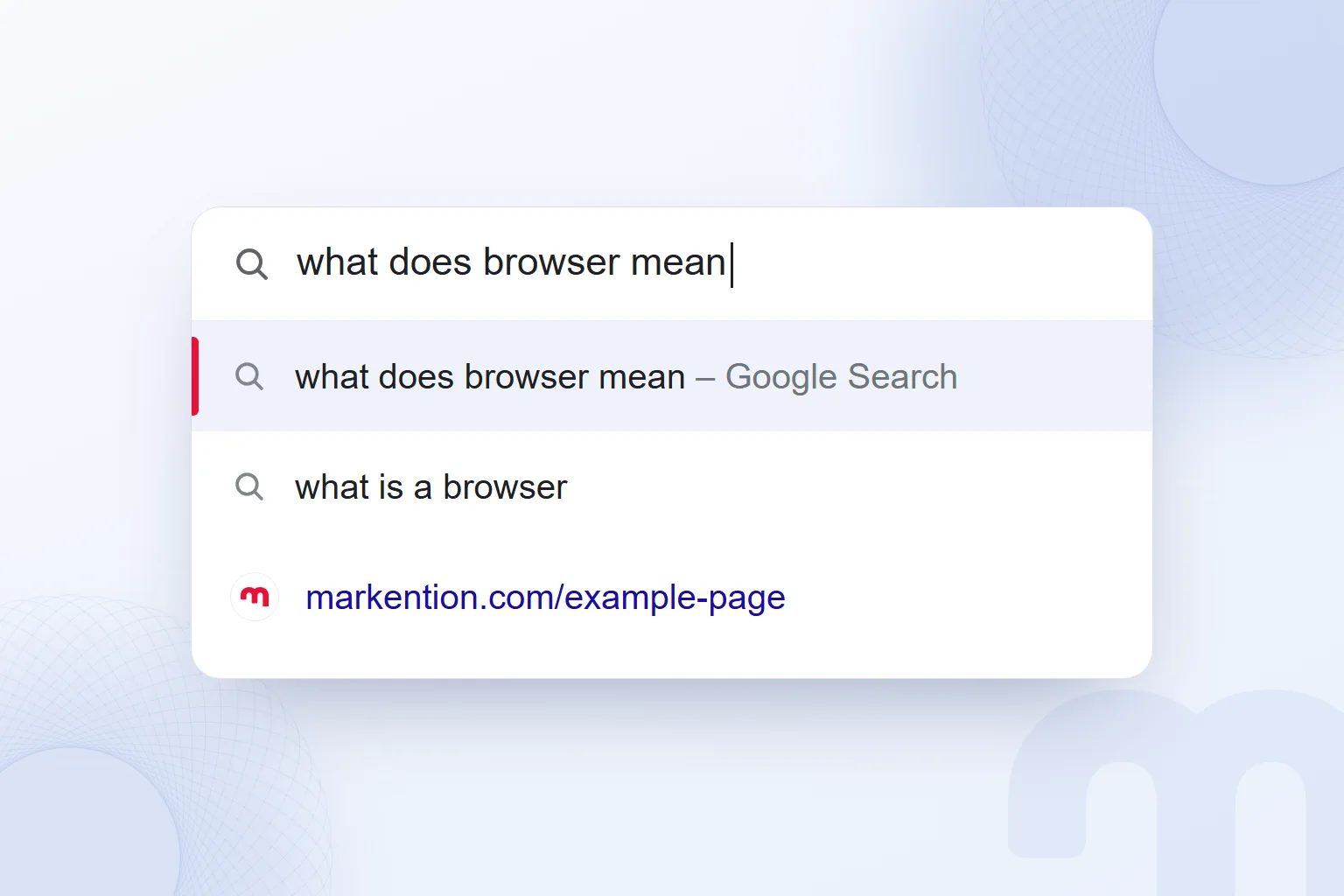
- We type an address or a search phrase. For a site we enter an address such as markention.com; for a topic we type a phrase like “what does browser mean”.
- We check the page that opens. A full address leads to the site; a search phrase leads to the default search engine’s results.
A phone maker may ship its own browser preinstalled. A different name does not change the function; it is still a browser, so not every phone browser has to be Chrome. We go by the name under the icon we tapped.
Opening a browser and making it the default are separate actions. Tapping an icon starts that browser; which browser opens links is decided in the default browser setting. We first check that the page opens in the app we want, then change the default if needed.
What are some examples of browsers?
Chrome, Safari, Edge, Firefox, Opera and Samsung Internet are common browser examples. Each displays web pages; their developers and supported devices differ.
| Browser | Developer | Devices |
|---|---|---|
| Chrome | Computer, Android phone and tablet, iPhone and iPad | |
| Safari | Apple | Mac, iPhone and iPad |
| Edge | Microsoft | Computer, Android phone and tablet, iPhone and iPad |
| Firefox | Mozilla | Computer, Android phone and tablet, iPhone and iPad |
| Opera | Opera | Computer, Android phone and tablet, iPhone and iPad |
| Samsung Internet | Samsung | Android phone and tablet |
This table matches app names with developers and device types; it is not a ranking of speed or accuracy. For everyday use we look at the options on our device; to check a website, at the browsers its visitors use. The same browser name does not mean the same engine on every device; we cover that split in the section on usage in Turkey.
AI browsers
Comet, an example of an AI browser, works like a browser with a personal assistant and is available on Mac, Windows, iOS and Android. When we assess it, we consider opening web pages and AI support together. We cover Perplexity and Comet in our what is Perplexity post.
How do you change your default browser?
The default browser is changed in the device settings or through the browser’s own “make default” option. This choice sets the app that opens web links. The path differs on Windows, Android and iPhone, and menu names can vary by version.
The default browser and the default search engine are different settings. The first sets the app that opens a link; the second sets which service searches the words typed into the address bar. If a link opens in another app, we check the browser setting; if we want a different search service, the search engine setting.
On Windows
The path Microsoft Support describes is Settings › Apps › Default apps, where a default can be set by app or by file or link type. Seeing which browser is assigned to which type is clearer than assuming one general choice.
- We open the Settings app.
- We go to Apps › Default apps.
- We find the browser in the app list, or select the file or link type.
- We assign the browser we want to that type.
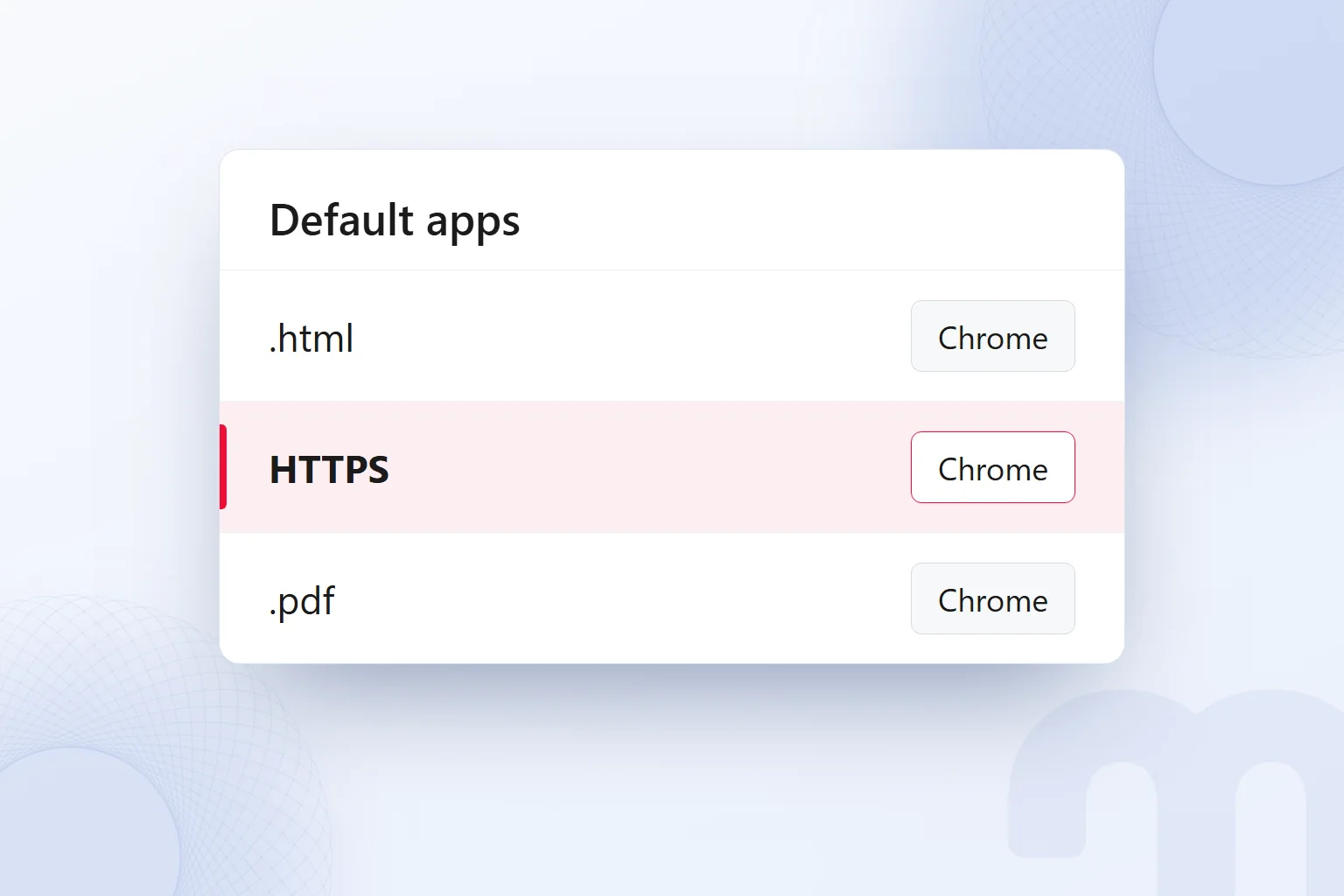
File types such as .htm and .html and link types such as http are handled separately here. When a link does not open in the expected browser, we look at the app name next to that type; an installed browser is not necessarily the one assigned.
On Android
On Android, Chrome Help points to the option in Chrome’s More menu that sets Chrome as the default browser. Another route is the default browser app setting in the phone’s Settings. Since settings layouts vary between phones, we go by the choice shown on screen.
The aim is not just to start the browser but to set the app used for links. At the end, we check that the selection shows the browser we want.
On iPhone
To make Chrome the default on iPhone, we go from Chrome to the system settings and select it as the default browser app. Chrome Help lists iOS 14 or later for this.
- We open Chrome and go to More › Settings.
- We follow Default Browser › Open Chrome Settings.
- We open Default Browser App.
- We select Chrome.
This changes only the app choice. Changing the default and testing the browser engine are different checks; the engine split on iPhone is explained below.
What is the difference between a browser and a search engine?
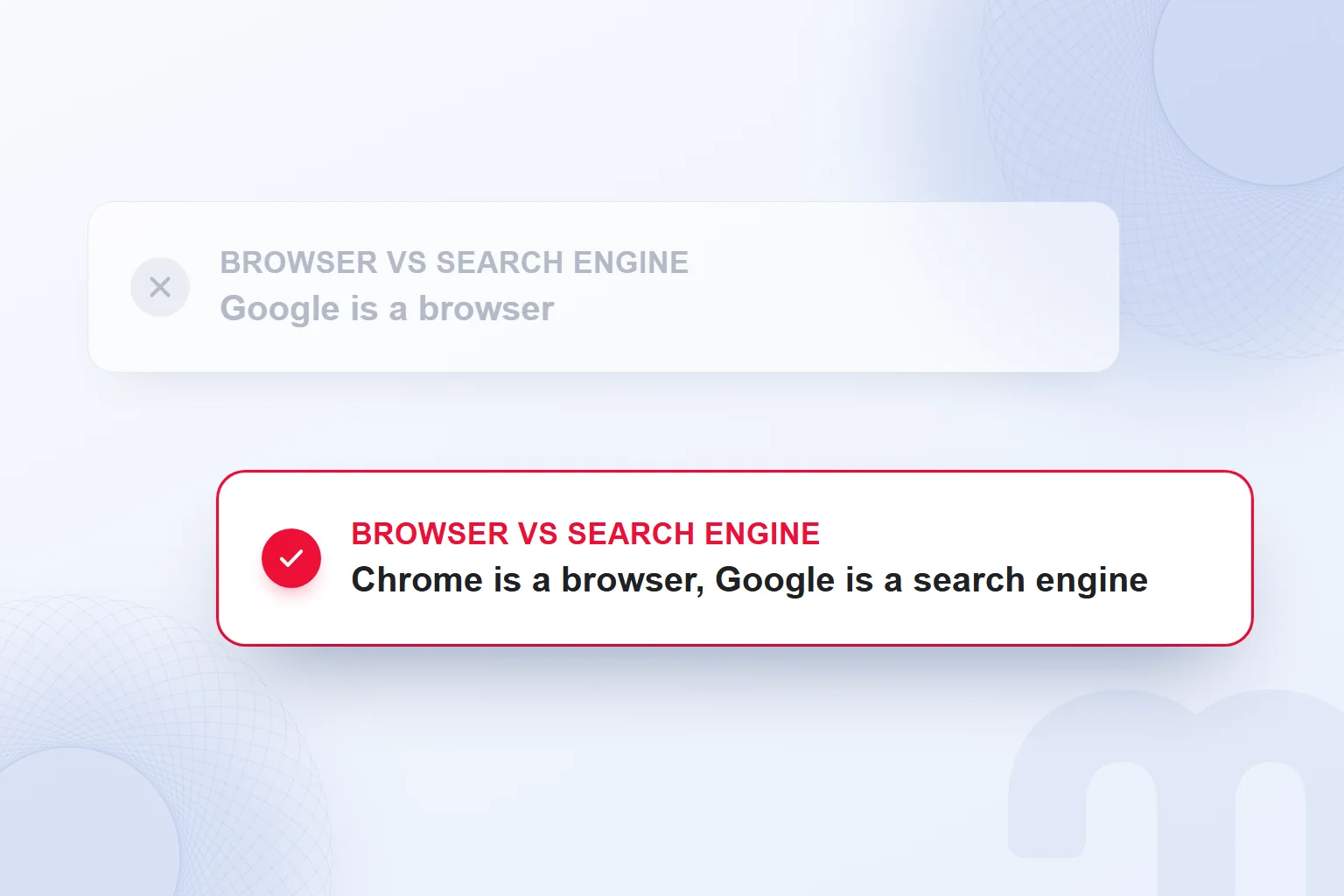
A browser is the app that opens web pages, and a search engine is the service that returns results for typed words; Chrome is a browser, Google is a search engine. When we type words into the address bar, the browser sends them to the default search engine and shows the results in its window; a full address opens the site directly. We cover how search services work in search engines, and a results-page topic in People also search for. Seeing Google results in Chrome does not make Google a browser.
How does a browser work?
A browser connects to the server at the typed address, requests the page’s files and processes them into what you see on screen. Structure, styling, images and working features come together in this process.
- Takes the addressThe browser takes the address typed into the address bar and starts the connection.
- Finds the serverThe browser turns the domain name into an IP address via DNS to find the server.
- Opens an encrypted connectionThe browser sets up an encrypted connection with the server over HTTPS.
- Requests the page structureThe browser requests the page’s HTML file.
- Requests the other filesThe browser requests the CSS, JavaScript, image and font files referenced in the HTML.
- Draws the pageThe browser builds the DOM from the HTML and the styling from the CSS, runs the JavaScript and shows the result.
- Stores data on the deviceThe browser caches some files; if the site set a cookie, it stores that too.
The cache holds copies of site files kept on the device so they are not downloaded again on the next visit. Clearing the cache removes these copies; when we see an outdated view, we check them first.
A cookie is a small piece of data a site leaves in the browser, keeping the session, cart, language preference and consent choice. The cache holds the page’s files; cookies hold our relationship with the site. Separating a display problem from a session problem tells us which data to clear.
Which browsers are used most in Turkey?
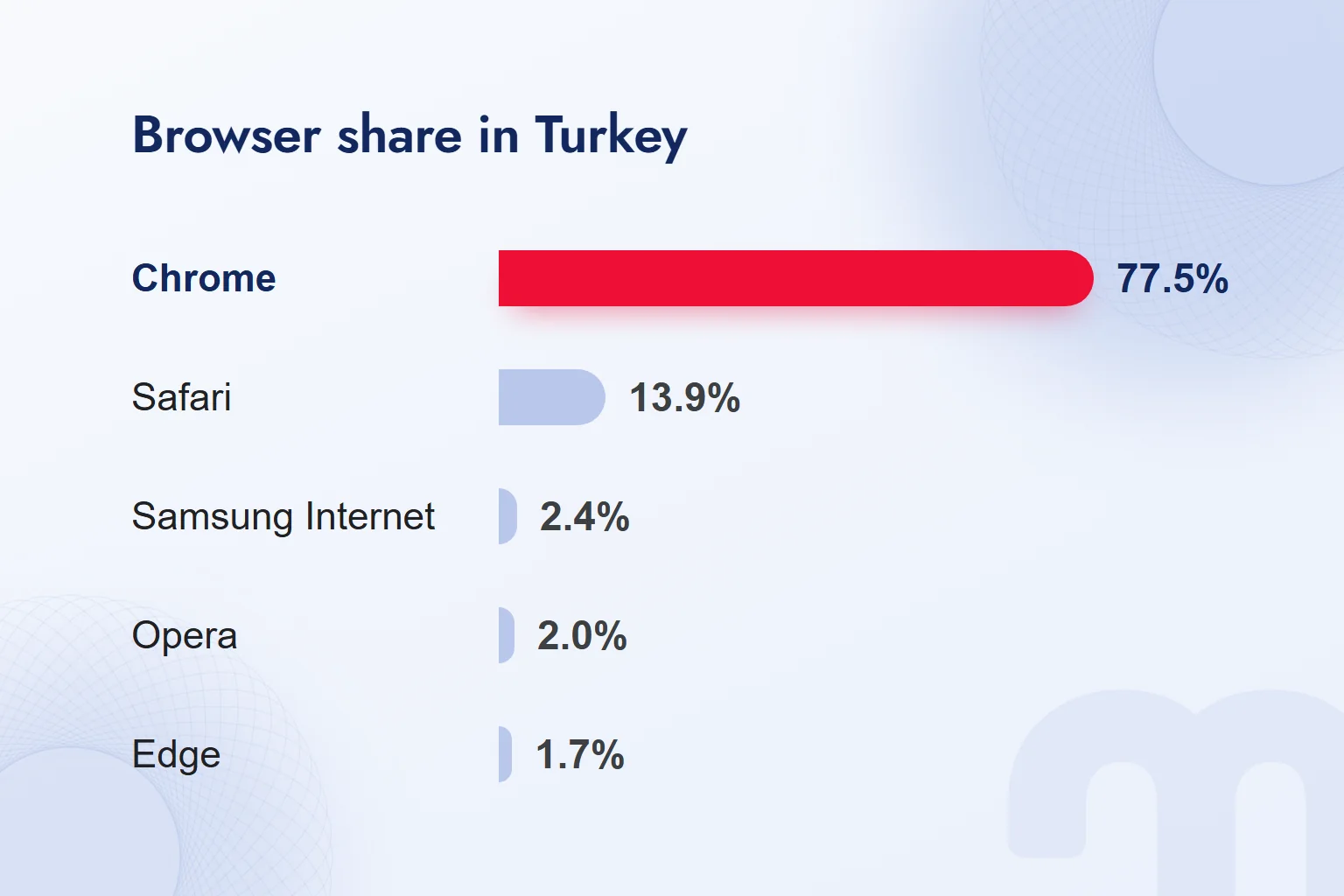
According to ’s August measurement, Chrome is the most used browser across all devices in Turkey, followed by Safari. Mobile and desktop splits differ, so we read the test plan by device type.
Chrome’s share sets the first test environment; Safari’s mobile share is why we plan a separate iPhone check. Edge has 1.7% across all devices but 6.9% on desktop, so we add it to desktop testing.
| Browser | Developer | Engine |
|---|---|---|
| Chrome | Blink | |
| Edge | Microsoft | Blink |
| Opera | Opera | Blink |
| Samsung Internet | Samsung | Blink |
| Yandex Browser | Yandex | Blink |
| Safari | Apple | WebKit |
| Firefox | Mozilla | Gecko |
In Turkey, every browser on iPhone and iPad, Chrome included, uses WebKit under Apple’s rules, so Chrome on iPhone draws a page close to Safari. We never count Chrome on desktop and Chrome on iPhone as the same engine test.
We choose the “best browser” by purpose: everyday use, a first-visit check or site testing. For site testing we combine browsers that cover different engines and the real visitor split.
Why does the same site look different in different browsers?
The same site looks different because of cache, extensions or session, the browser engine, the version, and screen width or zoom. We open the same address and track which condition we change in each check.
The next step depends on the situation:
- An old cache is in use → We hard reload the page from the server and compare.
- Extension or session state differs → We open an incognito window and check the signed-out view; in Chrome, extensions are off there by default.
- The engine differs → We check Safari on iPhone and Firefox on a computer, comparing WebKit and Gecko.
- The version is old → We update and reopen the page.
- Width or zoom differs → We reset zoom with Ctrl + 0 and also check on a phone.
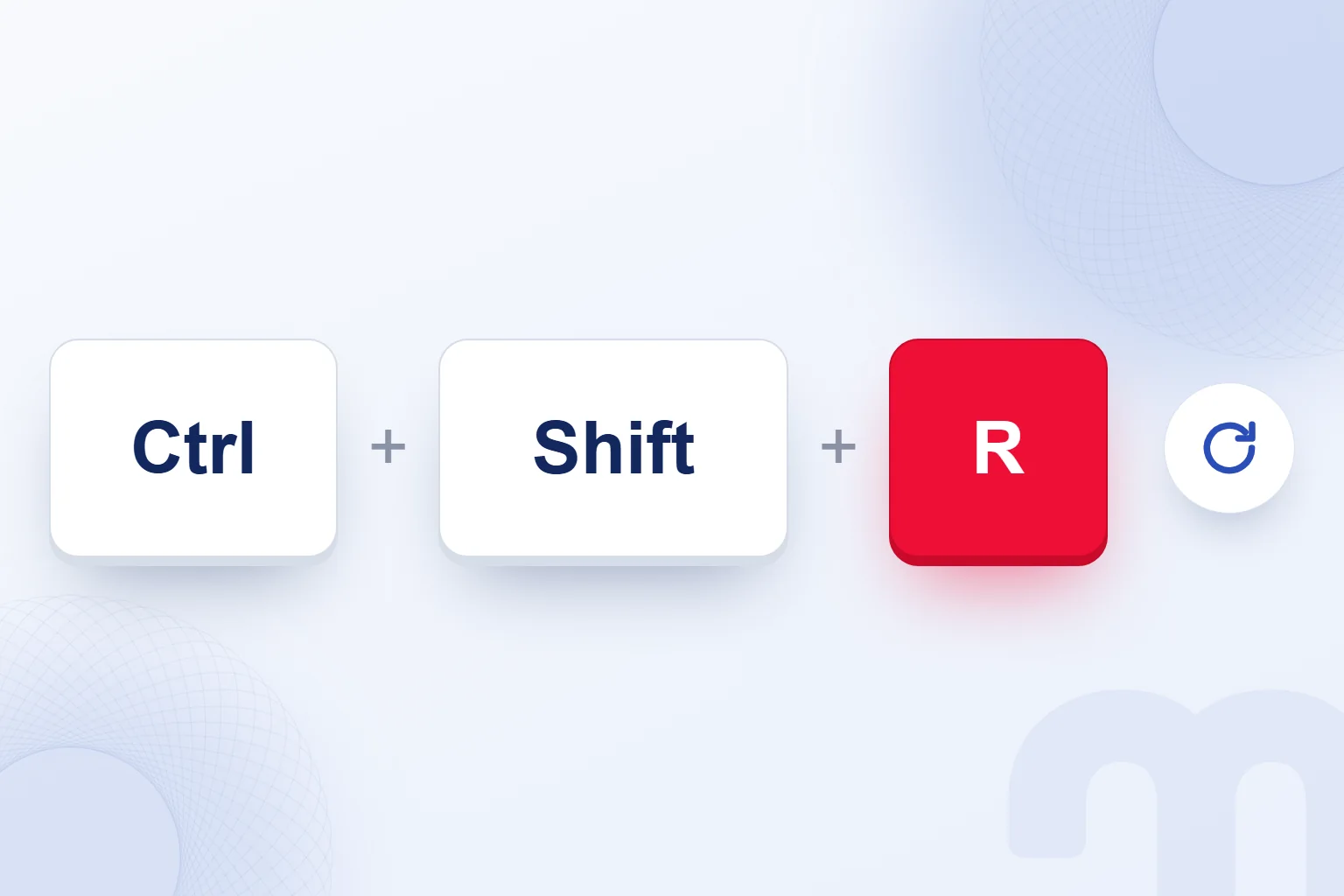
A hard reload skips the cache. On Windows we use Ctrl + Shift + R or Ctrl + F5 in Chrome, Edge and Firefox; on a Mac, Cmd + Shift + R in Chrome.
If a page looks wrong in a normal window but right in an incognito window, we return to session and extension conditions first; that alone does not point to an engine fault. We compare the page signed in and signed out, then the effect of extensions. Changing one condition per step shows which action fixed the view, instead of leaving the cause unclear.
In our corporate website projects, we follow this order before launch and compare the same page again after each change; to assess an engine difference, we open the browser on a real device.
How do you clear the cache and cookies?
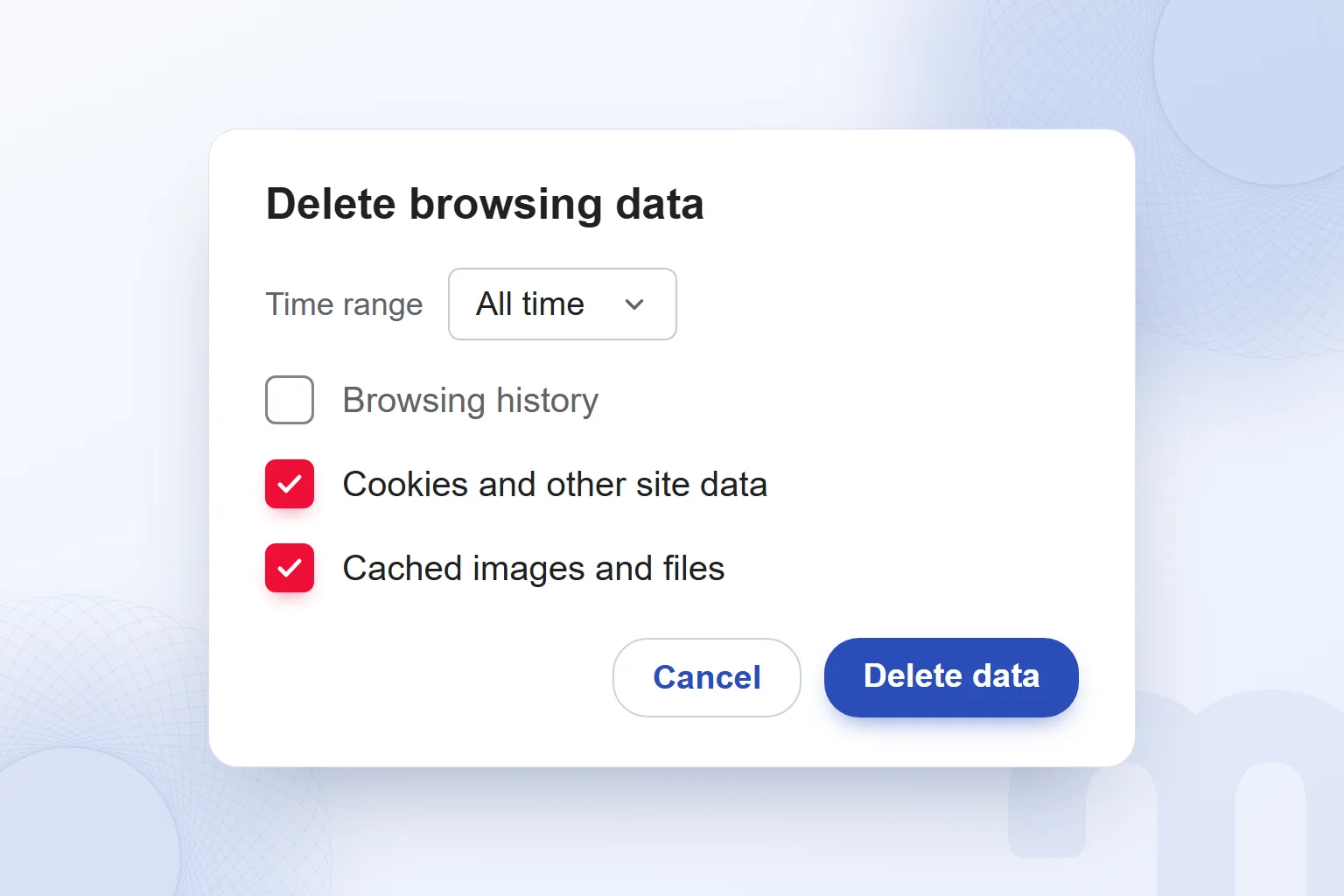
In Chrome we clear cache and cookies from the “Delete browsing data” dialog; on iPhone we clear Safari data under Settings › Apps › Safari. Deleting cookies signs us out of sites.
On desktop, we open More, the three-dot menu at Chrome’s top right, and choose “Delete browsing data”, or press Ctrl + Shift + Delete. In “Time range” we select “All time”.
We tick “Cookies and other site data” and “Cached images and files”, then press “Delete data”. These boxes do not delete saved passwords, which are a separate data type, but we have to sign in to sites again.
In Safari on iPhone, we clear history and website data under Settings › Apps › Safari, then reopen the problem address. When checking a first visit, we account for the ended session and the consent prompt appearing again.
What is an incognito tab for?
An incognito tab keeps browsing history, cookies, site data and form entries from staying on the device once the window is closed. Downloaded files and bookmarks stay, and sites do not sign you in automatically.
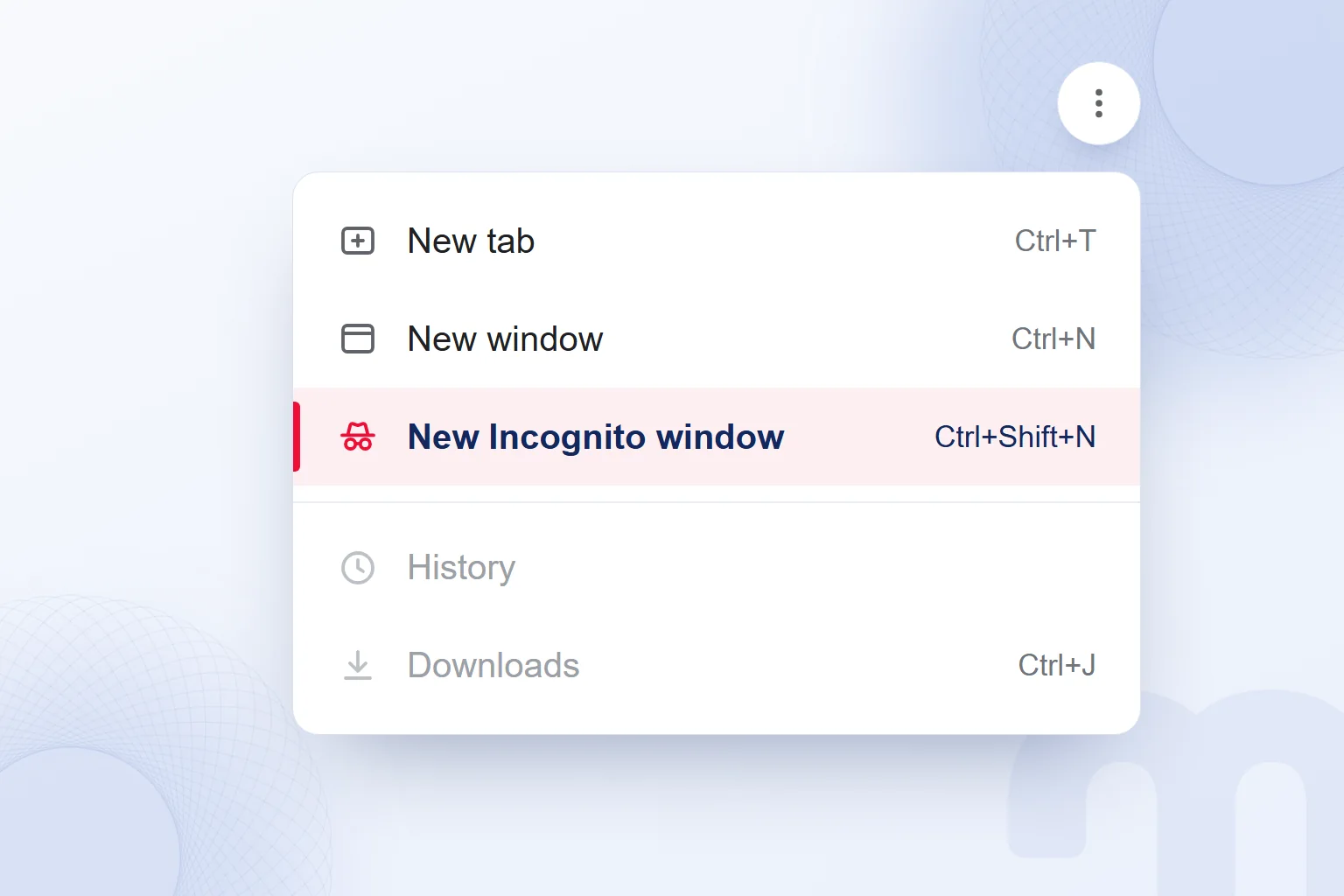
In Chrome, we choose “New Incognito window” from the More menu, or press Ctrl + Shift + N on Windows and Cmd + Shift + N on a Mac. The same mode is called InPrivate in Edge and Private Window in Safari.
An incognito tab does not hide activity from everyone: visited sites, an employer or school network and the internet service provider can still see it. The word “incognito” is no guarantee of anonymity.
We use it to check the cookie consent prompt and the signed-out view a first-time visitor sees, and, since Chrome turns extensions off there, the view without extensions. Google results still vary by location in incognito; we measure rankings in Search Console.
Which browsers do we test in?
Before launch, we test at least in Chrome on Android, Safari on iPhone, and Chrome and Edge on desktop. We set priorities from the visitor split in GA4 under Reports › Tech, using the “Browser” and “Device category” breakdowns.
Usage shares across Turkey are a starting point; the site’s own visitors settle the order. We never let a desktop check stand in for mobile visitors, and we remember the same browser name does not mean the same engine everywhere.
The device view in , opened with F12, imitates a phone width but does not show the WebKit difference on iPhone. We check the narrow layout there and finish the iPhone check in Safari on a real phone.
To check for updates, we open Chrome’s More › Help › “About Google Chrome”, which shows the version and starts the update; “Relaunch” follows. Chrome updates itself, but we still record the version used.
In the test log we record the full address, device, browser, version, zoom and sign-in state, and describe which part looks different rather than writing “page broken”. When comparing phone and computer, we include screen width. After the fix, we return to the same address and conditions and confirm the difference is gone.
More on page structure and browser checks is in our web development posts.
Frequently asked questions
What does browser mean?
A browser is software that opens web pages. It requests pages from a server, processes their files and shows them on screen.
Is a browser the same as a search engine?
No; Chrome is a browser and Google is a search engine. Words typed into the address bar are sent to the default search engine.
Does clearing cookies delete saved passwords?
In Chrome, selecting the cookies and cached files boxes does not delete saved passwords. Sessions on sites end, though.
Are downloaded files deleted in an incognito tab?
No; downloaded files and bookmarks stay. Browsing history, cookies, site data and form entries do not.
Which shortcut do we use if a site looks outdated?
On Windows, Ctrl + Shift + R or Ctrl + F5 in Chrome, Edge and Firefox. On a Mac, Cmd + Shift + R in Chrome.
Does using Chrome on iPhone count as a Blink test?
No; in Turkey, Chrome on iPhone also uses WebKit. We assess the engine by the app together with the device.
What is a browser on a phone?
It is the app that opens web pages. You tap its icon and type a site address or search phrase into the address bar.
How do you change your default browser?
On Windows under Settings › Apps › Default apps, on Android in the default browser setting. On iPhone, Chrome › More › Settings › Default Browser › Open Chrome Settings leads to Default Browser App, where Chrome is selected.

 What is a user interface (UI)? Meaning, examples and UX differenceRead article
 What is Git? Git vs GitHub and version control for marketersRead article
 What is Flutter? When to choose it for a mobile app, and its limitsRead article
 What is Shopify? Using it in Turkey, how fees work and vs WooCommerceRead article
 What is a URL? Parts of a web address, slugs and their role in SEORead article
 What is a PDF? Uses, and PDFs on your website: indexing and trackingRead article
 How to do a competitor analysis: stages and an action planRead article
 ChatGPT image prompts and Gemini prompt examples for ad visualsRead article
Questions & answers
0 commentsNo questions yet; you can ask the first one.