





 Damla Kütük
12 min read
What is Google Discover? Turning it on, off and getting traffic
What Google Discover is, where it appears, how to turn it on, off and customize it, plus Google’s rules for publishers seeking Discover traffic, the Search Console report and why traffic drops.Pro
Contents 17 sections
Key takeaways
- Google Discover is a feed that shows interest-based article, video and news cards without a typed search.
- Indexed content that meets Discover's content policies is automatically eligible, with no special tag or application.
- Google Search Central asks for Discover images at least 1200 pixels wide, above 300,000 total pixels, in 16:9.
- The Search Console Discover report shows impressions, clicks and click-through rate for the last 16 months.
Google Discover is a Google feed that shows article, video and news cards chosen around a person’s interests and account activity, without the person typing a search. It opens in the Google app, on google.com in a mobile browser and, on some Android phones, by swiping right from the home screen.
This post has two readers: the user who wants to turn Discover on, off or tune it, and the publisher or brand that wants Discover traffic. The first part covers where Discover appears, its data, and how it is turned off and customized; the second gathers Google’s publisher guidance, image specifications, the Search Console Discover report and why traffic fluctuates. Everything comes from the Discover page in the Google Search Help Center and the Discover documentation on Google Search Central.
Discover traffic is planned as an additional channel; a site’s core traffic is built on pages that answer search intent.
What is Google Discover?
Google Discover is a recommendation feed, part of Google Search, that brings content matching a person’s interests before they search for anything. Google describes it as showing content related to a user’s interests based on their Web & App Activity.
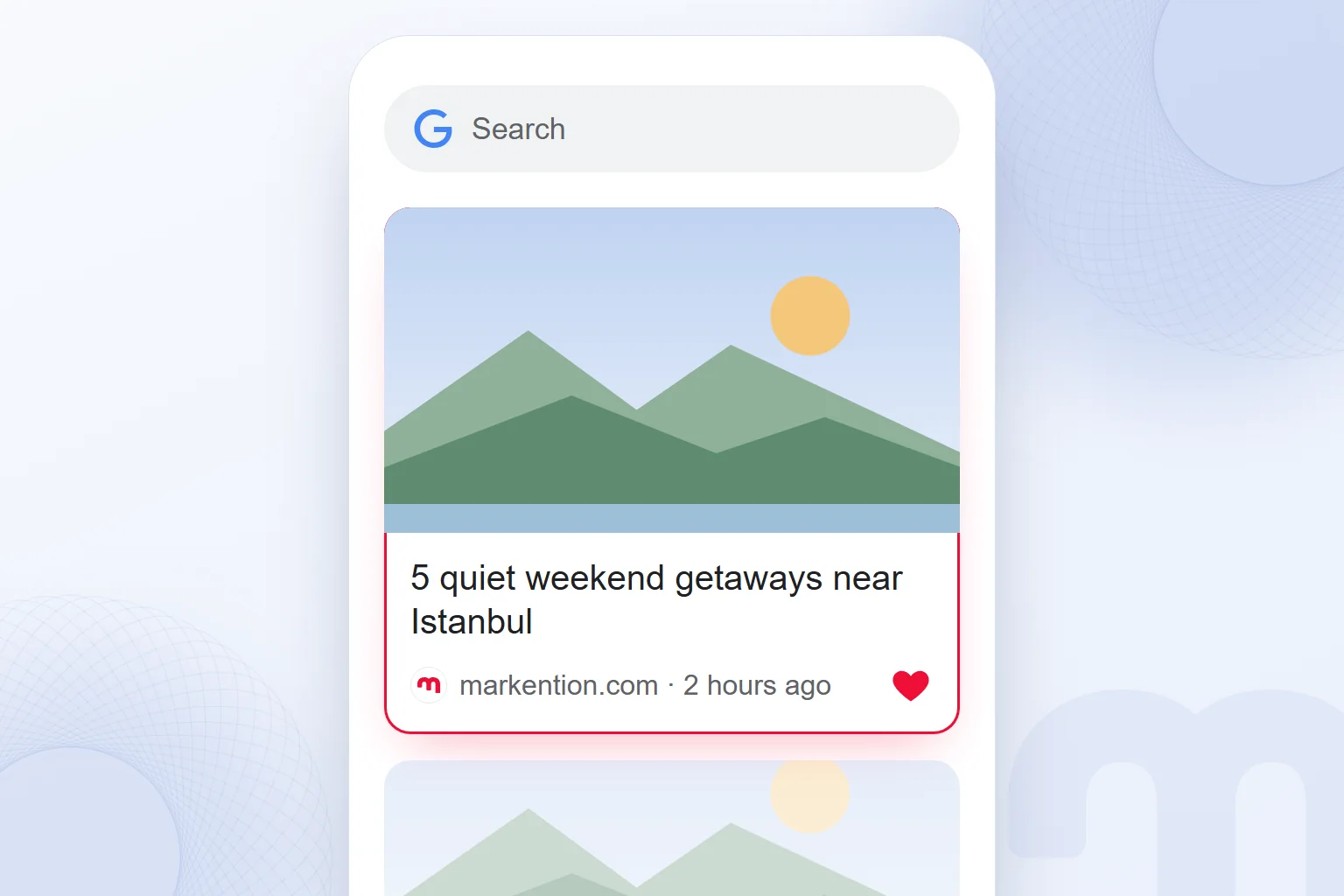
The feed is made of large image cards, each with a headline, an image, the publisher’s name and the publication time. Cards come from news sites, blogs, video platforms and specialist sites. Your team’s score, a new guide on a topic you track and a story about a city you will soon visit can sit side by side.
What separates Discover from search results is the logic of . In search, the user asks and looks for an answer; in Discover there is no question, and Google predicts what the person might want to read.
What does Discover mean, and is it the same in every language?
Discover means finding something new, and the name fits: content finds the reader. Some local Google interfaces use a translated name, but it is the same product. It is not the explore tab on Instagram or TikTok: those recommend content inside the platform, while Google Discover recommends web pages. We cover TikTok’s recommendation feed in our post on the best time to post on TikTok.
How does Google Discover work?
Discover uses account activity and device information to predict which content may interest a person; the same content can reach two people in a very different order. Google’s help page lists the information it uses:
- Search Services History → Searches made on Google and browsing activity.
- Apps and contacts on the device → To the extent allowed in settings, the apps and contacts used on the device.
- Personalized recommendations → The setting that uses saved activity to show results tailored to the person.
- Location → Home location or, failing that, a location estimated from sources such as the IP address; local news and weather rely on it.
So Discover depends on account settings: with search history off, it either does not appear or shows general content.
Where does Google Discover appear?
Discover appears on the Google app’s home page below the search bar, on google.com opened in a phone browser and, on some Android phones, when you swipe right from the home screen, the three places Google’s help page lists.
Suggested articles on Chrome’s new tab page on a phone come from the same system; per Google’s Discover documentation, the Search Console Discover report includes Chrome traffic too. Discover is not a desktop product; most traffic comes from phones, so content meant for Discover is checked on a phone screen before desktop.
Is Google Discover available on iPhone?
Yes; on iPhone and iPad, Discover appears on the Google app’s home page below the search bar. Unlike Android, iPhone has no Google feed on a home-screen swipe; Discover is reached only through the Google app or google.com in Safari or Chrome. Settings live in the Google app’s profile menu. Since cards rely on account activity, an Android phone and an iPhone on one Google account show similar recommendations.
How do you turn on Google Discover?
To turn on Discover, Search Services History and Personalized recommendations must be on in the Google app; Google’s help page names them as the first step in customizing Discover. Then the app’s home page shows Discover cards.
- 1. Open the appOpen the Google app on your phone and check that it is up to date.
- 2. Profile menuTap your profile picture at the top right and go to Search history.
- 3. Turn on historyIf Search Services History is off, turn it on.
- 4. Turn on recommendationsGo back to settings and turn on Personalized recommendations under Search personalization.
- 5. Check the feedReturn to the Google app’s home page; Discover cards appear below the search bar.
The help page also notes that some features may not be available in every language and country and that Search settings are being updated; menu names vary slightly by app version.
How do you turn off Google Discover?
To turn off Discover, tap your profile picture in the Google app, open Settings, then General, and switch off the Discover toggle; the feed leaves the home page. If only notifications bother you, switching off Discover notifications under Notifications in Settings is enough.
The way to turn it off depends on where you see it:
- In the Google app → Settings › General › the Discover toggle is switched off.
- On the Android home screen → Long-press the home screen, open its settings and switch off the Google feed on a right swipe; the option’s name varies by phone brand.
- On Chrome’s new tab page → Hide the feed from the settings icon next to the suggested articles.
- Turning off personalization → To keep the feed without personal data, turn off Personalized recommendations.
Turning off Discover does not delete search history; it stays in the account. We cover how related searches surface in Google in our post on people also search for.
How do I customize what I see in Discover?
To customize Discover, you hide a topic or source from the menu at the bottom right of each card, like cards, and edit followed topics under Manage your interests in the Google app’s settings. Google uses these choices in later recommendations.
We gathered the options described on the help page into one table:
| What we want | Where it is done |
|---|---|
| Follow a topic | Search for the topic and follow it; the list is in Settings › Personalization › Manage your interests › Following |
| Stop seeing a topic | From the card’s More menu: Not interested in [Topic] |
| Stop seeing a site’s stories | From the card’s More menu: Don’t show content from [Source] |
| Bring back a hidden topic or site | Interests › Not interested › Unhide |
| See similar content more often | The Like button at the bottom right of the card |
Google’s note about likes matters: “Only you can view the stories you like, but your selections may be shared anonymously with publishers.” For publishers, this is one way to know content in Discover was liked.
How do you get traffic from Google Discover?
A site needs no special tag or application to appear in Discover; per Google’s documentation, indexed content that meets Discover’s content policies is automatically eligible. Eligibility does not guarantee being shown; topic, timing, headline and image decide the chances.
Google Search Central’s Discover documentation recommends:
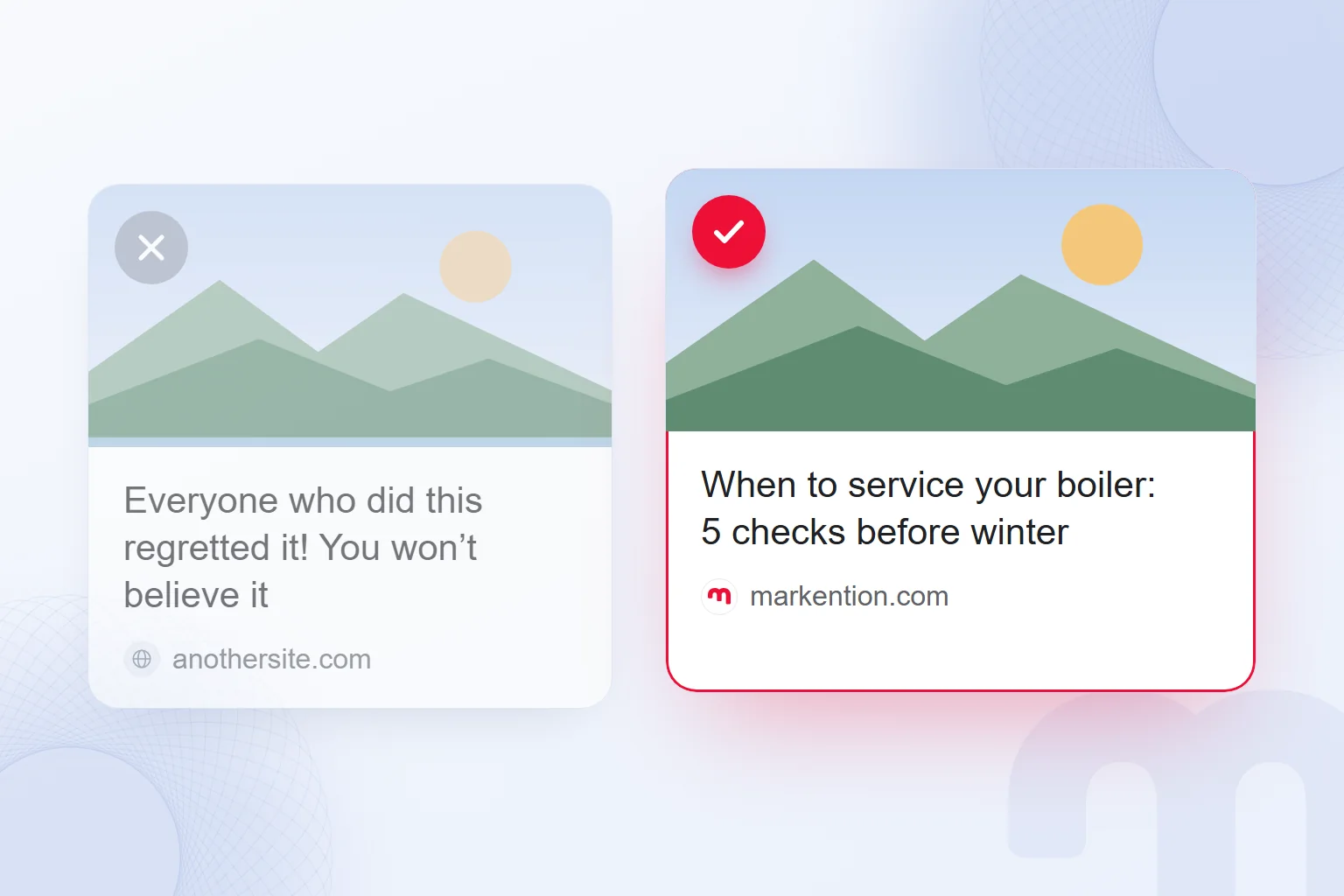
- 1. Honest headlineThe headline captures the essence of the content; no exaggerated, misleading or withholding headlines.
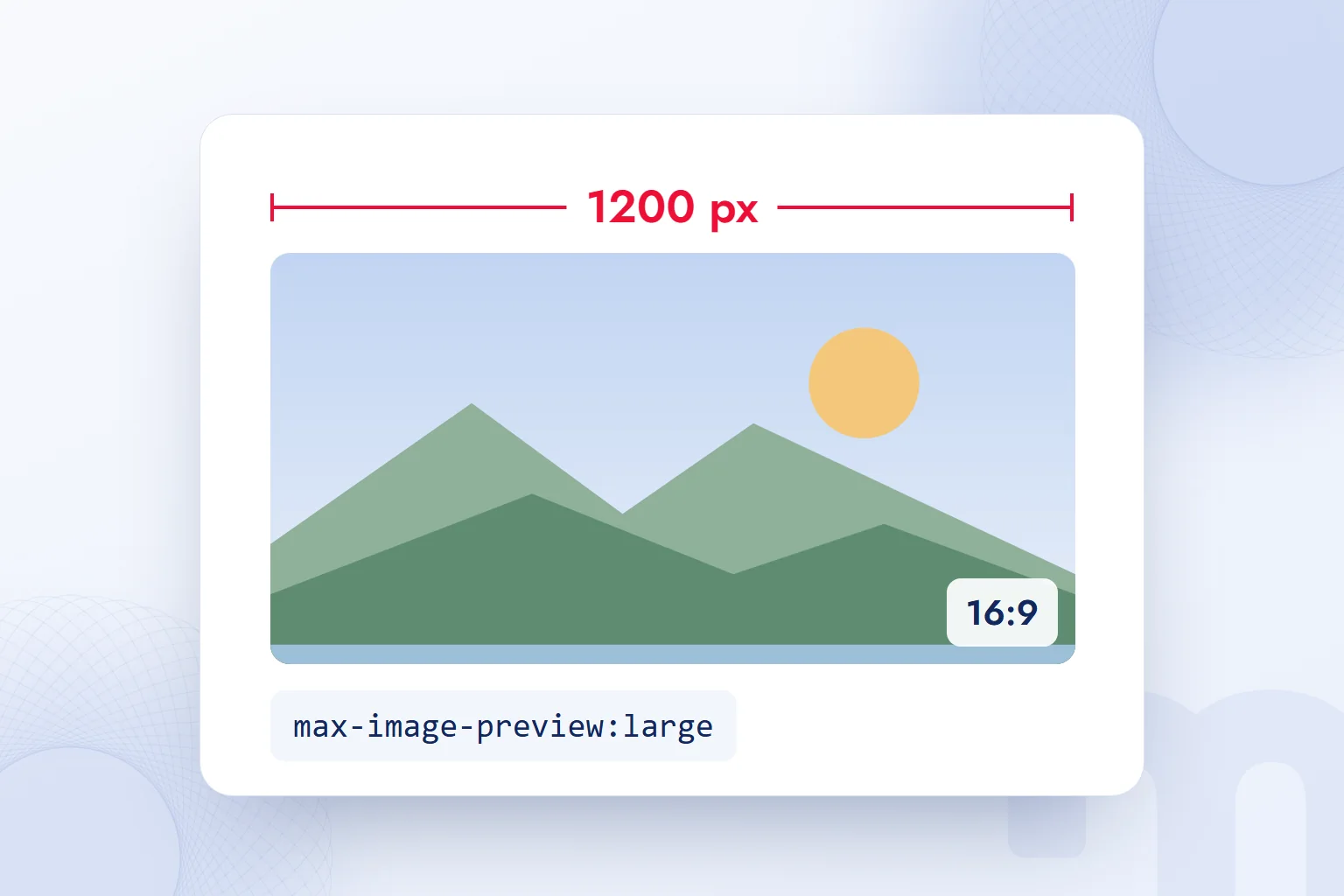
- 2. Large imageA relevant, high-quality image at least 1200 pixels wide, larger than 300,000 pixels in total, cropped to a 16:9 landscape ratio.
- 3. Image permissionLarge previews are enabled with max-image-preview:large; the preferred image is set with the og:image tag or schema.org markup.
- 4. No logos or text-heavy imagesA generic logo or an image covered in text is not used as the featured image.
- 5. Timely, original contentThe content rests on a current topic, a well-told story or an original perspective.
- 6. Page experienceThe page loads fast, reads comfortably on a phone and is not broken up by interstitial ads and pop-ups.
Each item is simple, but in Discover they work together: a large, relevant image makes the card stand out, an honest headline gets the clicked card read, and page experience keeps the reader from bouncing to another card. We cover headlines in search results in what is a title tag and getting into Google’s index in what is indexing.
What content does Discover not show?
Per Google’s documentation, Discover may not recommend job applications, petitions, forms, code repositories or satire without context; it applies SafeSearch and filters content that may seem shocking or unexpected. Policy violations can bring Discover-specific manual actions, shown in Search Console under Security & Manual Actions.
In practice, the costliest mistake is clickbait. Google explicitly asks publishers to avoid sensational headlines that play on curiosity, suspense or outrage. Even if such a headline wins the click, disappointed readers lead Discover to give the site less room later.
Which topics suit Discover best?
Discover highlights content that answers long-term interests and the day’s news; so news, guides, reviews, recipes, travel, sports and technology appear often. For a brand, that usually means a guide to a current industry change, a seasonal post or an analysis of original data.
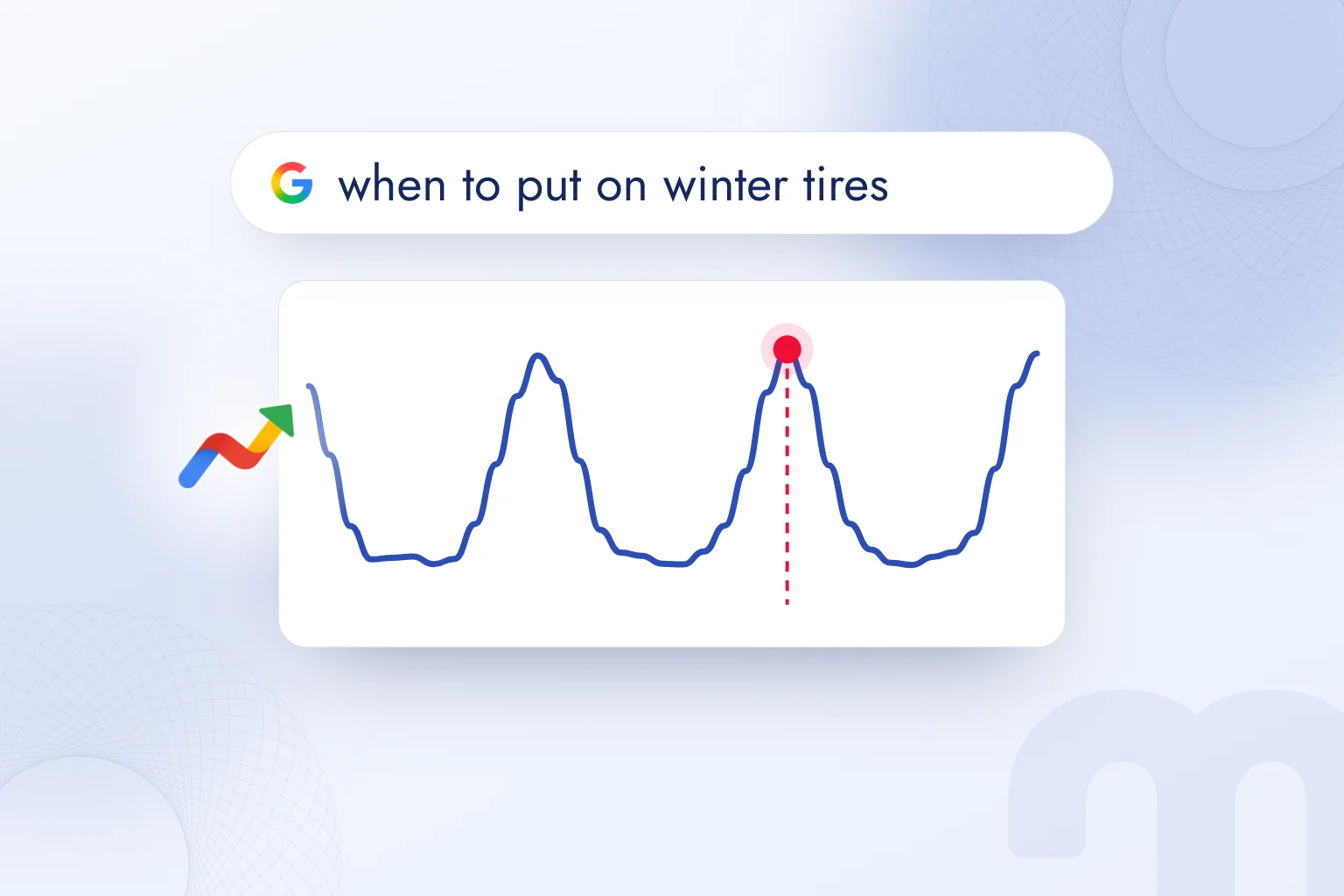
Catching a seasonal topic on time means seeing when topics rise; Google Trends is the most practical tool, covered in what is Google Trends.
How do you plan content for Google Discover?
Planning for Discover does not mean hunting for single posts that will get into Discover; it means producing regular, current, trustworthy content in the site’s area of expertise. Google’s Discover documentation links to general guidance on helpful, reliable content, and Discover rewards that guidance more visibly than most surfaces.
The framework Google uses to describe content quality is known as . On sites that do well in Discover, they leave concrete traces: the author’s name and expertise are visible, the content carries first-hand experience, dates and updates are clear, and claims link to sources.
Within the team, we build a Discover-friendly content calendar in three layers:
- News layer → Short, clear posts explaining an industry change, a new rule or a product update the same or next day; this suits Discover’s preference for timely content.
- Seasonal layer → Guides for needs that rise at the same time each year: shipping times before holidays, maintenance lists before winter, back-to-school shopping. Prepared a few weeks before the topic rises.
- Evergreen layer → Comprehensive guides that bring search traffic. Even outside Discover, they build topical authority and lend credibility to news posts.
Does publishing time affect Discover?
Google does not recommend a publishing time for Discover; its documentation only asks for timely content. Our observation: on news-driven content, speed beats the hour; being among the first trustworthy sources to explain a development matters more than morning or evening publishing. For evergreen guides, the hour has not mattered for us; they can enter the feed weeks later.
Updating a post that appeared in Discover is also an opportunity: one that adds new information and states its update date can be recommended again when the topic returns. Changing only the date misleads readers and breaks Google’s reliability guidance.
How do you read the Discover report in Search Console?
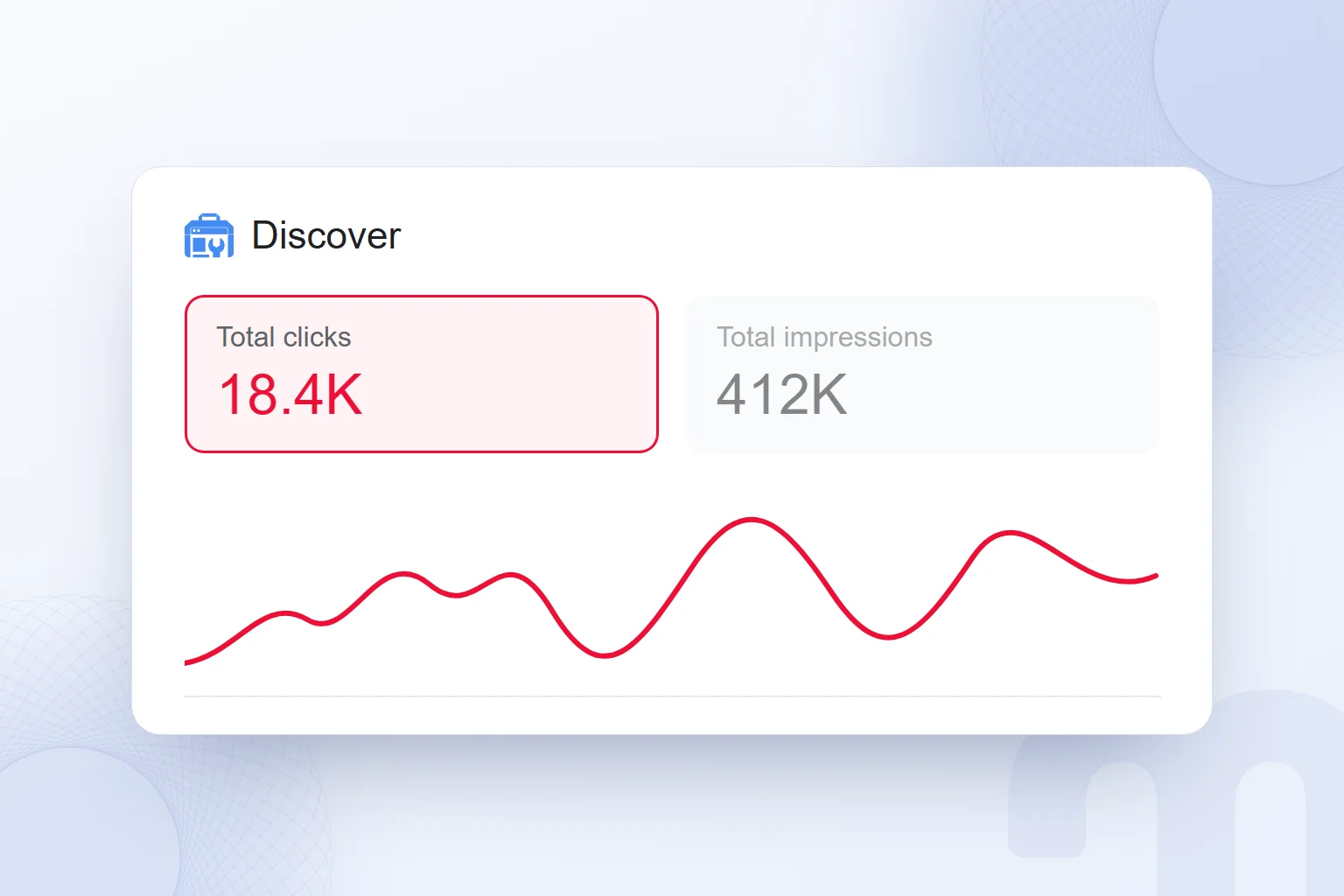
The Discover report in Search Console shows how often a site was shown in Discover (impressions), its clicks and its click-through rate for the last 16 months. The report appears only once the site passes a certain impression threshold in Discover; below it, the Search Console menu shows no Discover item.
The three things we look at most in the report:
- Page list → Which pages were shown in Discover; on most sites, traffic concentrates on a few pages.
- Timeline → Discover traffic fluctuates daily; we look at the weekly trend, not a one-day spike or drop.
- Click-through rate → For cards with high impressions and low clicks, the problem is usually the headline, or the image does not convey the topic.
Discover clicks do not appear as a separate channel in Google Analytics; the traffic often lands in referral or direct. So we read Discover performance in Search Console and on-page behavior in Analytics, set up as on our Google Analytics 4 page.
Why did my Google Discover traffic drop?
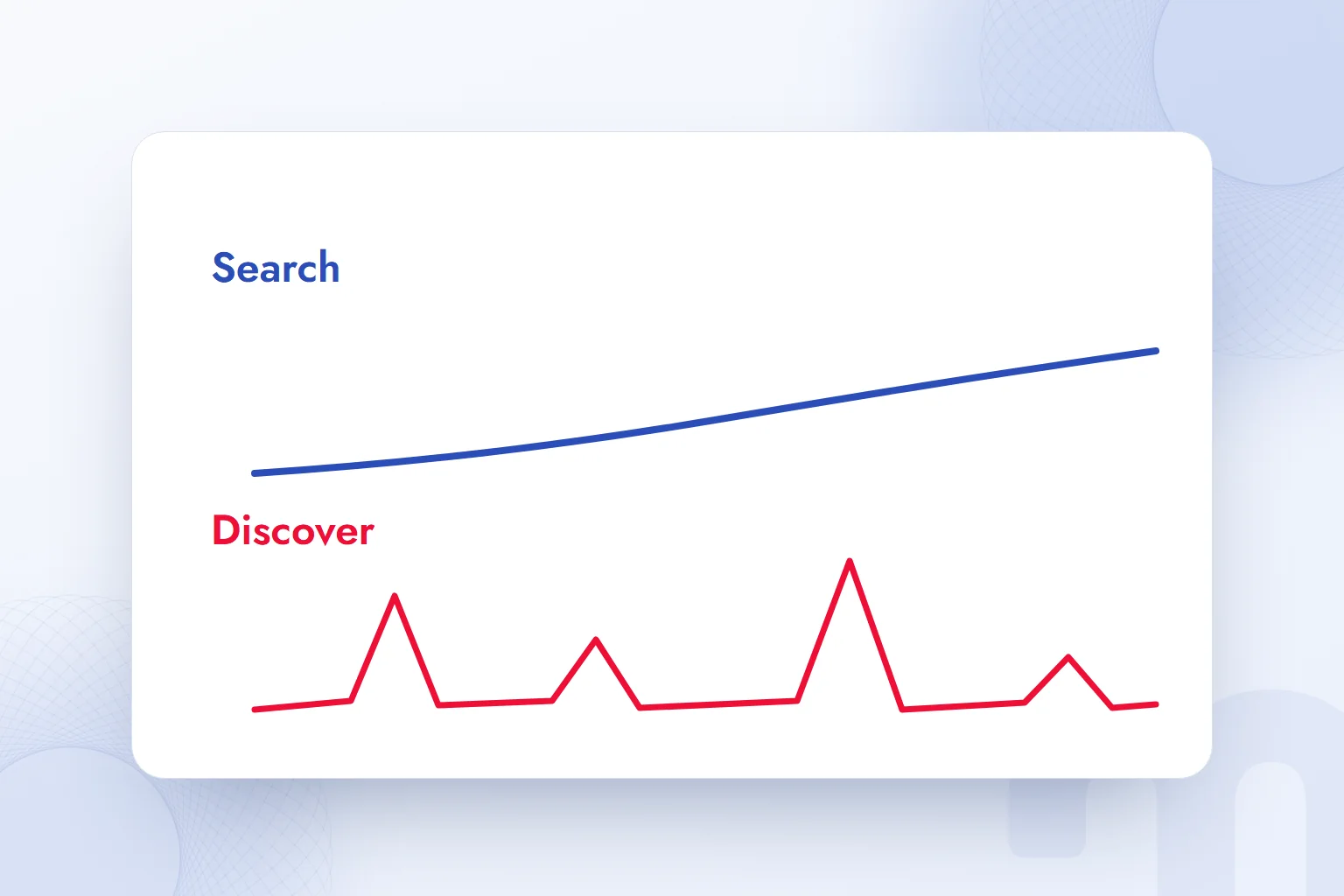
A drop in Discover traffic is usually not an error but the nature of Discover; Google’s documentation states plainly that Discover traffic is less predictable than keyword-based search traffic and should be treated as supplemental. Interests change, the content types Discover shows change, and Google’s updates change what is shown.
Even so, the cause of a drop can be isolated. This distinction drives our decision:
| Situation | What we do |
|---|---|
| Traffic returned to its old level after a day or two | Natural fluctuation; we change nothing |
| Traffic to a single page ended | The topic has left the news cycle; we plan new, current content |
| Traffic to the whole site is low for weeks | We review headline and image quality, page experience and policies |
| There is a manual action in Search Console | We fix the violation and request a review |
| Impressions are there, clicks are low | We rewrite the headline and the featured image |
| Impressions stopped completely | We check that pages are indexed and robots settings do not block the image |
Our observation: Discover-dependent sites lose most when they exaggerate headlines to catch a big wave again. The lasting fix is a solid search-traffic base, with Discover as extra on top.
What is the difference between Google Discover, Google News and Search?
All three belong to the Google Search family, but they reach content differently: in Search the user asks, in Google News the user picks a news topic or publisher, and in Discover Google recommends content based on the person’s interests.
| Criterion | Discover | Google News | Google Search |
|---|---|---|---|
| Who starts the demand | Recommendation system | User (topic, publisher) | User (query) |
| Content type | News, guides, video, reviews | News | Any type of page |
| Traffic predictability | Low, fluctuating | Medium | High, query-driven |
| Measurement | Search Console Discover report | Search Console Google News report | Search Console Performance report |
| Main factor | Interest, timing, image | Freshness, publisher | Search intent, page quality |
For a brand, the right strategy treats the three together, not as substitutes: search meets steady, predictable demand, while Discover brings new readers to the same content. We explain how search engines work separately, and our joint work on content, technical setup and Discover on the SEO consulting page. Google’s other tools are in our SEO guides.
Frequently asked questions
What is Google Discover used for?
It shows articles, videos and news chosen around a user’s interests without a search, in the Google app and on google.com on phones.
How do I turn off Google Discover?
In the Google app: profile picture › Settings › General › switch off the Discover toggle. For notifications only, use Notifications in Settings.
How do I turn on Google Discover?
Turn on Search Services History and Personalized recommendations in the Google app; Discover cards then appear on the home page.
Is Google Discover the same as Instagram’s Explore?
No. Google Discover recommends web pages; the explore tabs on Instagram and TikTok recommend content inside those platforms.
How does my site appear in Discover?
Indexed content that meets the policies is automatically eligible; an honest headline, an image at least 1200 pixels wide and a current topic help.
Does Discover need a special tag?
No. According to Google, no special tags or structured data are needed; max-image-preview:large is recommended for large previews.
Why does Discover traffic drop?
It fluctuates as interests, the news cycle and Google updates change. For a long drop, headlines, images and policies are checked.
Why is the Discover report missing in Search Console?
It appears once the site passes a certain impression threshold in Discover. Below it, the menu shows no Discover item.

 How to use Google advanced search: a search operators tableRead article
 What is Google Trends and how do you use it? A trend analysis guideRead article
 What is Google Lens? How to use it to translate, shop and search on PCRead article
 How to do a Google image search on your phone and computerRead article
 What is Google Scholar and how to use it? Articles, citations, profileRead article
 Google Business Profile: how to add your business to Google MapsRead article
 WordPress SEO plugins: Yoast vs Rank Math vs AIOSEO comparedRead articleMost read
 What is a meta description? Length, writing rules and effect on clicksRead article
Questions & answers
0 commentsNo questions yet; you can ask the first one.