





 Oğuzhan Altun
15 min read
What is Google Lens? How to use it to translate, shop and search on PC
What Google Lens is, how to use it on phone and desktop, camera translation, copying text, homework help, finding products and privacy; and how brands get products shown in Lens results.Pro
Contents 21 sections
Key takeaways
- Google Lens is Google's visual search tool that recognizes objects, translates text and finds where to buy products.
- According to Google's Lens page, Lens translates menus, signs and handwriting in over 100 languages.
- According to Google, 20 percent of Lens searches are shopping-related, and shopping results are offered in 35 countries.
- Right-clicking an image in desktop Chrome and choosing Search with Google Lens opens results in a side panel.
Google Lens is Google’s visual search tool that recognizes objects, translates and copies text, and finds where to buy products from a phone camera, a screenshot or a saved image. It is built into the Google app, Chrome and the camera of some Android phones, and it is free.
This guide covers what a first-time user needs: what Lens does, how to open it on Android, iPhone and desktop, how translation and text copying work, how accurate homework help and product search are, and where your photos are stored. The last section is for brands: how products appear in Lens shopping results and what must be right on the site and in the product data. Feature and step details come from Google’s Lens page and the Google Search Help Center.
Lens product and homework results are checked by opening the source; for personal documents and ID photos, privacy settings are reviewed before the image is given to Lens.
What is Google Lens?
Google Lens is a Google tool that turns what the camera sees, or an image on the screen, into a search query; instead of typing, you show the object. Google introduced Lens at its 2017 developer conference; today every search-with-an-image feature in Google Search runs on Lens technology.
Behind Lens are models and Google’s search index. Lens first identifies the object, text or scene, then matches it with images, product records and pages on the web. So a Lens result also depends on how much well-structured content about that object exists online.
What is Google Lens used for?
Google’s Lens page groups what the tool does under seven headings. In everyday terms:
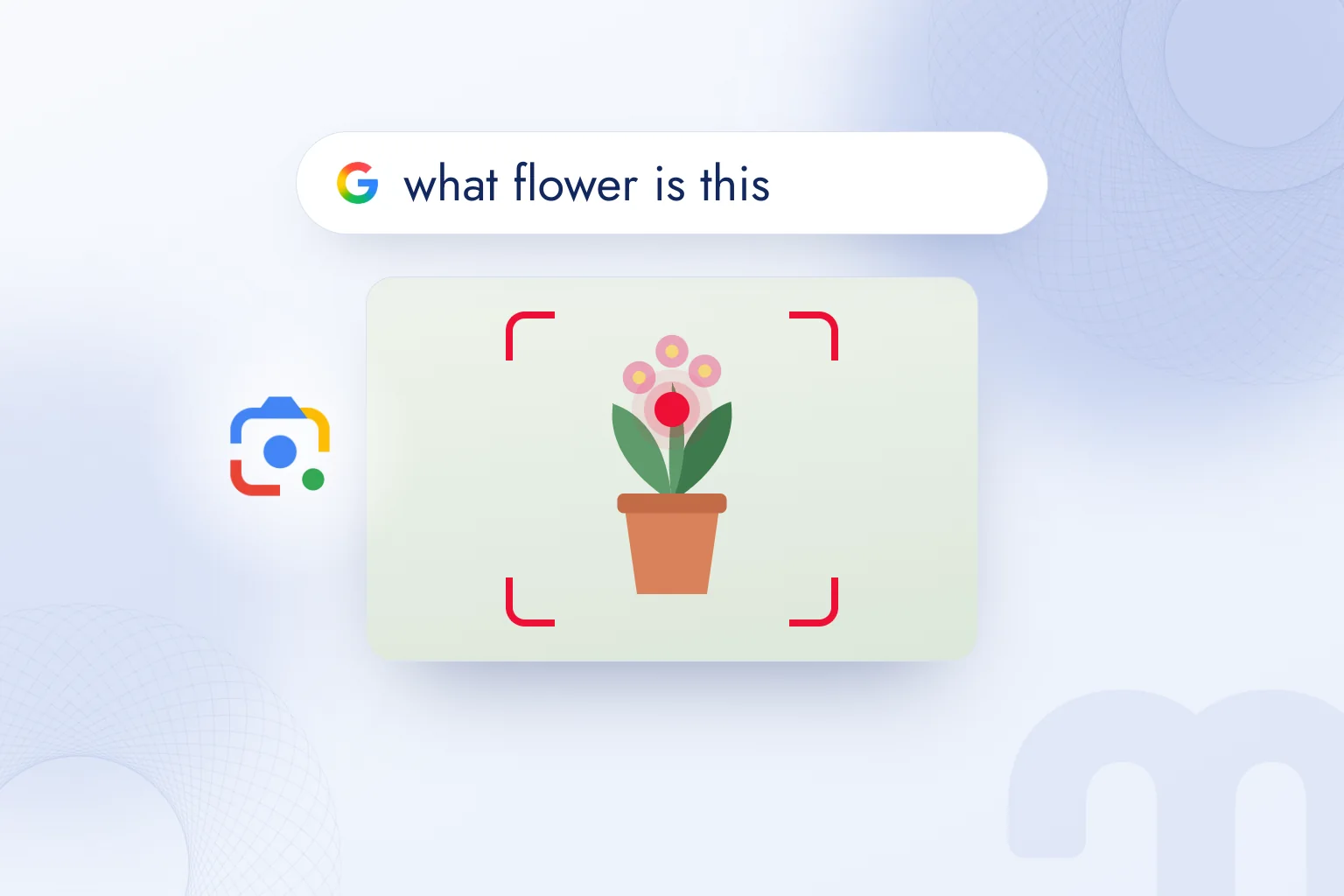
- Identifying what you see → Names plants, animals, artworks, murals and landmarks.
- Translation → Translates menus, signs and handwriting in over 100 languages and lays the translation over the image.
- Copying text → Copies text from a sign, note or document to your phone or computer.
- Finding products → Finds a product’s brand, price and where to buy it; text narrows the result.
- Homework help → Brings explanations, videos and web results for math, history, chemistry, biology and physics.
- Asking questions → You ask a typed or spoken question about what you see; the answer often comes as an AI Overview.
- Searching while you browse → In desktop Chrome, searches an image or page area without leaving the tab.
The Lens page also mentions a create mode that restyles a photo with a prompt; it does not say in which countries and languages this is available.
How do you use Google Lens? Step by step
To use Lens, open the Google app, tap the Lens (camera) icon in the search bar, point the camera at the object and tap the search button; for a saved photo, pick it from the gallery.
- 1. Open LensTap the Lens icon on the right of the search bar in the Google app or Chrome.
- 2. Give it an imagePoint the camera and tap the search button, or pick a saved image under “Screenshots”.
- 3. Choose a modeChoose Search, Translate, Text or Homework at the bottom; the default Search mode covers products and identification.
- 4. Narrow the areaIf there are several objects, drag the corners of the selection box around the one you want.
- 5. Add a questionType a short note in the “Ask about this image” or “Add to your search” box: “is this plant toxic to cats”.
- 6. Check the resultOpen the source; for products, verify the seller and price on the seller’s own site.
Google Lens on Android
On Android, Lens is reached three ways: the search bar in the Google app and Chrome, the Lens icon on a photo opened in Google Photos, and, on some phones, the camera app itself. Google states that camera integration is available only on selected Android devices.
Compatible Android phones add Circle to Search. Circling an object, text or product on the screen with your finger starts a Lens search without leaving the open app; it is the shortest way to search for a product seen in a video or social post.
Lens in Google Photos
In Google Photos, the Lens icon at the bottom of an opened photo sends it to Lens without retaking it. A product photographed in a store months ago, a museum label, a recipe card or a screenshot of a social post can be searched, translated or turned into text this way. Search inside Photos is different: “beach” or “birthday” searches only your own library, not the web.
Google Lens on iPhone
On iPhone, Lens is not a separate app; it comes inside the Google app and Chrome via the Lens icon in the search bar. Safari users can open google.com and use the camera icon in the search box.
Long-pressing an image on a website gives “Search inside image” in the Google app and “Search Image with Google” in Chrome. According to Google’s help page, asking a spoken question by holding the shutter button currently works only for English queries.
Is there a separate Google Lens app to download?
Android has a separate “Google Lens” app on Google Play, but Lens is already in the Google app, so most users skip it. iPhone has no separate Lens app; the Google app or Chrome is enough. To avoid third-party apps using the Lens name, checking that the publisher is Google LLC is a sufficient test.
How do you use Google Lens on a computer?
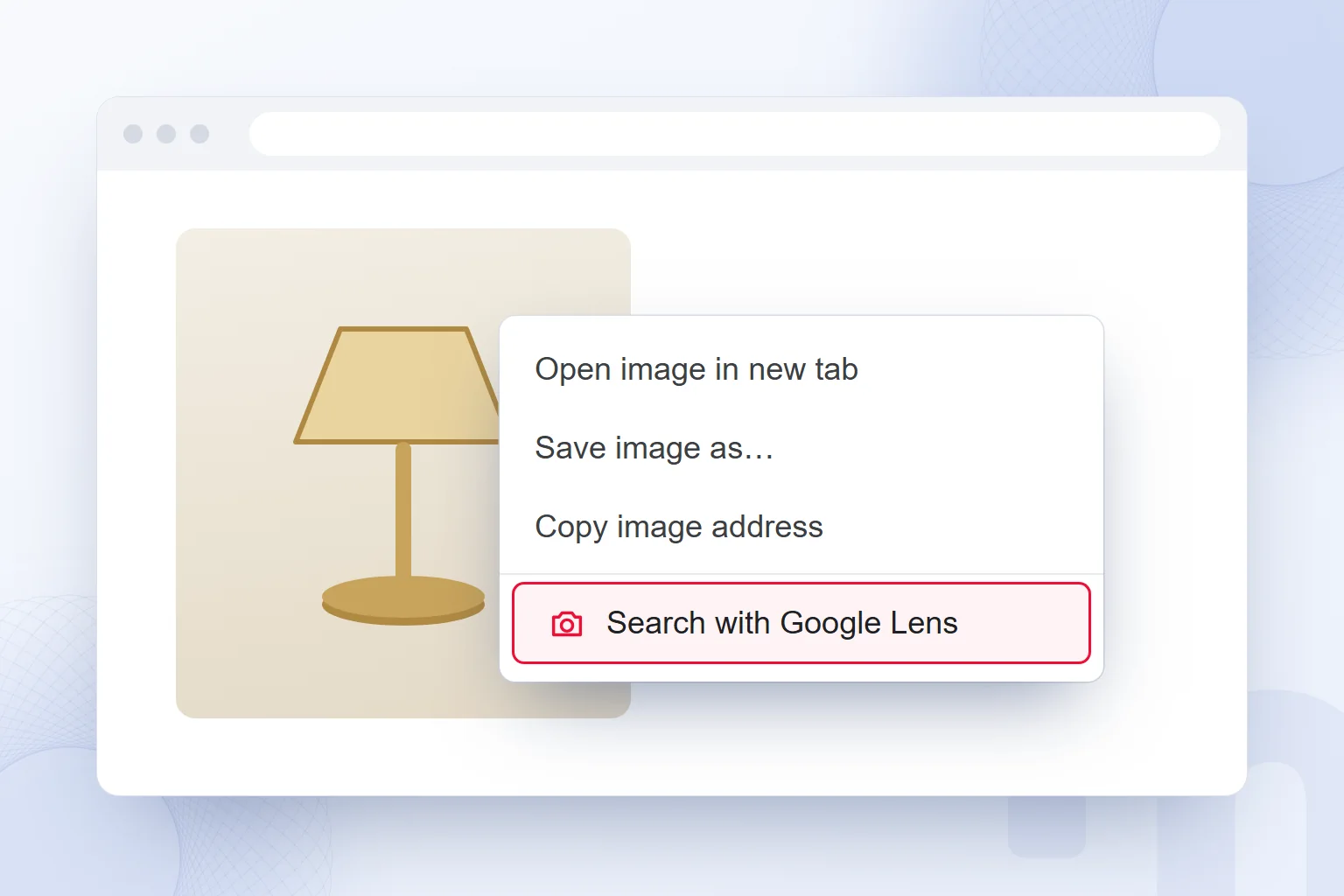
The shortest way on a computer is to right-click an image in Chrome and choose “Search with Google Lens”; results open in the side panel without leaving the page. To search any part of the screen, use the Lens icon in Chrome’s address bar or the Lens option in the right-click menu and drag a frame around the area.
Other browsers work too: open google.com, click the Search by image (camera) icon and upload or drag in the image. According to Google, this works in Chrome, Firefox, Safari and Edge. This is what “Google Lens on PC” and “Google Lens online” searches are after; nothing needs installing.
The desktop uses that pay off most:
- A product in a video → Pausing a YouTube video and framing the product finds its name and sellers.
- Text in a PDF or image → Framing unselectable text with Lens makes it copyable.
- A chart in a foreign language → Framing a chart in a foreign-language report translates its labels.
- An image on a competitor’s site → Checking where else an image is used shows its source and copies.
How do you translate with Google Lens?
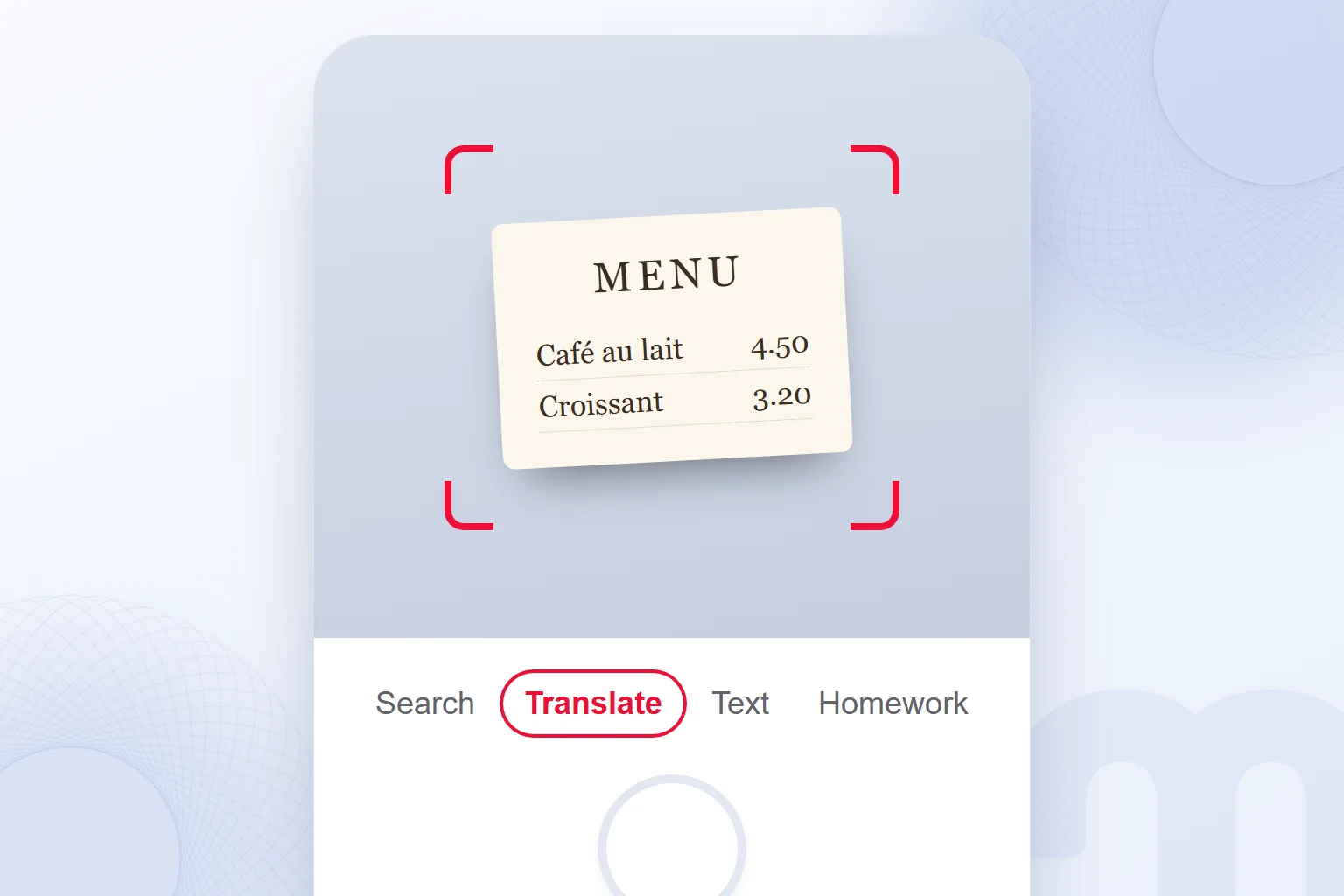
To translate with Lens, open it, choose “Translate” from the modes at the bottom and point the camera at the text; Lens places the translation over the image, in place of the original writing. According to Google’s Lens page, menus, signs and handwriting can be translated in over 100 languages.
The source language is usually detected automatically; the target language is set at the top. A saved photo can also be picked from the gallery and translated. Translated text can be copied with “Select text” or sent to Google Translate to be read aloud.
Three points we keep in mind with Lens translation:
- Short text, good results → Menus, signs and product labels translate reliably; long, technical text can lose context.
- Handwriting → Legible handwriting is translated; with hurried cursive notes, the text Lens reads is first checked in “Text” mode.
- Official documents → For contracts, prescriptions and official letters, Lens is only a first read; decisions rest on a certified translation.
Lens and the camera translation in the Google Translate app use the same technology; which one you open is habit, and with the Google app installed no separate translation app is needed. Abroad, Lens in Translate mode is the fastest way to read a menu, a medicine box or a station announcement.
How do you copy text with Google Lens?
To copy text, choose “Text” mode, point the camera at the text or pick a photo, mark the words with your finger and tap “Copy”. Lens copies a phone number on a sign, an email address on a business card or a paragraph from a book without typing.
Lens also suggests shortcuts: a call for a phone number, a map for an address, a new message for an email address, a browser for a web address. To send copied text from the phone to a computer, use “Copy to computer”; Chrome on the computer must be signed in with the same Google account.
The office use that helps us most: copying text from a printed brochure or a photographed slide into an editable document. It reduces errors in figures and names; we still check copied figures against the original once.
Google Lens for homework help
Lens’s Homework mode returns explanations, step-by-step solution approaches, videos and web results when you photograph a question. According to Google, it works for math, history, chemistry, biology and physics.
The question is photographed or picked as a screenshot; the selection box marks one if there are several. In math, Lens recognizes the problem type and points to resources explaining how similar problems are solved; in subjects such as history, it surfaces explanatory pages and videos.
Used well, Homework mode teaches the method, not the answer. Our observation: Lens solutions usually show the right method, but one calculation error can change the result; comparing with their own solution helps students catch it.
For parents and teachers, it is also a checking tool: in seconds it shows which topic a question belongs to and how similar questions are solved. Picking the suggestion closest to the school curriculum helps learning; copying the result into the notebook skips it.
How do you find a product with Google Lens?
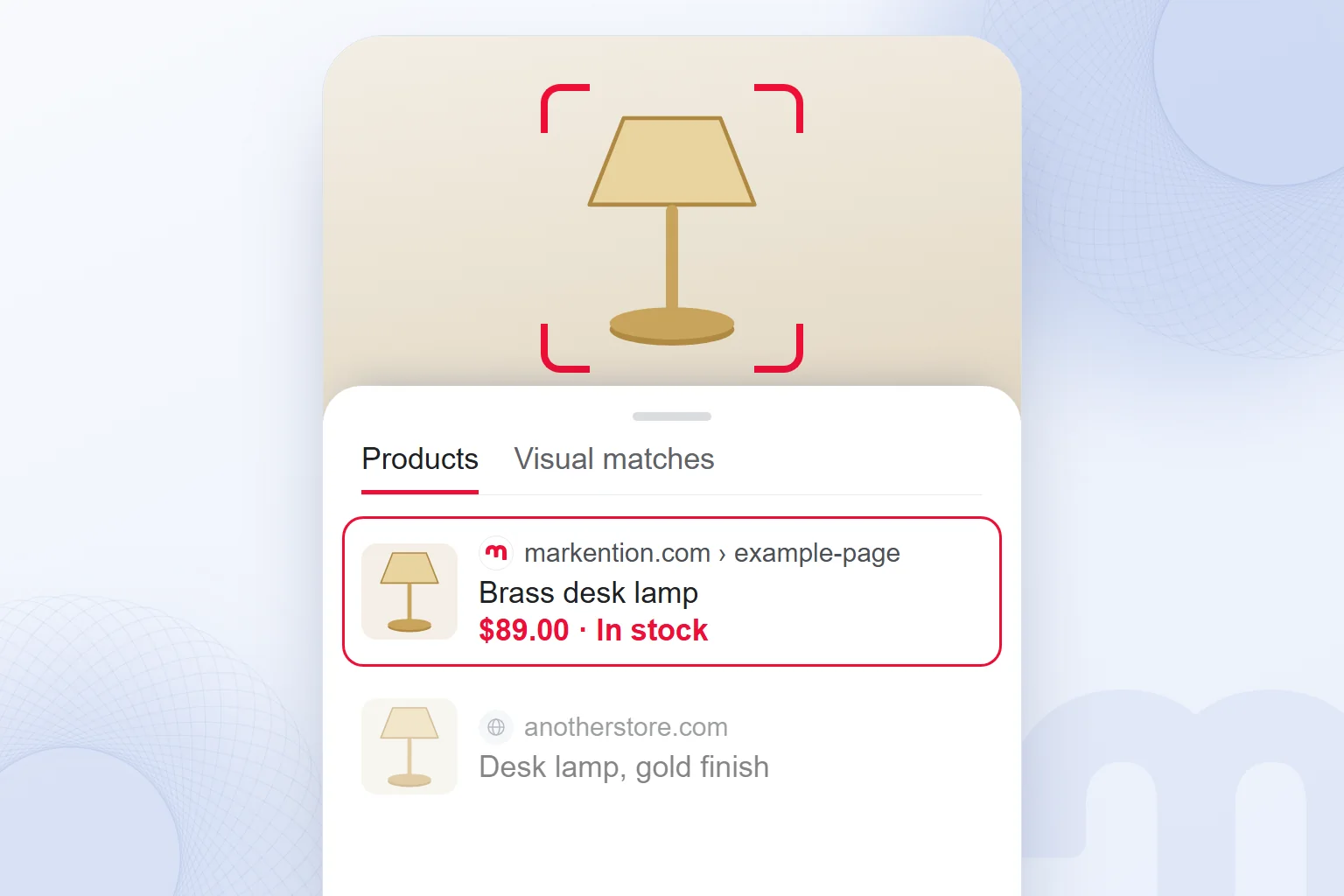
To find a product with Lens, photograph it or pick a screenshot; Lens lists similar products, the brand, prices and stores that sell it. According to Google, 20 percent of Lens searches are shopping-related, and shopping results are offered in 35 countries.
The first try may not show the exact model. Situations we run into and how we handle them:
| Situation | What we do |
|---|---|
| Similar but not identical products appear | We narrow the selection to the product and retake the photo from an angle that shows the logo or label |
| The product is right, the color or size is wrong | We type the color, size or material in the “Add to your search” box |
| Prices vary widely | We open the seller’s own site and check the final price with shipping and tax |
| The seller is unknown | We do not pay before checking the domain, contact details and return policy |
| The product is sold only abroad | We search by product name for a seller in our own country |
How do you compare prices for a product found with Lens?
Lens shopping results list the same product from several sellers; to compare, open the seller list from the product name and read shipping, tax and return terms on each seller’s page. The listed price is data the seller sent to Google and may differ slightly at checkout.
A faster habit: copy the model name or product code from the Lens result and search it in Google Search and the Shopping tab, so local sellers the visual match missed join the list.
Verifying the seller matters most for products seen in social media ads: the same image on many sites at very different prices signals copying without permission and some untrustworthy sellers.
Identifying plants, animals and places with Google Lens
One of Lens’s most-used features is naming a plant, animal, artwork or building from a photo; Google’s Lens page lists plants, animals, artworks, murals and landmarks among the main things it recognizes. The result usually brings a name, a short description and similar images.
How reliable the identification is depends on the subject. The distinction we follow:
- Houseplants, dog breeds, paintings, well-known buildings → Lens usually names it right in the first result; enough to start on the name, care or history.
- Look-alike species → For weeds, insects and birds, Lens shows several candidates; a close-up of a leaf, wing or beak sharpens the result.
- Health and safety → For mushrooms, wild berries, snakes or skin spots, no decision is made on a Lens result; a poison control center, a vet or a doctor is consulted.
For places, Lens finds the name and map location of a square, bridge or museum from a photo; when traveling, signs, monuments and menus are all handled from the same camera screen.
How do you ask Google Lens a question?
After choosing an image, you type a question in the “Ask about this image” box; Lens weighs the image and question together and often answers with an AI Overview. In the Google app you can also ask by voice by holding the shutter button, but according to Google this is currently limited to English queries.
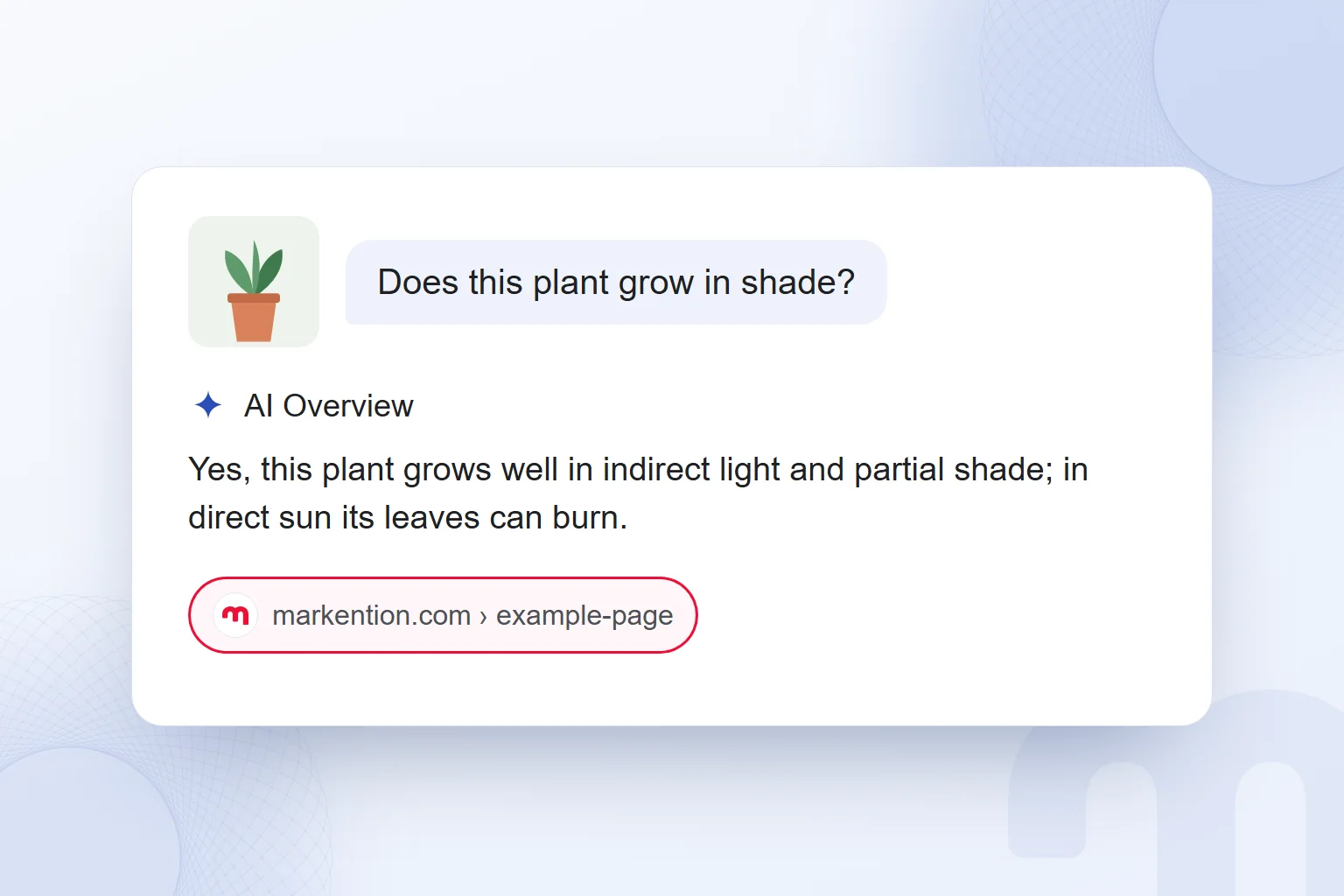
A question turns Lens into an advisor. Instead of “What is this?”, questions such as “Does this plant grow in shade?”, “Is this fabric machine washable?” or “Who designed this building?” bring directly useful answers. Source links under the AI Overview show which pages the answer draws on.
What do you do if Google Lens is not working?
If Lens is not working, the cause is usually the app version, camera permission or a browser setting; updating the Google app and allowing camera access solves most problems. The cases we see most often:
| Situation | What we do |
|---|---|
| The Lens icon does not appear | We update the Google app or Chrome from the app store |
| The camera does not open | We give the Google app camera permission in the phone settings |
| “Search with Google Lens” is missing in Chrome | We set Google as Chrome’s default search engine |
| The translation is in the wrong language | We set the source and target languages manually in Translate mode |
| Text cannot be selected | We retake the photo closer, straight on and in good light |
| Voice questions do not work | We type the question; voice currently works in English |
If the Lens side panel does not open on a computer, extensions or company-managed Chrome settings may have disabled it; the camera icon on google.com is then the quickest fix.
Is Google Lens safe? Where are photos stored?
Lens is safe in Google’s official apps; if you are signed in and Web & App Activity is on, Lens searches are saved with your other Google searches on My Activity (myactivity.google.com) and can be deleted there. The image you give Lens is sent to Google to produce the result.
Our privacy rules:
- IDs and cards → We do not give Lens photos of ID cards, passports, bank cards or medical reports; if text is needed, we type it.
- Other people’s faces → Lens recognizes celebrities and public landmarks but is not designed to identify ordinary people by their faces; we never use it to find out who someone is.
- Business documents → We do not translate confidential documents such as customer lists or draft contracts with Lens; we use company translation and document tools.
- Activity setting → Anyone who does not want Lens history saved can turn on auto-delete in My Activity or search signed out.
How search history is viewed and deleted is covered in our people also search for article.
What is the difference between Google Lens and Google image search?
Both run on the same technology; every image search on Google now returns Lens results. Image search is mostly for finding the source and similar versions of an existing image, while Lens stands out for live camera identification, translation, copying text and homework.
| Criterion | Google Lens | Google image search |
|---|---|---|
| Starting point | Camera, screenshot or image | Saved image, image address or keywords |
| Main uses | Translation, copying text, homework, finding products | Similar images, an image’s source, images by keyword |
| Where | Google app, Chrome, Android camera, Google Photos | google.com, Images tab |
| Adding a question | Yes, typed, and spoken in English | Yes, with the “Add to your search” box |
Every way to search with an image on desktop, Android and iPhone, plus the Images filters, is in our Google image search guide.
How does a marketing team use Google Lens?
Lens is also a practical research tool for marketing teams, especially in ecommerce and retail. The four uses we turn to most:
- Finding copies of images → We search the brand’s product photos with Lens to see which sites use them, at what price and whether with permission; for unauthorized use, we notify the seller or platform.
- Where competitor products are sold → From a photo of a competitor’s product, we quickly find which stores sell it and in what price range.
- Field research → We turn shelf packaging, promotion notices and price tags into text with Lens and move them into a comparison table.
- Foreign market research → We translate trade fair brochures and packaging text from abroad with Lens and note product features in our own language.
Every price and seller Lens finds is a first finding, verified on the seller’s page before entering the table.
How do your products appear in Google Lens?
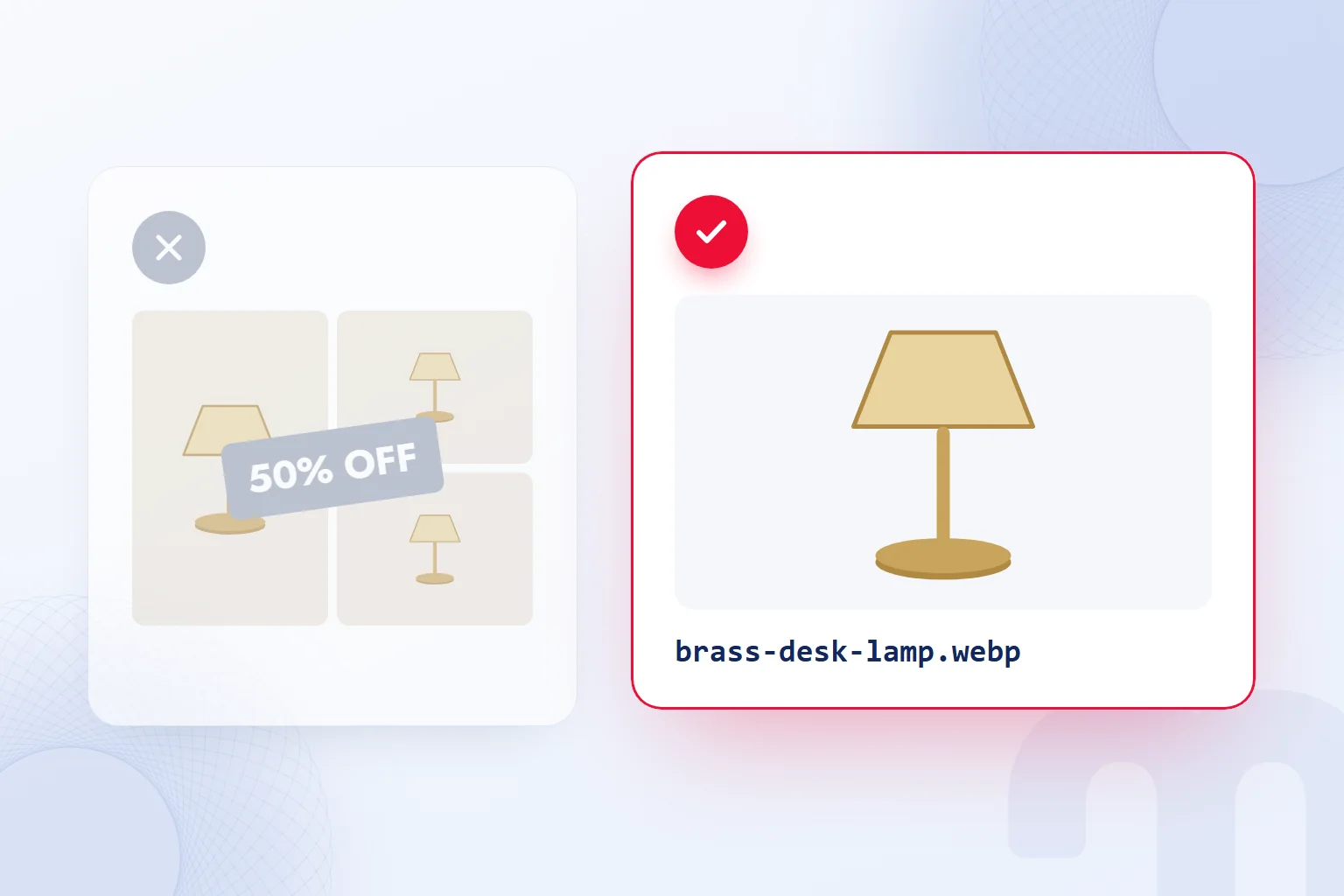
For a brand’s products to appear in Lens shopping results, they must be presented to Google with accurate product data, and product images on the site must be crawlable, clear and high quality. Because Lens matches the user’s photo with product images on the web, the image itself is a ranking factor here.
This has two sides. The first is product data: the feed sent to Google Merchant Center gives Google the product’s name, price, availability, image and identifiers such as GTIN in structured form; free product listings and Shopping ads draw on this data. The second is the page: on the product page, the image published with an img tag, a descriptive file name and alt text.
What we check on a product page for Lens visibility:
- 1. Clean main imageThe product is shot alone, sharp, on a plain background; no text, watermark or collage on the main image.
- 2. Different anglesFront, side and in-use photos are added; the photo a user takes resembles one of these angles.
- 3. Product dataName, brand, color, size, price and GTIN are complete in the Merchant Center feed; price and availability match the site.
- 4. Structured dataThe product page carries Product markup with the image, offers and brand fields filled in.
- 5. Image SEOThe image uses an img tag, the file name and alt text describe the product, and the page loads fast.
How to open a Merchant Center account, prepare a product feed and use free listings is explained step by step in our what is Google Merchant Center article. Work that manages product images, the feed and Shopping ads together is on our ecommerce marketing page, and image and product page SEO on our SEO consulting page. For Google’s other tools, see our SEO guides.
Frequently asked questions
Is Google Lens free?
Yes. Google Lens is free in the Google app, Chrome and on google.com at no extra cost.
How do you open Google Lens on a computer?
In Chrome, right-click an image and choose “Search with Google Lens”. In other browsers, use the camera icon on google.com.
How do you download Google Lens?
Android has a separate Lens app on Google Play, and Lens is also built into the Google app. On iPhone, the Google app or Chrome is enough.
How do you translate with Google Lens?
Open Lens, choose “Translate” and point the camera at the text. The translation is laid over the original; over 100 languages are supported.
Does Google Lens work in languages other than English?
Yes. Lens reads text in languages such as Turkish, translates to and from them and answers typed questions. Voice questions currently work in English.
Can Google Lens solve homework?
Homework mode brings explanations and solution approaches for math, history, chemistry, biology and physics. Students compare the result with their own solution.
Does Google Lens store photos?
If you are signed in and Web & App Activity is on, Lens searches are saved in My Activity; they can be deleted there and auto-delete turned on.
Can Google Lens recognize people by their faces?
Lens recognizes celebrities and public places, but it is not designed to identify ordinary people by their faces.

 How to use Google advanced search: a search operators tableRead article
 What is Google Trends and how do you use it? A trend analysis guideRead article
 What is Google Discover? Turning it on, off and getting trafficRead article
 How to do a Google image search on your phone and computerRead article
 What is Google Scholar and how to use it? Articles, citations, profileRead article
 Google Business Profile: how to add your business to Google MapsRead article
 WordPress SEO plugins: Yoast vs Rank Math vs AIOSEO comparedRead articleMost read
 What is a meta description? Length, writing rules and effect on clicksRead article
Questions & answers
0 commentsNo questions yet; you can ask the first one.