





 Cihat Murat Yüksel
17 min read
Contents 18 sections
Key takeaways
- Adding a business to Google Maps works through a suggested missing place or a free, verified Google Business Profile.
- A postcard verification code usually arrives within 14 days and stays valid for 30 days.
- Google offers no way to request or pay for a better local ranking.
- A Business Profile verification review takes up to 5 business days and ends with a confirmation email.
A place is added to Google Maps in two ways: anyone can suggest a missing place, and a business owner can create a free Google Business Profile and verify it with the method Google offers. Google My Business is the former name of Google Business Profile.
Suggesting a café for the map and editing our own opening hours are different tasks. We start by checking whether the place is already on the map and how we relate to the business. If our business already has a listing, we check its ownership and run setup and management through that profile.
Business information is added through a free Google Business Profile and managed once verification is complete.
How do you add a place to Google Maps?
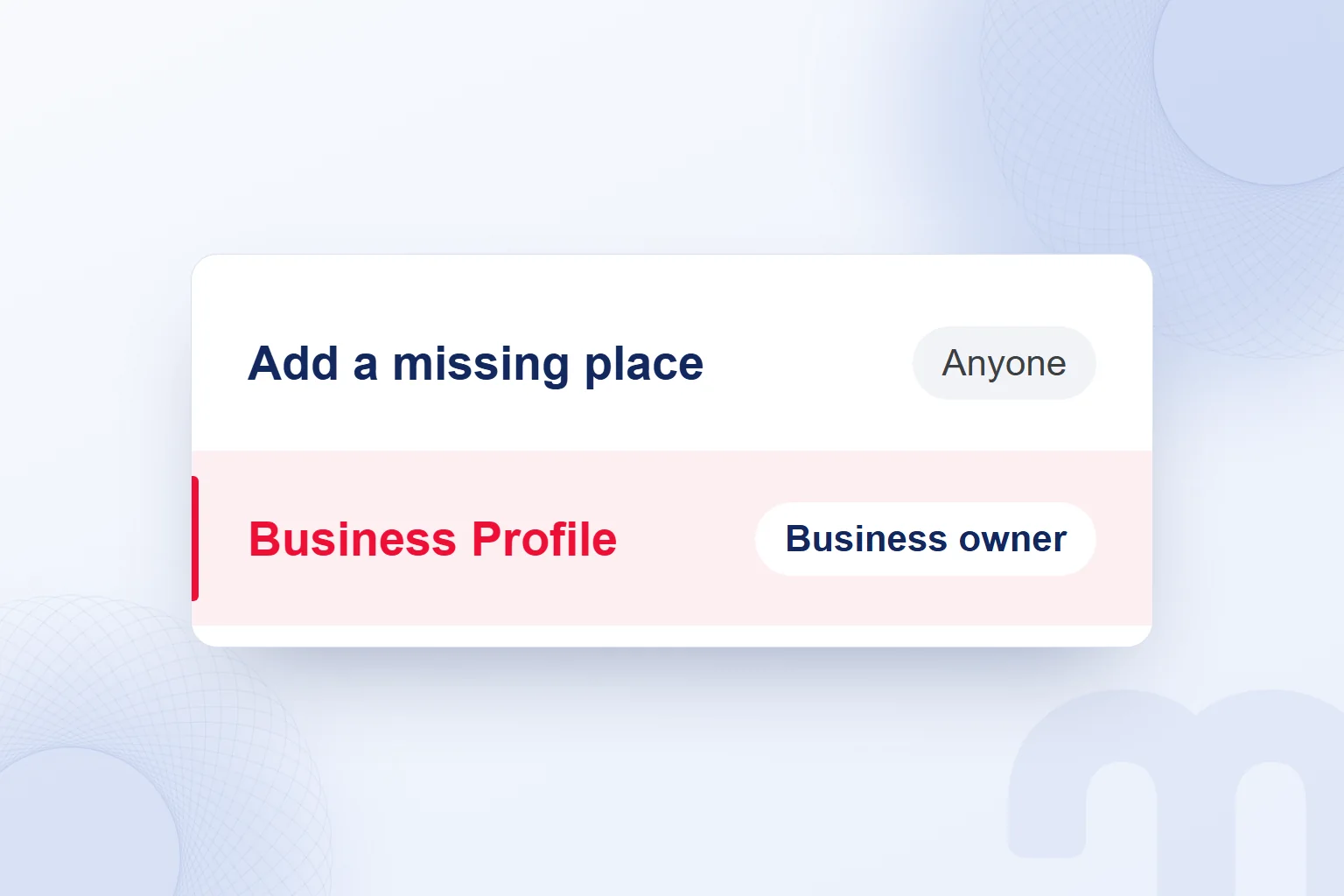
A place is suggested with the “Add a missing place” option in Google Maps; an owner who wants to add and manage their own business creates and verifies a free Business Profile. Google Maps Help lists landmarks, cafés and other local businesses among the places that can be added. An added place is shown publicly.
The choice follows the job. To report a place missing from the map, we send a suggestion. To manage the business’s address, hours and photos, we complete profile verification. The two routes differ in purpose and in authority.
| Criterion | Add a missing place | Business Profile |
|---|---|---|
| Who uses it | Anyone reporting a missing place | The owner or an authorised representative |
| Where | “Add a missing place” in Google Maps | Business Profile, with a Google Account |
| Ownership | A suggestion grants no ownership | Verification grants ownership |
| What is managed | Missing places and suggested edits | Business details such as hours, address and photos |
| Cost | — | Creating a profile is free |
When adding our own shop, we first search for the business name and city. If a listing appears, we check its address and confirm it is the same business. That way we never create a second profile when we need access to an existing one.
What was Google My Business, and what is it called now?
Google My Business is the former name of the service businesses use to manage their information on Google; it is now called Google Business Profile. Through the , we manage hours, address and photos.
The web tool for businesses with several locations is now Business Profile Manager. Small businesses can manage their profiles directly from Google Search and Maps. Whichever name we search for, the listing we work on is the business’s existing profile.
The name change is never a reason to open a new listing. We find the existing profile, establish which account it is linked to and check management access, treating the profile name, account sign-in and ownership rights separately.
How do you sign in to Google My Business?
We sign in with the Google Account linked to the profile and search Google for the business name and city. A search for “my business” can also bring it up. The account may use Gmail or another email address.
If someone else manages the profile, we make an ownership request at business.google.com/add, finding the listing by name and address. We also confirm that the signed-in account is the one that will manage the business.
What is the difference between adding a missing place and a Business Profile?
Adding a missing place is a contribution to the map; a Business Profile is a listing the owner verifies and manages. To manage a business already on the map, we it and complete verification. Suggesting a place gives the suggester no control over the business.
The route depends on our relationship to the business and the state of the listing:
- We own or represent the business → We create and verify a Business Profile; if an unclaimed listing exists, we claim it.
- We do not own it, and the place is not on the map → We suggest it with “Add a missing place”.
- The place is on the map with wrong details → As the owner, we claim, verify and correct it; otherwise we suggest an edit from Maps.
If a café we visited shows the wrong address, we suggest a correction as a visitor. If the café is ours, we edit the address in the verified profile. The same error takes a different route depending on our authority.
A place added earlier by someone else does not require the owner to open a new profile. We also distinguish an unclaimed listing from one managed by another account: the first needs a claim and verification, the second an access request.
How do you add a missing place to Google Maps?
On a computer, we open Google Maps, search for the missing place’s address and click “Add a missing place”. Google Maps Help describes these three steps.
- We open Google Maps. The search for the place starts here.
- We search for the address. The addition is made against that address.
- We click “Add a missing place”. We suggest the place that is not on the map.
The same route works when people look up how to add a location in Google Maps. Before suggesting a café or other local business, we check existing results; if a listing exists, what is needed is a correction, not a new place.
Our pre-check has three questions: “Is this the place at that address?”, “Is there already a listing?” and “Are we suggesting it or managing it as the owner?” Taken together, the answers stop us working on the wrong listing.
Because added places are public, we place them by their real address, not by our own search needs. For a business we will maintain as owner, we complete verification separately.
How do we add a business to Google Maps?
We add a business by searching for its existing listing with a Google Account, creating a Business Profile if there is none, and completing verification. To have a profile, the business must have a location customers can visit or must serve customers at their location.
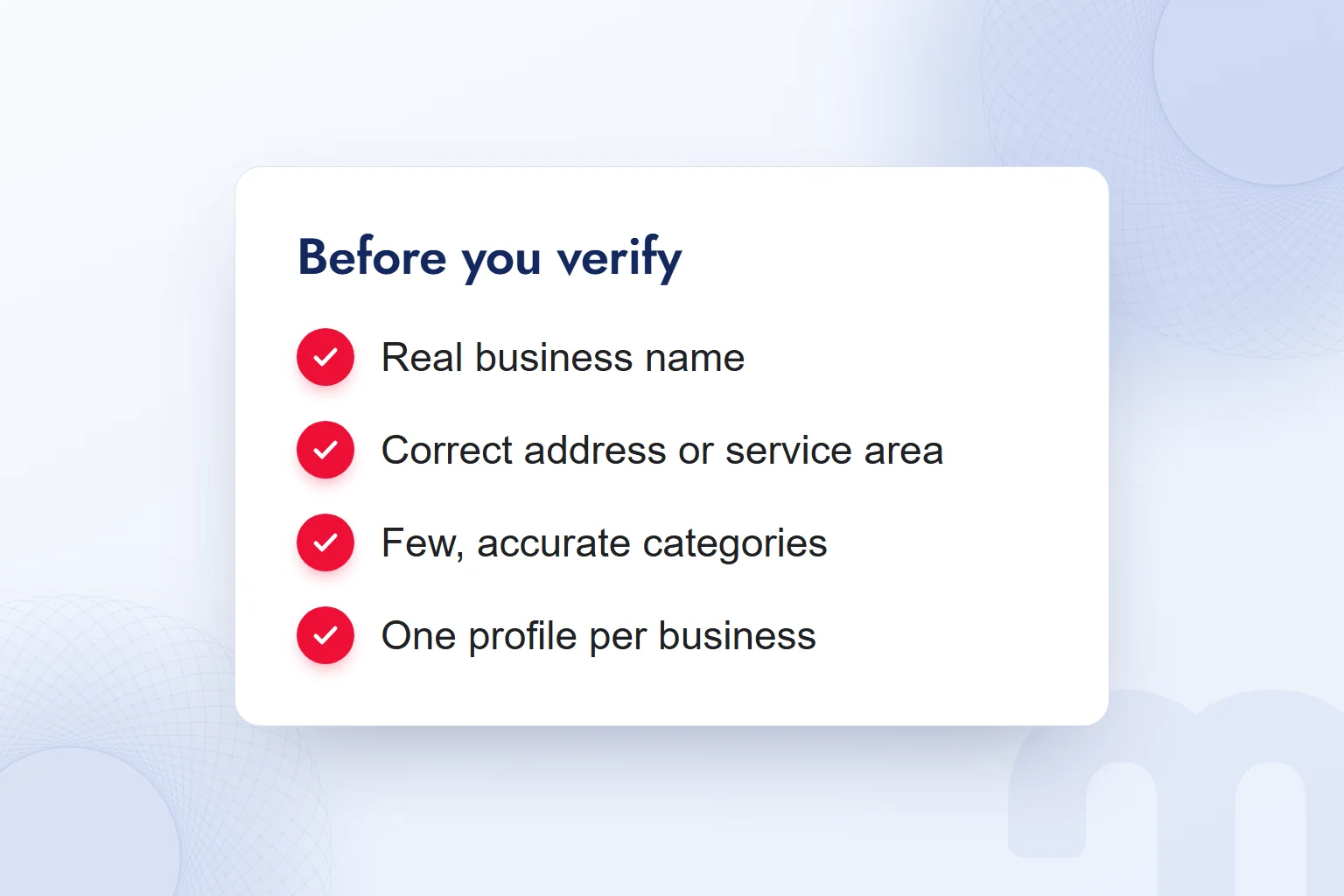
Before setup, we gather the real business name, address or service area, main activity, contact details and website, and compare the name on the sign with the name on the site. Knowing how the business serves customers lets us enter location details correctly.
- We sign in to Business ProfileWe use the Google Account that will manage the profile; it may use Gmail or another email address.
- We search by name and cityWe find the existing listing; if there is none we add it, and if it is unclaimed we claim it.
- We enter the name as on the signWe use the real name seen on the sign, documents and branded channels.
- We choose a few categoriesWe describe the main activity with as few categories as possible.
- We enter the address or service areaWe enter it based on where the business meets its customers.
- We verify with the method offeredWe complete the verification shown in the profile and wait for the confirmation email.
We never skip the search for an existing listing; a new profile is created only when none exists. We never build separate listings for one business under different service names.
At the end of setup, we check the account used and the verification status. Entering details and completing verification are tracked separately, because verification is required to edit details and interact with customers.
How is a Business Profile verified?
A Business Profile is verified with the method Google automatically selects for the business, and we cannot change it. The options depend on business type, public information, region and hours; some businesses need more than one method.
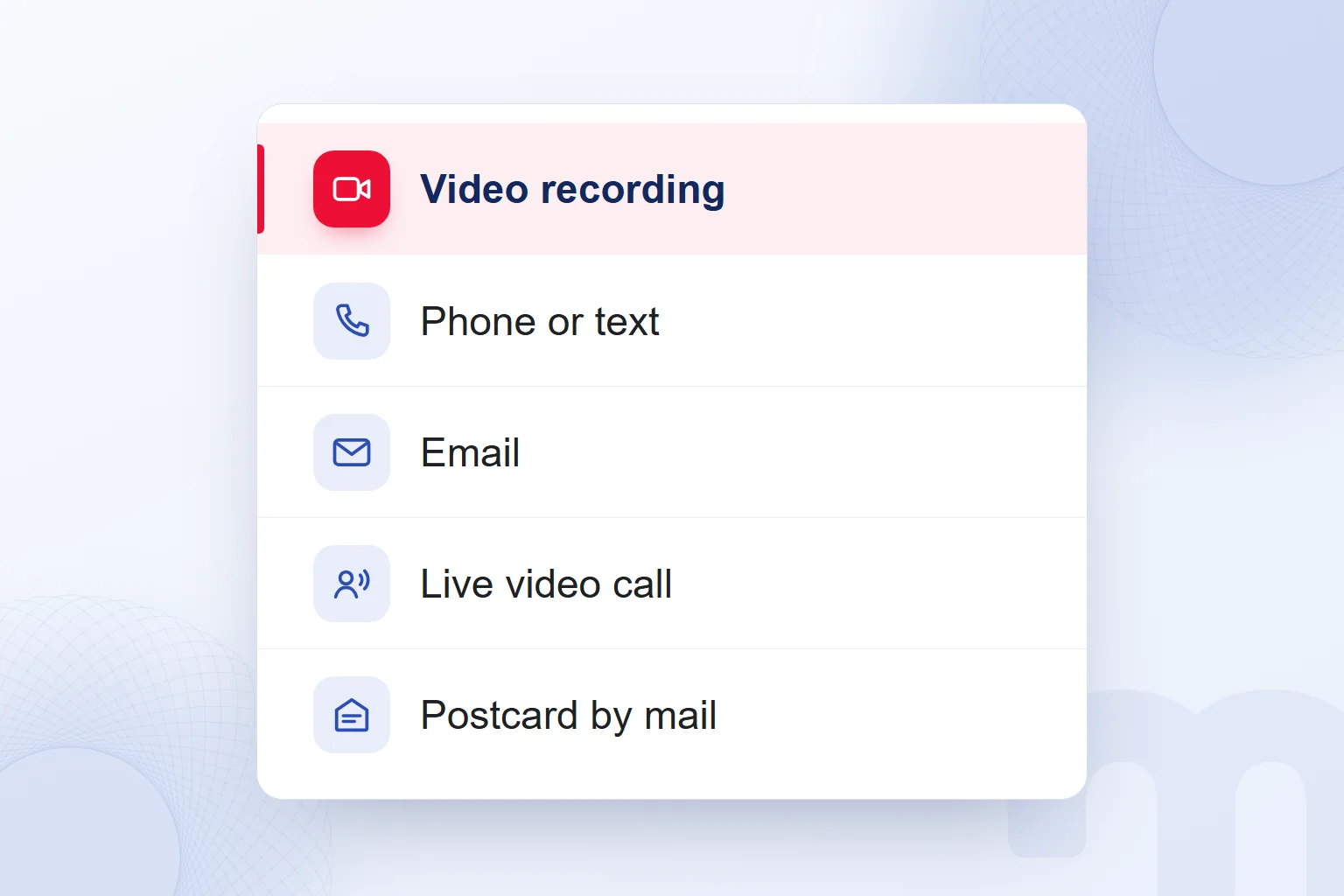
The options are video recording, phone or text, email, live video call and postcard by mail. Google Business Profile Help recommends video recording where available. A live video call can only take place during the location’s opening hours. We choose from the options our own profile shows.
A review takes up to 5 business days and ends with a confirmation email. Postcard delivery, code validity and review are separate time frames, so we first establish which one we are waiting on: the code arriving, or the review of a completed verification.
If the website is verified in Google Search Console, Google may verify the Business Profile instantly in some cases; we cover Search Console in our indexing guide. Bulk verification can also lead to instant verification. We confirm the result in the profile status and the email.
When does the postcard code arrive, and how long is it valid?
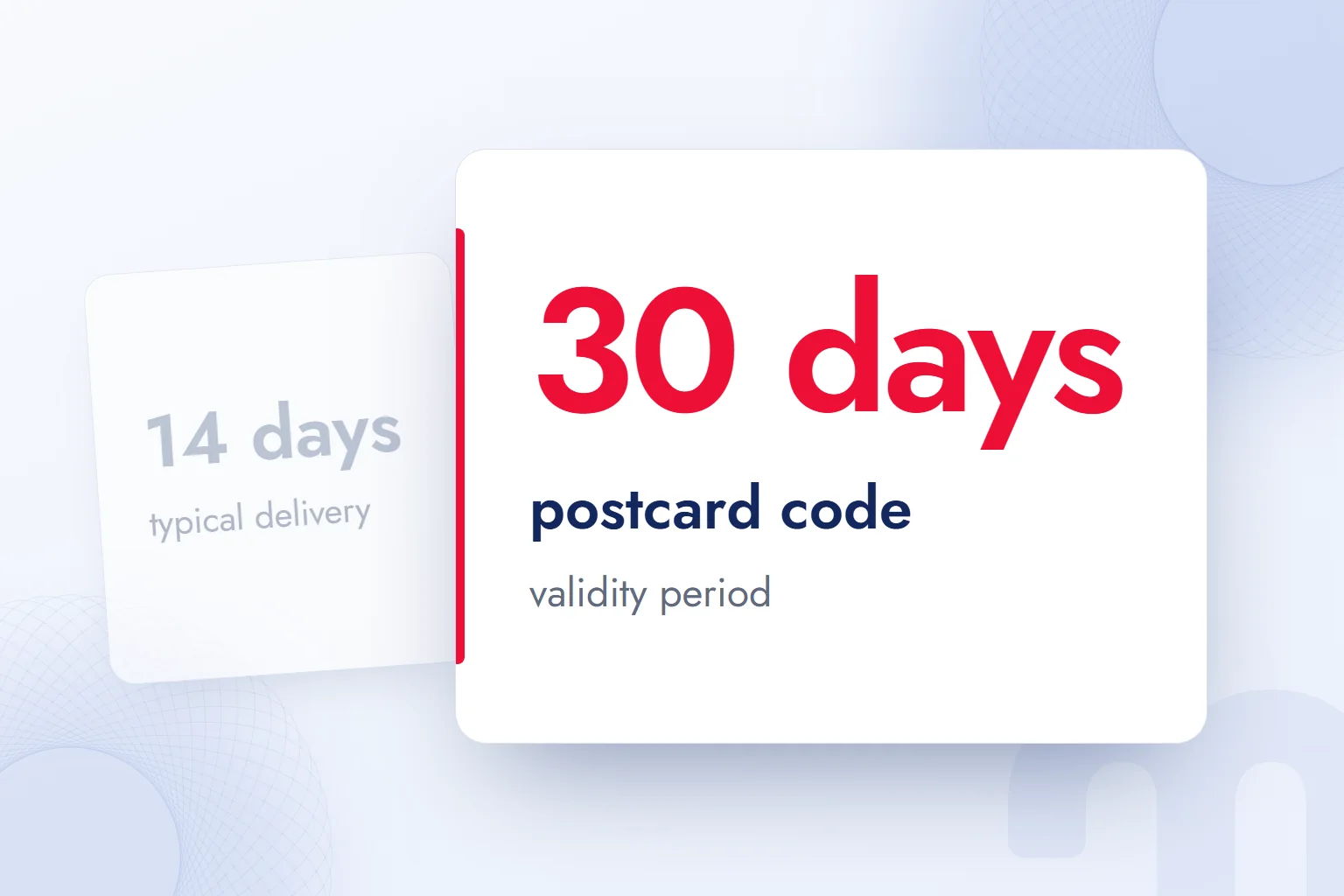
A postcard verification code usually arrives within 14 days and is valid for 30 days. While waiting, we neither change the business name, address or category nor request a new code, so we make sure these details are right before verification starts.
Our verification note records the method offered, the expected result and the notification received in separate fields. A teammate opening the same profile can see at once whether we are waiting for the code or for the review.
Google never asks for a verification code. We share it with no one, including people who help manage the profile; once verification is complete, we add them with a suitable user role.
Even with a correct name and address, it is tempting to rework the category while the postcard is on its way. We leave it untouched. Catching corrections during setup avoids reopening the same fields mid-verification.
How should the business name, address and category be written?
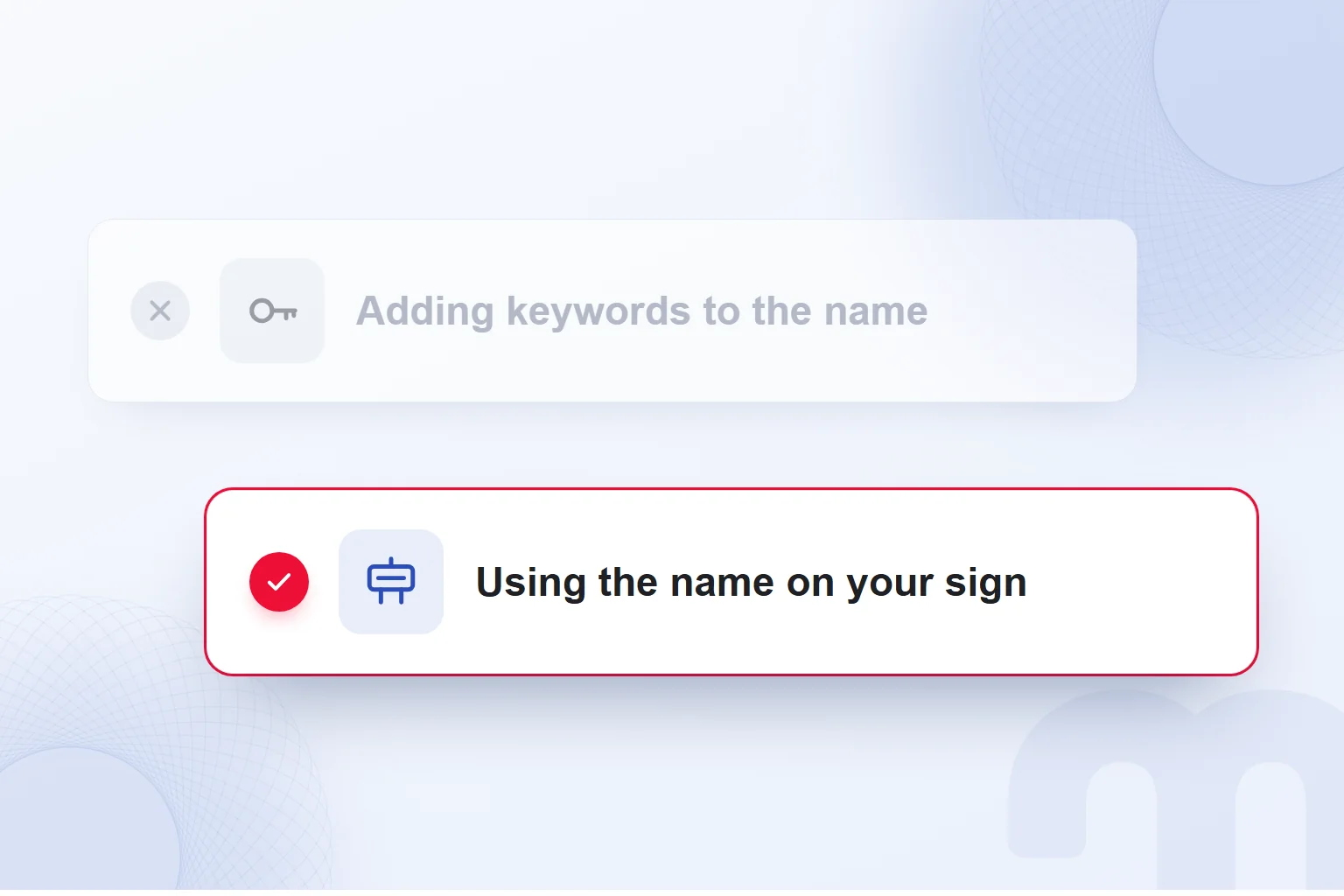
We write the name as the business uses it in the real world, enter the address or accurately, and choose as few categories as possible for the main activity. Google Business Profile guidelines require a business to appear as it does on its signage, documents and branded channels.
The name field gets the name on the sign, not the words we want to rank for. A business whose sign reads only “Corner Café” is not stretched with service and location terms to match more searches.
For the address, we go by where we meet customers: the physical location they can visit, or the area where we serve them. We check that the website and the profile describe the same place.
Categories follow the main activity. We answer “What does this business mainly do?” and compare our categories with that answer, using only as many as needed. We never open profiles that present each service as a separate business.
Name, location and category are checked together: sign name to listing name, real service model to location details, main activity to categories. Profiles that break the guidelines can have access suspended.
When reviewing details, we keep a three-column note: what the profile shows, the real information, and the fix. If the sign, documents and website disagree, we first settle which version represents the business, then edit the field and share the note with whoever makes the change.
What do we do if verification runs into a problem?
We read the notification in the profile, compare the business details with the guidelines and complete the action Google asks for. First we identify the stage: method selection, review or re-verification.
Depending on what the screen shows:
- The expected method does not appear → Google decides the method; we use the one offered.
- 5 business days have passed → We look for a notice asking us to review issues and supply the information requested.
- The “Get verified” button is back → We check that name, address and category follow the guidelines, then verify again.
If the review asks for more information, we provide exactly what the notice requests. If re-verification is needed, we confirm the listing represents the real business. We never go hunting for a method another business used.
If the postcard has not arrived, we are at the code stage. We allow the usual 14 days, request no new code and change no name, address or category, then follow the profile notification and the guidance in Google Business Profile Help.
How do you reach Business Profile support?
We use the relevant topic in Google Business Profile Help together with the issue notification in our profile. Rather than a vague “my business doesn’t show up”, we describe the stage we are stuck at: the method offered, the code arriving, or the review result.
We bring the business details, the notification and the action taken together and keep following up on the existing profile. Opening a second listing over a verification problem breaks the one-profile-per-business rule.
How do you request ownership when someone else has the profile?
We find the business at business.google.com/add and send an ownership request with the “Request access” option. The current owner has 3 days to respond. This asks for management of the existing profile instead of recreating the listing.
- We open the business searchAt business.google.com/add, we search for the business.
- We enter the name and addressBoth are used so the request reaches the right listing.
- We select the businessWe pick the existing listing from the results.
- We submit “Request access”The form sends the request, and the current owner receives an email.
If there is no response, we open “View request” in the confirmation email and, if a “Verify” option appears, claim the business. The option is not always available. The three days running out does not transfer ownership automatically; we follow the request status in the email.
If the request is denied, we can appeal or suggest an edit to the business details. Requesting ownership aims at managing the profile; suggesting an edit aims at correcting public information.
If another representative used to manage the listing, we first match it by name and address, then track the requesting account and its emails together. When the response period ends, we check the request outcome rather than opening a new listing, so management passes on within the same profile.
How do you add a manager to a Business Profile?
Only an owner can add a manager; a manager cannot add or remove users. After verification, people can be added as a third party, a manager or an owner, and we choose the role by the work they will do.
For a business group, user roles cover the following:
| Role | What they can do |
|---|---|
| Primary owner | Has owner permissions; a group has only one primary owner. |
| Owner | Does everything, including deleting and transferring ownership; can add managers. A group can have several owners. |
| Manager | Adds, edits and removes profiles; cannot add or remove users. |
With an agency, we add a manager without handing over ownership. We confirm the profile is verified and give the role the work requires. User management staying with the owner does not mean a manager can only view; a manager can edit the profile.
We decide who updates hours, who manages photos and who replies to reviews. The person running the business reports changed hours, the manager edits the profile, and the business checks what is published. We agree on images and on which reviews need replies, and a shared handover note shows finished edits and pending information.
Adding an authorised user is an action for the owner; a manager asks the owner to do it. Signing in to a Google Account is no substitute for an owner or manager role.
What do we manage on the profile after verification?
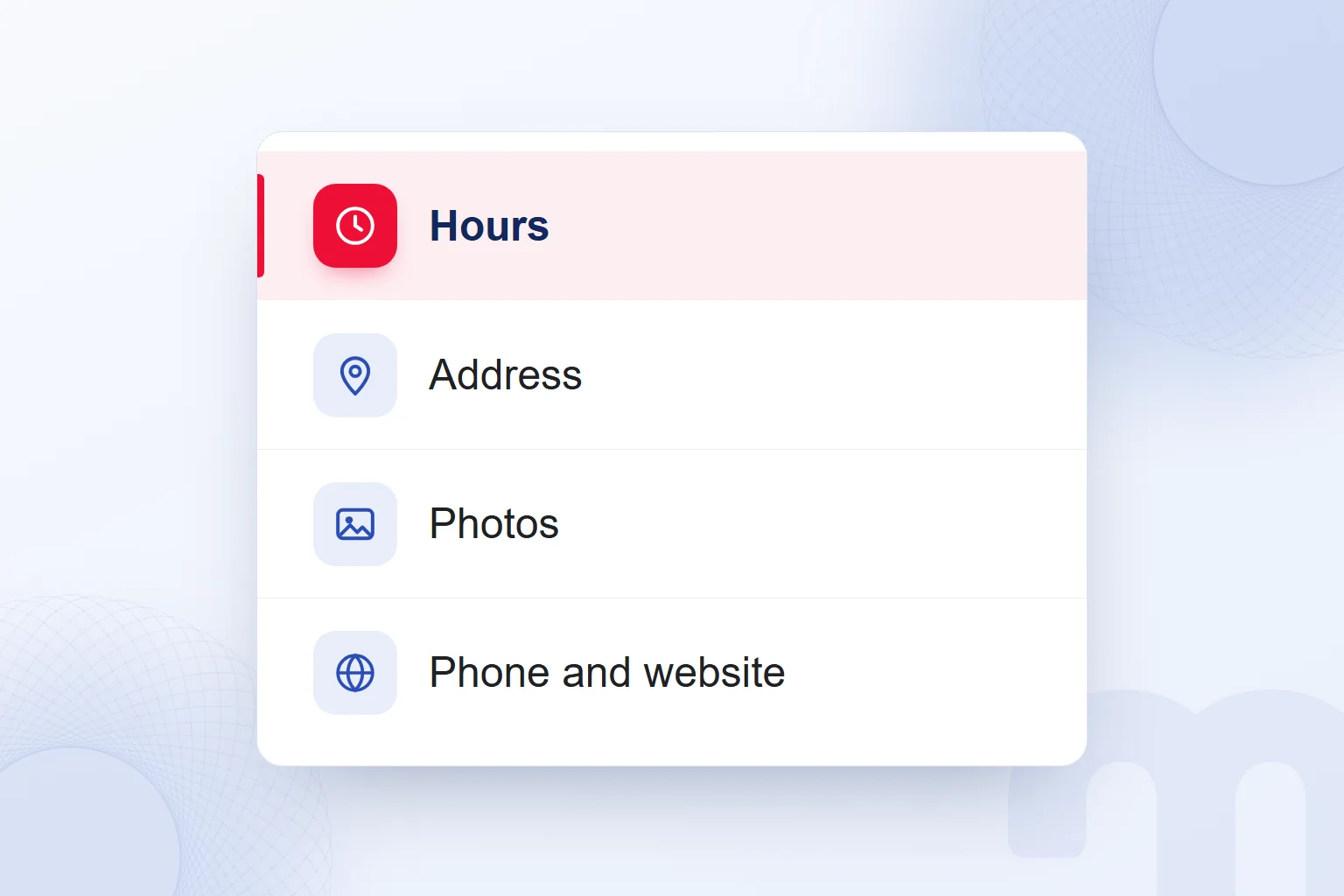
After verification, we manage hours, address and photos and reply to customer reviews. According to Google Business Profile Help, verification is required to edit business details and interact with customers.
Once the confirmation email arrives, we compare the profile with the business’s real information and update hours or address when they change. We read the details as a customer would: can they reach the right place while it is open?
For an address change, we confirm the new address, then compare the profile and the website so the business does not end up with conflicting directions. The same check applies to name and contact changes.
Photos and videos are among the content Google recommends. We link images to the real location and services and choose what a customer would want to see before visiting: the premises, the atmosphere and the service.
Currency matters as much as accuracy. Profile content must be accurate, up to date and complete; Google may hide or edit content if reliable signals show it is wrong. Regular checks by the responsible person are part of management.
How do we reply to reviews?
We read the experience the customer describes and write a clear reply specific to it. Google recommends replying to reviews; our method is to identify the topic, check the business information and make the response concrete.
In a positive review, we refer to the point the customer raised. With a complaint, we first try to understand what happened and add no detail we have not confirmed. We keep personal information out of public replies and never paste one template onto every review.
If a review says the hours are wrong, we compare the profile hours with the real ones. If there is an error, we fix it and say so in the reply; if not, we try to understand which day and which information the customer relied on. Reply and profile upkeep then rest on the same finding.
When checking replies, we ask whether the reviewer’s question was answered. We cover customer messaging in What is WhatsApp Business, and comparing reviews and ratings with competitors in How to do competitor analysis.
How do you rank higher on Google Maps?
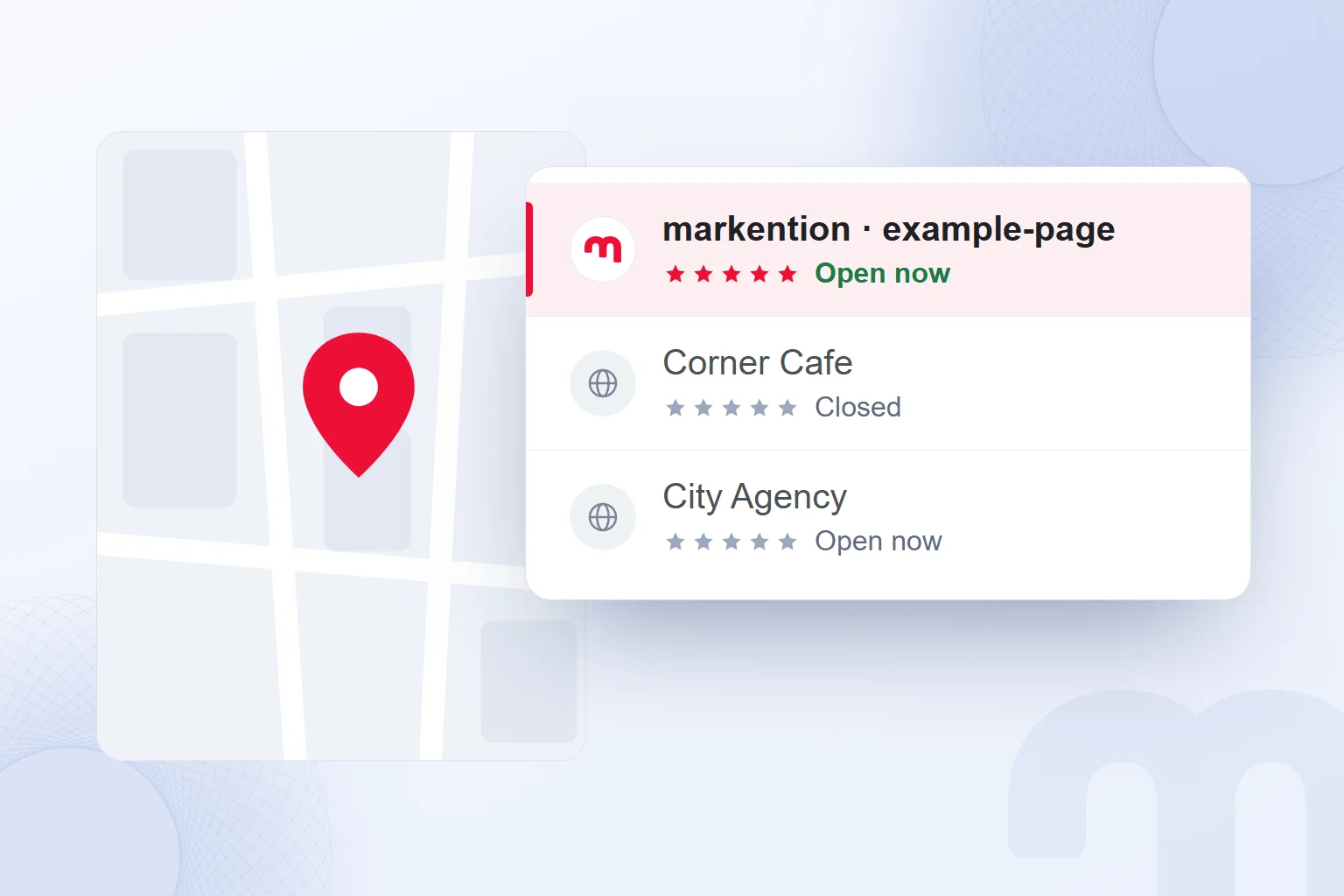
Local ranking on Google Maps rests on relevance, distance and prominence; we verify the profile, keep details complete and current, and manage reviews and visual content. The areas we check follow the factors Google has published.
Relevance is how well a Business Profile matches a search. Complete information makes clear what the business does, so we prepare the name, category, address and other details to describe the real business.
Distance is how far the business is from the searcher, whose location is one of the factors in local results. We handle location through the real address or service area.
Prominence is how well known the business is. Google includes sites that link to the business, review count and rating. We read the profile alongside information about the business found elsewhere.
Google recommends verifying, keeping details current and complete, replying to reviews, getting more reviews, and adding photos and videos. On paying for ranking, it is explicit:
“There’s no way to request or pay for a better local ranking on Google.”
When reviewing visibility, we pick the first fix by the gap we find:
- The profile is incomplete → We check verification and basic details and fill gaps with real information.
- Few or unanswered reviews → We work on getting more reviews and replying to existing ones.
- Site and profile disagree → We go by the real information and align name, address and contact details in both places.
If the site and profile show different hours, we settle the correct hours first, then move on to reviews and images. The work follows concrete, fixable gaps rather than ranking position alone, and each change is logged with its check so the next review revisits the same field.
At markention, profile setup and upkeep are part of our local SEO work, scoped around verification, consistent information and regular profile management.
How do you close or delete a Business Profile?
Removing a Business Profile removes its content and managers; where needed, the business is marked “Permanently closed”. The Google Business Profile Additional Terms of Service describe this route for terminating the terms. Data can be exported.
First we define the goal: ending profile management, or stating that the business has stopped trading? Removing content and managers is a separate matter from closure status. If data must be kept, we export it beforehand.
“Permanently closed” is used only when it is true. If a business that is still trading changes its hours, we update the hours; a short break is never confused with a permanent closure.
If only the people handling management have changed, we look at ownership and user roles. A change in how we work with an agency or representative is not a closure. Ownership transfer, user management and operating status are separate decisions.
When closing, we review the business’s status, the content to be removed and the people in management together, keeping the profile consistent with the real business from first listing to closure. For the wider link between business information and search visibility, our SEO articles cover related topics.
Frequently asked questions
Is adding a place to Google Maps free?
Creating a Google Business Profile is free for business owners. We find the existing listing or create a profile, then complete verification.
What is Google My Business called now?
Google My Business is now called Google Business Profile. The service and the listing are the same; only the name changed.
How long does Business Profile verification take?
The review takes up to 5 business days and ends with a confirmation email. The postcard usually arriving within 14 days is a separate time frame.
What if the postcard code doesn’t arrive?
It usually arrives within 14 days; meanwhile we request no new code and leave name, address and category unchanged. We then follow the profile notification and Google Business Profile Help.
What if someone else owns the profile?
We submit the “Request access” form; the owner has 3 days to respond. Without a reply, we use “View request” in the email and, if offered, “Verify”; a denial can be appealed.
How do you add a manager to a Business Profile?
Only the owner adds managers, after verification is complete. Managers cannot add or remove users.
Can you pay to rank higher on Google Maps?
No. There is no way to pay for a better local ranking on Google; it rests on relevance, distance and prominence.
How do you delete a Business Profile?
The profile content and managers are removed and, if needed, the business is marked “Permanently closed”. We export the data first if it needs to be kept.

 How to use Google advanced search: a search operators tableRead article
 What is Google Trends and how do you use it? A trend analysis guideRead article
 What is Google Discover? Turning it on, off and getting trafficRead article
 What is Google Lens? How to use it to translate, shop and search on PCRead article
 How to do a Google image search on your phone and computerRead article
 What is Google Scholar and how to use it? Articles, citations, profileRead article
 WordPress SEO plugins: Yoast vs Rank Math vs AIOSEO comparedRead articleMost read
 What is a meta description? Length, writing rules and effect on clicksRead article
Questions & answers
0 commentsNo questions yet; you can ask the first one.