





 Cihat Murat Yüksel
13 min read
Cihat Murat Yüksel
13 min read
What is “People also search for”? How to use it in SEO
“People also search for” is the box of related queries Google shows when you open a result and come back. We explain when it appears and how we turn it into a content plan.Pro
Contents 16 sections
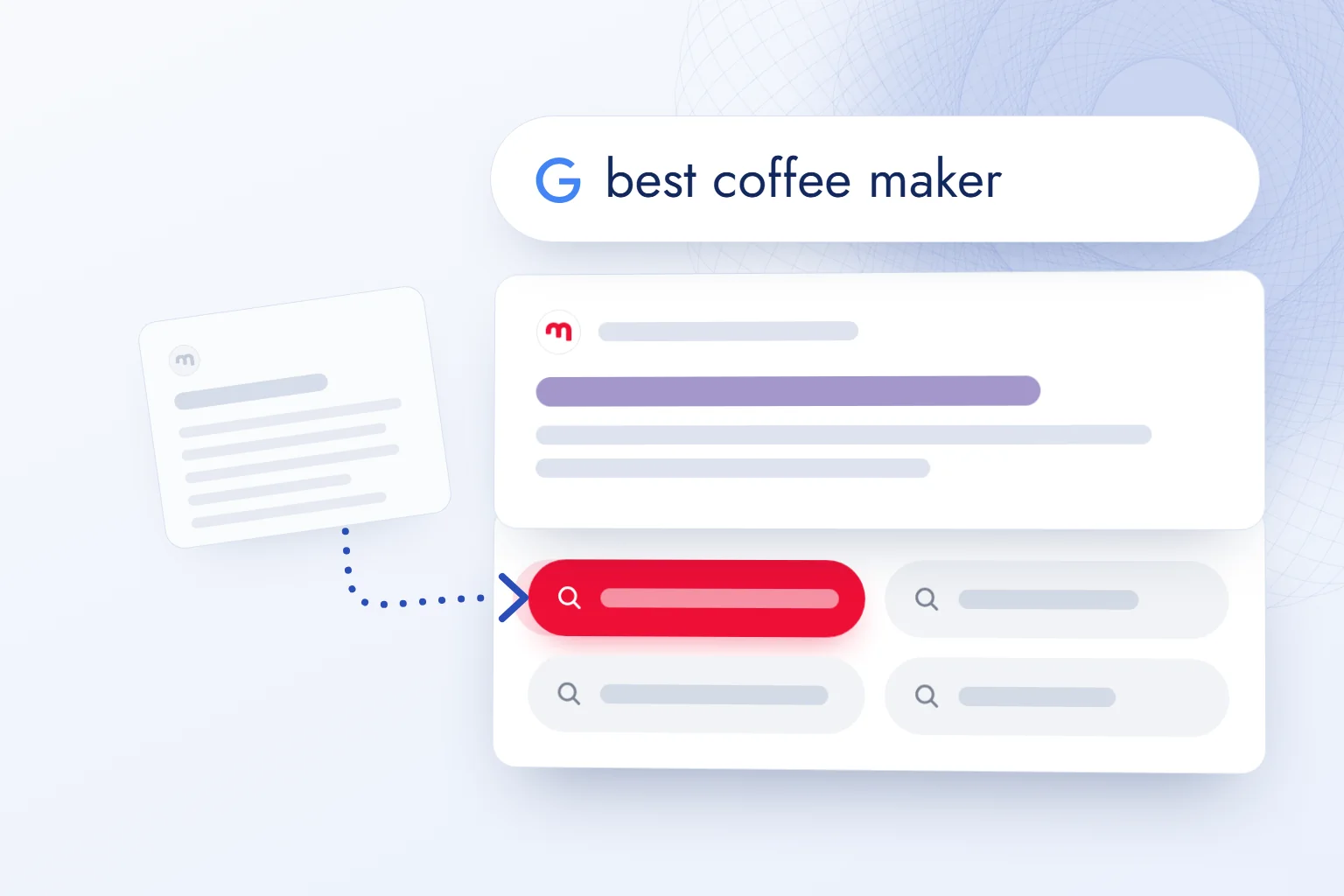
“People also search for” is the box of related queries that appears right under a result we opened when we go back to Google’s . Its suggestions let us continue the research with different wording.
We use it to see what else a visitor needs to know. It is not our personal search history and does not show who searched for what. We sort the suggestions by intent into a content plan; search history and suggestion settings live in our account and app.
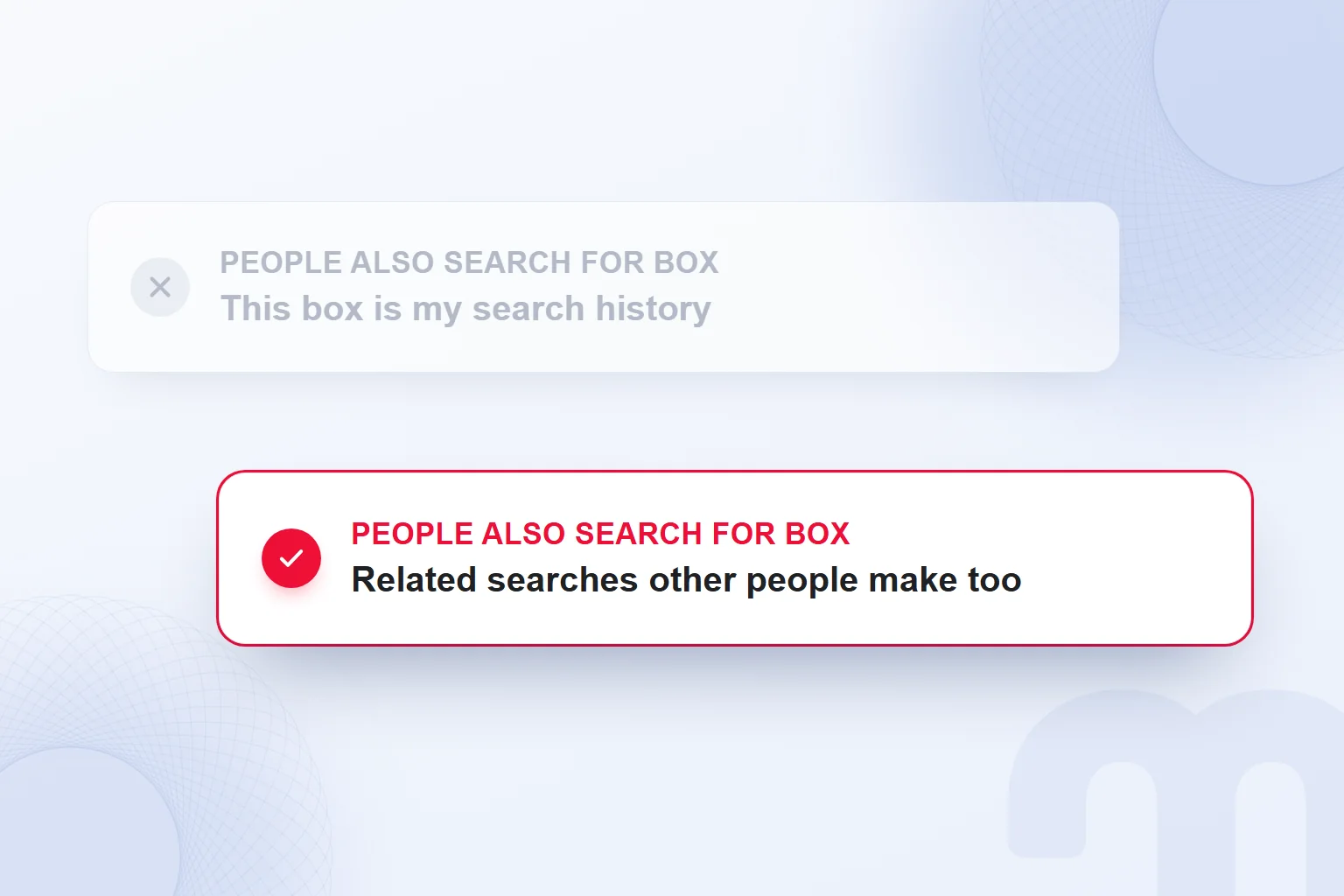
This box is not personal search history; its suggestions depend on the query and can change by language, location and device.
What is “People also search for”, and when does it appear?
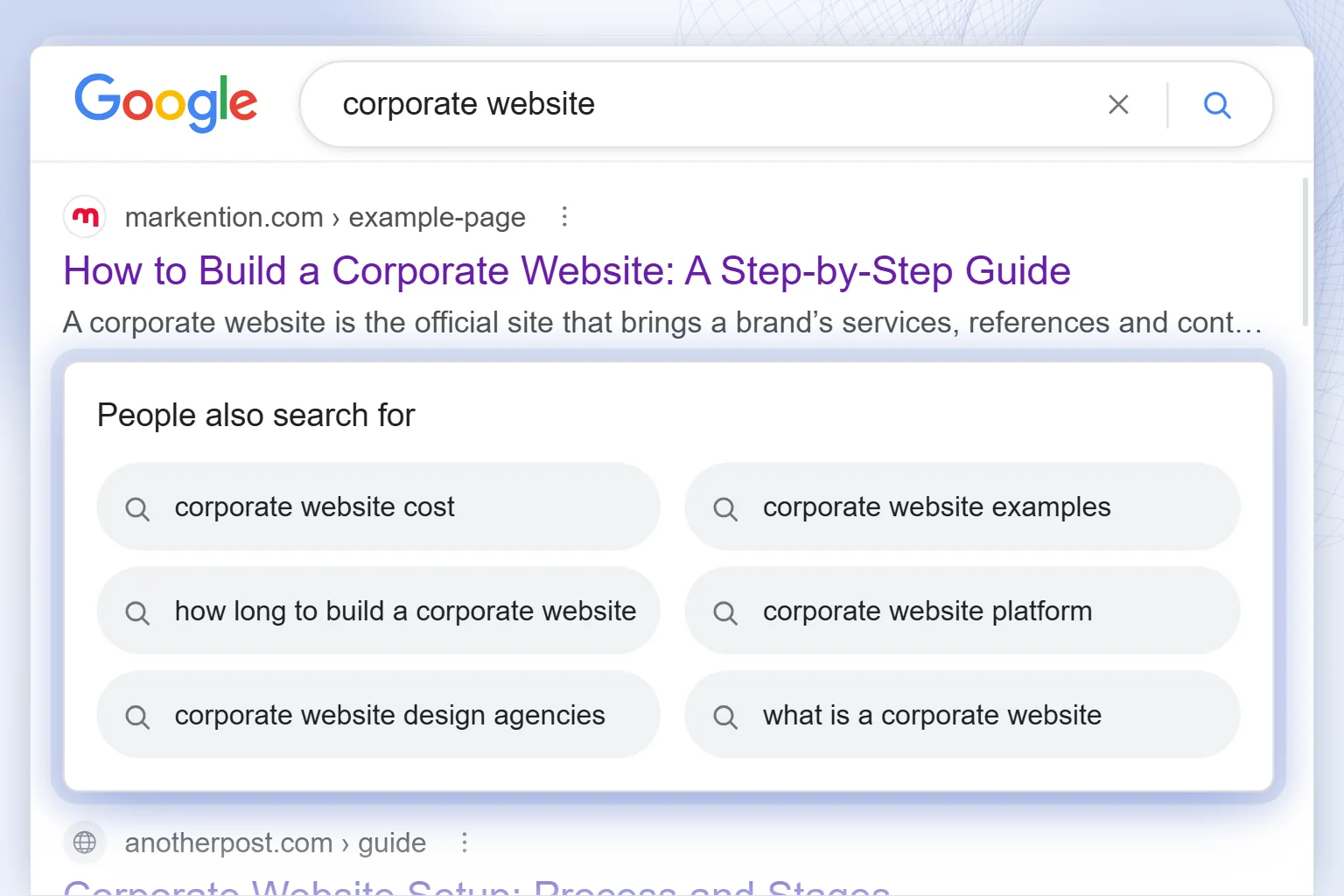
The “People also search for” box appears right under a result when we return to Google from it with the browser’s back button. Clicking a suggestion starts a new search; it never takes us straight to a website.
Google does not show it for every query or return. Unlike the similarly named knowledge panel strip or the bottom-of-page suggestions, it sits under the visited result. Our observation: there is no dedicated setting to turn it off, and deleting search history or turning off personalization does not remove it.
Why is the box not showing? Usually for one of these reasons:
- We never opened a result → the box appears on return; we visit a result first.
- Google does not show the box for this query → we return from another result or change one word.
- The browser did not reload the page → it came back from cache; we open the result in a new tab and close it.
Is this box my search history?
No; it is a suggestion area tied to the query, not our account’s history. Saved searches are covered in “How do you see and delete your Google search history?” below, and search bar predictions in “How do you turn off Google search suggestions?”.
Suggestions change with language, location, device and search context. A query in the box does not prove that our account searched for it before. We read the queries as input for content research.
How is it different from related searches and autocomplete?
This box differs in that it suggests queries under a result after we visit it and come back. We tell the other areas apart by position and by what they offer.
| Feature | Where it appears | What it shows | Use in a content plan |
|---|---|---|---|
| Autocomplete | Below the search bar while typing | Predictions that complete the typed phrase | Finding other ways to phrase the topic |
| Related searches | On the results page, usually at the bottom | Other searches linked to the main query | Discovering nearby topics and scope |
| People also ask | Among the results, in a question box | Related questions that expand into answers | Spotting the need for subheadings and FAQs |
| People also search for | Under a result after visiting it and returning | Related queries that help continue the search | Finding what the current answer may lack |
We record which area each phrase came from. predicts how a typed query continues; the question box offers a direct answer. Noting the area’s name and position together lets us compare like with like at the next check.
On desktop and mobile, we separate the areas by position as well as name; a note that just says “Google suggestion” loses this. When a phrase appears in several areas, we keep its source and note which question or decision it feeds.
How do you see and delete your Google search history?
Google search history is viewed and deleted in My Activity in your Google Account. There we review the searches saved to the account; we never use the box on the results page as a history list.
We start by identifying the signed-in Google Account; “all my search history” only makes sense once we know whose records we want. One account’s My Activity list is not a record of every account we use, so after switching accounts we confirm the account again.
What do we check before deleting search history?
Before deleting, we check the signed-in account and the records to remove. Past searches are cleared in My Activity; predictions while typing are changed with the settings in the next section.
We handle it in this order:
- We want to see the history → We open My Activity with the relevant Google Account and review the saved searches.
- We want to delete records → We check that they belong to the right account and delete them in My Activity.
- Search bar suggestions bother us → We work out whether we see a personalized prediction or a trending suggestion, then review that setting.
Google’s AI Mode help notes that deleted records may stay in My Activity for a few hours; this is not a firm deletion time for every record. If a record still shows, we check which action was taken and which record type we are viewing.
Who can see your Google search history?
To judge visibility, we check the signed-in account, who can access it and who else uses the device. We never conclude “this person ran this search” from a suggestion on screen.
On a shared phone or computer, we identify the open account and who else uses the device, then check that account’s My Activity before counting a phrase as our own search. No conclusion about a person rests on the suggestion box.
Incognito tabs are covered in our what is a browser post; here we only check account records and never assess privacy through the box.
How do you turn off Google search suggestions?
To change Google search suggestions, we check personalization based on past searches and autocomplete with trending searches separately. The right setting depends on the suggestion type and where we use Google.
According to Google Search Help, the predictions we see while typing are autocomplete predictions. When we are signed in with “Search personalization” on, they are personalized from past searches; with it off, they are not. Searches similar to recent ones can still appear when signed out, so sign-in status alone does not explain every suggestion.
Are personalization and trending suggestions the same setting?
No; personalization concerns using past searches in predictions, while the trending setting concerns autocomplete with trending searches. We do not treat them as one switch.
First we name what we see: a prediction while typing, a trending search or the box under a visited result. Then we check the account and whether we use the app or a browser, so we never change one setting, look at another area and call it a failure.
“Search personalization” manages history-based predictions; My Activity shows and deletes records. Turning a setting off deletes no past records, and turning off trends does not remove every suggestion.
Turning off autocomplete in the Google app on Android
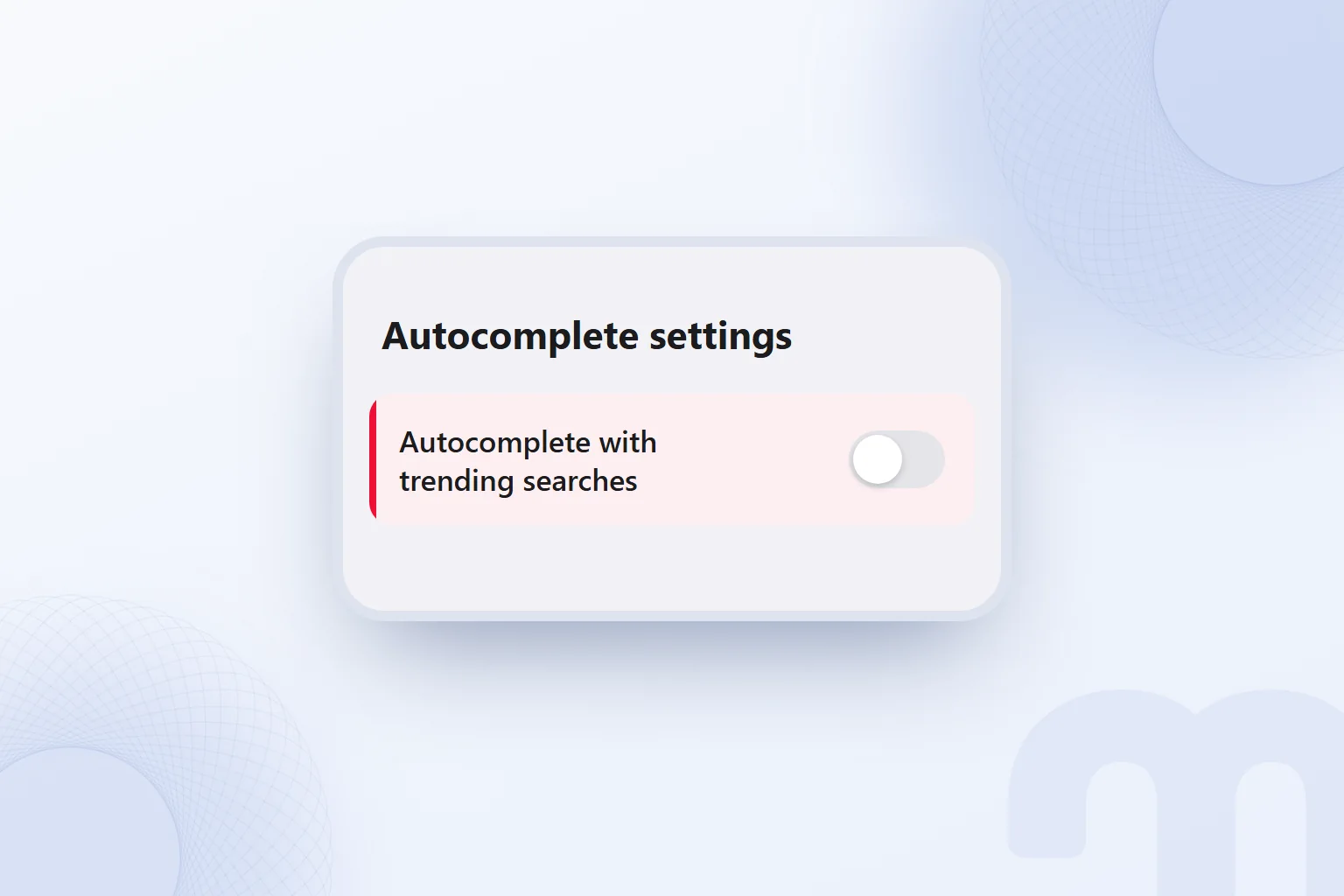
In the Google app on Android, trending suggestions are managed with the “Autocomplete with trending searches” switch in “Autocomplete settings”. We follow the path in Google Search Help:
- We open the profile menuOn the Android device we open the Google app and tap our profile picture.
- We go to settingsFrom the profile menu we open “Settings”.
- We choose other settingsUnder “Other settings” we go to “Autocomplete settings”.
- We turn off trending suggestionsWe switch “Autocomplete with trending searches” off.
- We check where we use GoogleThe change affects the Google app on that device; if we use google.com in a browser, we handle the browser setting separately.
Menu names can change; when labels differ, we go by what the setting does.
After the change, we check on the same device and app. If google.com in a browser still shows suggestions, we review the browser setting instead of undoing the app change. The trending setting is not an off switch for the “People also search for” box.
Why does Google show these queries?
Google shows these queries so we can reach the information we want with other wording and keep researching. Google’s general explanations of how Search works describe access to relevant, reliable information; they do not explain how the box selects queries.
A return to the results does not mean the visited page failed or will drop, and we do not use the box as a ranking metric. We look at how one need is phrased in different ways and which questions our page leaves unanswered.
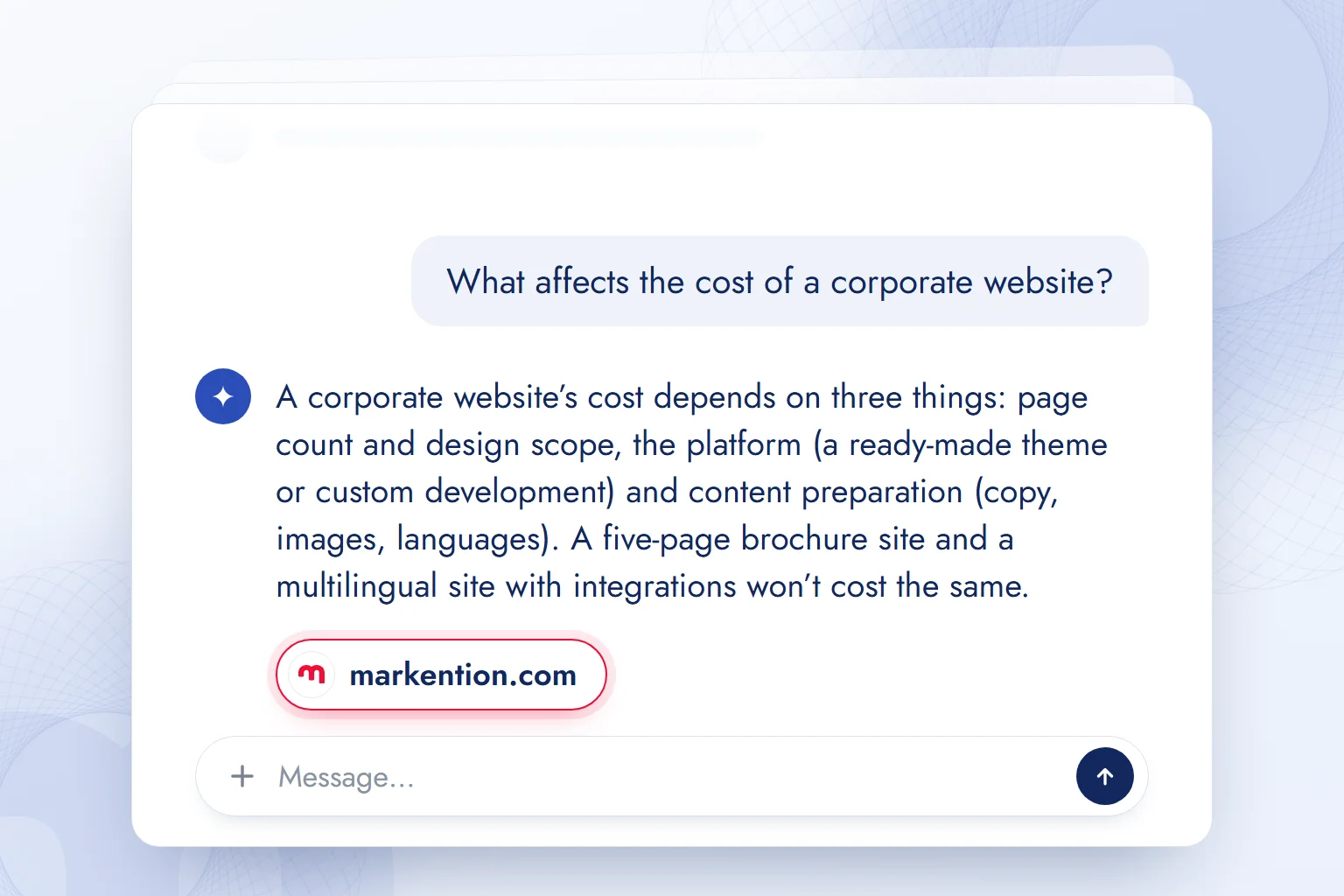
In a representative “corporate website” study, cost, examples and platform phrases share one main topic but describe different reader needs. Seeing the cost question, a team checks whether the page explains what drives cost: the decision compares the reader’s question with the current answer rather than cracking a hidden ranking rule.
How is it used in SEO? Steps to build a query cluster
In SEO, we collect the queries in the box, group them by intent and match each group to a page.
A query cluster is a group of searches tied to a shared need that one page answers. Similar wording is not enough; the searchers’ goals must overlap too. Our working order:
- We search the main queryWe start with, say, “corporate website” and note the language, location, device and time of observation.
- We visit the top three organic results and returnWe open each in the same tab, return with the back button and record whether the box appears.
- We write the queries into a tableWe record each phrase unchanged with the visited page, keep our own ideas apart and mark duplicates.
- We group them by intent and stageWe separate learning, comparing options and choosing a service. A “what is” search and a “quote” search never share a group.
- We tie each group to one pageWe name the target page that answers the group’s need and decide on existing content, a new post or a service page from this match.
| Query | Intent and stage | Content decision |
|---|---|---|
| What is a corporate website | Learning about the topic | A short definition and scope section in the guide |
| Corporate website examples | Research, seeing options | An examples section with real projects |
| Corporate website cost | Evaluation, budget planning | Factors that affect cost, on the service page |
| How long does it take to build a corporate website | Evaluation, timeline planning | A service page FAQ on how timing relates to scope |
| Corporate website platform | Comparison, technical choice | A separate guide weighing options against criteria |
| Corporate website design agencies | Choosing a provider | Process and selection criteria on the service page |
This table is a representative example of the method, not a live Google observation. We tie cost and delivery time to the same service page and the platform comparison to a separate guide.
Each group falls into one of three cases:
- The existing page answers it → an H2 or FAQ is added for the missing detail.
- A separate intent → a new post is opened.
- Commercial intent → it goes to the service page, not the blog.
Next to each decision we write the target address and the missing answer, so we never assign two pages to one cluster or squeeze different needs under one heading.
How do you turn a query list into an actionable content decision?
An actionable decision names the question to answer, the target page and the change to make. A note like “add the word cost” does not explain the need; our example’s “explain the factors that affect cost on the service page” defines the section’s job.
If the page already answers the query, a new section is not automatic. We check whether the answer is findable from the headings and answers the question directly, and separate missing information from information under another heading.
Cost and delivery time, for example, are weighed together when choosing a service, so we treat them as sub-questions on the service page; a platform comparison that needs a broader guide gets its own page. We choose the target address before any new title, so the plan shows which question is answered where.

How do we strengthen existing pages with this box?
We strengthen existing pages by filling the answer gaps the queries reveal. First we review the page’s purpose and the questions it already answers, then decide:
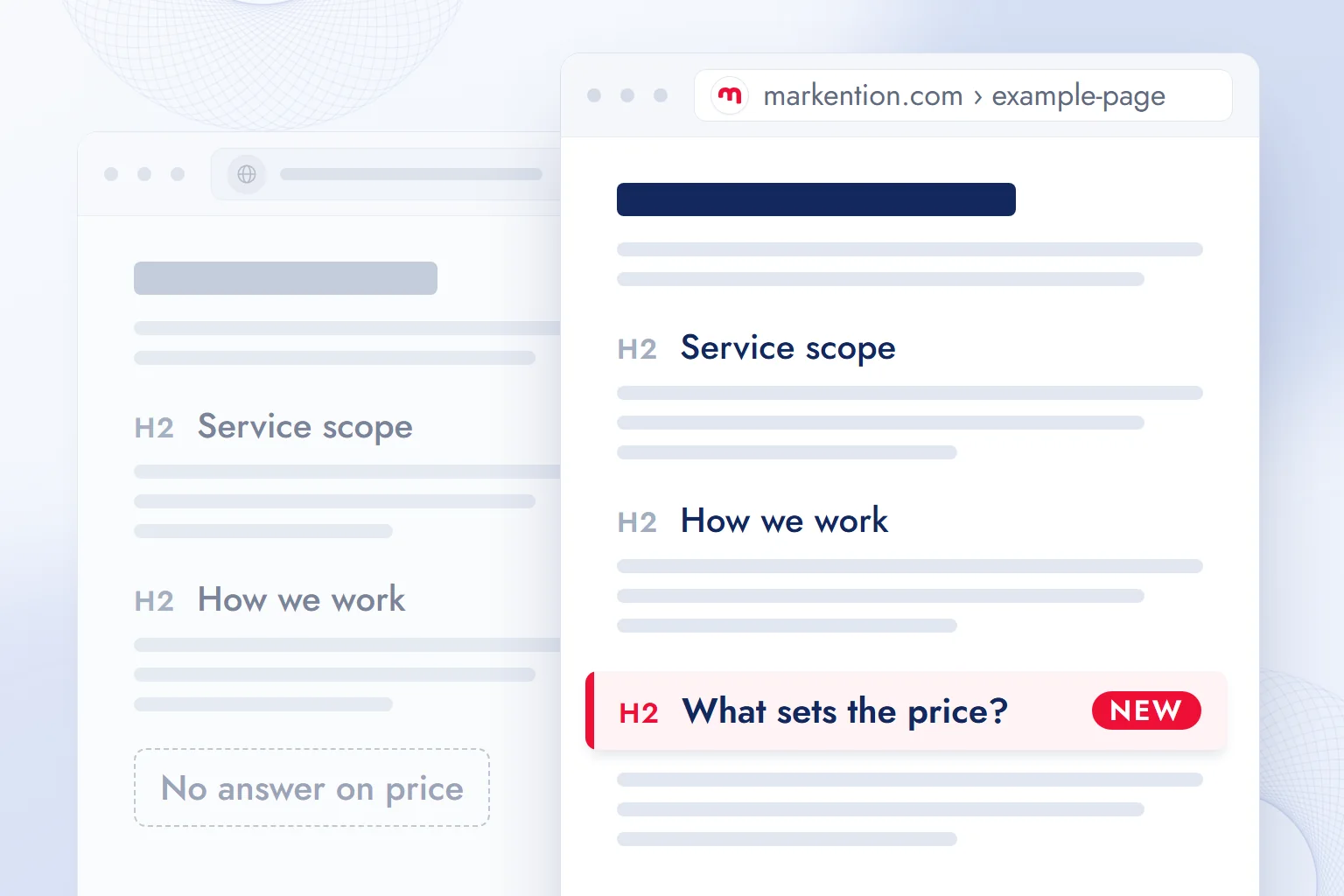
- Title and H2 mapping: We keep the heading that meets the main need and add a section that answers the missing sub-question directly.
- Adding an FAQ: We move short-answer questions into the FAQ without repeating the main text.
- Internal link: We link to the page that meets the reader’s next need, with wording that names the destination.
- New post decision: If the topic serves a separate purpose, we plan a new post rather than splitting one answer across pages.
Before editing, we set the page’s current answers beside the query list. “Not answered at all”, “answer too short” and “answered on another page” lead to different jobs: defining a new section, filling in detail, or linking to the right place.
For the FAQ, we weigh the answer’s length and its link to the main section: a topic that needs steps is explained in the main section, and the FAQ gives the direct answer. Link text names the destination’s topic.
Once enough data builds up, we filter the page in and compare the 3 months after the change with the 3 months before. We read impressions and clicks with the same country and device filters, note the publish date and allow for seasonality and parallel changes.
A query missing from the report is not unsearched; Search Console does not show every query. Nor do we credit a traffic change only to the new section. We read the box’s queries alongside our competitor analysis and decide on improvements with the criteria in our what does optimize mean post. Related topics are in our SEO posts.
Is there an equivalent in AI answers?
Follow-up questions in AI answers serve a similar research purpose, but they are not the same data source as Google’s box. In ChatGPT and Gemini, we open sub-topics such as cost, platform and content preparation with follow-up questions. We record them as content ideas, not as real users’ search volume.
In our September observation on Google Turkey, the Turkish version of this query showed no AI Overview, the AI-generated summary. Where an overview appears, we compare the sub-questions it covers with our content. In GEO, visibility work for generative AI answers, we use clear definitions, direct answers and verifiable facts. This does not guarantee a citation; it makes the information clear and traceable.
The query cluster logic holds here too: an assistant’s cost question can point to a missing explanation but does not show how often people search for it. We check its fit with the existing page and verify the answer’s facts separately.
Common mistakes
Common mistakes are opening a page for every query, mistaking the box for personal history, relying on one observation and adding words without purpose.
- A page for every query: We gather content for one need on one comprehensive page.
- Assuming personal history: We draw no conclusion from a phrase about an account’s history or another person’s behaviour.
- One-off observation: We review suggestions at different times and never base a lasting decision on one screen.
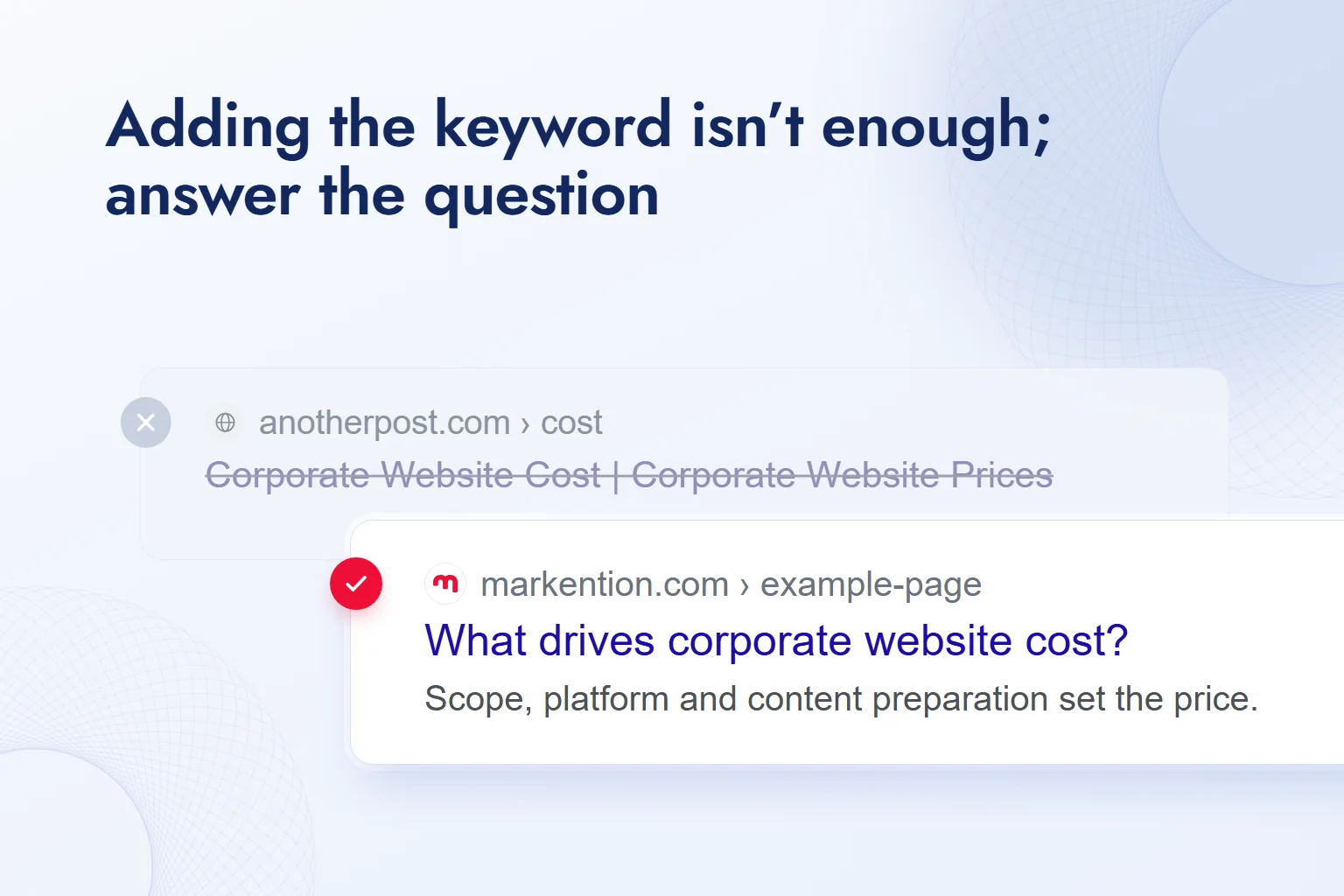
- Filling without intent: We do not stop at adding the query to a heading; we give information that answers the reader’s question.
Frequently asked questions
What does “People also search for” mean?
It is the set of related queries shown under a result when we visit it on Google and come back. There is no fixed list; it changes with the query and search context.
Is this box my search history?
No, it is not a record of our account’s search history. A phrase appearing there does not mean we searched for it.
Why does the box sometimes not show?
Check three things: whether a result was opened, whether Google shows the box for that query, and whether the browser returned from cache.
Can “People also search for” be turned off?
Our observation: there is no dedicated setting for this box; deleting search history or turning off personalization does not remove it.
Does “People also search for” affect SEO?
Adding its phrases to a page does not raise rankings on its own. We use the suggestions to understand intent and fill missing answers.
Does ChatGPT have something similar?
In ChatGPT we expand a topic with follow-up questions, a similar research flow. Generated questions are not data from Google’s box or verified search demand.
How can I see all my search history?
Open My Activity with the relevant Google Account to see the searches saved to it. We confirm which account is signed in first and never use the box as a history list.
How do you turn off Google search suggestions?
For history-based predictions, we turn off “Search personalization”. In the Google app on Android, we also turn off “Autocomplete with trending searches” via profile picture → Settings → Other settings → Autocomplete settings. This only affects the app on that device; menu names can change.

 WordPress SEO plugins: Yoast vs Rank Math vs AIOSEO comparedRead article
 What is a meta description? Length, writing rules and effect on clicksRead article
 What is a keyword? Types of keywords and how to choose themRead article
 What is a title tag? How to write it and how it differs from H1Read article
 What does optimize mean? Optimization on phones, websites and adsRead article
 What are search engines? Google, Bing, Yandex and AI searchRead article
 What is Google AI Mode? AI Mode vs AI Overviews and your siteRead article
 What is robots.txt? How to create it and allow AI crawlersRead article
Questions & answers
0 commentsNo questions yet; you can ask the first one.