





 Damla Kütük
13 min read
Contents 17 sections
Key takeaways
- Google image search finds pictures from words or identifies an uploaded photo and the sites that published it.
- Google reported in October 2024 that people run nearly 20 billion visual searches with Lens every month.
- Google Images' Usage rights filter separates images carrying license information but does not make them free to use.
- Announced in 2023, the About this image panel shows when Google first saw an image and its metadata.
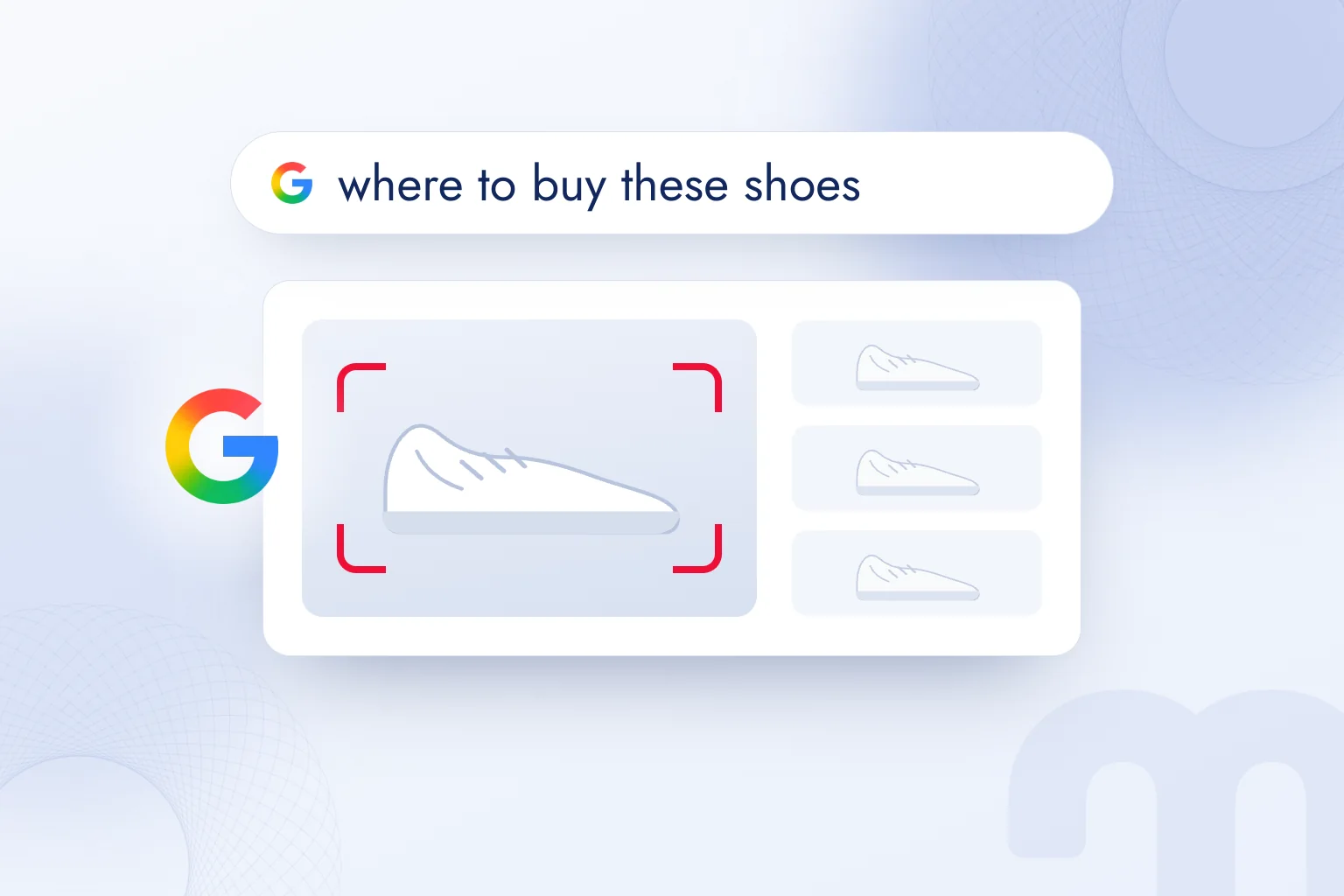
Google image search is the Google search type that finds pictures from words, or takes a photo you upload and returns the object in it, similar images and the sites where the image was published. Searching with a photo now runs on Google Lens: on a computer from the camera icon on google.com, on a phone from the Google app.
This guide splits every route by device: computer uploads, drag and drop and image links; the Google app, Chrome and Safari on Android and iPhone; Google Images filters and licensed images for commercial use; spotting fake news and fake accounts by finding where a photo first appeared. The last section shows businesses how product images stand out, under Google’s official guidelines. Every step comes from Google Search Help and Google Search Central.
An image found on Google is not used before its license is checked; the “Usage rights” filter is a starting point, and the final check is made on the site that published the image.
What is Google image search?
Google image search covers two jobs: typing words in the Google Images tab to find pictures, and giving Google a picture to get results about it. The second is also called .
Searching with words is the classic route: you type “blue kitchen cabinets”, switch to the Images tab and see images associated with those words. When you search with a picture, the picture is the query. According to Google’s help page, a search with an image can return:
- AI Overview → A short answer with sources about what the image shows.
- Results for objects → Search results for the product, plant, building or animal in the image.
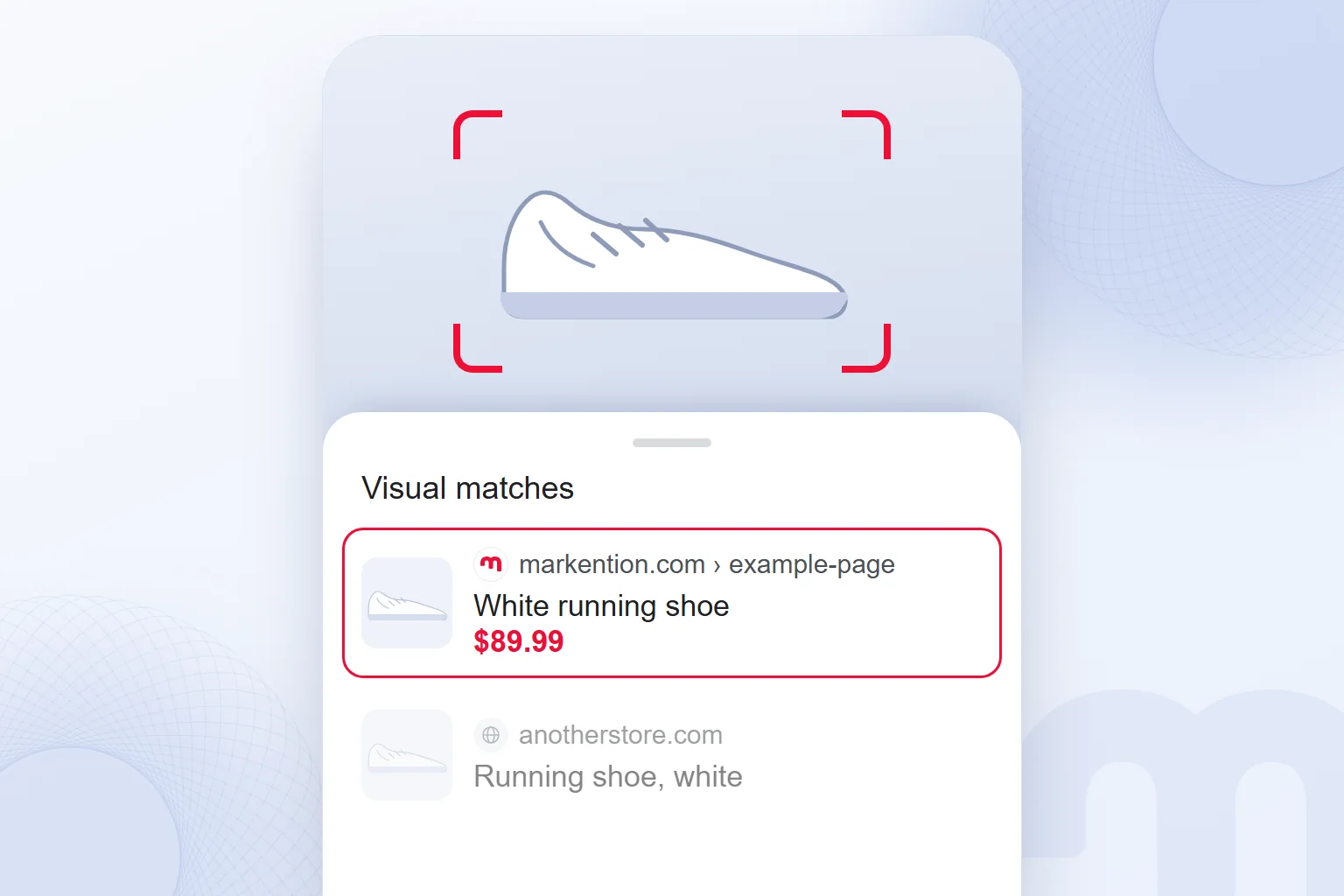
- Visual matches → Pictures similar in color, shape and content.
- Sites that contain the image → Pages where the image, or a similar one, was published.
This is no minor feature. According to Google’s October 2024 shopping announcement, people run nearly 20 billion visual searches with Google Lens every month, and 20 percent of them are shopping related.
What is searching by image used for most?
Searching by image looks up anything hard to put into words; a photo is faster than a description. The most common uses:
- Finding a product → Finding stores that sell a lamp, shoe or fabric seen in a shop window, a video or a friend’s home.
- Identifying → Learning the name of a plant, insect, dog breed, historic building or painting.
- Finding similar ideas → Seeing more examples in the same style for a living room, a haircut or a logo.
- Checking the source → Finding where a news photo or a seller’s profile picture first appeared.
- Finding a larger version → Reaching the original high-resolution copy of a small image.
In the first two, Google Lens object recognition drives the results; in the last three, the image’s copies across the web do.
How do you do a Google image search on a computer?
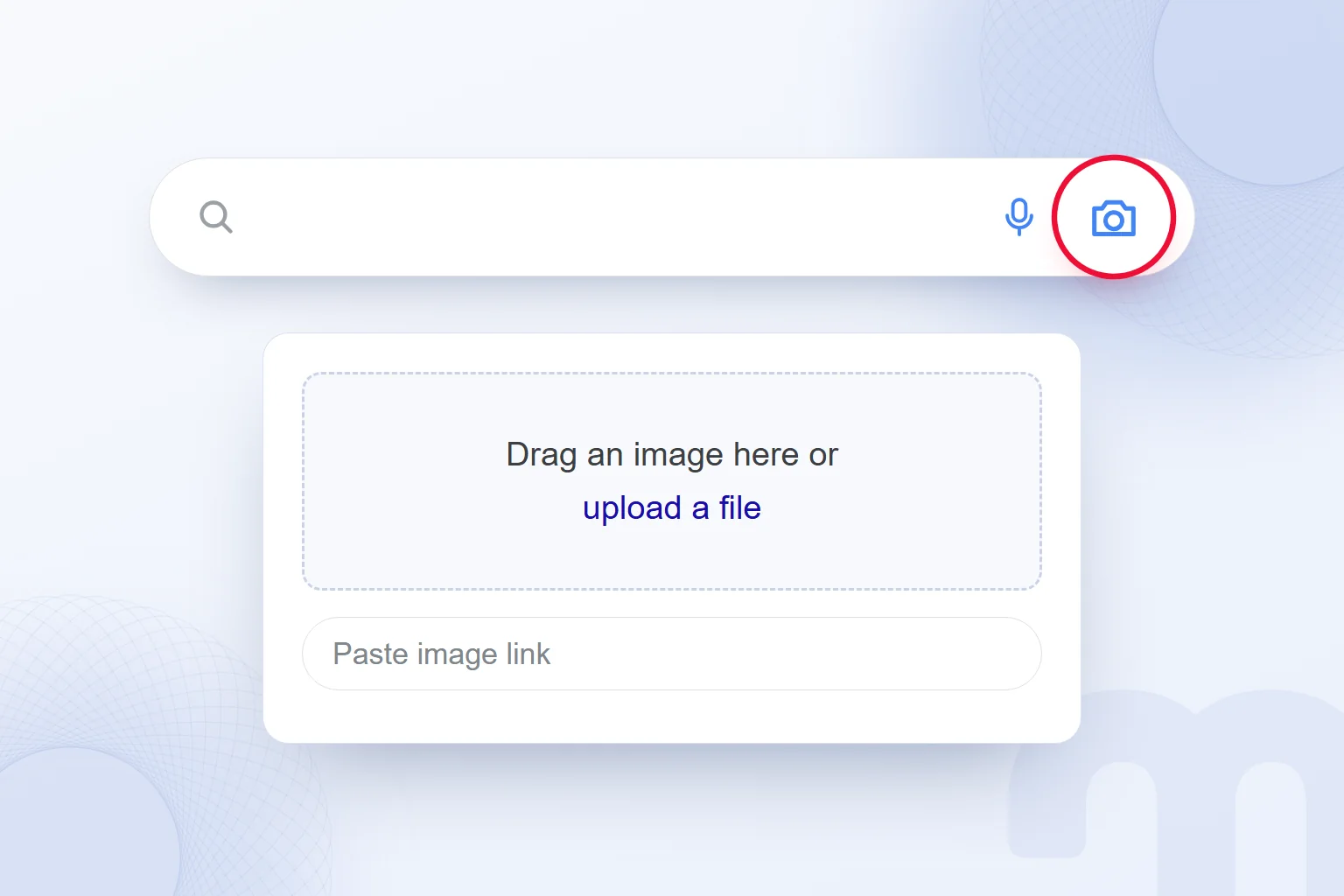
On a computer, you click the Search by image (camera) icon on google.com, then upload the image, drag it into the search box or paste an image link. Google says this works in all common browsers, such as Chrome, Firefox, Safari and Edge.
- 1. Open the iconGo to google.com and click the Search by image icon on the right of the search box.
- 2. Provide the imageChoose “upload a file”, drag the file into the search box, or type the image address in “Paste image link” and click “Search”.
- 3. Select the areaDrag the corners of the selection box so only the object you want is selected.
- 4. Narrow the searchType a description in the “Add to your search” box, such as “same model, in black”.
- 5. Review the resultsMove on to visual matches, shopping results or the sites that contain the image.
To search for a picture you see on a site, no upload is needed. In Chrome, right-click the image and choose “Search with Google Lens”; results open in a side panel without leaving the page. Per Google’s note, browsers do not save searched image links in your history, but Google may store them to improve its products.
Searching with a screenshot on a computer
To search part of the screen, such as a product in a video, you use the Google Lens option in Chrome’s address bar or right-click menu and drag around the area. Uploading a saved screenshot gives the same result.
How do you search by image on your phone?
The shortest way on a phone is the Google Lens icon in the Google app’s search bar; you take a photo or pick one from your gallery. In the Chrome app, touching and holding an image on a website also starts a search.
Searching by image on Android
On Android, open the Google app or Chrome and tap the Lens icon in the search bar. Point the camera at the object and tap the search button to search with a live photo, or pick an image under “Screenshots” to search with a saved one.
To search for an image on a website, touch and hold it in Chrome and choose “Search image with Google Lens”. Google notes that this menu only appears when Google is Chrome’s default search engine. Compatible Android phones also offer Circle to Search: circling an object on the screen with a finger starts a search without leaving the app.
Searching by image on iPhone
On iPhone and iPad, open the Google app, Chrome or Safari and tap the Google Lens icon in the search bar; take a photo or use the photo picker to choose one from your camera roll. Opening google.com in Safari and using the same icon works without installing an app.
When you touch and hold an image on a site, the menu depends on the app: the Google app shows “Search inside image”, Chrome shows “Search Image with Google”. Google’s help page states that asking a spoken question about an object by holding the shutter button currently works only for English queries.
Searching with a screenshot on your phone
Take the screenshot, open Lens in the Google app and pick it from the gallery; Lens shows screenshots at the top of the picker. This is the most practical way to look up a product seen on Instagram or in a video. On Android, Circle to Search turns this into one gesture.
How do you search Google Images with words?
Type the query on google.com and switch to the “Images” tab at the top of the results page; images.google.com opens that tab directly. To narrow the results, use the filters in the “Tools” menu.
According to Google’s help page, these filters are available in Images results:
| Filter | Options | When we use it |
|---|---|---|
| Size | Large, medium, icon | High resolution for a presentation or print |
| Color | A specific color, black and white, transparent | A logo or an image without a background |
| Type | Clip art, line drawing, animated GIF | An illustration or a moving image |
| Time | Recent, a specific date | A photo of a current event |
| Usage rights | Creative Commons, commercial and other licenses | Before reusing an image |
Google notes that the tools vary by search and browser. For aspect ratio, file type or limiting results to one site, the advanced image search page is used; we cover operators like site: and filetype: and every field of that page in our Google advanced search guide.
How do I find images I can use?
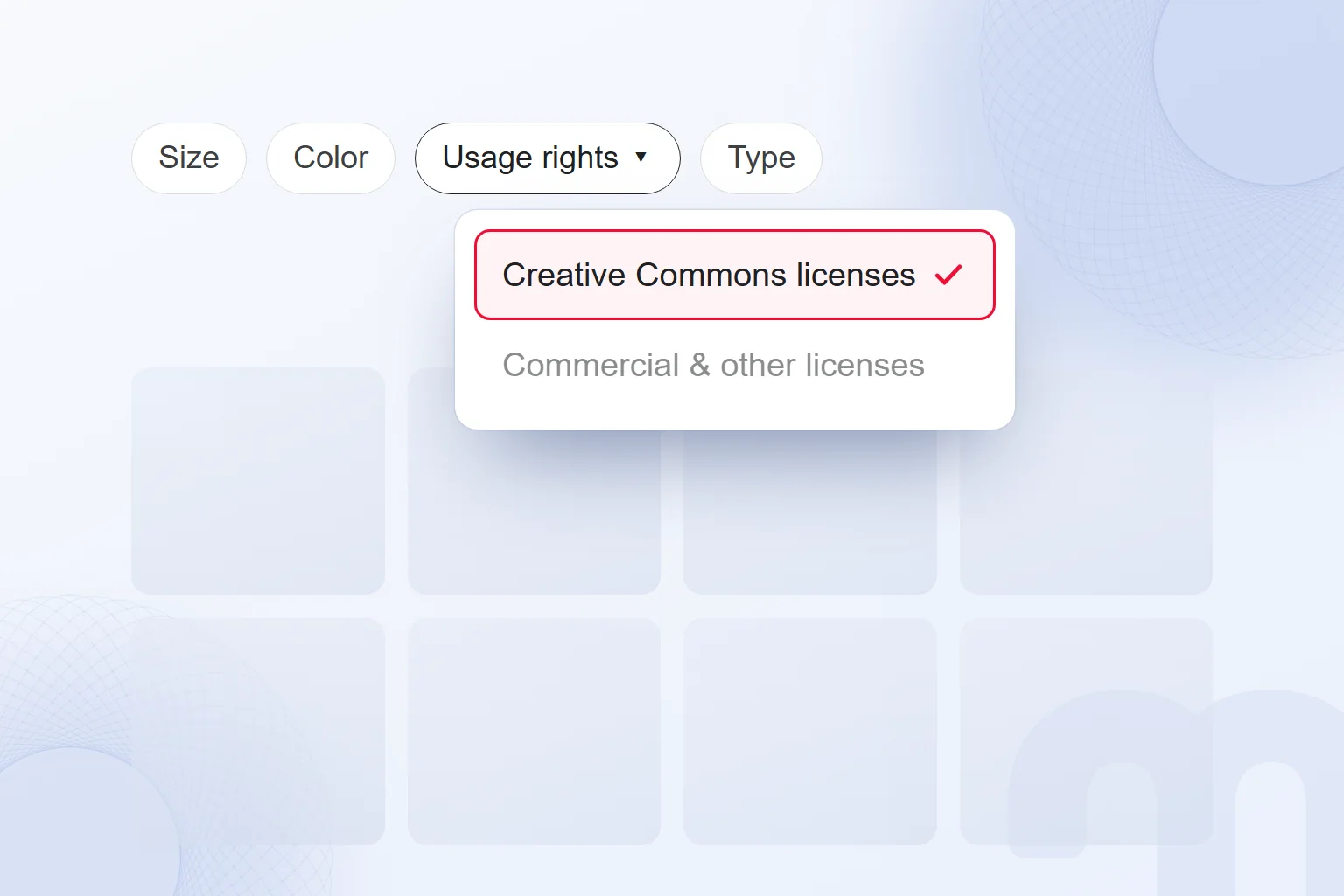
Open the “Usage rights” filter under “Tools” in Google Images and choose a license type; the “License details” link shown when you click an image gives the terms. The filter does not make an image free to use; it only separates images that carry license information.
Google’s help page names two license groups. Creative Commons images can generally be used free of charge, but the owner must be credited; some Creative Commons licenses forbid modifying the image or using it commercially. Commercial and other licenses come from paid or free stock sites and follow their own terms.
Our order for the license question:
- Is it the brand’s own work? → A photo we shot or created is always the first choice; no license question arises.
- Is it Creative Commons? → We check the license type: if attribution is required, we credit the owner under the image; if it says “non-commercial”, we do not use it in ads.
- Is it a commercial license? → We read the purchase or free-use terms on the stock site; most licenses limit use in logos and product packaging separately.
- No license information? → We do not use the image. As Google notes, license information comes from the hosting site and may be missing or wrong.
AI-generated images are a different case: the generation tool’s terms of use and any brand, person or copyrighted character in the image decide the matter. We cover this in our AI photo editing article.
How do you find the source of a photo?
Search Google with the photo and review the sites that contain the image; the earliest publication is often the original source. Fake news, fake profiles and scam listings show up this way within minutes.
The “About this image” panel, opened from the three-dot menu next to an image in Google results, is a verification tool Google announced in 2023: it shows when Google first saw the image, how other sites describe it and the embedded in it. For images made with Google’s AI tools, this metadata and the invisible SynthID watermark indicate AI generation.
We use reverse image search most in three cases:
- News photo → If a photo shared as a new event was published elsewhere years ago, image search shows it in the first results.
- Fake account or listing → If a seller’s or profile’s photo also appears under other names on other sites, the account is very likely fake.
- Content theft → This shows whether a brand’s product photos are used without permission elsewhere; a takedown request is then sent to that site.
Our observation: missing metadata does not prove an image is real. Anyone sharing an image can edit metadata; the date and source site are stronger evidence.
What if image search returns no useful results?
The problem is usually the image itself: the object is small in the frame, the image is blurry or the background is busy. Narrowing the selection box to the object and typing two or three words in the “Add to your search” box fixes most cases.
The situations we run into, and the fix for each:
| Situation | What we do |
|---|---|
| Results show completely different objects | We narrow the selection box to the object |
| The product is found but the color or model is wrong | We type a color, brand or size in “Add to your search” |
| The image is blurry or dark | We take a closer, brighter photo or enlarge the screenshot |
| A photo of a person returns nothing | Google does not identify people who are not well known from their face; we do not force this search |
| The Lens menu does not appear on the phone | We make Google Chrome’s default search engine and update the Google app |
| The camera icon is missing on the computer | We open google.com in another browser or try images.google.com |
A note on people: image search recognizes a celebrity or a public landmark, but it is not designed to identify an ordinary person from their face. A fake account check looks for the same photo under other names, not the person’s identity.
What is the difference between Google image search and Google Lens?
Both use the same technology today: when you search Google with a picture, Google Lens produces the results. Image search looks up a ready-made picture; Lens stands out for recognizing live objects through the camera, translating text and solving homework questions.
| Criterion | Google image search | Google Lens |
|---|---|---|
| Starting point | A saved image or an image link | Camera, screenshot or image |
| Typical use | Similar images, source, pictures by keyword | Object recognition, translation, products, homework |
| Where | google.com, Images tab | Google app, Chrome, Android camera |
| Search with words | Yes (Images tab) | No; it starts with an image, a question can be added |
We cover Lens features for translation, copying text, finding products and desktop use in our what is Google Lens article.
How do you view and delete your Google image search history?
Image searches made while signed in are saved with your other searches on the My Activity page (myactivity.google.com) if Web & App Activity is on; you can delete them there one by one or by date range. Searches made without signing in are not saved to an account, but the results page may appear in the browser history.
Who sees your history, deleting it and auto-delete are covered in our people also search for article. On a shared computer, a private window is simplest.
Is searching in Google Photos the same thing?
No; Google Photos is a separate service for storing your own photos, and its search only covers your library. You type “beach”, “birthday” or a person’s name; results stay private and are not part of Google image search. To search the web for a photo in Google Photos, open it and tap the Lens icon.
How do your site’s images stand out in Google image search?
An image needs to be published with an HTML img element, carry a descriptive file name and alt text, sit next to relevant text and load fast. These rules are set out in Google Search Central’s image SEO documentation.
Product images are a second shop window for an online store: shopping searches made with Lens also draw on them.
The checklist we drew from Google’s documentation:
- 1. img elementThe image is published with an img element that has a src attribute. Google does not index CSS background images; with srcset or picture, a fallback img src is present.
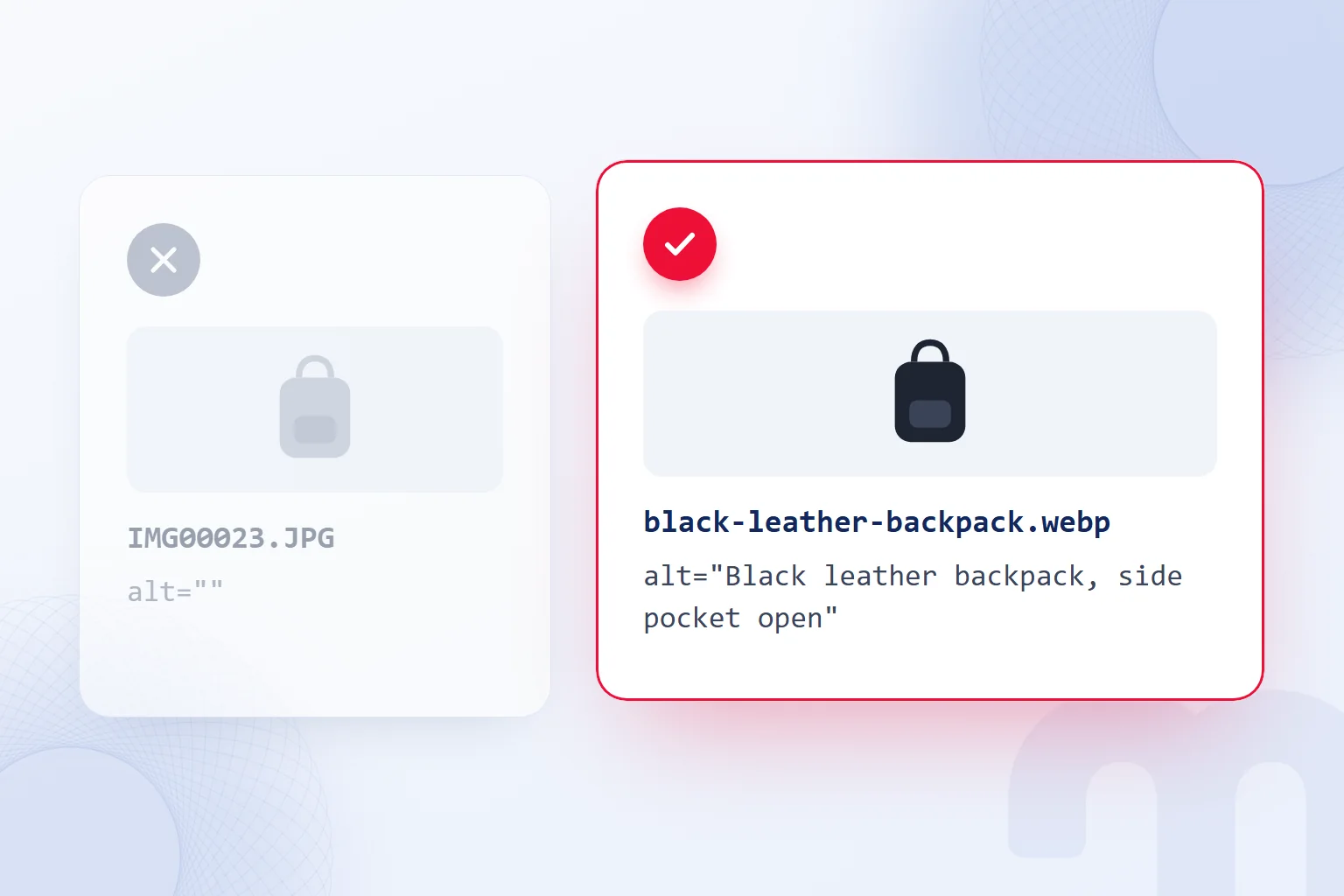
- 2. File nameA short, descriptive name such as “black-leather-backpack.webp” is used instead of “IMG00023.JPG”, in the site’s language.
- 3. Alt textA sentence that describes the image without keyword stuffing: “Black leather backpack, side pocket open”.
- 4. ContextThe image sits near text about its subject; the page title and description support that subject.
- 5. Format and speedBMP, GIF, JPEG, PNG, WebP, SVG or AVIF is used; the extension matches the real format and the image is compressed.
- 6. DiscoveryAn image sitemap is submitted for images not found through page links; if images live on another domain (a CDN), that domain is also verified in Search Console.
To tell Google which image represents a page, the og:image tag or the schema.org primaryImageOfPage property is used. On product pages, the image field in product structured data is required for the product badge in Google Images and for rich results. Google advises against images with text, generic logos and extreme aspect ratios as the representative image.
Images are the heaviest part of a page, so image SEO and speed go together. We handle format choice and compression in our website speed optimization work, and product images in search and shopping results in our ecommerce marketing service.
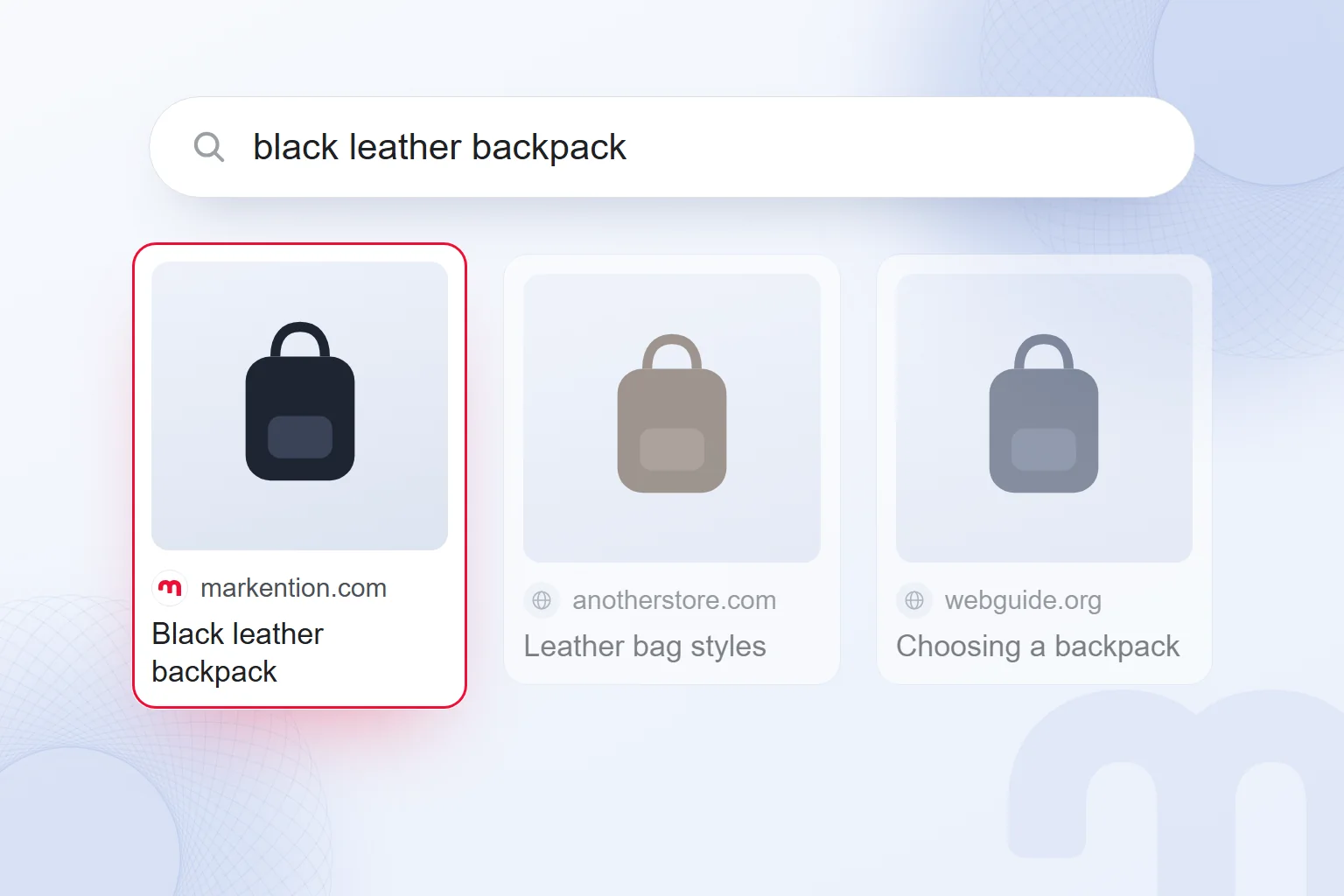
Image search is part of a site’s search visibility; our SEO consulting page covers images, product data and page speed together. Google’s other search tools are collected in our SEO guides; to think about which keyword an image query matches, our what is a keyword article is a good start.
Frequently asked questions
How do you search Google with a picture?
Click the camera icon in the google.com search box, then upload or drag in the image. On a phone, use the Lens icon in the Google app.
How do you search with a photo on your phone?
Tap the Lens icon in the Google app or Chrome search bar, then take a photo or choose one from your gallery.
How do you do a Google image search on iPhone?
Open google.com in the Google app, Chrome or Safari and tap the Lens icon. Touching and holding an image on a site also offers a search.
Is Google image search free?
Yes. Searching by image and Google Images are free and work without an account.
Can I use any image I find on Google?
No. Most images are protected by copyright. The “Usage rights” filter separates images with license information; the terms are read on the source site.
How can you tell if a photo is fake?
Search with the photo; earlier publications and the “About this image” panel show where and when it first appeared.
Are image search and Google Lens the same?
They use the same technology. Image search starts from a ready-made picture; Lens stands out for camera, screenshots, translation and products.
Why don’t my site’s images show up in Google Images?
The most common reasons are CSS background images, unclear file names and alt text, a robots.txt block and images on unrelated pages.

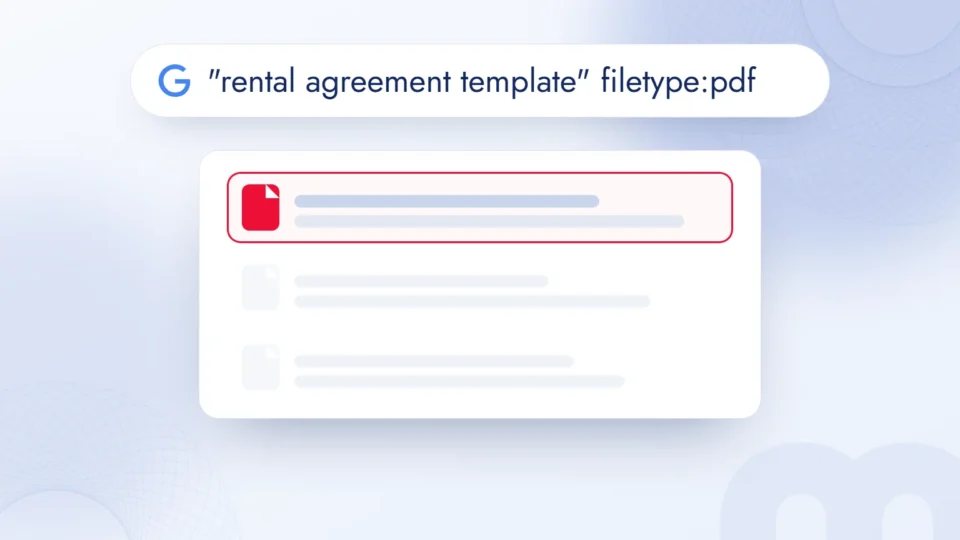 How to use Google advanced search: a search operators tableRead article
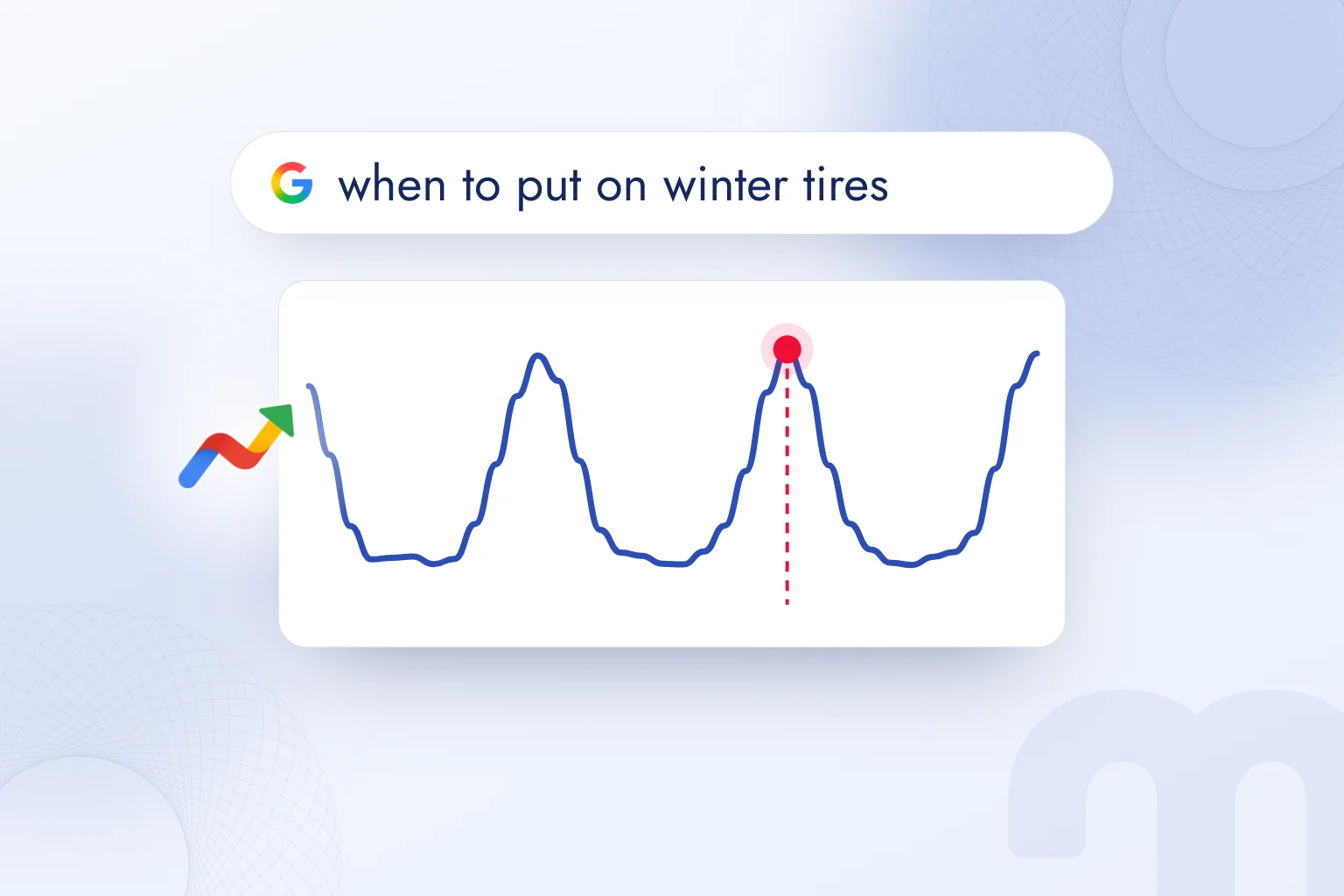
 What is Google Trends and how do you use it? A trend analysis guideRead article
 What is Google Discover? Turning it on, off and getting trafficRead article
 What is Google Lens? How to use it to translate, shop and search on PCRead article
 What is Google Scholar and how to use it? Articles, citations, profileRead article
 Google Business Profile: how to add your business to Google MapsRead article
 WordPress SEO plugins: Yoast vs Rank Math vs AIOSEO comparedRead articleMost read
 What is a meta description? Length, writing rules and effect on clicksRead article
Questions & answers
0 commentsNo questions yet; you can ask the first one.