





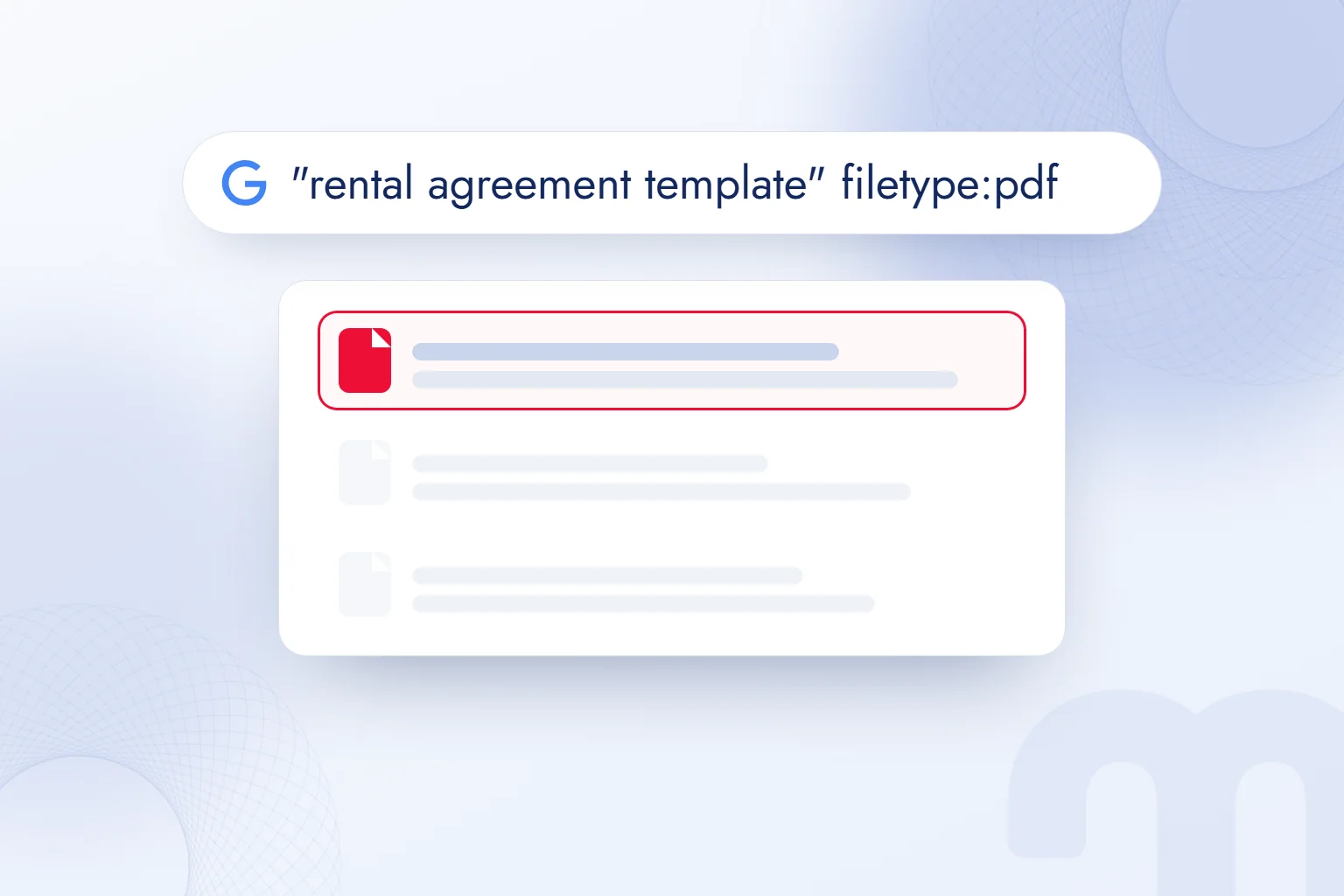
 Damla Kütük
12 min read
How to use Google advanced search: a search operators table
The fields of Google’s Advanced Search page, a table of the quotes, site:, minus, filetype:, before: and after: operators, advanced image search, SafeSearch and how operators are used in SEO.Pro
Contents 17 sections
Key takeaways
- Google advanced search is a Google Search feature that narrows results by criteria such as exact phrase, site and file type.
- No space goes between a search operator and its search term, so jaguar -car works and jaguar - car fails.
- Google Search Central states that site query results are not a complete list of a site's indexed pages.
- Google removed the cache operator in 2024, and the related operator no longer appears in current documentation.
Google advanced search is a Google Search feature that narrows results by criteria such as an exact phrase, a specific site, a file type, the last update date, language and region. It works in two ways: by filling in the form at google.com/advanced_search, or by typing operators such as “site:” and “filetype:” into the search box.
This guide covers both: the Advanced Search page and its fields, the operators Google officially documents with examples, combined queries for official documents, PDF reports or forum threads, advanced image search, SafeSearch and operators in SEO work. Operator and field names come from Google Search Help’s page on refining searches and from Google’s advanced search forms.
No space is placed between an operator and the search term; a site: result is not the full index of a site, only a first check.
What is Google advanced search?
Google advanced search is the umbrella name for the forms and commands that filter a normal search’s results by specific rules, so the exact document you need is reached among thousands of results in a few steps. Google describes these forms as pages built to help with specialized searches.
The shortcut to advanced search is the . Every criterion chosen in the form has an operator equivalent: the “site or domain” field maps to the site: operator, and the “file type” field maps to filetype:. Using the form once and reading the query it produces is the easiest way to learn them.
Four groups use advanced search most: students and researchers who need sourced information, legal and accounting staff who need official documents, marketing teams researching competitors and markets, and SEO specialists checking how a site appears on Google. All four want a small, accurate list instead of a generic results page. For everyday users, a few operators turn finding a recipe PDF, an announcement or a product manual from minutes into seconds.
How do you open the Google Advanced Search page?
To open the Advanced Search page, you run a search on Google, click “Tools” under the search box and then “Advanced Search”; on mobile the same menu is called “Search tools”. google.com/advanced_search opens the same form directly.
- 1. Run a searchType the topic you want on google.com and search.
- 2. Open ToolsClick “Tools” under the search box; on a phone, tap “Search tools”.
- 3. Open the formChoose “Advanced Search” in the Tools section, or go straight to google.com/advanced_search.
- 4. Fill in the fieldsEnter the criteria you need; fields left empty do not affect the search.
- 5. SearchClick the “Advanced Search” button; on the results page, see how your form choices turned into operators.
Fields on the Advanced Search page
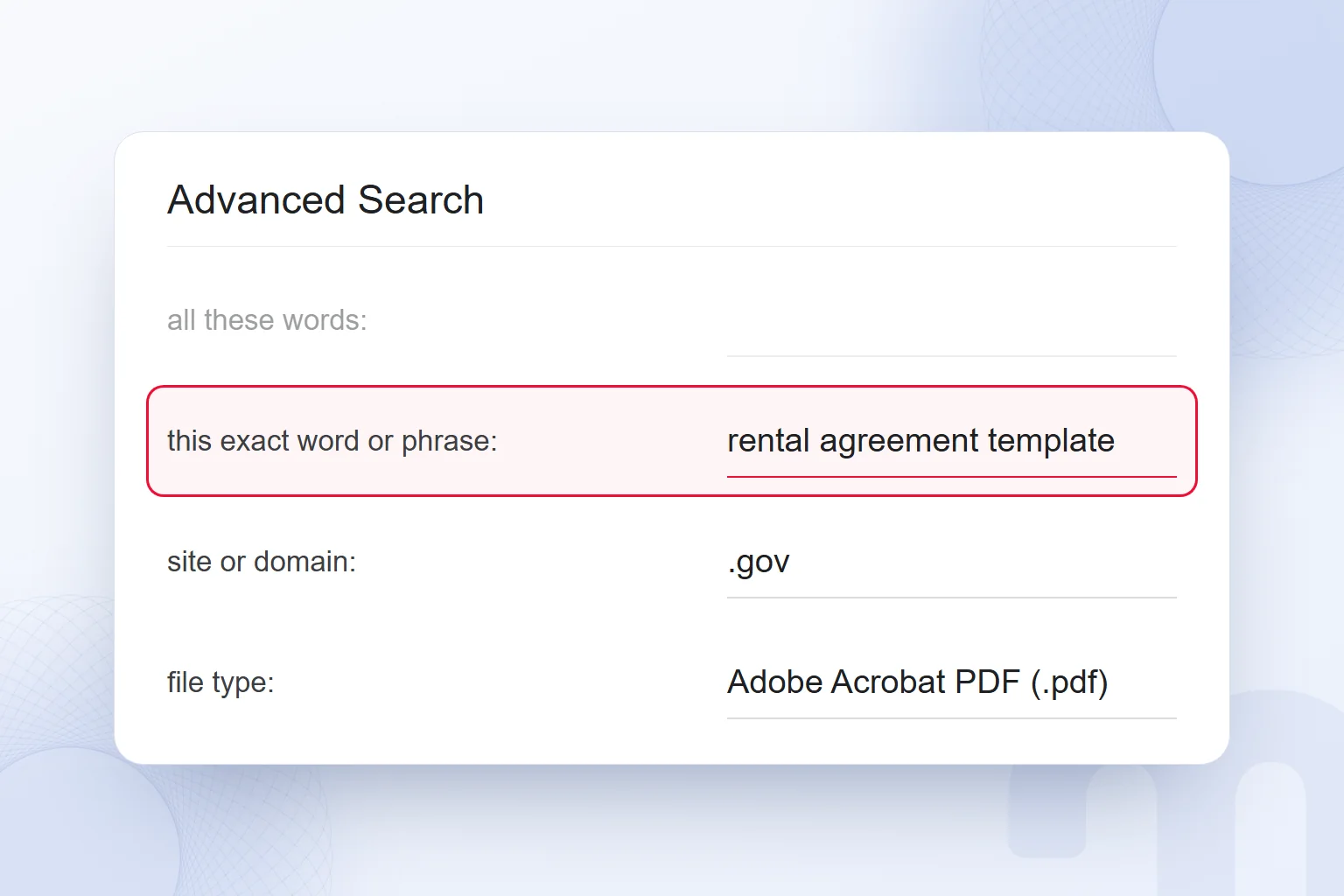
Google’s advanced search form splits the page into two parts: the content you are looking for and extra filters. The current field names and their equivalents are:
| Form field | What it does | Operator equivalent |
|---|---|---|
| all these words | Returns pages containing every word | Normal search |
| this exact word or phrase | Returns pages containing the exact phrase | “in quotes” |
| none of these words | Removes pages containing these words | -word |
| site or domain | Limits the search to a site or domain extension | site: |
| file type | Selects a document type such as PDF, Word or Excel | filetype: |
| last update | Returns pages updated in the past day, week, month or year | before: / after: (close equivalent) |
| language | Limits results to one language | — |
| region | Limits results to pages published in one country | — |
| usage rights | Filters by license information | — |
Google search operators table
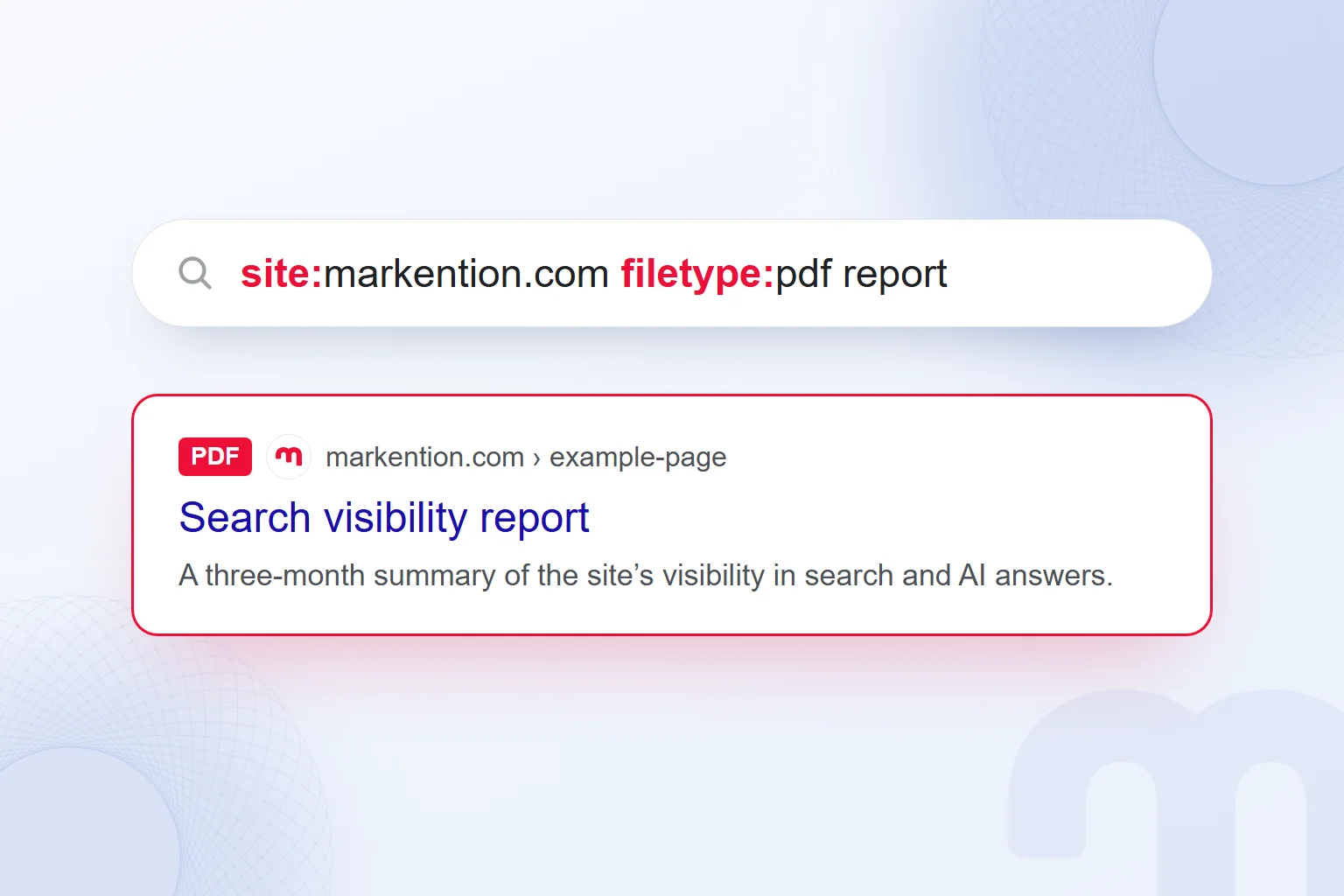
Google Search Help documents six operators with examples: quotes for an exact match, site: for a specific site, minus to exclude a word, before: and after: for dates, and filetype: for a file type. The help page stresses one rule that matters: no space goes between an operator and the search term.
| Operator | What it does | Example query |
|---|---|---|
| “…” | Searches for the exact word or phrase | “tallest building” |
| site: | Limits results to a site or extension | site:youtube.com cat videos |
| – | Excludes a word from results | jaguar speed -car |
| before: | Documents last updated before a date | earthquake report before:2024 |
| after: | Documents last updated after a date | AI regulation after:2026/01/01 |
| filetype: | Documents of a specific file type | market research report filetype:pdf |
Other long-used expressions exist too: uppercase OR for one of two options, an asterisk (*) for an unknown word, intitle: for words in the title and inurl: for words in the address. Google’s help page does not list them; our observation is that they still work, but less consistently than the official operators. For an important decision, we recheck the result with the official ones.
Some older operators no longer work. The cache: operator, which showed Google’s cached copy of a page, was removed in 2024; the related: operator, which showed similar sites, no longer appears in current documentation either.
The most common mistakes when writing operators
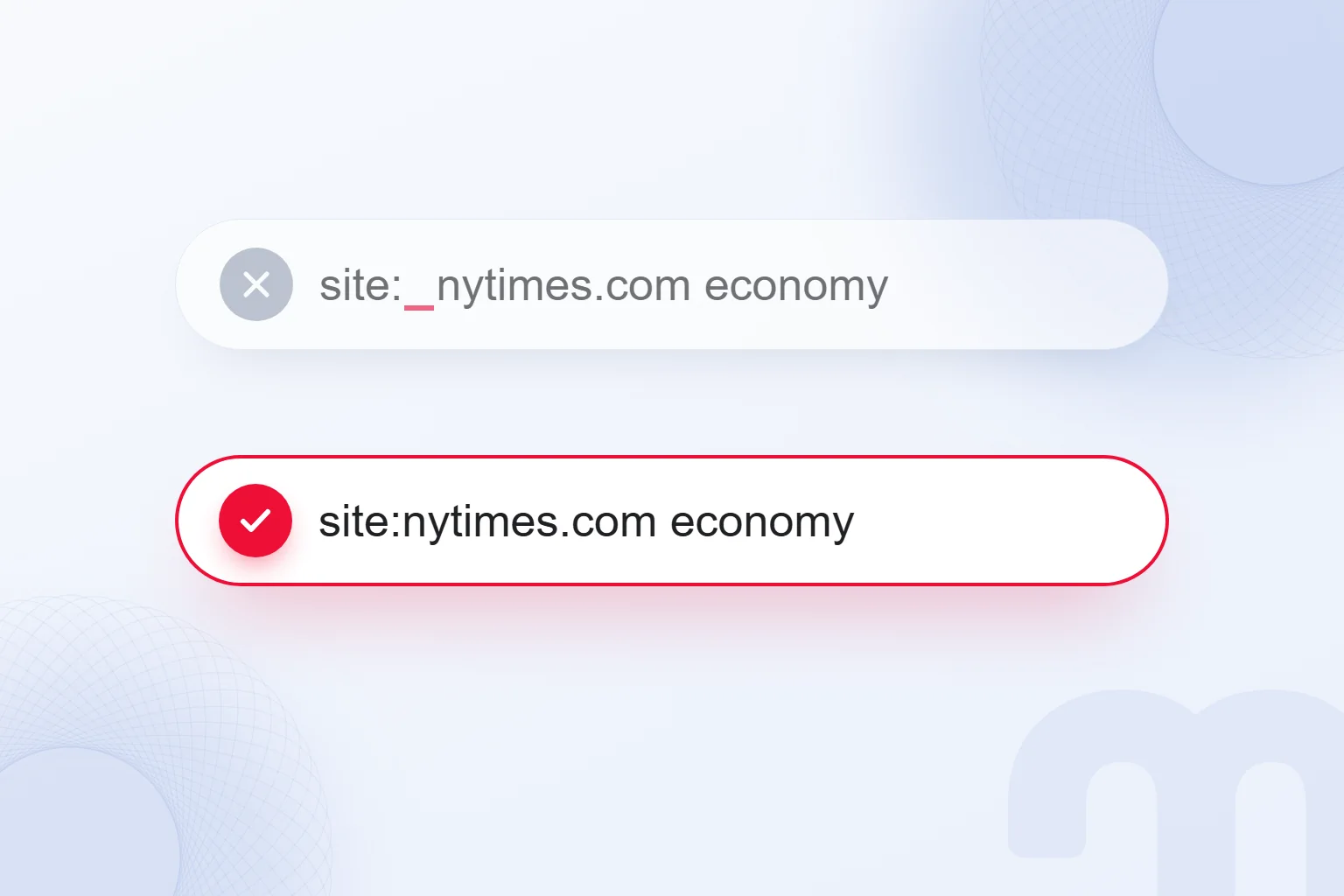
When an operator fails, the cause is usually a typo; Google treats a malformed operator as an ordinary word, and the user does not notice. The mistakes we see, and the fixes:
- Space → “site: nytimes.com” does not work, “site:nytimes.com” does. The same rule applies to filetype:, before: and after:.
- Space after the minus sign → “jaguar – car” is wrong, “jaguar -car” is right.
- Smart quotes → Use straight quotes (“) instead of the curly quotes some keyboards and apps produce.
- Lowercase or → To search for one of two options, OR is written in uppercase; a lowercase “or” counts as an ordinary word.
- Date format → before: and after: take a year (2024), year/month/day (2024/11/01) or year-month-day (2024-11-01).
Do operators work on a phone?
Yes; operators work the same way in the Google app and in a mobile browser, because they travel to Google with the query. The only thing to watch is the keyboard: some keyboards turn straight quotes into curly ones and add a space after a colon. Checking that no space follows “site:” and “filetype:” before sending is enough. To open the advanced search form on a phone, use the “Search tools” menu on the results page.
What can you find by combining operators? Ready-made queries
Operators show their real strength together: one query can find an official body’s PDF, only pages updated after a date, or results without a given word. Patterns we use often:
| Goal | Query pattern |
|---|---|
| Find an official body’s document | site:gov “topic name” filetype:pdf |
| University theses and lecture notes | site:edu “topic name” filetype:pdf |
| Only pages from the past year | “topic name” after:2025-10-14 |
| A site’s articles on a specific topic | site:examplemagazine.com “topic name” |
| Leave out sales listings | “product name” review -sale -price |
| Find a presentation or spreadsheet | “market size” filetype:pptx or filetype:xlsx |
The filters at the top of the results page are part of advanced search too. Google’s help page lists Books, Forums, Images, Maps, News, Shopping, Short videos, Videos and Web; which appear, and in what order, depends on the query. To look for user experiences with a product, the “Forums” filter is a practical shortcut; to see plain text links only, “Web” is.
How do you verify information with advanced search?
The fastest way to verify a claim is to search for it in quotes, limit results to official sources and check the date; operators combine these three steps in one query. Before sharing a viral figure, a regulation change or a quote, we follow this order:
- 1. Search it exactlySearch the most distinctive sentence or figure in the claim in quotes; see where it first appeared and who wrote it.
- 2. Narrow to official sourcesAdd site:gov, site:edu or the relevant institution’s domain to the query (in Turkey, site:gov.tr and site:edu.tr); if an official source does not mention it, treat the claim with caution.
- 3. Find the documentAdd filetype:pdf to reach the original regulation, report or announcement.
- 4. Check the dateNarrow the period when the claim appeared with after: and before:; see whether an old story is circulating again.
- 5. CompareDo not share the information before you see it in at least two independent sources.
The method also checks answers from AI chatbots: when a chatbot cites a source, a quoted search shows in seconds whether the source exists and contains the sentence.
How do you search by date?
There are two ways to search by date: choose the past hour, day, week, month or year from the “Any time” menu under “Tools” on the results page, or type the before: and after: operators into the query. According to Google, these operators work on the date a document was last updated.
Combined, the two operators search a range: the help page example “after:2019-03-01 before:2019-03-05” gives five days. This helps find news from the first days of an event or reviews from a product launch. The filter looks at the last update, so a recently updated old article can appear among new results.
How do you use Google advanced image search?
For advanced image search, open google.com/advanced_image_search; besides the word fields, the form offers image size, aspect ratio, colors in the image, type of image, region, site or domain, file type and usage rights. The “Tools” menu on the Google Images results page also provides size, color, type, time and usage rights filters.
We use it most for a landscape presentation image, a logo with a transparent background or a photo with a known license. Searching with a photo, Lens and finding images with usage rights are covered in our Google image search guide.
Advanced search for shopping: researching reviews and complaints
Before buying a product, advanced search helps filter out ads and sales pages and reach real user reviews. Writing the product name in quotes, adding “review”, “experience” or “problem” and choosing the “Forums” filter brings content written by users to the top.
Adding “-sale -price -discount” leaves out listings; before: shows older reviews of how a model has held up. Brands use the same method: the brand name in quotes plus “complaint” or “problem” shows early customer experience signals, and -site:brandname.com removes the brand’s own site.
Advanced search for business and supplier research
Operators speed up purchasing, sales and market research work, not only SEO; in B2B especially, catalogs, price lists and data sheets are often published as PDFs, one search away with the right operator.
Examples we use often:
- Supplier catalog → “product group” catalog filetype:pdf finds manufacturers’ product catalogs; adding a country domain such as site:com.tr (for manufacturers in Turkey) narrows them by country.
- Technical data sheet → Writing the product code in quotes and adding filetype:pdf returns the product’s specification document.
- Trade fair and event lists → “exhibitor list” fair name filetype:pdf or filetype:xlsx reaches lists of participating companies.
- Industry reports → site:gov “industry report”, or the domain of the relevant association or chamber, finds official industry statistics.
For sales teams these queries draft a first prospect list; for marketing teams they show which documents competitors use to win customers. We cover content and document strategy in B2B marketing on our B2B digital marketing page.
How is advanced search used in SEO?
In SEO work, operators quickly answer four questions: which pages of a site appear on Google, which pages cover a topic, whether content was copied elsewhere, and which documents competitors publish. These answers are a first check; definitive data comes from Search Console.
Google Search Central’s site: documentation is clear on this: the results of a site: query are not a complete list of a site’s indexed pages. Here the index is the total set of pages Google has crawled and stored as candidates to show in search results; a site: query shows only a sample of this . To find out for certain whether a page is indexed, the URL Inspection tool in Search Console is used. We explain the indexing process in our what is indexing article.
The operator recipes we use in SEO work:
- Does the page appear? → site:example.com/page-address quickly shows whether the page comes up on Google.
- Internal link opportunity → site:example.com “keyword” finds other pages on the site that mention the topic, so we can link them to the new article.
- Duplicate content → We search a sentence from a paragraph in quotes to see whether other sites published it word for word.
- Competitor documents → site:competitor.com filetype:pdf shows the catalogs, reports and price lists a competitor publishes.
- Subdomains → site:example.com -site:www.example.com catches subdomains other than www that have entered the index.
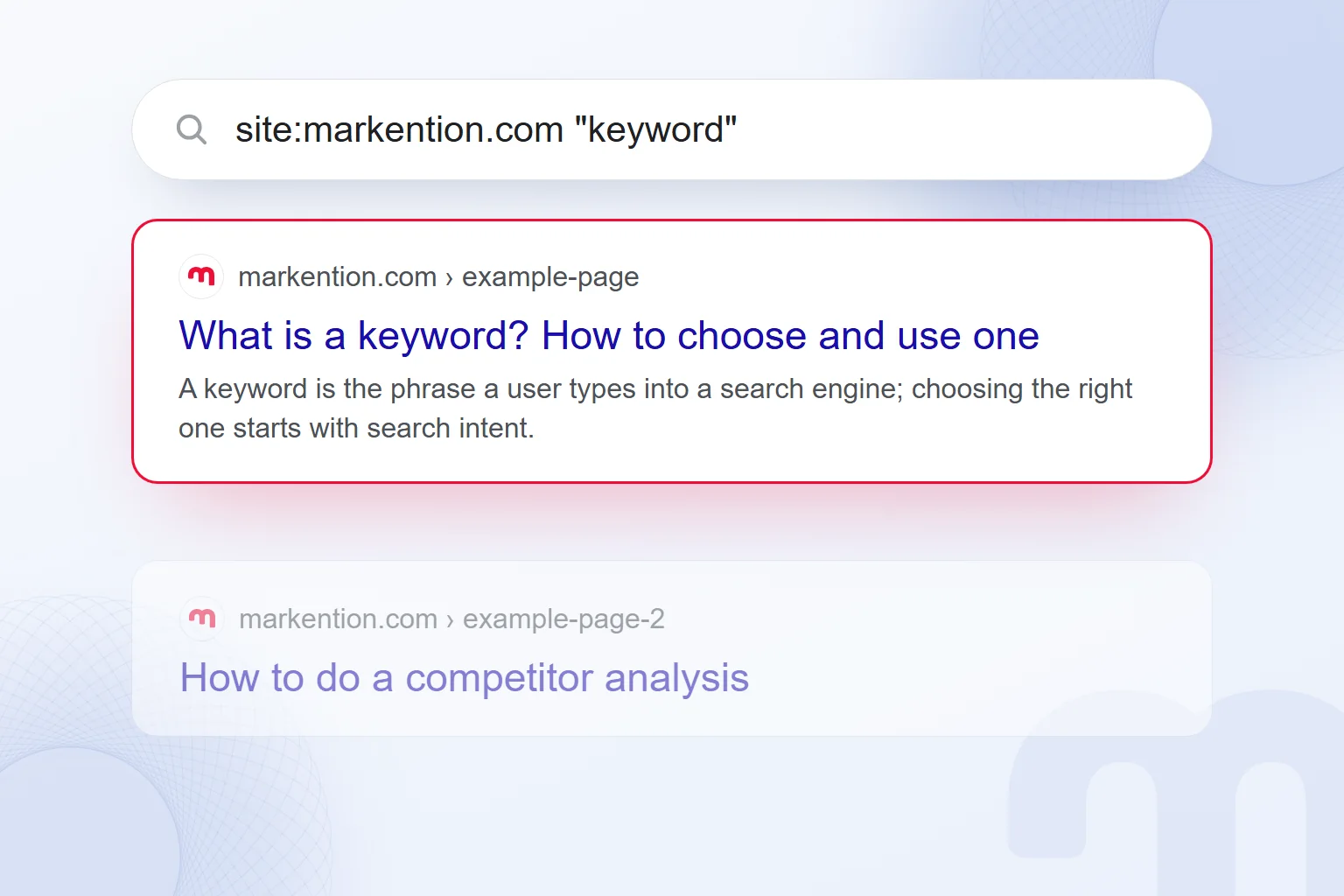
Together, these recipes sketch a site’s technical state and content map in minutes. In ongoing SEO work they are combined with Search Console, a site crawl and ranking data; we describe this work on our SEO consulting page.
Where else can you do an advanced search online?
Advanced search is not unique to Google; search engines such as Bing and Yandex also support basic operators like quotes, minus and site:, while Google Scholar and major library catalogs offer their own advanced search forms. Operator names and behaviour can differ slightly between search engines.
Our observation is that the core trio (quotes, minus and site:) behaves similarly on all major search engines, while date and file type operators differ more. In critical research, running the same query on two engines easily catches missed sources. We compare search engines in our search engines article.
How do you change SafeSearch on Google?
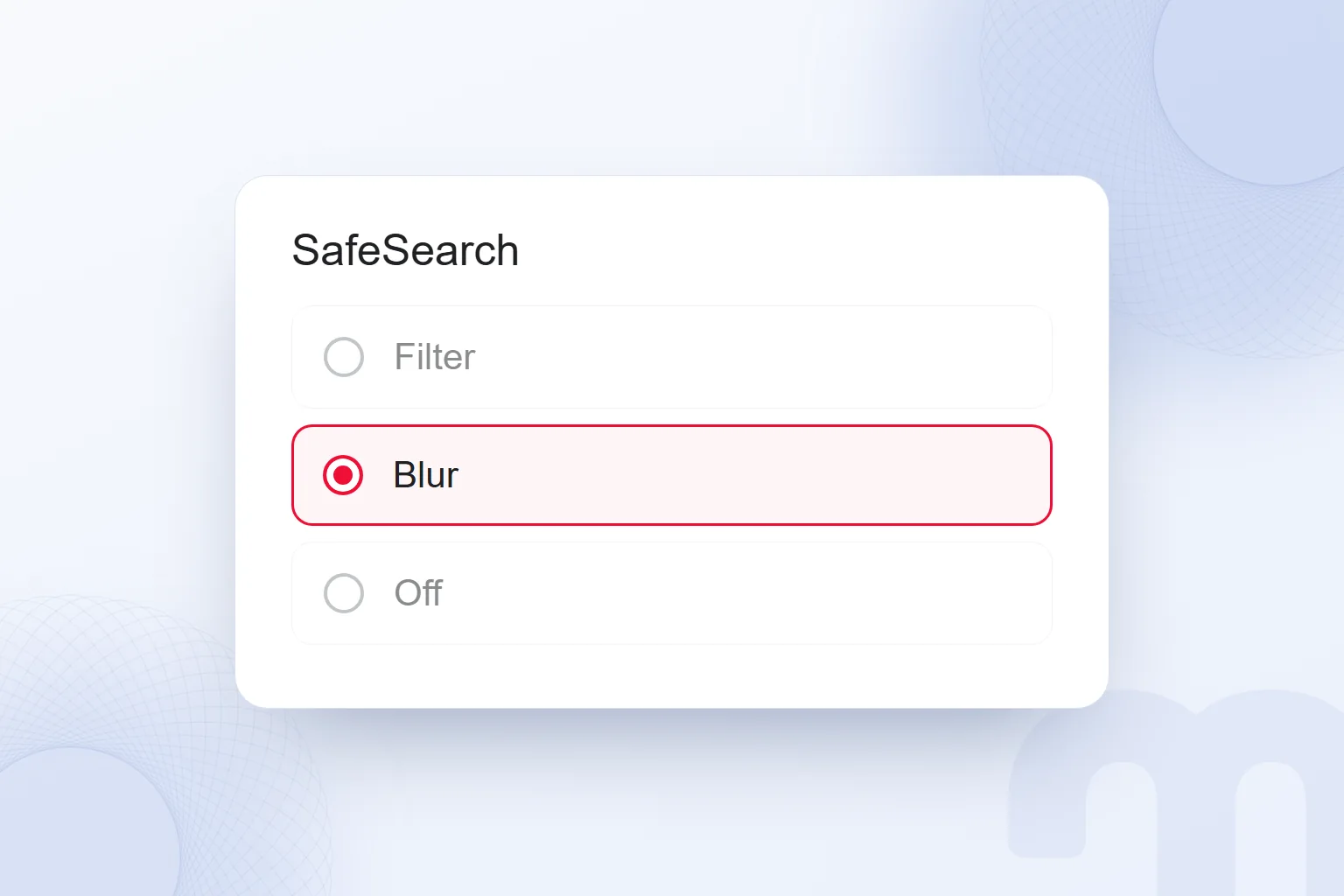
SafeSearch is the setting that filters explicit content from Google results; it is changed at google.com/safesearch between the Filter, Blur and Off options. According to Google’s help page, Filter is the default when its systems determine that a user may be under 18, and Blur in other cases.
This setting often explains “why can’t I see some results on Google”. A locked setting shows a lock icon at the top right and cannot be changed: the parent locks it on Family Link child accounts, the school on school devices, and the network or device administrator on some public Wi-Fi networks and work devices.
How do you open Google’s advanced settings?
Google’s search settings hold results language, region and personalization preferences alongside SafeSearch; they open from the profile picture or settings icon at the top right of the results page. The results language setting limits searches to certain languages permanently; the form’s language field affects only that search.
When sources are scarce in one language and plentiful in another, separate searches with the form’s language field quickly show how broad the sources are. If you are looking for academic sources, the same operator logic in Google Scholar is covered in our what is Google Scholar guide. For other Google tools, browse our SEO guides.
Frequently asked questions
Where is Google advanced search?
After a search, it opens from Tools › Advanced Search under the search box; google.com/advanced_search brings up the same form directly.
How do you search for an exact match on Google?
Write the word or phrase in straight quotes: “tallest building”. Google returns pages containing that exact phrase.
What does the site: operator do?
It limits results to a site or domain extension: site:gov. No space goes between the operator and the address.
How do you search for a PDF on Google?
Add filetype:pdf to the query: market research report filetype:pdf. The same works for docx, xlsx and pptx.
How do you find results after a certain date?
Add after: and a date to the query: topic after:2026-01-01. Use before: for earlier dates; together they give a range.
How do you exclude a word on Google?
Put a minus sign directly before the word, with no space: jaguar speed -car.
How do you use Google advanced image search?
Open google.com/advanced_image_search and choose image size, aspect ratio, color, type, file type and usage rights.
Why are some results not showing on Google?
SafeSearch is often on. It is changed at google.com/safesearch; if the setting is locked, its administrator can change it.

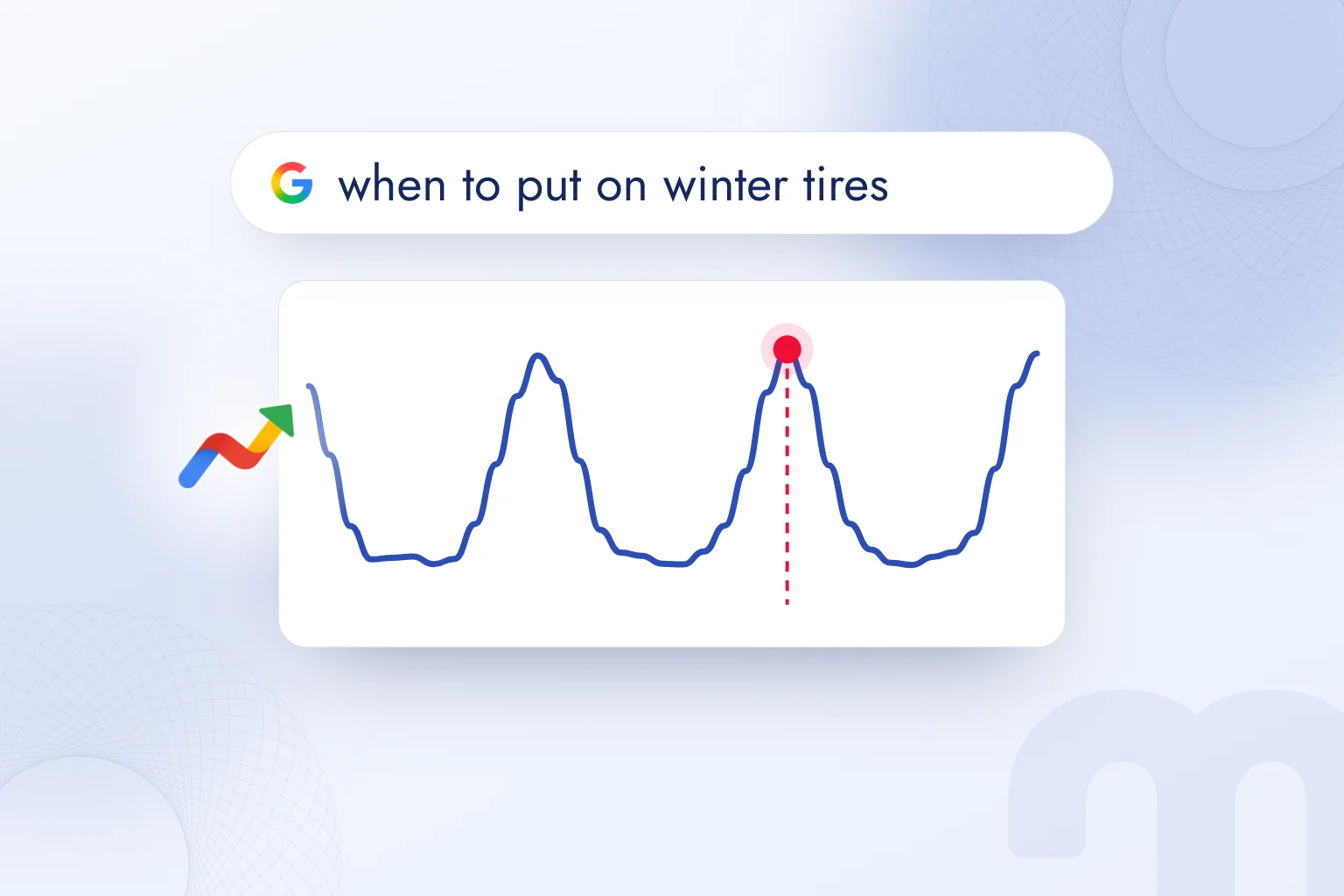
 What is Google Trends and how do you use it? A trend analysis guideRead article
 What is Google Discover? Turning it on, off and getting trafficRead article
 What is Google Lens? How to use it to translate, shop and search on PCRead article
 How to do a Google image search on your phone and computerRead article
 What is Google Scholar and how to use it? Articles, citations, profileRead article
 Google Business Profile: how to add your business to Google MapsRead article
 WordPress SEO plugins: Yoast vs Rank Math vs AIOSEO comparedRead articleMost read
 What is a meta description? Length, writing rules and effect on clicksRead article
Questions & answers
0 commentsNo questions yet; you can ask the first one.