






 Damla Kütük
15 min read
What is Google Scholar and how to use it? Articles, citations, profile
What Google Scholar is, how to search articles and reach the PDF, how to cite, profiles and the h-index, the new AI features, and where DergiPark and TR Dizin fit for Turkish sources.Pro
Contents 20 sections
Key takeaways
- Google Scholar is Google's free academic search engine that makes scholarly literature searchable from a single search box.
- A researcher's h-index is h when h of their publications have at least h citations each.
- According to Google Scholar Help, a single search shows at most 1,000 results.
- Google Scholar Metrics ranks journals annually by the h5-index of articles from the last five complete calendar years.
Google Scholar is Google’s free academic search engine that makes journal articles, theses, books, conference papers, preprints and patents searchable from a single search box. It has been running since November 2004 and works at scholar.google.com without signing in.
This guide gathers every step a first-time student and a long-time researcher need: searching for articles, reaching the PDF, citing, setting up a profile, reading the h-index, the new AI features, and when DergiPark and TR Dizin are the better address for Turkish-language sources. The last section covers the technical conditions for an organisation’s own research to appear in Google Scholar. All facts come from Google Scholar’s official help, coverage and blog pages.
A citation count on Google Scholar is not proof of quality; whether an article appeared in a peer-reviewed journal is checked on the journal’s own page.
What is Google Scholar?
Google Scholar is a separate Google search service built for searching the academic literature; it lists results without ads and shows a citation count, a PDF link and library access next to each result. Its stated aim is to search the scholarly literature from one place.
The sources it covers are listed one by one on the official help page: journal and conference papers, theses, academic books, preprints, abstracts, technical reports, court opinions and patents. They come from academic publishers, professional societies and university and online repositories. News, magazine articles, book reviews and editorials are out of scope.
Ranking also differs from general Google Search: Google Scholar weighs each document’s full text, where it was published, who wrote it, and how often and how recently it has been in other scholarly literature. So a heavily cited older article can outrank a newer, rarely cited one.
What is the difference between Google Scholar and Google?
The difference lies in coverage and ranking: Google crawls the whole web and ranks by intent, while Google Scholar covers only academic documents and also weighs citations.
| Criterion | Google Scholar | |
|---|---|---|
| Sources searched | All web pages | Articles, theses, books, papers, patents |
| Ranking | Search intent, page quality | Full text, venue, author, citation count |
| Citation count | Not shown | Under every result |
| Reference format | None | APA, MLA, Chicago via the “Cite” button |
| Ads | Yes | No |
How do you open Google Scholar?
To open Google Scholar, go to scholar.google.com; searching needs no account. A profile, My library and alerts require a Google account. In Turkey the service is also at scholar.google.com.tr, with the Turkish interface.
Google Scholar has no separate phone app; the same address adapts to a mobile browser. “Google Scholar download” usually means the Google Scholar Button extension for Chrome: select a title on any page, search it on Google Scholar in one click and get the citation format. Google’s Scholar PDF Reader extension jumps to the papers in a reference list while you read a PDF.
How to use Google Scholar, step by step
Searching Google Scholar means typing the topic as a few keywords, narrowing results by date and language, and following the result links to the full text. Our order in a first search:
- 1. Open the addressGo to scholar.google.com in your browser; the interface follows your language settings.
- 2. Type the topicWrite concepts, not a sentence: “coffee consumption heart health”. A second search in another language often multiplies the results.
- 3. Narrow the datePick “Since 2022” or “Custom range…” in the left menu; the fastest filter for current literature.
- 4. Choose the languageLimit results by language where needed; the Turkish interface, for example, offers a left-menu box for Turkish pages only.
- 5. Open the resultThe title leads to the publisher page; the [PDF] or [HTML] link on the right to the full text.
- 6. Save itThe star icon adds it to My library; the quote icon gives the citation format.
Search patterns that work when looking for articles
The three patterns that improve accuracy most are quotation marks, the author: operator and the advanced search window. As the help page recommends:
- Exact title → Typing the title in quotes finds that article directly: “consumer trust in digital marketing”.
- By author → The author: operator returns an author’s publications; the name goes in quotes: author:“a yilmaz”.
- Advanced search → In the window opened from the top-left menu, exact phrase, excluded words, author, publication and date range get separate fields.
- Court opinions → The “Case law” option searches court opinions; its coverage is mainly US courts.
Operators for general Google Search, and their use in advertising and SEO, are in our Google advanced search guide.
How do you read a result row?
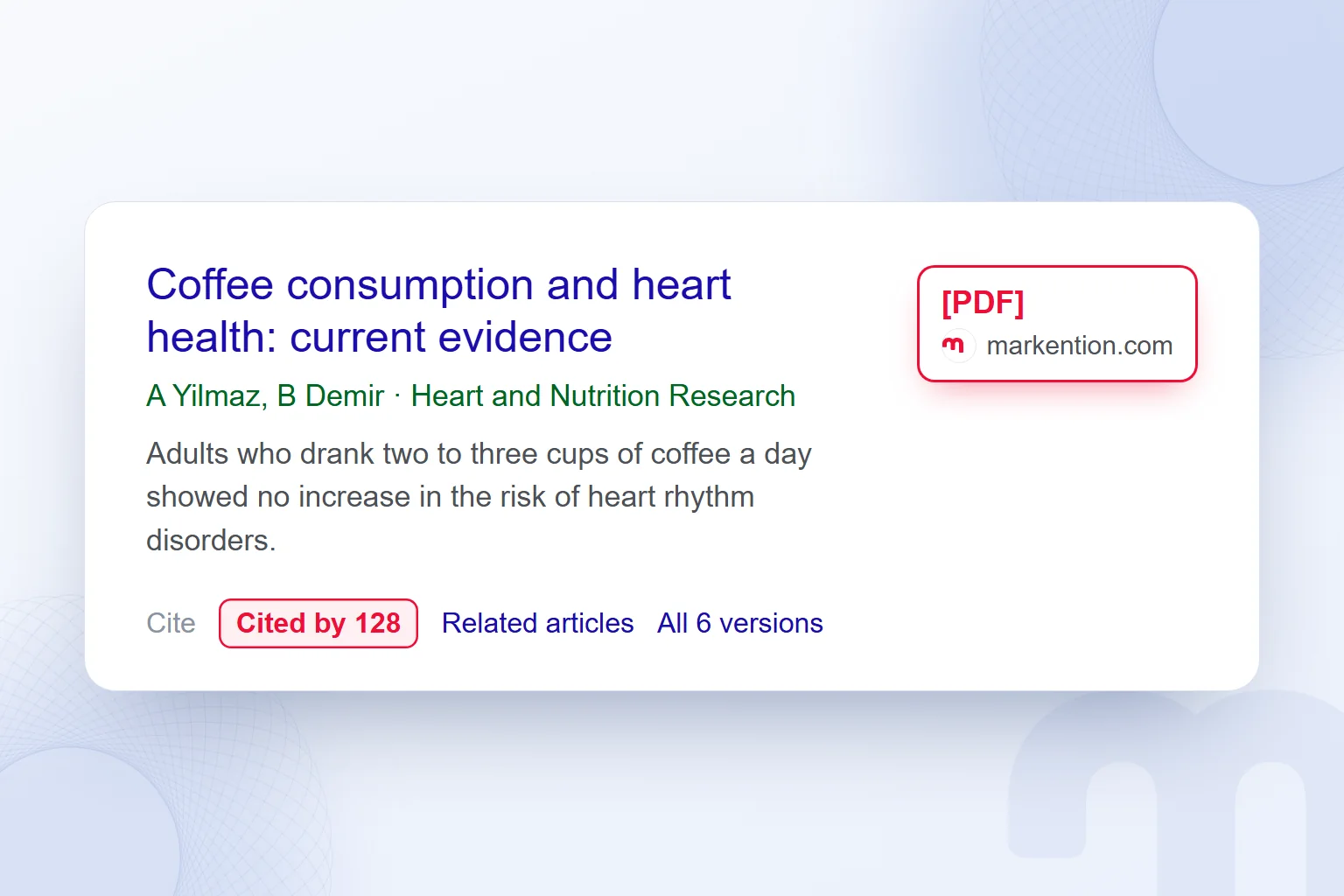
Every Google Scholar result follows the same layout, and knowing it speeds up choosing the right article. The green line under the title shows authors, venue, year and publisher domain; the sentences below are the matching snippet.
The bottom link row is where you decide. “Cited by” opens the citing publications; “Related articles” lists similar work; “All versions” gathers copies at other addresses. A free copy of a paywalled article often turns up here, in the author’s university repository.
How do you download an article from Google Scholar?
To download an article from Google Scholar, click the [PDF] or [HTML] link to the right of the result; if there is no such link, look for an open-access copy in the “All versions” list. Google Scholar does not host articles; it points to the publisher’s or repository’s file.
Access depends on the licence, and the path splits like this:
- A [PDF] link on the right → The article is open access or has a free repository copy; it downloads directly.
- A link with your university library’s name → Your university’s subscription covers it; it opens on the campus network or via the library’s remote access (proxy, VPN).
- Only the publisher page opens → Check “All versions”; the final version may be in a university repository or on the author’s page.
- None of these → Emailing the author for a copy is common and accepted in academia; the library’s document delivery service is another option.
For library access off campus, add your university under “Library links” in Google Scholar settings. According to the help page, the on-campus registration that recognises your subscription lasts 30 days; after that, you connect from the campus network again.
How do you cite a source from Google Scholar?
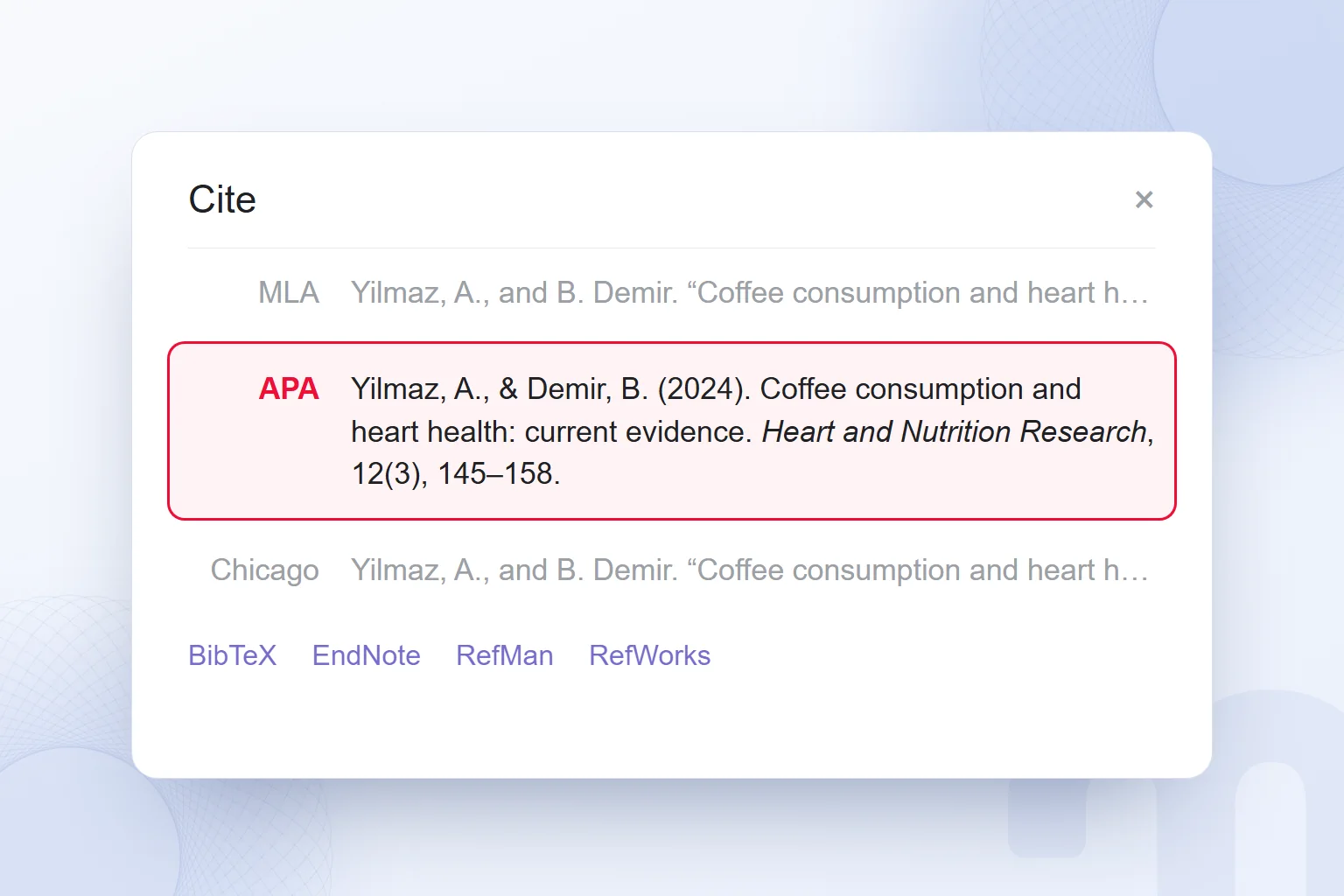
To get a citation, click the quote (“Cite”) icon under the result; the window gives the article ready-made in MLA, APA, Chicago, Harvard and Vancouver formats, the fastest route for a bibliography.
Below are export links for reference managers: per the help page, BibTeX, EndNote, RefMan and RefWorks, which Zotero and Mendeley import. In a thesis with many sources, collecting them in one program from the start makes a later style change a matter of minutes.
One warning: the citation text is extracted automatically, so author name, page range or issue number can be missing or wrong. We compare it with the publisher page before adding it; author names with non-English characters and journal abbreviations are corrected most often.
What does a citation count tell you, and what does it not?
A citation count shows how often an article has been referenced; on its own it does not prove the work correct or good. A study can be cited heavily because it was criticised or refuted.
Google Scholar’s count also tends to exceed closed indexes such as Web of Science or Scopus, because it includes theses, preprints and lecture notes. We read citations together with venue, method and date: a paper from the last two years naturally has few, which is why the “Since 2022” filter balances a ranking by citations.
How do you create a Google Scholar profile?
A Google Scholar profile is a free author page that brings a researcher’s publications, citation counts and h-index together on one page; it is set up with a Google account at scholar.google.com/citations. The help page recommends a personal rather than institutional account, so the profile survives a change of institution.
- 1. Sign inOpen scholar.google.com/citations with your personal Google account.
- 2. Enter your detailsAdd your name, affiliation and areas of interest, plus your university email address.
- 3. Select publicationsTick the article groups Google suggests that belong to you; add missing ones by hand.
- 4. Update settingNew publications are added automatically or emailed to you for approval first.
- 5. Make it publicUpload a photo, verify your email, tick “Make my profile public” and save.
Profiles are private by default and visible only to their owner. Per the help page, a verified institutional email makes a profile eligible to appear in Google Scholar results; addresses such as gmail.com are not accepted. The address itself is not shown.
What is a Google Scholar ID?
A Google Scholar ID is the code of letters and numbers that follows “user=” in a profile address; it is the profile’s permanent identifier. In an address such as scholar.google.com/citations?user=ABC123xyz, the ID is “ABC123xyz”.
Universities and grant application forms often ask for this code or the profile address; in Turkey, YÖK Akademik (the Council of Higher Education’s academic database) does too. A private profile cannot be seen by whoever opens the link, so make it public before adding it to a form.
What are the h-index and the i10-index?
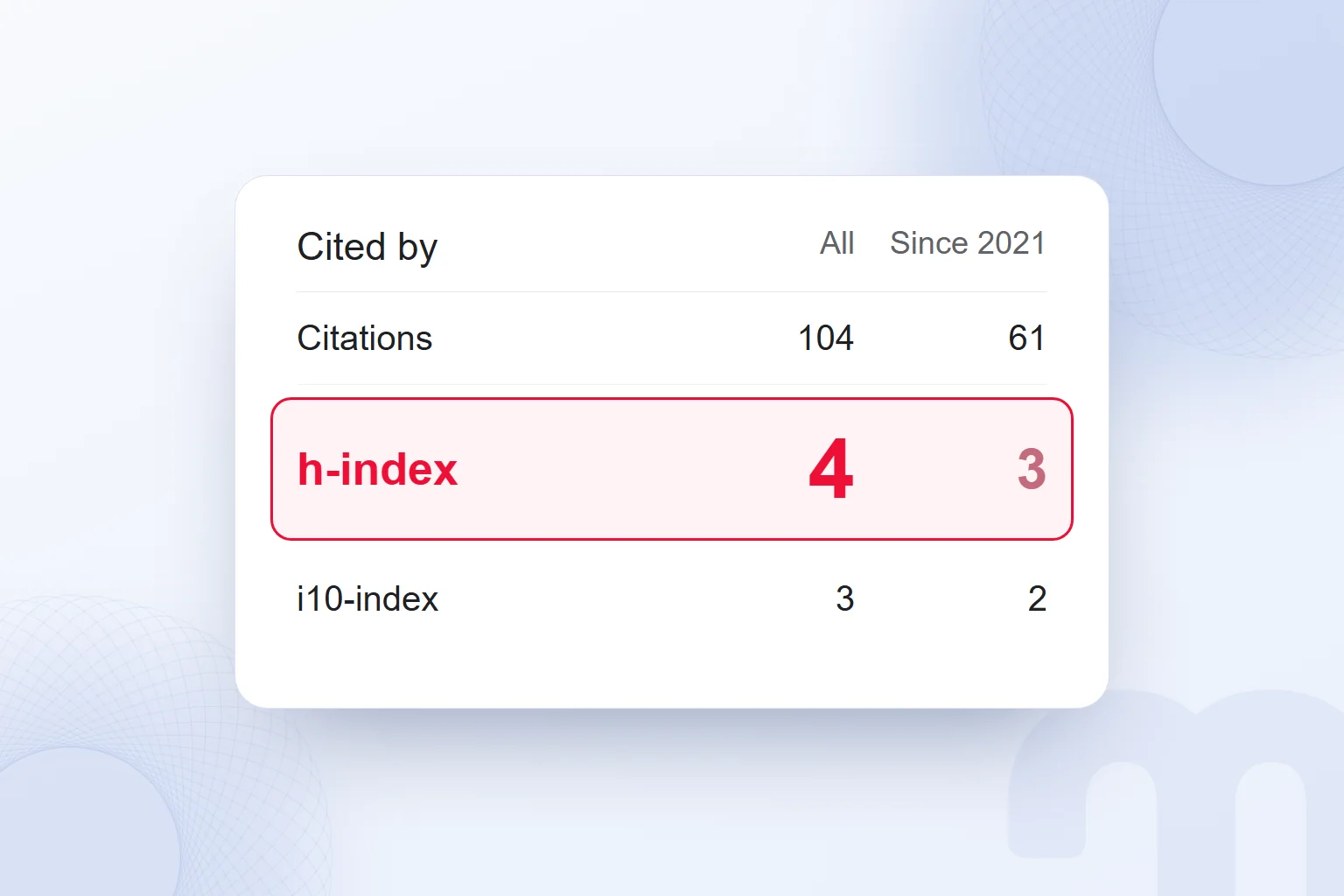
The h-index is the number h for which a researcher has h publications with at least h citations each; the i10-index is the number of publications with at least 10 citations. On a Google Scholar profile, these two measures and total citations appear in two columns: “All” and the last five years.
An example makes it clear. Take a researcher’s publications sorted by citations:
| Rank | Citations of the publication | Rank ≤ citations? |
|---|---|---|
| 1 | 48 | Yes |
| 2 | 31 | Yes |
| 3 | 12 | Yes |
| 4 | 9 | Yes |
| 5 | 4 | No (5 > 4) |
The first four publications have at least four citations each, while the fifth has not reached five, so this researcher’s h-index is 4. In the same table the i10-index is 3, because three publications have 10 or more citations. Google’s help page says profile measures are limited to these, with no plans to add others such as the g-index.
Google Scholar Metrics for journals
Google Scholar Metrics is an annual list that ranks journals by the h5-index of their articles from the last five complete calendar years. The h5-index is the h-index calculated only from articles published in those five full years; to be listed, a journal must have published at least 100 articles in that period and received citations. The Google Scholar blog announced the latest metrics release in July 2025. It helps compare a journal’s visibility in its field, but does not show whether it is peer-reviewed.
How do you use My library and alerts?
My library is a personal list of articles saved to read or cite; alerts send an email when new work appears on a given topic or by a given author, or when an article receives new citations. Both work once you sign in with a Google account.
The star icon adds an article to My library; labels (“thesis chapter 2”, “method”) work like folders. Per the help page, only the owner sees My library; a public profile lists only your own articles.
To create one, click the envelope icon on the results page and choose “Create alert”; Google sends alerts a few times a week as new articles are indexed. Three types save us the most time:
- Topic alert → New articles on your thesis topic reach your inbox without a manual search.
- Author alert → New publications from a leading researcher in your field are not missed.
- Citation alert → You are notified of new work that cites your own article.
AI in Google Scholar: Scholar Labs and Quick Read
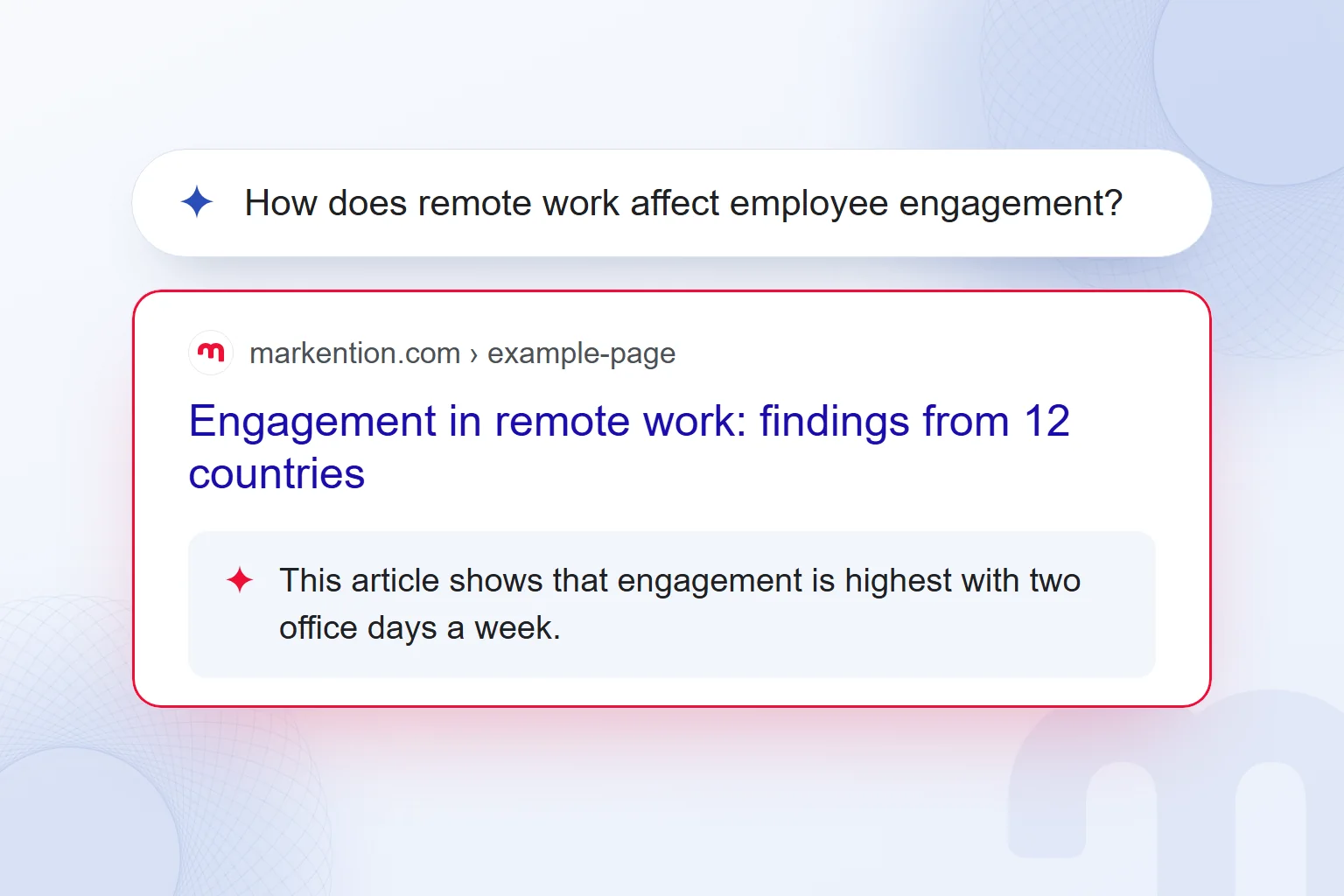
Scholar Labs, Google Scholar’s AI feature, is a search mode that breaks a detailed research question into topics, aspects and relationships, searches each and lists the papers that best answer it. Google announced Scholar Labs on 18 November 2025 with a limited number of users.
According to an update on the Google Scholar blog dated 3 June 2026, Scholar Labs is now open to all signed-in users and accepts questions in any language; the new version finds results about 10 times faster and examines up to 3 times more papers. The same announcement says the updated version launched first in English, with other languages to follow. Labs notes how each paper contributes and allows follow-up questions.
Quick Read, announced on 25 August 2026, adds a “Quick read” link to results that address the question in depth; it opens the article with a summary focused on your question: answers, approach and points to watch. According to Google, Quick Read appears only for articles you have access to, requires signing in and is limited to English-language articles for now.
Our observation: these tools shorten the first hour of a literature review but do not replace reading. We never cite from an AI summary without checking the paper’s method and results. The risk of general AI assistants inventing sources is covered in our what is artificial intelligence article; every paper Google Scholar suggests rests on a real index record.
Google Scholar calendar, translation and other related searches
Some phrases searched alongside Google Scholar actually refer to something else. The three most common:
- Google Scholar calendar → There is no calendar feature. The search usually comes from students looking for a university’s academic calendar (term start, exam week), published on the university’s site; Google Calendar suits a personal schedule.
- Google Scholar translation → Google Scholar does not translate. Pasting an abstract into Google Translate, or uploading the PDF to its document translation, is enough for a first read; a sentence quoted in a thesis is always checked.
- Google Scholar articles → The right place to search; for Turkish peer-reviewed journals, though, DergiPark often gives the full text faster (see below).
Is Google Scholar reliable? What are its limits?
Google Scholar is a reliable search tool, but not every document it lists is a reliable source; no label separates a peer-reviewed article from a preprint, lecture note or predatory journal. The final check is the reader’s.
The limits we have compiled from the official help pages:
- No peer-review filter → Preprints and technical reports also appear in results; whether the article appeared in a peer-reviewed journal is checked on the journal’s page.
- 1,000-result cap → A search shows at most 1,000 results; broad topics need a narrower query.
- Delayed updates → New articles usually enter the index within a few weeks, but correcting a record already in the index can take 6–9 months or longer.
- Automatic data → Author, year and citation details are extracted from documents automatically, so records can be wrong.
Our short checklist: is the journal peer-reviewed, is the publisher recognised, is the method clear, has the article been retracted (a note on the publisher page), and does other work support the finding?
Google Scholar or DergiPark for Turkish sources?
When searching for Turkish-language articles and theses, Google Scholar is a good starting point, but for full text and index information DergiPark, TR Dizin and the YÖK National Thesis Center are often the more accurate address. In Turkey, all three are free services run by public institutions.
| Situation | What we do |
|---|---|
| Scanning the topic for the first time | We search Google Scholar with both Turkish and English terms |
| We need the full text of a Turkish journal article | We open it on DergiPark, the TUBITAK ULAKBIM platform |
| We need to know whether a journal is in the national index | We look the journal up in ULAKBIM TR Dizin |
| We are looking for a master’s or doctoral thesis written in Turkey | We search the YÖK National Thesis Center by thesis number or topic |
| We need the international literature and citation network | We follow Google Scholar’s “Cited by” link |
Most DergiPark articles are also listed in Google Scholar; using both gives the citation network and the full text by the shortest route. In the YÖK National Thesis Center, some theses have full text restricted by the author; only the abstract is then visible.
How does your own research appear in Google Scholar?
For research an organisation publishes on its own site to appear in Google Scholar, each document needs its own address, title, author and date meta tags, and must be readable without signing in. Google Scholar’s inclusion guidelines for publishers list these conditions one by one.
- 1. The right content typeOnly scholarly work is included: articles, theses, technical reports, preprints. Blog posts, news and press releases are out of scope.
- 2. A separate addressEach document has its own permanent address and can be reached from the home page within about ten links.
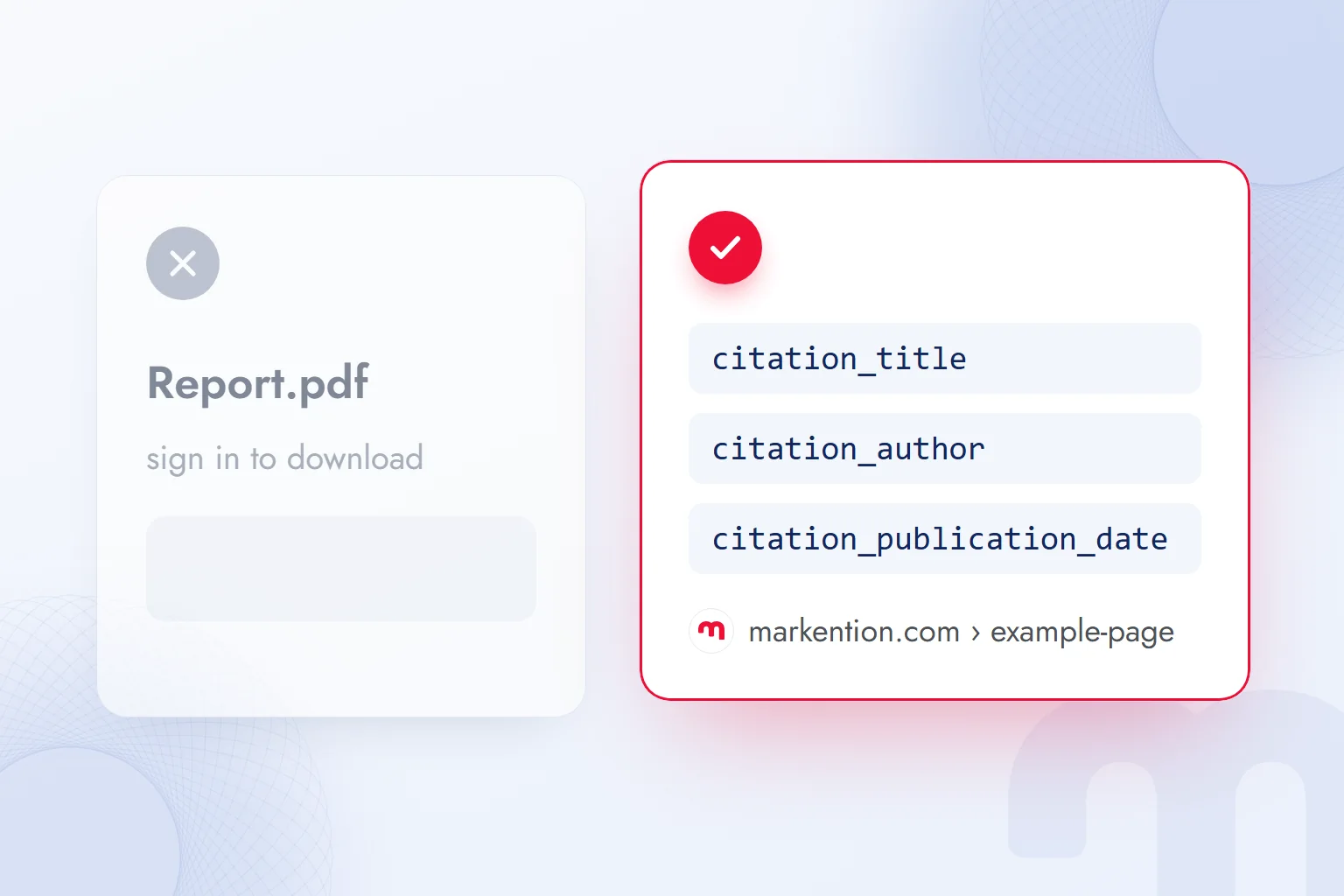
- 3. Meta tagsThe page head carries citation_title, at least one citation_author and citation_publication_date; the PDF version is linked with citation_pdf_url.
- 4. A readable fileThe PDF text is selectable and stays under 5 MB; the full text or an author-written abstract is visible without sign-in or pop-ups.
- 5. Crawl accessThe robots.txt file does not block Googlebot from article and listing pages; a moved document is redirected to its new address with a 301.
These rules overlap heavily with being a source in AI search: every fact on a crawlable page with a permanent address, a clear author and a date. Chatbots and AI Overviews often cite academic work and institutional reports; structuring these pages correctly raises the chance of a brand being quoted. This approach has settled under the name ; we explained how it works in our what is GEO article.
Keeping robots.txt from blocking AI crawlers by mistake is covered in what is robots.txt, and publishing PDFs on a site in PDFs on your website. Our work on getting reports cited in AI answers is on the GEO consulting page; our free AI visibility analysis tool measures how your site appears to AI crawlers. We cover Google’s other tools in our SEO guides.
Frequently asked questions
Is Google Scholar free?
Yes. Searching, profiles, My library and alerts on Google Scholar are free; only the full text of some articles depends on a publisher subscription.
How do I access Google Scholar?
Open scholar.google.com in a browser. Searching needs no account; a profile and My library require signing in with a Google account.
Is there a Google Scholar app?
There is no separate phone app; the same address works in a mobile browser. On desktop there is the Google Scholar Button extension for Chrome.
How do I download an article from Google Scholar?
Click the [PDF] link to the right of the result. If there is none, look for an open-access copy or library access in “All versions”.
How do I cite a source from Google Scholar?
Click the quote icon under the result and copy the APA, MLA or Chicago format. Compare it with the publisher page before adding it to a bibliography.
How do I set up a Google Scholar profile?
Open scholar.google.com/citations with a personal Google account, add your name, affiliation and papers, verify an institutional email and make it public.
Is every article on Google Scholar reliable?
No. Google Scholar also lists preprints and non-peer-reviewed documents; whether a journal is peer-reviewed is checked on the journal’s own page.
Where is my Google Scholar ID?
It is the code after “user=” in your profile address. If the profile is public, this address can be shared with others.

 How to use Google advanced search: a search operators tableRead article
 What is Google Trends and how do you use it? A trend analysis guideRead article
 What is Google Discover? Turning it on, off and getting trafficRead article
 What is Google Lens? How to use it to translate, shop and search on PCRead article
 How to do a Google image search on your phone and computerRead article
 Google Business Profile: how to add your business to Google MapsRead article
 WordPress SEO plugins: Yoast vs Rank Math vs AIOSEO comparedRead articleMost read
 What is a meta description? Length, writing rules and effect on clicksRead article
Questions & answers
0 commentsNo questions yet; you can ask the first one.