





 Cihat Murat Yüksel
8 min read
Cihat Murat Yüksel
8 min read
What is a PDF? Uses, and PDFs on your website: indexing and tracking
What PDF means, when to use PDF or HTML, and how we handle Google indexing, accessibility, file names, and download tracking in GA4.Pro
Contents 8 sections
PDF stands for Portable Document Format, a file format developed by Adobe, now an open standard under ISO 32000, that preserves a document’s across devices.
For website documents, we choose HTML for reading online and PDF for downloading and keeping. We assess search visibility, mobile reading, accessibility, speed, and tracking together.
We use HTML for reading online and PDF for saving or printing, with the download linked from an explanatory HTML page.
What does PDF stand for?
PDF stands for Portable Document Format. The format preserves document layout; .pdf is the extension at the end of the filename.
Using the format and reading PDFs is free. Editors have free and paid versions; any charge relates to the software.
We distinguish three situations:
- The question concerns the file format → we explain its uses, then decide whether website visitors need to read the content online or download it.
- PDF appears in another field → we check the context: in statistics, PDF means probability density function. A report delivered as a PDF still refers to the file format.
- A document must be sent as a PDF → we select PDF when saving from Word. Other applications offer Microsoft Print to PDF on Windows or Save as PDF in the Mac print dialog. We reopen the file to check its layout.
What are PDFs used for?
PDFs preserve layout when sharing invoices, contracts, proposals, catalogs, price lists, ebooks, and official correspondence.
Text, images, headings, tables, and signature fields keep their positions when printed. Browsers open PDFs without separate software; phones use Files on iPhone or Google Drive or a browser on Android. Word documents can shift between applications, so we use Word for editing and PDF for sharing and printing.
We export the final version and retain the editable source. PDF was not designed for text editing, but PDF editors can change the document. A digital signature indicates changes after signing. Saving as PDF does not sign it.
Should a website use PDF or HTML?
We use HTML for reading online and PDF for downloading, keeping, or printing. HTML structures web pages: text fits the screen, with navigation and related links available.
The document’s purpose determines our approach:
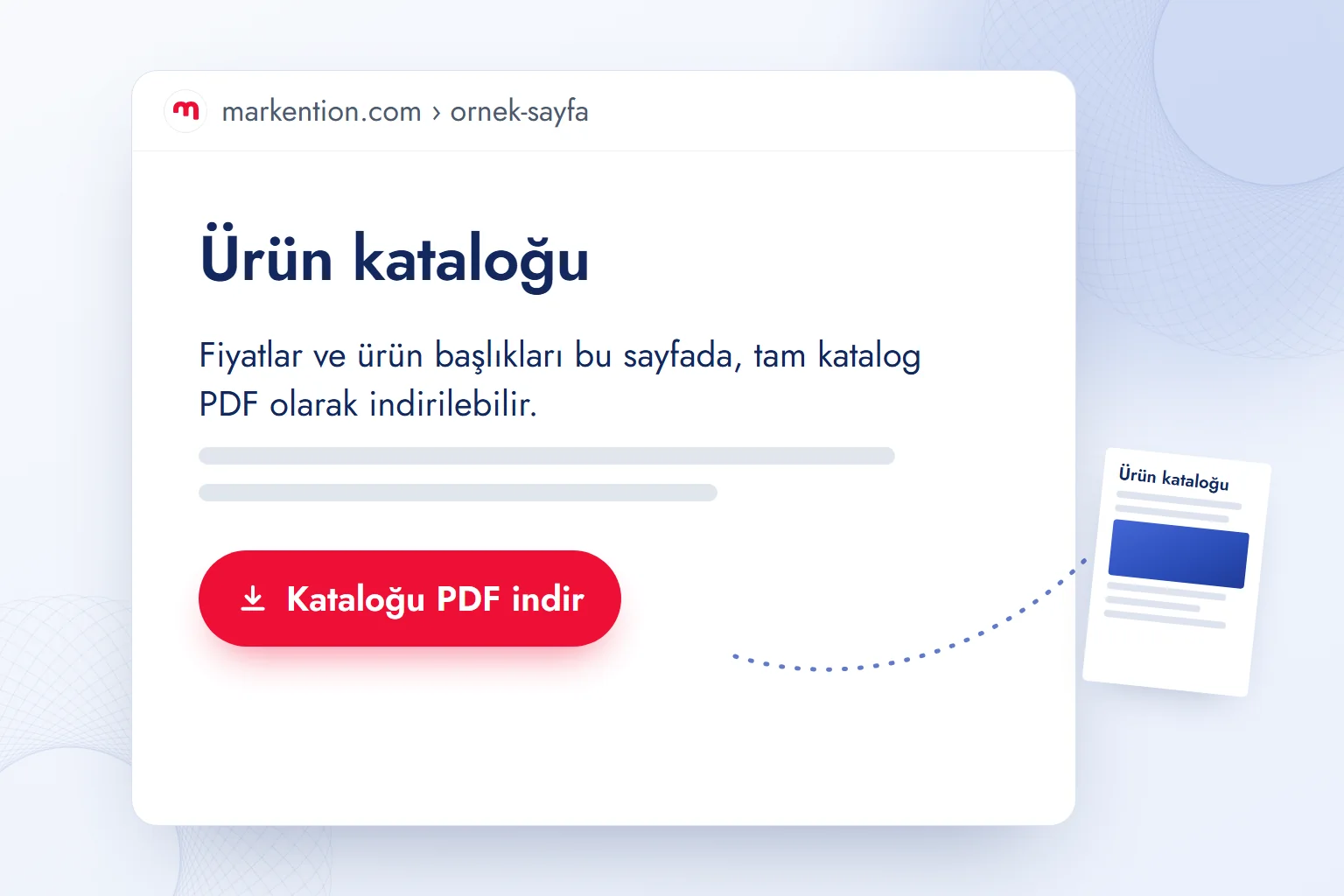
- A catalog, price list, or brochure → we keep the PDF and create an HTML summary with product and pricing headings, linking to the complete download.
- An article, guide, or manual → we use HTML. PDFs are indexable but lack the website’s navigation, page tracking, and comfortable mobile reading.
- A form needs completing → we build an HTML form, avoiding the extra download, completion, and return steps. If a signed printout is needed, we generate a PDF from the completed form.
| Feature | HTML page | |
|---|---|---|
| Layout | Fixed across devices | Adapts to the screen |
| Mobile reading | Page shrinks; zooming required | Text reflows |
| Indexing and appearance | Indexable with PDF label; embedded images not indexed | Indexable; supports structured data and image search |
| Titles and internal links | Title metadata, document links; no site menu | title, H1, menu, internal links |
| Tracking | Download event | Page views, scrolling, conversions |
| Updates | Upload the file again | Edit the page |
| Printing and saving | Strong | Weak |
We make this choice when mapping website content. The summary explains the document’s subject and intended audience before visitors decide to download it.
Can Google index PDFs?
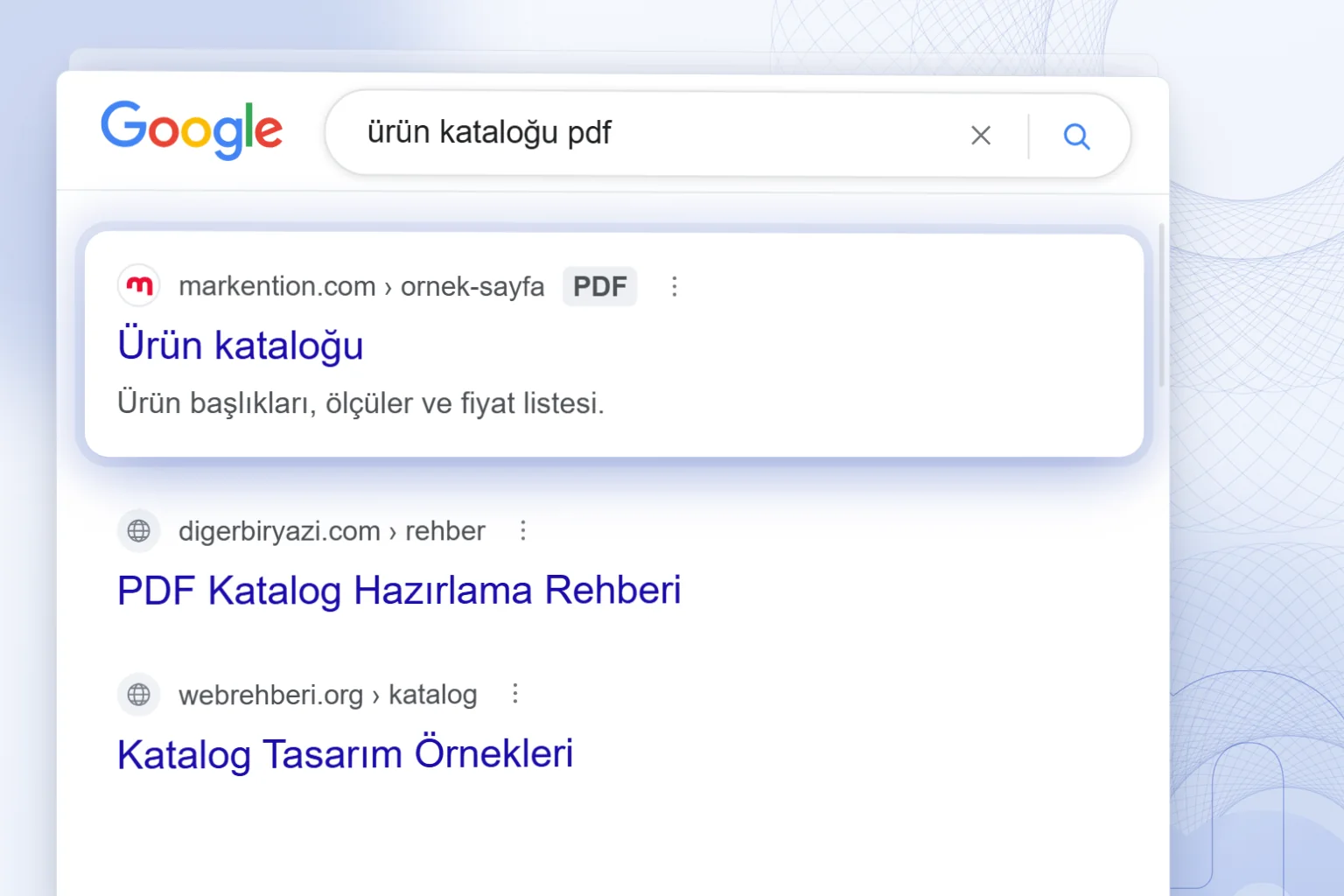
Google can index PDFs, read their text, follow their links, and display a PDF label in search results. Google Search Central lists PDF as an indexable format; uploading alone does not guarantee indexing.
Google’s PDF FAQ explains that search titles draw on Title metadata and incoming link text. We therefore supply both. It also states that embedded images are not indexed. PDFs support links and heading tags, but do not carry the website’s menu, HTML H1/H2 structure, structured data, or GA4 code in the same way.
Our publishing checks follow this order:
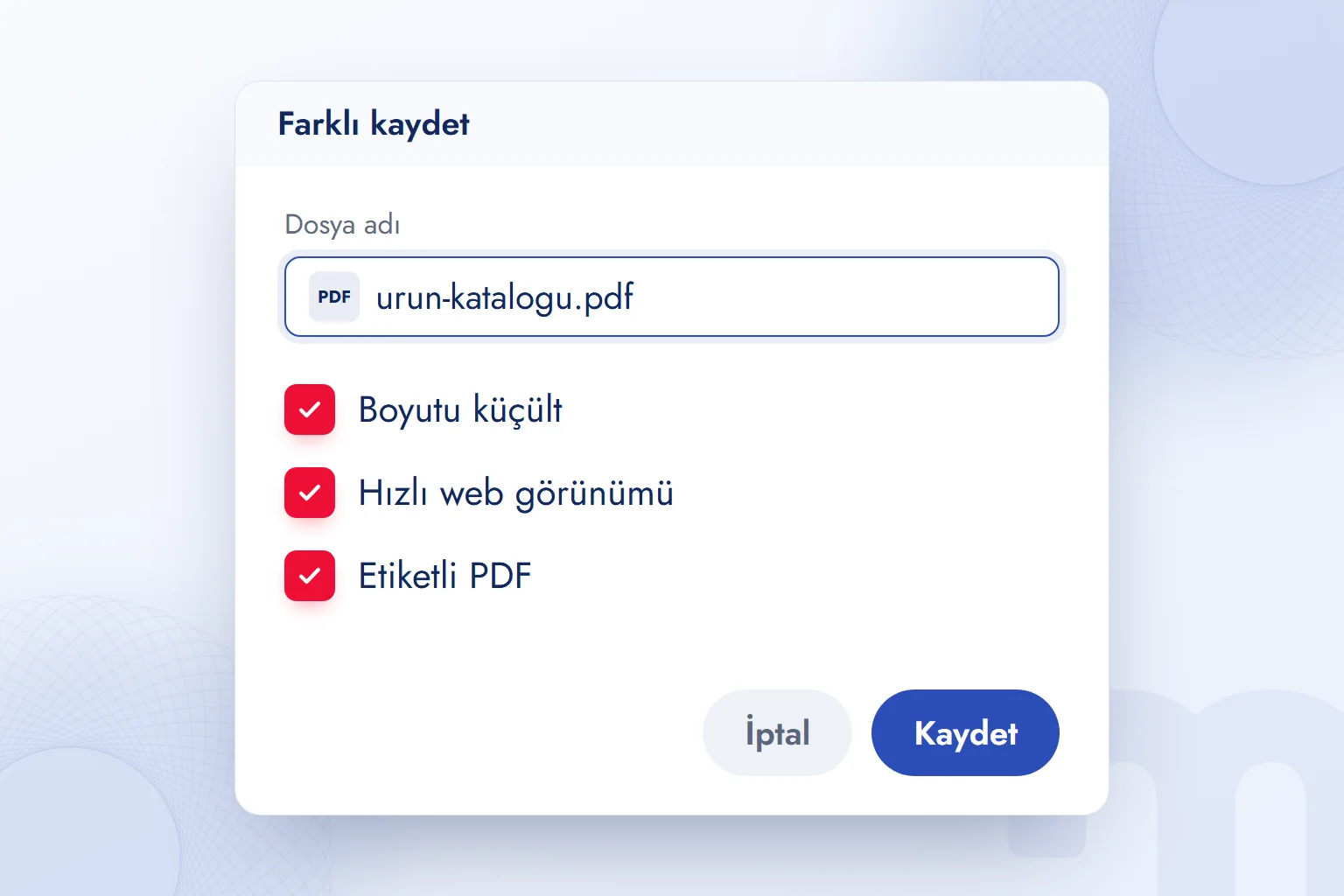
- FilenameWe choose a short, descriptive, hyphenated name: urun-katalogu.pdf means “product catalog.”
- Title metadataWe fill in the Title field in Word’s document properties or Acrobat’s document description, and name the subject clearly in the download link.
- HTML summaryWe publish a heading, explanatory paragraphs, and download link, then direct internal links to this page.
- File sizeWe compress images and enable Fast Web View.
- IndexingFor PDFs that should stay out of search, we send noindex in the X-Robots-Tag HTTP header, allowing crawling so Google can read it.
An HTML canonical tag does not belong inside a PDF. Google’s canonical documentation specifies a canonical relationship in the server’s HTTP Link response header for the preferred version of duplicate content. This preference is not an instruction to remove the PDF from the index.
Why do PDFs pose mobile and accessibility problems?
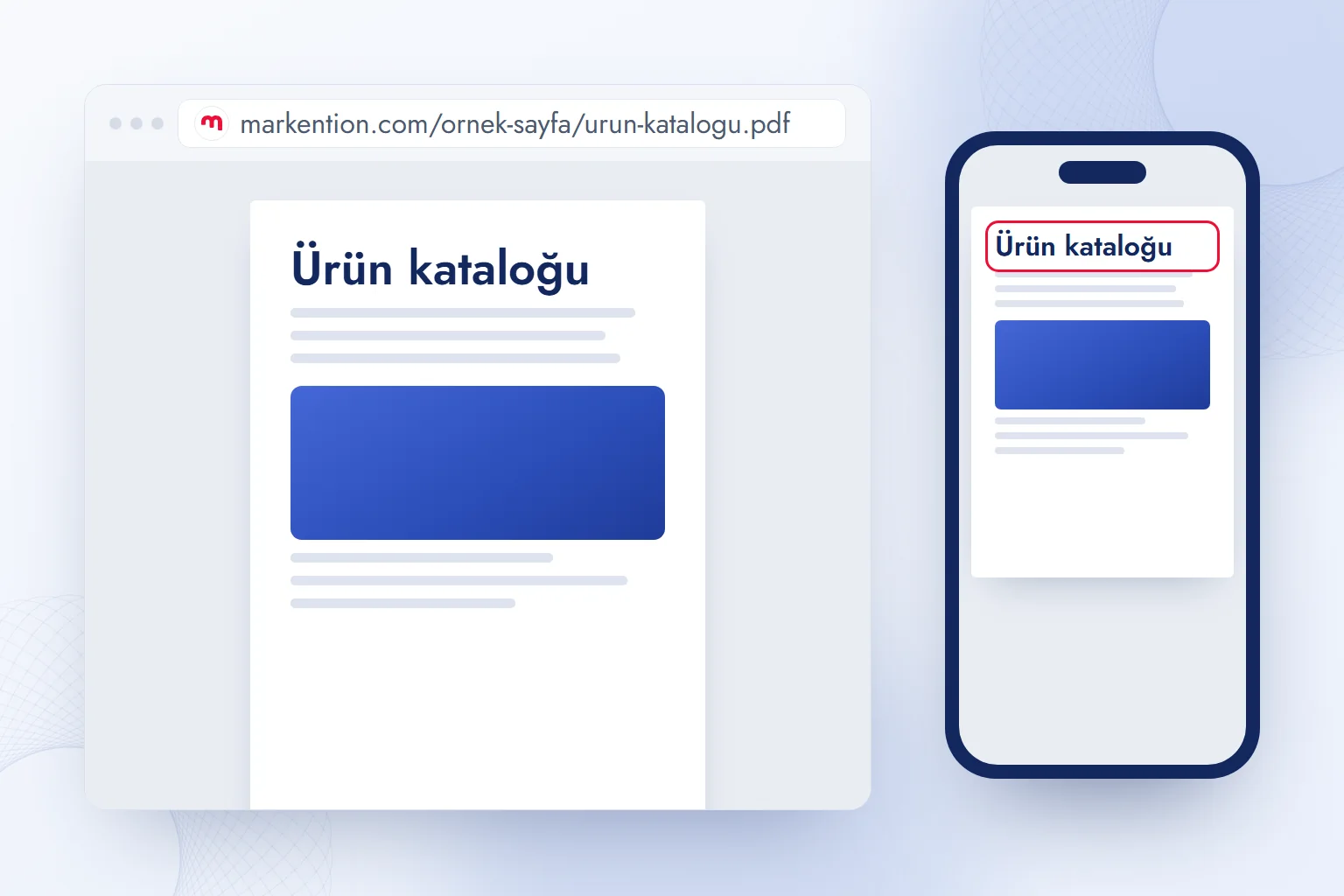
A PDF’s fixed layout does not reflow to fit the screen, and untagged PDFs lack the structure screen readers need. Phone readers must zoom and scroll; we use HTML for longer reading.
Accessible PDFs use tags to identify headings, paragraphs, and reading order. PDF/UA is the accessibility standard defined by ISO 14289; tags alone do not establish compliance. When exporting from Word, we enable document structure tags in the PDF export options.
We assess three possibilities:
- The PDF is a scanned image → we add selectable text with OCR or regenerate it from the source, checking text and reading order.
- The PDF is digital but untagged → we correct heading tags, reading order, and image alternative text.
- The PDF is tagged with its language defined → we run accessibility checks, then verify file size and Fast Web View before publishing.
Google’s PDF FAQ describes extracting image-based text with OCR. We prepare the document’s own text layer rather than rely on that for accessibility. Compression reduces image weight; Fast Web View lets supported readers display the first page before the whole file downloads. Large embedded documents also affect page loading, so we review media and document sizes together.
How do GA4 and Search Console measure PDFs?
GA4’s enhanced measurement records download-link clicks through file_download; Search Console reports a PDF URL’s search visibility.
Google’s GA4 documentation states that clicking a .pdf link triggers file_download when the site has a GA4 tag and file download measurement enabled. It proves neither a completed download nor reading.
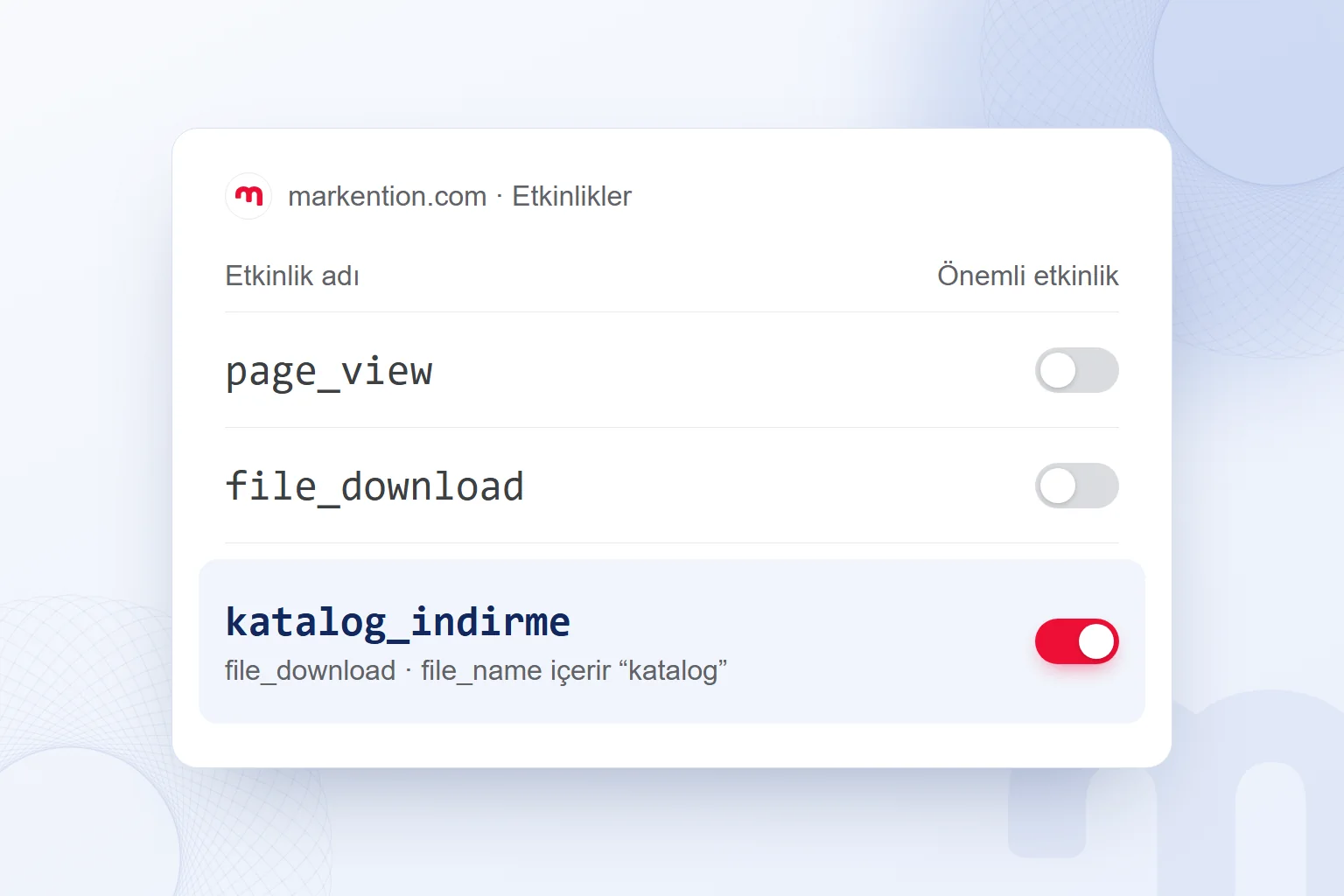
The file_name parameter identifies the document; link_text identifies the clicked button. In GA4’s Admin area, we create katalog_indirme (“catalog download”) for events where event_name equals file_download and file_name contains katalog. We mark only that derived event as a key event, so we do not treat every file click as the same business goal.
GA4 code does not run inside PDFs, so this setup cannot measure subsequent reading. In Search Console’s performance report, we filter page URLs containing .pdf and review clicks and impressions. A visit from search directly to a PDF does not trigger the HTML page’s download event.
Our observation: a PDF click does not reveal the reader’s next step. An HTML summary provides links and a measurable route through the site.
What are common website PDF mistakes?
The most common mistake is hiding explanatory content inside a PDF while leaving its web page empty. We correct these issues before publishing:
- An empty download page: We explain the document’s subject and scope.
- Scanned pages: We add a text layer and check accessibility tags and reading order.
- Missing Title or vague filename: We supply a title and descriptive filename.
- Copies at different URLs: We select the current file URL and align links and canonical preferences.
- Uncompressed images: We reduce size while preserving readability and check opening on phones.
- Untracked PDFs opening in new windows: We verify that source-page clicks generate file_download; a new window does not establish tracking.
We start with a Google search for site:markention.com filetype:pdf, list visible PDFs, and flag those without summary pages. We plan HTML for reading alongside PDFs for keeping; related guidance appears on our English blog.
Frequently asked questions
What is a PDF in simple terms?
A PDF is a document format that preserves layout across devices.
What does PDF stand for?
PDF stands for Portable Document Format.
What are PDFs used for?
PDFs preserve documents for sharing, saving, and printing, including catalogs, proposals, invoices, and contracts.
Is PDF free?
Using PDF is free, and browsers and Adobe Acrobat Reader open files at no charge. Editing software has free and paid versions.
Should a website use PDF or HTML?
We use HTML for reading and PDF for keeping. Catalogs get an explanatory HTML page with a download link.
How do PDFs open on a phone?
Tapping the file opens it in Files on iPhone, or Google Drive or a browser on Android, without installing another app.

 What is a podcast? How podcasts work for brands and where to publishYazıyı okuEn çok okunan
 Advertising on ChatGPT: Ads Manager, Targeting and Your First CampaignYazıyı oku
 What is a title tag? How to write it and how it differs from H1Yazıyı oku
 What are URL parameters? UTM, GA4 event parameters and gclidYazıyı oku
 ChatGPT image prompts and Gemini prompt examples for ad visualsYazıyı oku
 What is GEO? How Generative Engine Optimization worksYazıyı oku
Questions & answers
0 commentsNo questions yet; you can ask the first one.