




 Damla Kütük
8 min read
Damla Kütük
8 min read
What is robots.txt? How to create it and allow AI crawlers
A robots.txt file tells bots which parts of a site they may crawl. How to create it, test it in Search Console, set AI crawler access, and how it differs from noindex.Pro
Contents 9 sections
A robots.txt file is a plain text file in a site’s root directory that tells compliant search engine crawlers and AI bots which pages and paths of the website they may crawl. Rules are matched through the .
We grant crawl access by purpose: search visibility, training data and ad landing page review are separate permissions. We never assume a path closed in the general group stays closed in a bot’s own group; we check each group separately.
A robots.txt file controls crawl access; to remove a page from the index, noindex is used on a page that stays open to crawling.
What is robots.txt?
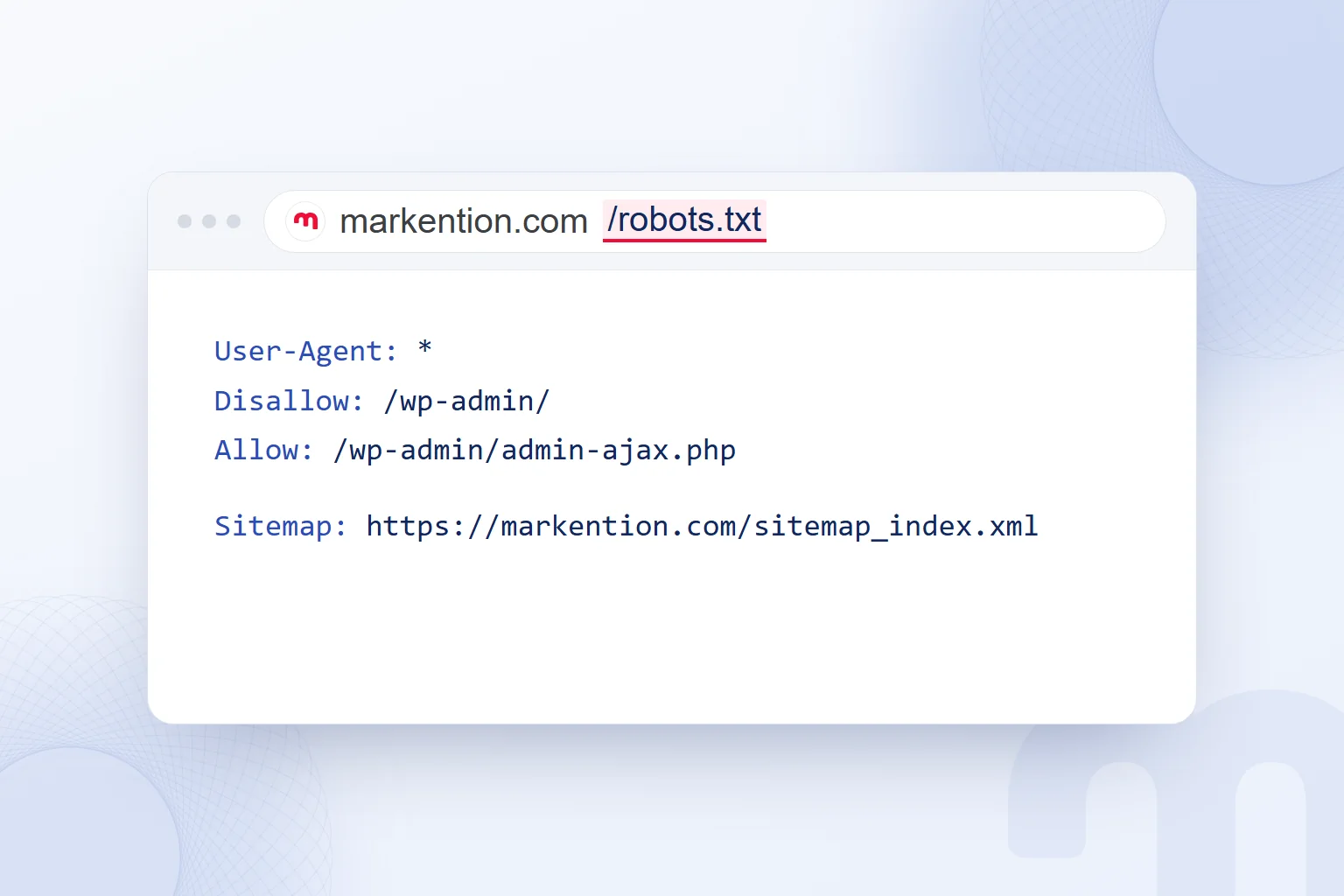
A robots.txt file is a text file that tells bots a site’s crawl rules; for markention.com it lives at markention.com/robots.txt. The file sits in the root directory. Each subdomain of a domain name and each protocol has its own scope; a rule in one file never applies to another.
The file tells compliant bots which paths not to visit. We assess rules for Google’s crawler, , separately from rules for AI bots. Closing crawl access does not remove a page from Google’s index.
robots.txt is an access policy, a list of requests rather than a security lock; a bot that ignores it is stopped by the server or a firewall. We never protect a members’ area by listing it here alone. Google’s robots.txt specification details the scope and location rules.
How does robots.txt work, and which rules does it read?
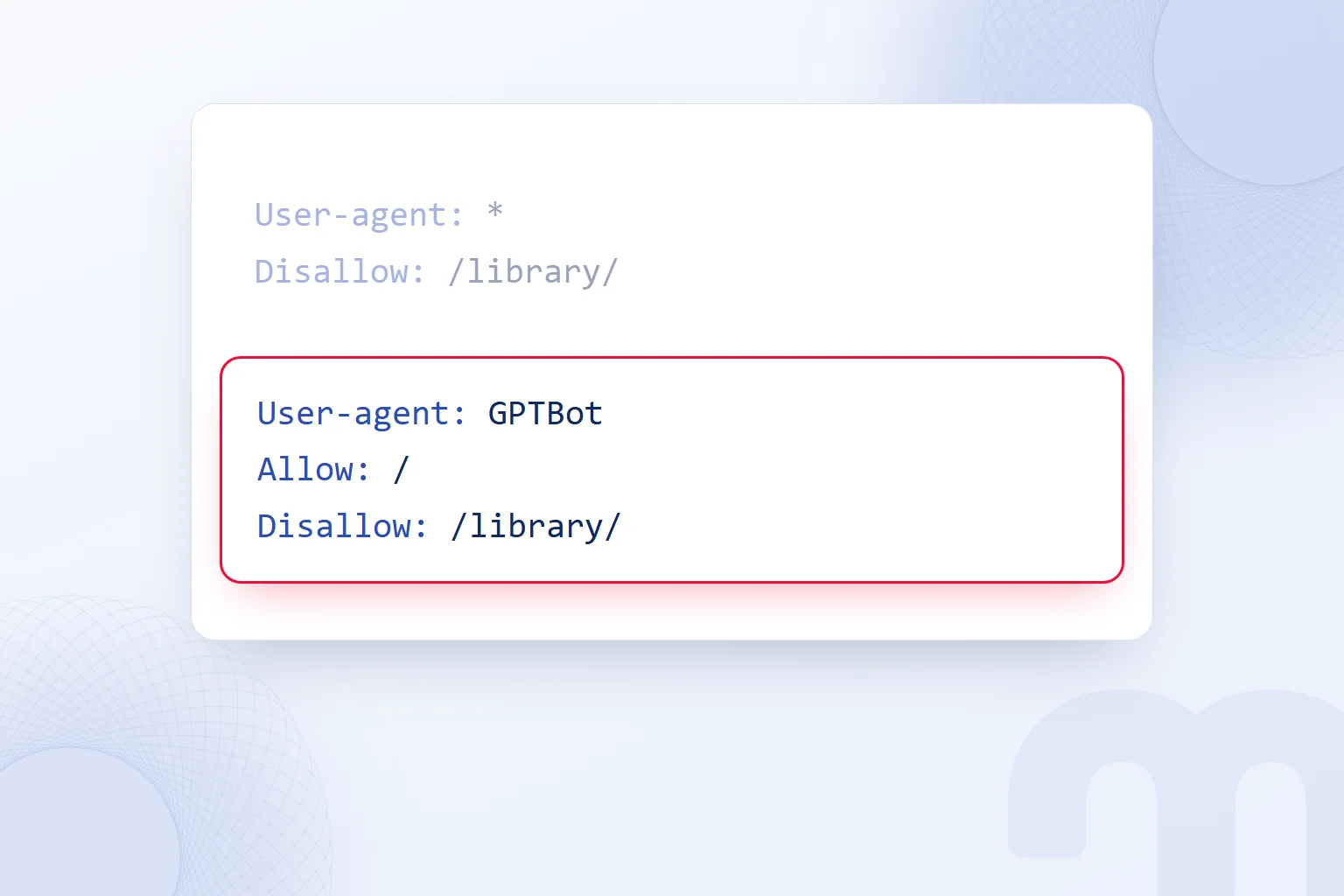
A bot picks the most specific user-agent group that matches it and reads the path rules in that group. A bot that finds its own name does not read the general (*) group. With a “User-agent: GPTBot” group present, closing /library/ under “User-agent: *” does not close it for GPTBot.
Google supports four fields: “User-agent” names the bot, “Allow” an allowed path, “Disallow” a blocked path, “Sitemap” the sitemap address. Field names are not case-sensitive; path values are. So /Library and /library are different rules.
In paths, “*” matches any characters and “$” marks the URL end. “Disallow: /feed$” in our live file targets paths ending in /feed. Google ignores “crawl-delay”. A line in the file is not enough for us; we also check whether the bot supports that field.
How do you create a robots.txt file?
We define bot groups and path permissions, then publish the file at the site root. In WordPress we first check the virtual robots.txt output and the plugin settings behind it; when managing a physical file, we place robots.txt in the root directory.
We finish only when the editor text matches the browser output. We keep existing rules and change only the group a new rule belongs to.
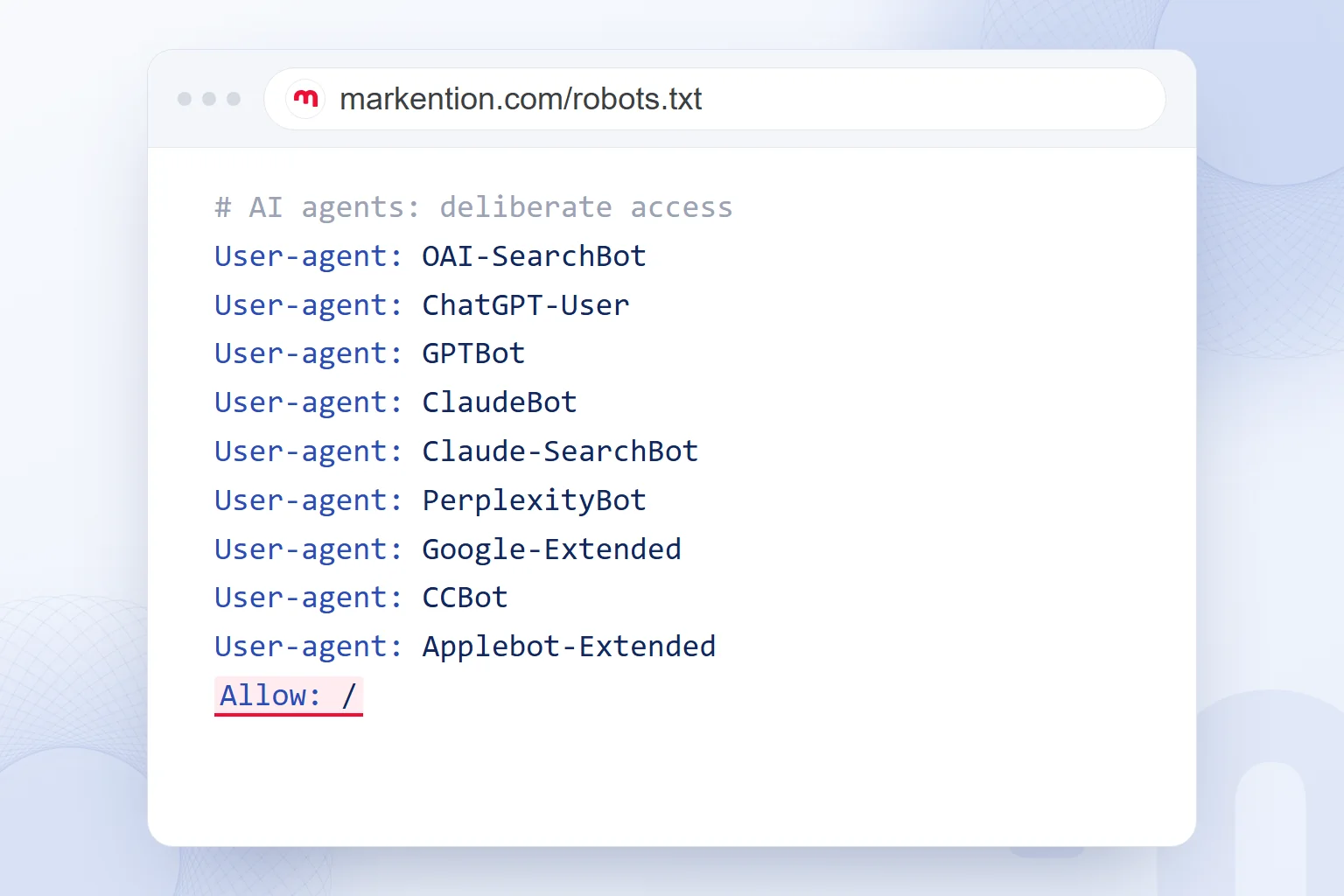
To keep a bot off the whole site, we write “Disallow: /” in its group. In an open group, we use “Allow: /” and list closed paths separately.
- We define the purposeWe decide separately which bots get access for search, training and ad review.
- We choose the pathsWe list paths we do not want crawled, such as admin and site search.
- We build the groupsWe write bot names on “User-agent” lines and add “Allow” and “Disallow” rules to the right group.
- We publish the outputWe edit the WordPress virtual file and plugin output, or the root file, and add the sitemap address.
- We verify the resultWe open the file at the root and check the same path in the general and specific groups.
A “robots.txt generator” gives us a first draft; we decide what stays open to training and which paths close, and compare the draft with our own path list.
How do you test a robots.txt file?
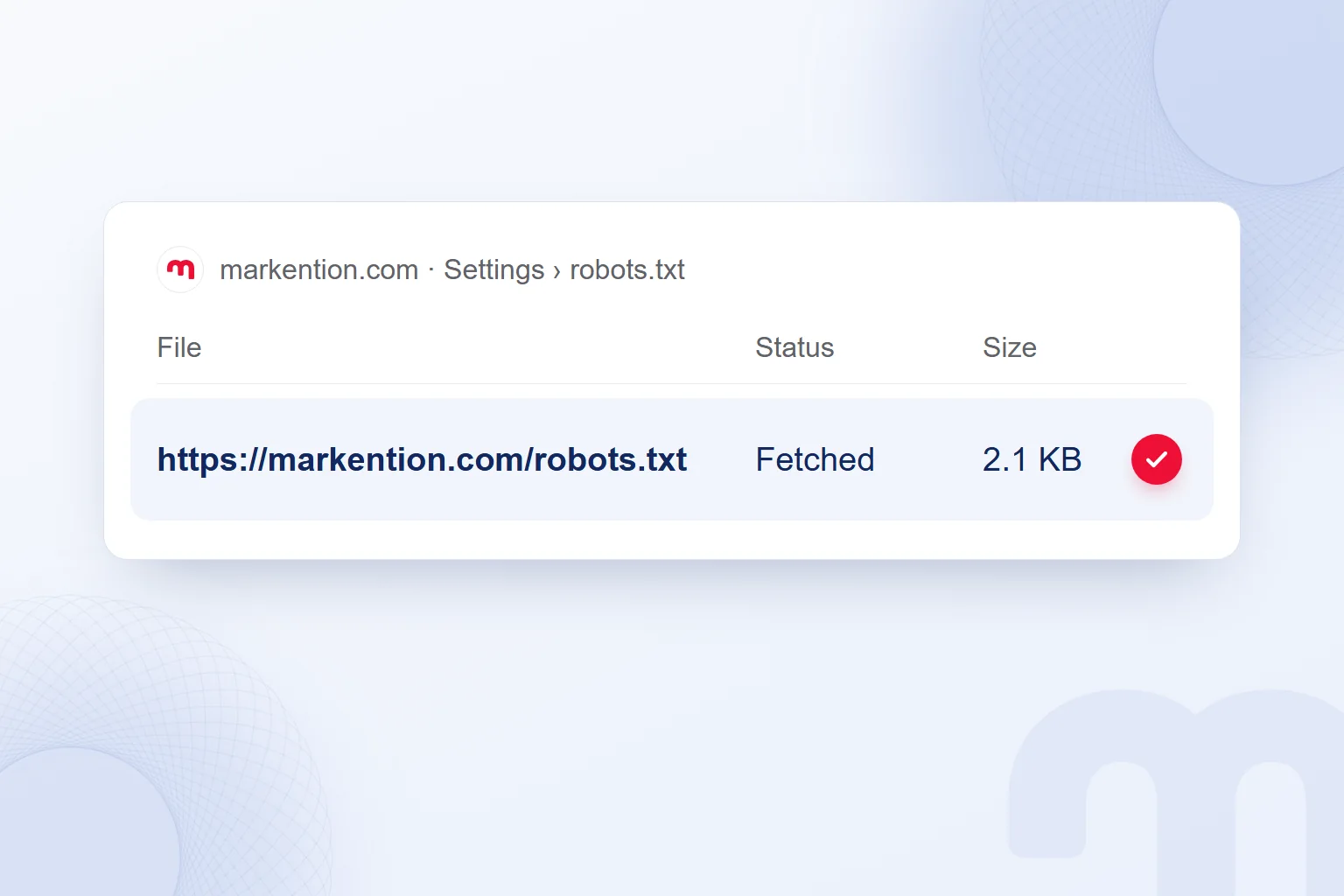
We test the file with Search Console’s robots.txt report and with tools that match a bot against a URL. In Search Console, Settings › robots.txt shows the files Google found, the last fetch status and errors. The robots.txt report has replaced the old robots.txt Tester.
We first confirm the file loads, then review the copy Google fetched. In “robots.txt tester” or “robots.txt checker” tools, we test the same URL against the general group and the specific bot name separately. This catches bans that never reached a specific group.
On 4xx responses other than 429, Google crawls without restrictions, as if no file existed. A 5xx error stops crawling for 12 hours, then the cached copy is used for up to 30 days, so we never use access errors to block bots.
A delayed change is not proof of a faulty rule; we weigh fetch status and cache time together.
Which AI crawlers are there, and why do they visit?
AI bots visit for search, training, user requests or ad review, and we decide access per purpose. Not every token is a separate crawler: Google-Extended and Applebot-Extended are tokens that control content use.
| Token | Company | Purpose | robots.txt |
|---|---|---|---|
| OAI-SearchBot | OpenAI | Appearing in ChatGPT search | Search access |
| GPTBot | OpenAI | Training foundation models | Training access |
| ChatGPT-User | OpenAI | User-initiated actions | Rules may not apply |
| OAI-AdsBot | OpenAI | Reviewing ad landing pages | Landing page must be open |
| ClaudeBot | Anthropic | Model training | Training group |
| Claude-SearchBot | Anthropic | Indexing for search | Search group |
| PerplexityBot | Perplexity | Showing and linking in answers | Search group |
| Google-Extended | Gemini training and grounding | Managed as a product token | |
| CCBot | Common Crawl | Open web archive | Archive crawling |
| Applebot-Extended | Apple | AI training | Managed as a control token |
According to OpenAI’s bot documentation, OAI-SearchBot and GPTBot settings are independent. Sites that block OAI-SearchBot are not shown in ChatGPT search answers, though they may still appear as navigational links. Changes reach search in about 24 hours, and robots.txt rules may not apply to ChatGPT-User.
Google-Extended governs Gemini training and grounding with Search index content. According to Google’s common crawlers documentation, it does not affect inclusion in Google Search and is not a ranking signal.
OAI-AdsBot reviews ad landing pages for policy compliance; its data is not used for training. According to OpenAI’s ads help center, the page cannot be reviewed if robots.txt or Cloudflare blocks it. We check this bot’s access separately on pages prepared for advertising on ChatGPT.
Should you allow or block AI crawlers?
It depends on the site’s visibility goal, training preference and access limits. On markention.com we allow search, answer and training bots and keep internal paths closed.
Three common situations and how we handle each:
- A service brand seeking visibility → We keep search, answer and training bots open; this is our choice on markention.com.
- A site publishing original research or paid content → We close training bots and keep search bots open, setting the two independently.
- A site with a members’ area → We close those paths to crawling and protect the content with server and access controls.
In our live file, nine AI tokens share one group with “Allow: /”, and the admin and search paths are closed again there, since general-group bans do not carry over.
In our AI access control work, we review bot name, selected group and target path together. A permission change does not take back data already collected.
What is the difference between robots.txt and noindex?
A robots.txt rule controls crawling, while controls whether a page stays in the index; for noindex to be read, the page must stay crawlable. If a blocked page gets links from elsewhere, Google can index its URL without reading the content.
Hiding a page and removing it from the index are different requests; the Search Console status shows which one applies.
The decision depends on the situation:
- “Blocked by robots.txt” → If we want the page crawled, we fix the blocking rule and review the bot’s own group too.
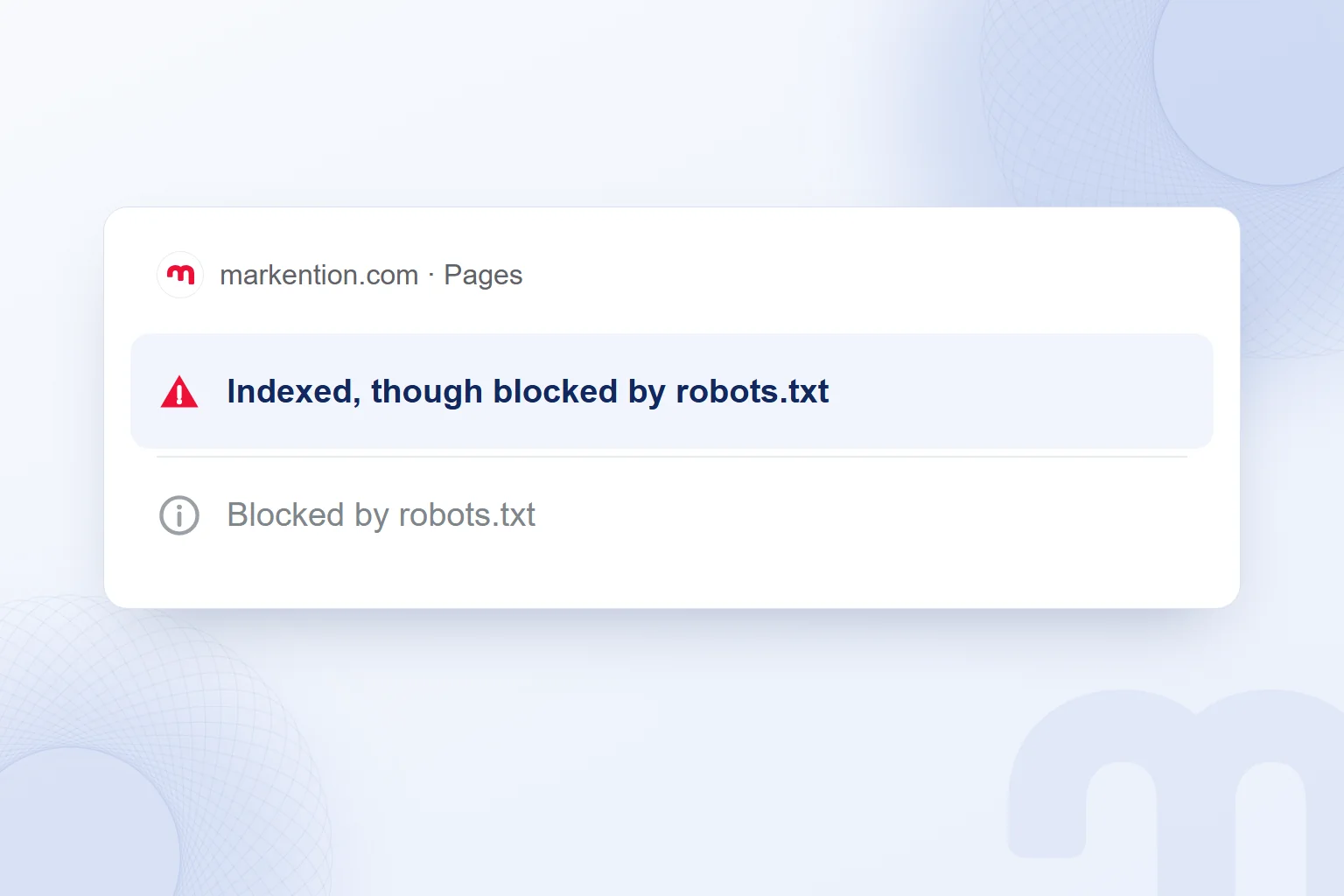
- “Indexed, though blocked by robots.txt” → To remove the page from the index, we lift the crawl block and add noindex so Google can read it.
- No block in the file → We look elsewhere: noindex, canonical tags and content quality.
A crawl ban plus noindex on one page will not remove it from the index. We first set the goal, getting the content read or removing the page, then align access and index rules with it.
Common robots.txt mistakes
Common mistakes: assuming the general group covers every bot, treating a crawl ban as index removal and trusting a bot by name.
- Changing a path’s case: We compare the rule with the real URL; /Library and /library differ.
- Closing training and search together: We decide GPTBot and OAI-SearchBot access separately.
- Trusting a bot’s name: We verify against published IP lists to filter fake names; OpenAI’s are at openai.com/searchbot.json and openai.com/gptbot.json.
- Checking only the file: Especially on ad landing pages, we also check whether a firewall blocks access.
In our GEO consulting work, we handle access decisions alongside content goals. How Yandex reads the rules and reports index status is covered in what is Yandex Webmaster. More on search and answer visibility is on our blog.
Frequently asked questions
What is robots.txt, in short?
A plain text file in a site’s root directory that tells compliant bots the crawl rules. On its own, it does not remove a page from Google’s index.
How do you edit robots.txt in WordPress?
We check the virtual file and plugin settings, then confirm the final output at the root address.
Does Google apply robots.txt changes immediately?
Google generally caches the file for up to 24 hours. We also check the latest fetch status in Search Console.
Does blocking GPTBot turn off ChatGPT search?
No; GPTBot and OAI-SearchBot permissions are independent. When we change the training preference, we check the search bot’s rule separately.
Does blocking Google-Extended affect Google rankings?
According to Google’s documentation, it does not affect inclusion in Search and is not a ranking signal.
Do Disallow and noindex do the same job?
No; Disallow limits crawling, while noindex asks that the page not be indexed. Google can only read noindex on a crawlable page.

 What is Google AI Mode? AI Mode vs AI Overviews and your siteRead article
 What is Microsoft Copilot? How it works and how to get citedRead article
 What is an LLM? How large language models work and know your brandRead articleMost read
 What is GEO? Generative Engine Optimization and AI answer citationsRead article
 What is an ad library? Competitor ads on Meta, Google and TikTokRead article
 What is NotebookLM? Now Gemini Notebook, used with brand documentsRead article
 What are ads? How Google, Meta and ChatGPT ads work alikeRead article
 What is superintelligence? From AI to SI and what it means for brandsRead article
Questions & answers
0 commentsNo questions yet; you can ask the first one.