





 Oğuzhan Altun
21 min read
What is Google Merchant Center? Account setup, feeds and listings
What Google Merchant Center is, how to set up an account and verify a site, product feeds and required attributes, free listings, Shopping ads, and why products get disapproved.Pro
Contents 26 sections
Key takeaways
- Google Merchant Center is a free Google tool that shows uploaded product data in free listings and ads.
- Google Merchant Center Help limits product titles to 150 characters and descriptions to 5,000 characters.
- From January 31, 2027, all product images must be at least 500×500 pixels, with 1500×1500 recommended.
- Feed prices must match the landing page, structured data and checkout, or products get disapproved.
Google Merchant Center is a free Google tool that lets businesses upload their product information (name, price, availability, image, brand) to Google and show those products in free listings and ads across Google Search, the Shopping tab, Images, Lens, YouTube and Maps. It is also the data source for Shopping ads and for Performance Max campaigns that include products.
This guide follows an ecommerce business from start to finish: what Merchant Center does, how to open an account and verify a site, how to build a product feed, which attributes are required, how free listings differ from Shopping ads, why products get disapproved and what to do after a suspension. The final sections cover feed optimization, the Google Ads link and measurement. Every rule, limit and attribute name comes from the Google Merchant Center Help Center.
Price and availability in Merchant Center are kept identical to the website and the checkout page; the return policy and contact details are published clearly on the site.
What Is Google Merchant Center?
Google Merchant Center is the hub that keeps a store’s catalog in a format Google understands and distributes it to Google’s shopping surfaces; in Google’s words, a free tool that helps millions of shoppers on Google discover, explore and buy products. Opening an account and uploading products costs nothing.
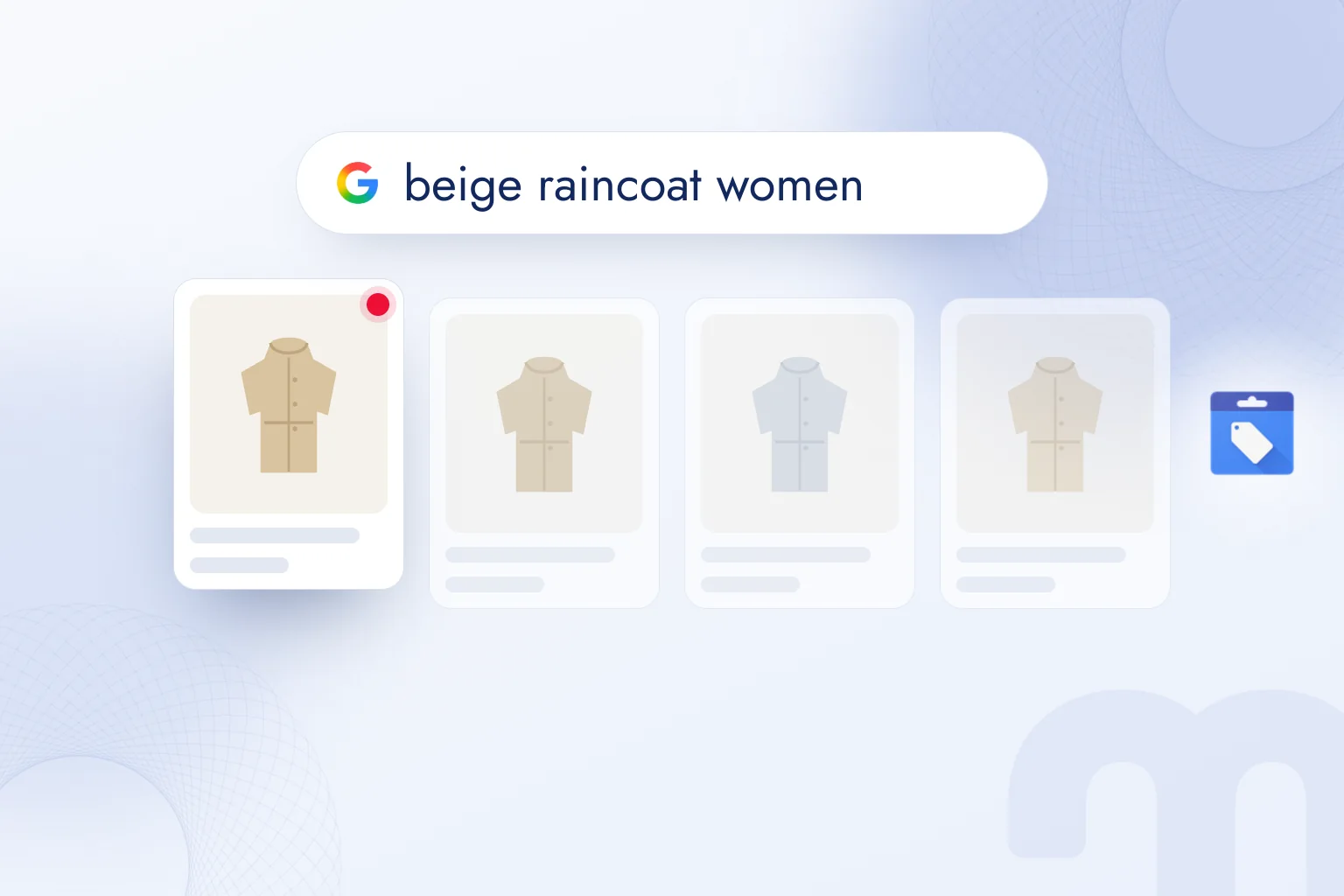
A product search shows what it does. When someone searches “beige raincoat women”, the results show product cards with an image, a price, the store name and sometimes shipping details. That information comes not from Google crawling web pages but from the structured product data stores send to Merchant Center. So Merchant Center is a data tool before it is an ad tool: the product’s identity card on Google.
Google’s help page states that product data uploaded to Merchant Center can be shown for free on Google Search, Maps, YouTube and other platforms. Linked to Google Ads, the same data also powers paid Shopping ads.
What Is Merchant Center Used For?
Merchant Center’s work falls into four areas:
- Free product listings → Products can appear on Google Search, the Shopping tab, Images, Lens, YouTube, Maps and Gemini without paying for ads.
- Shopping ads → With a linked Google Ads account, the same product data runs paid Shopping ads and Performance Max campaigns.
- Local inventory → Physical stores can send in-store stock and show products as available at a nearby store.
- Product health and diagnostics → Which product was disapproved and why, what is missing and which policy the site breaks, on one screen.
What Is the Difference Between Merchant Center and Google Ads?
Merchant Center holds the product data, while Google Ads uses it to manage budget, bids and targeting; one is the display cabinet, the other the budget that puts it in front of more people. Merchant Center alone is enough for free listings; paid Shopping ads need the two accounts linked.
| Criterion | Merchant Center | Google Ads |
|---|---|---|
| What it holds | Product data, store information, policies | Campaigns, budget, bids, targeting |
| Cost | Free | Ad spend |
| What it delivers alone | Free product listings | Search, video and display ads |
| What they deliver together | Product data for Shopping ads | Shopping and Performance Max campaigns |
| Where problems show | Product disapproval, account warning | Ads not serving, weak performance |
We cover the Google Ads auction, Quality Score and campaign types in detail in our what is Google Ads guide.
Who Is Merchant Center Not Suited For?
Merchant Center is for businesses selling physical or digital products; service businesses such as consulting, cleaning or training cannot upload products, and their right tools are Google Ads Search campaigns and Google Business Profile. Some product groups are also prohibited under Google Shopping policies or shown only under conditions: alcoholic beverages, prescription drugs and medical products, weapons and similar items, with rules that vary by country.
So the catalog is checked against Google Shopping policies before setup. A store selling restricted products can still use Merchant Center for the rest of its catalog by removing those products from the feed or meeting the policy conditions.
How Do You Set Up a Google Merchant Center Account?
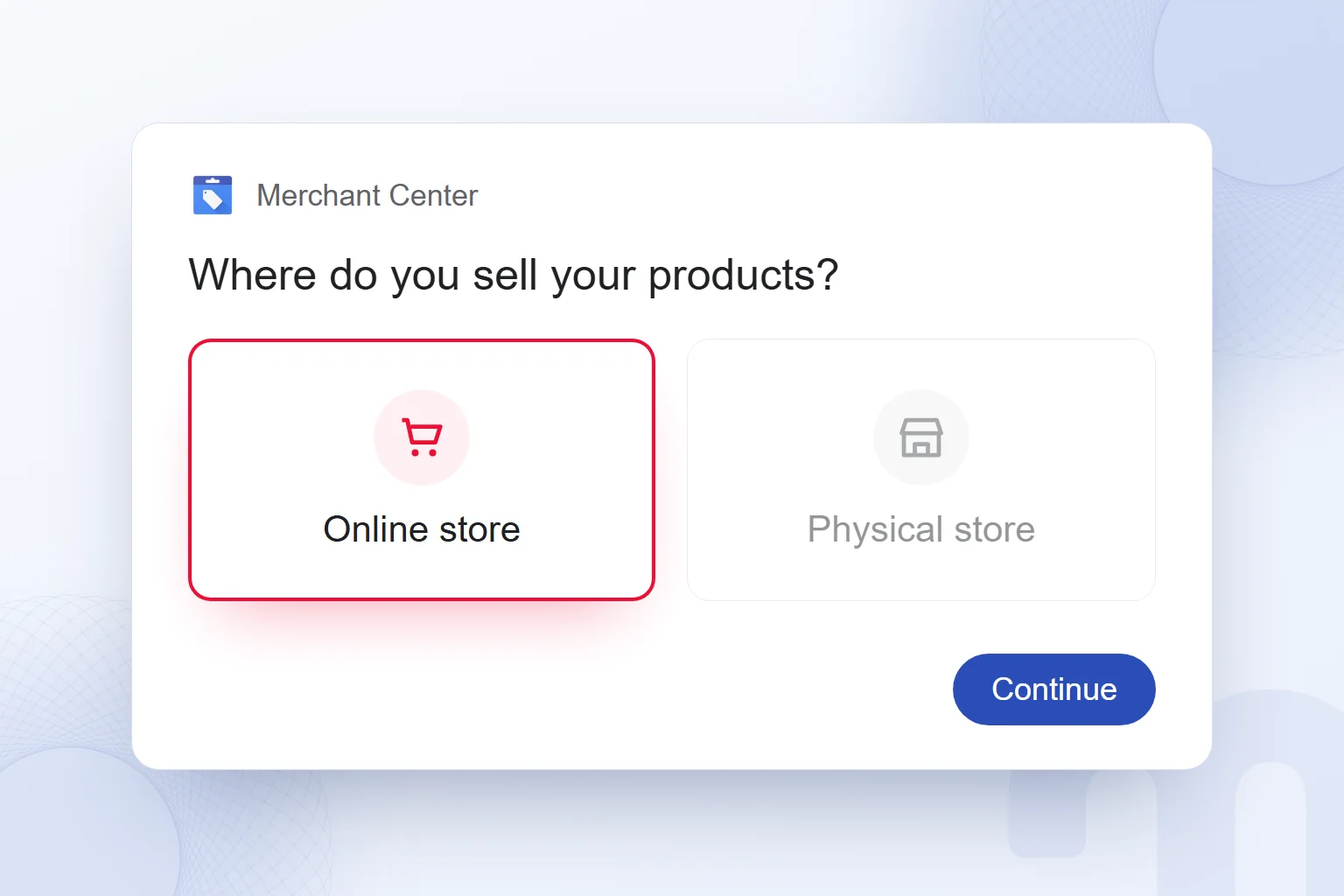
A Merchant Center account is opened from the Merchant Center sign-in page with a Google account; setup asks for business information, how products are sold (online, in a physical store or both), the website, and shipping and return details. According to Google’s help page, one Google account email can open only one Merchant Center account; a second needs a different email.
- 1. Sign inOpen the Merchant Center sign-in page with the business’s own Google account, not a personal one.
- 2. Describe the businessEnter the store name, country, opening hours and how the products are sold (online, in store or both).
- 3. Add the websiteEnter the store’s domain and move on to website verification and claiming.
- 4. Set up shipping and returnsEnter delivery time, shipping cost and the return policy in Merchant Center settings.
- 5. Add productsLet Google import products from the website, or upload a feed (Google Sheets, file, API, platform integration).
- 6. Turn on programsCheck that free listings are on; if you plan to advertise, link the Google Ads account.
Setup time goes mostly into bringing the site in line with policies and preparing product data correctly. Before opening the account, we check that the site has contact details, a return and shipping policy and a secure checkout page.
How Do You Verify and Claim Your Website?
Merchant Center confirms that the website showing the products belongs to the account owner; this step is called website verification and claiming. It is done with an HTML tag on the site, an HTML file on the server, a Google Analytics or Google Tag Manager account, or the ecommerce platform’s integration.
Claiming ties a domain to a single Merchant Center account. If an account opened by an agency or a former employee already claimed the site, the new account shows a claim warning; the domain is released from the old account or the claim is taken over. Opening Merchant Center, like Google Ads, under the business’s own Google account and giving the agency user access only prevents this from the start. We cover tag management on our Google Tag Manager page.
What Is a Product Feed?
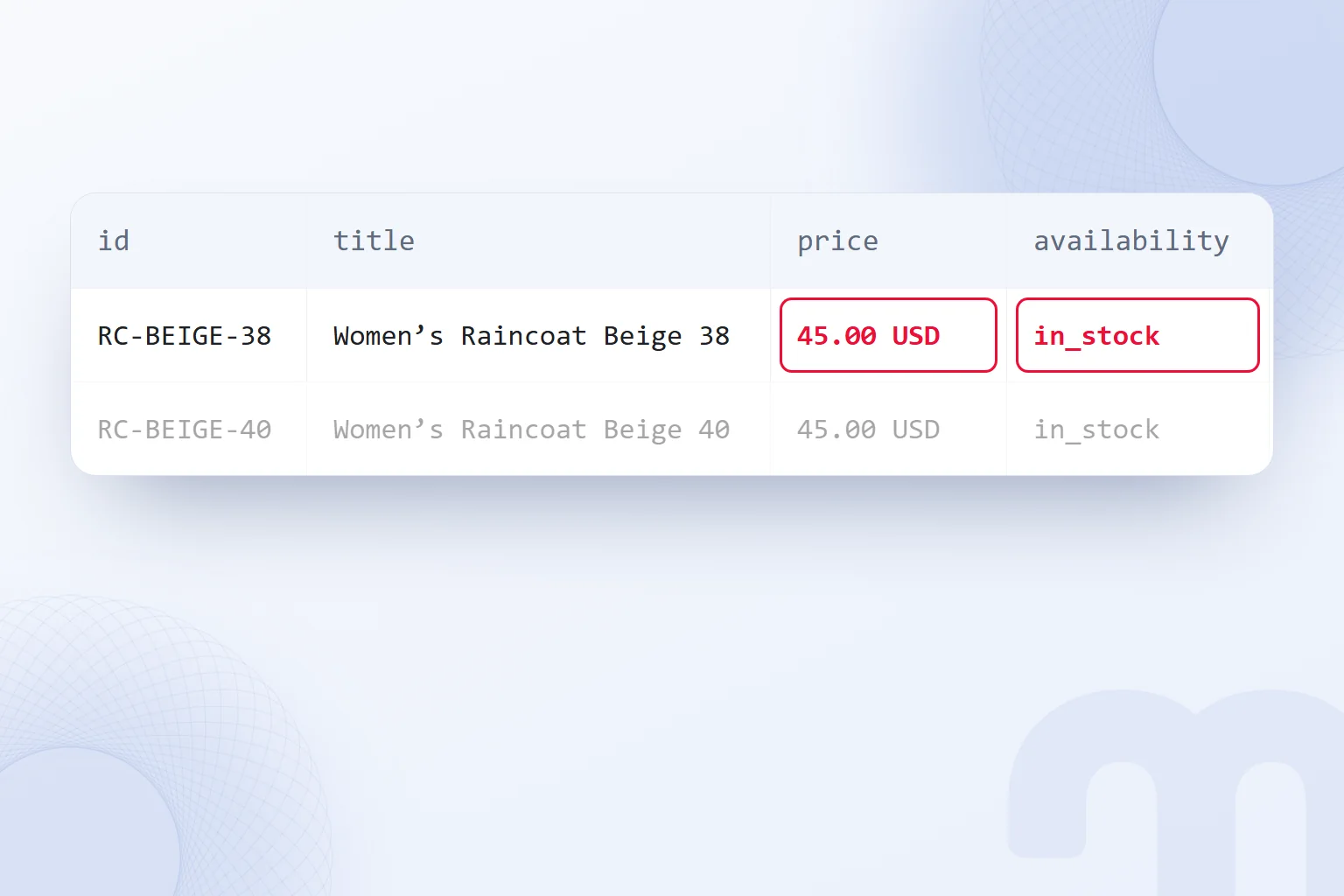
A is a structured data source listing all of a store’s products under the attribute names Google defines (id, title, price, availability…); Merchant Center reads products from it. A feed can be a spreadsheet file, a Google Sheets tab, an API connection or a stream sent by the ecommerce platform.
Each row is one product and each column one attribute. A T-shirt in black and white and in sizes S, M and L is six rows, tied together by a shared item group ID (item_group_id). Google’s help page lists missing or incorrect variant attributes among the most common data issues.
How Do Products Get Into Merchant Center?
The method depends on the store’s platform, catalog size and how often prices change. Hosted ecommerce platforms usually have a Google app or plugin that sends products, prices and stock to Merchant Center, so the feed needs no manual handling. Custom-built sites need the development team to generate a feed URL or set up an API connection.
The method is chosen by the store’s platform and product count:
| Method | How it works | Who it suits |
|---|---|---|
| Automatic from the website | Google takes products from the online store itself during setup | Small catalogs on sites with clean structured data |
| Google Sheets | Products are entered in a spreadsheet that Merchant Center reads regularly | Catalogs of a few dozen products that rarely change |
| File upload or scheduled fetch | A CSV, TXT or XML file is uploaded or fetched from a URL at set times | Stores whose platform can generate a feed file |
| Ecommerce platform integration | The Google app or plugin of platforms such as Shopify or WooCommerce sends the products | Most stores on hosted platforms |
| API | Products are updated programmatically in real time | Large catalogs with frequent price and stock changes |
Our observation: for most small and mid-sized stores, the platform’s own integration is the healthiest route; the feed updates itself when price and stock change. Automatic import from the website is a quick start, but the data is only as good as the site’s structured data; GTIN, brand or variant details missing from the page are missing from the feed too. We explain how the choice of platform affects the feed in our what is Shopify guide.
How Do You Build a First Feed With Google Sheets?
For a small catalog, the fastest start is Merchant Center’s Google Sheets option: Merchant Center creates a template with the right column headers, products are entered row by row, and the sheet is read at regular intervals. No technical knowledge is needed, but the sheet is updated by hand as prices and stock change.
- 1. Create the templateIn Merchant Center, choose Google Sheets as the way to add products and allow the template sheet to be created.
- 2. Fill in the required columnsEnter id, title, description, link, image_link, availability, price and brand values on each row; add gtin if there is one.
- 3. Separate the variantsOpen a separate row for each color and size of the same product and give them all the same item_group_id value.
- 4. Check the formatWrite the price as “1450.00 TRY” and availability with values such as “in_stock”; the image link must open the image file directly.
- 5. Set the update frequencyChoose a daily read of the sheet; update the sheet the same day prices or promotions change.
- 6. Monitor the resultAfter a day or two, check approved and problem products in the Products section and fix each warning.
Past a hundred products, or with prices changing several times a week, a hand-kept sheet breeds errors; that is the point to move to a platform integration or a scheduled file fetch.
Language and Currency for Stores Selling in Turkey
For a store selling to customers in Turkey, the feed language is Turkish, the currency Turkish lira (TRY) and the target country Turkey. Under Google’s currency and language requirements, the price must also appear clearly on the landing and checkout pages in the currency of the country where the product is shown.
Stores selling abroad handle each target country separately: price in that country’s currency, shipping and return terms defined for it, and a landing page in its language. Exporters therefore use a feed per market or a price column per country. We cover the other steps of entering foreign markets on our international marketing page.
Which Product Attributes Are Required?
The basic attributes required for every product are id, title, description, link (product page URL), image_link (main image), availability and price; new products also need a brand and the manufacturer’s GTIN, or the MPN where there is no GTIN. Used and refurbished products require the condition attribute.
| Attribute | What goes in | Official rule |
|---|---|---|
| id | The product’s unique identifier | Required; up to 50 characters, SKU where possible |
| title | The product name | Required; 1–150 characters |
| description | The product description | Required; 1–5,000 characters |
| link | The product page URL | Required; verified domain, http or https |
| image_link | Main product image | Required; at least 500×500 pixels (from January 31, 2027), 1500×1500 recommended |
| availability | Stock status | Required; in_stock, out_of_stock, preorder, backorder |
| price | Price and currency | Required; e.g. 15.00 TRY, identical to the site and checkout |
| brand | Brand name | Required for new products; up to 70 characters |
| gtin | Product number assigned by the manufacturer | Submitted if the manufacturer assigned one; EAN (13 digits) in Europe |
| condition | The product’s condition | Required for used and refurbished: new, refurbished, used |
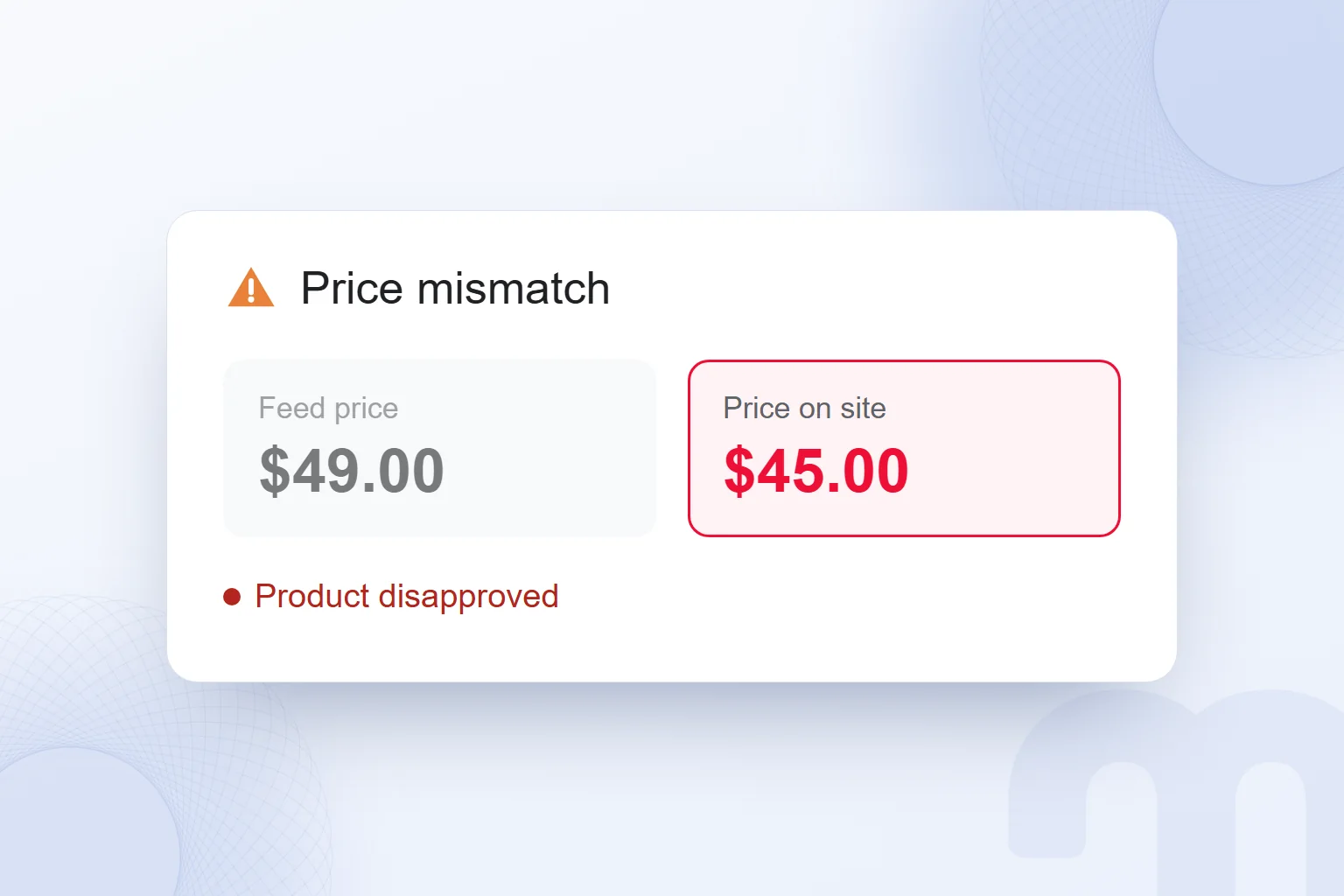
Two rules cause the most trouble. First, price: Google’s help page requires the feed price to match the landing page, structured data and checkout; products discounted on the site but still at the old price in the feed are disapproved. The second is GTIN: for most products sold in Turkey, it is the 13-digit EAN number under the barcode. For barcodes on your own products, we explain GS1 numbering in our how to create a barcode guide.
What Rules Must Product Images Follow?
A main image is required for every product and must show the product itself clearly, alone and accurately. According to Google’s help page, from January 31, 2027 all product images must be at least 500×500 pixels; 1500×1500 or larger is recommended. An image can be up to 64 megapixels and 16 MB; JPEG and WebP are recommended, and PNG, GIF, BMP and TIFF are also supported.
What we avoid in the main image: promotional text such as “sale” or “free shipping”, a store logo or watermark, a collage of several products, and a dark background that hides the product. Extra angles, detail shots and in-use photos go separately in the additional_image_link and lifestyle image attributes. How images affect matching in Google Lens is covered in our what is Google Lens article.
What Are Free Product Listings?
Free product listings show Merchant Center products on Google Search, the Shopping tab, Google Images, Google Lens, YouTube, Google Maps, Gemini and the products section of a Business Profile at no ad cost. According to Google’s help page, the feature is on by default in most cases; its status is on the “Free listings” page in Merchant Center.
Free listings bring the product page itself into search results. As Google notes, they help product pages appear directly instead of the homepage, shipping and return pages or category pages. For an ecommerce site, organic search traffic then lands at the product level.
Ranking in free listings rests not on bids but on relevance to the search, data quality, price and shipping competitiveness and the store’s trust signals. That makes free listing visibility the most honest measure of feed quality: a feed with weak titles, no GTINs and poor images can be propped up with ad budget, not in free listings.
How Do Google Shopping Ads Work?
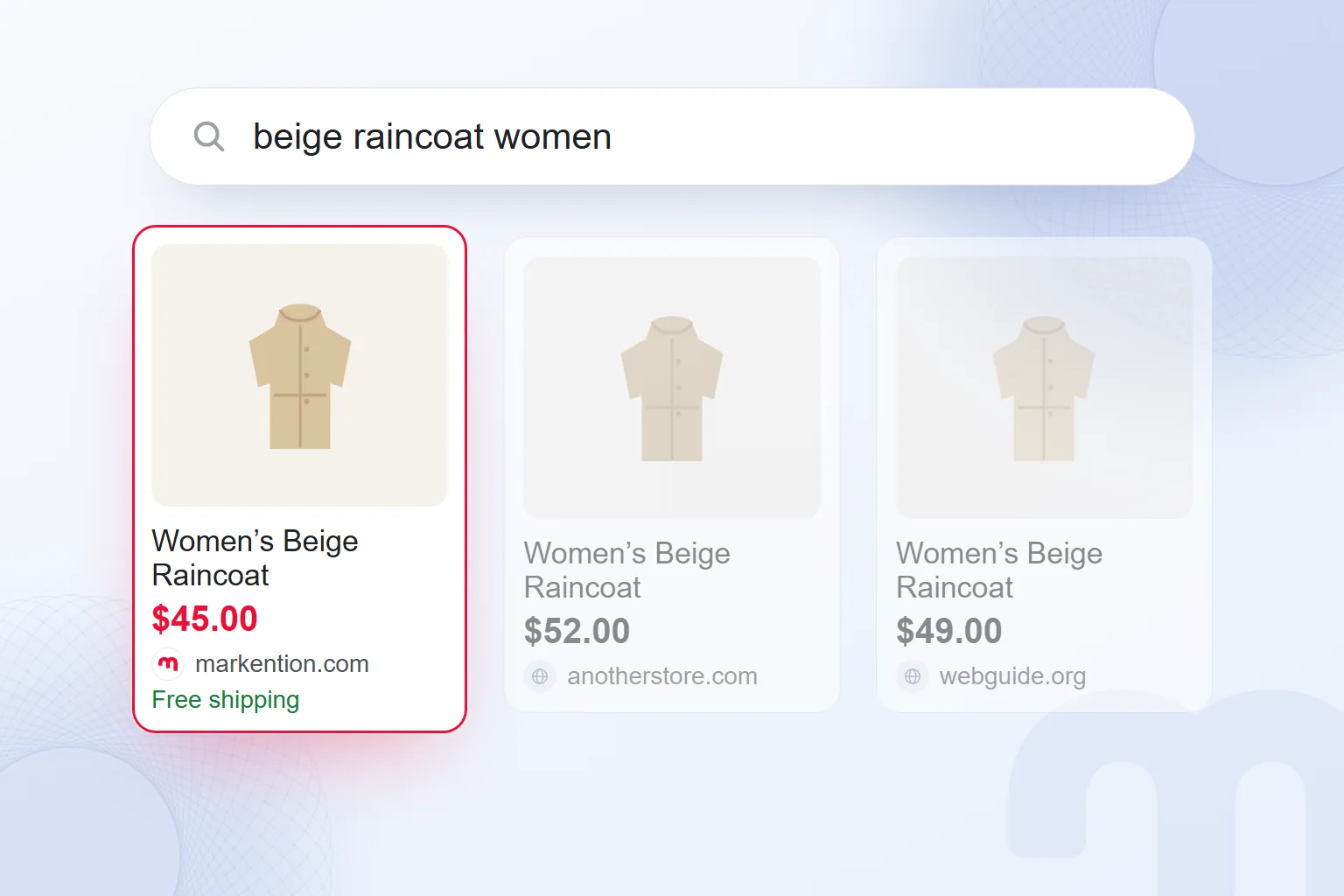
Shopping ads are paid Google ads that use Merchant Center product data to show a product image, name, price and store name; they require Merchant Center to be linked to Google Ads. Unlike Search ads, no keywords are chosen: Google matches the product to a search from the feed’s title, description and category.
Most product advertising now runs on two campaign types: standard Shopping campaigns, limited to Shopping inventory, and Performance Max, which also shows products on YouTube, the Display Network, Gmail and Discover. The choice comes down to this:
- New feed, little conversion data → We start with standard Shopping; it shows more clearly which product appears for which search.
- Solid conversion tracking, enough sales data → We open up to all channels with a Performance Max campaign.
- Very different product margins → We split products into margin groups with custom labels (custom_label) and set a separate target for each group.
- Brand searches inflate the campaign → We track brand searches separately and check whether product ads bring new customers.
The core ratio for measuring the return on Shopping ads is return on ad spend; we explain how it is calculated in our what is ROAS article.
How Do You Submit Prices During a Sale?
A sale price does not replace the regular price; it is sent separately with the sale_price and sale_price_effective_date attributes. The product card can then show the discount, and the price returns to normal by itself when the sale ends.
The most common disapproval during promotions is a feed still sending the old price after the sale starts on the site. Our rule before big promotions is simple: sale prices and dates enter the feed at least a day early, site and feed show the same price from the hour the promotion starts, and both return to the old price together when it ends. Cart-only discounts not shown on the product page are not reflected in the product price; Google expects the price on the product page.
Why Are Products Disapproved in Merchant Center?
Products are usually disapproved for three reasons: feed data that does not match the site (price, availability), a missing or wrong required attribute (GTIN, image, category), or a product or site violating a Google Shopping policy. Merchant Center shows each product’s issue and the program it affects in the issue details.
Google’s help page lists common issues as incorrect Google product category or GTIN values, missing or incorrect variant attributes (item group ID, color, size), low-quality images and conflicting feed and website data. The cases we see most and their fixes:
| Warning | Cause | What we do |
|---|---|---|
| Price mismatch | The feed price differs from the site or checkout price | We increase the feed update frequency and align the site’s structured data with the price |
| Availability mismatch | A product sold out on the site still shows in stock in the feed | We make sure stock changes reach the feed immediately |
| Invalid GTIN | A typo or another product’s barcode | We check the barcode on the packaging and verify it against the GS1 record |
| Image issue | Promotional text, watermark, low resolution | We upload a high-resolution image on a plain background with no text |
| Landing page not working | The link returns a 404 or redirects | We fix the product URL and remove discontinued products from the feed |
| Misrepresentation | Contact, return or payment information missing or misleading | We complete the policy and contact pages on the site |
What Is a Misrepresentation Warning?
Misrepresentation is among the Google Shopping policies with the heaviest consequences; when Google sees misleading or incomplete information about a product or business, it can suspend the whole account. According to Google’s help page, the policy aims to keep listings clear and accurate, with the information users need to make informed decisions.
On new ecommerce sites, the triggers are usually simple and a checklist prevents them:
- Contact details → A clear address, phone number and email; a contact form alone may not be enough.
- Return and exchange policy → On its own page, with time limit and conditions; identical to the Merchant Center return settings.
- Shipping information → Delivery time and cost consistent between the site and Merchant Center.
- Secure checkout → The checkout page runs on https, and card details are collected through a secure payment provider.
- Realistic claims → No unsupported claims such as “cheapest on the market” or “100% guaranteed”, and no fake countdown timers.
- Company information → The registered company name, the distance sales contract that online stores in Turkey publish, and the privacy policy appear on the site.
What Do You Do If Your Merchant Center Account Is Suspended?
When an account is suspended, the policy in the Merchant Center notification is read first, the problem is fixed on the site and in the feed, and then a review is requested; a review requested without fixes usually returns the same result. While it is pending, listings and Shopping ads are not shown.
The order we follow for a suspension:
- 1. Read the notificationCheck which policy and which scope (a single product, a product group or the whole account) the warning in Merchant Center points to.
- 2. Walk the site as a customerTry a full purchase from homepage to checkout; note missing information, broken links and inconsistent prices.
- 3. Fix itComplete the policy pages and contact details, align price and stock, and reprocess the feed.
- 4. Request a reviewRequest a re-review from Merchant Center; describe the fixes briefly and clearly.
- 5. Wait and monitorWait for the result; repeated review requests for the same issue can delay the next chance at a review.
Feed Optimization: How Do Products Get More Visibility?
Feed optimization shapes product data so Google matches it to searches more accurately; the more complete and relevant the title, description, category, identifiers and images, the more (and the right) searches the product appears in. Since Shopping ads use no keywords, the feed is the ad’s targeting.
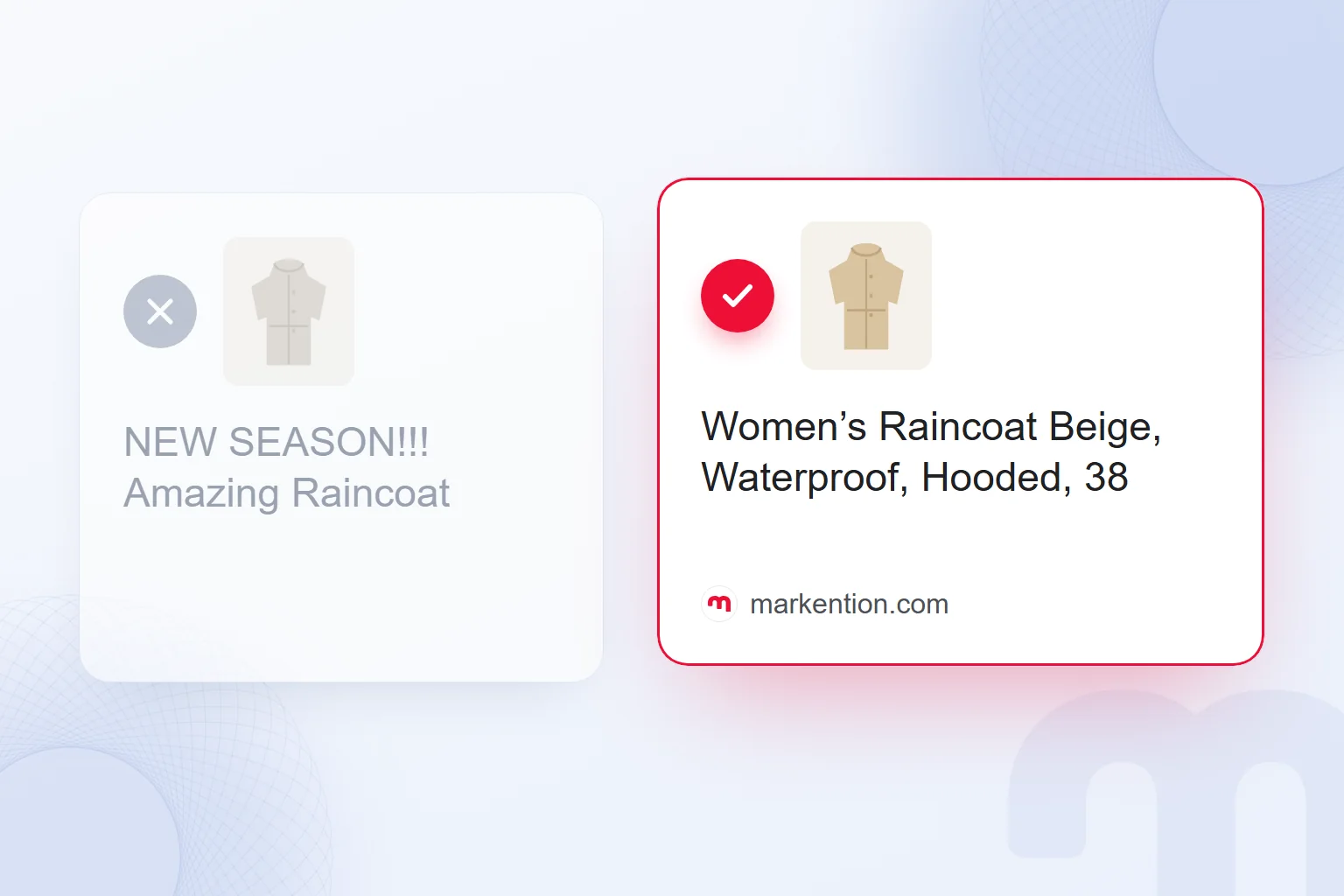
The title is the most effective field. Long titles are truncated in results, so the key information goes first. We write titles in the order “brand + product type + distinguishing attribute (color, size, material)”. A title like “NEW SEASON!!! Amazing Raincoat” matches no search fully; “Example Brand Women’s Raincoat Beige, Waterproof, Hooded, 38” answers “beige raincoat women”, “waterproof raincoat” and “hooded raincoat size 38” all at once.
Other fields we check besides the title:
- Description → Material, dimensions, use and care in plain text; no slogans or links to other products.
- Google product category → The product goes into the most precise subcategory; a wrong category carries it into the wrong searches.
- Variants → Color, size and material are sent as separate attributes and tied together with item_group_id.
- Custom labels → Internal information such as margin, season or bestseller goes into the custom_label fields; ad budget is managed by these groups.
- Shipping and returns → Correctly entered free shipping and easy returns can appear on the product card and raise clicks.
Consistency with the site’s structured data is part of optimization too. When the Product markup on the page (price, availability, brand, image) matches the feed, Google reads the same truth from two sources; a conflict leads to disapproval. We cover where product images sit in Google Images in our Google image search guide.
How Do You Read the Merchant Center Performance Report?
The Merchant Center performance report shows impressions and clicks for products on Google, separately for free listings and ads; it reveals which products draw the most interest and which are never shown. Detailed ad performance is tracked in Google Ads.
Three questions guide how we read the report:
- Which products get most impressions? → A small share of the catalog usually takes most of them. Data of products never shown (title, category, GTIN) is compared with theirs first.
- Impressions but no clicks? → If the price is clearly above competitors or the image does not describe the product well, the card is seen but not clicked.
- What is the free–paid balance? → Products already earning clicks from free listings get a different ad budget from products with no free visibility.
Our observation: on new accounts, free listing traffic stays low in the first weeks and grows as feed issues are fixed. We read the first month as a baseline of feed health; a lasting result needs two to three months of monitoring.
Reading it alongside Search Console helps. Search Console shows which searches product pages appear for organically; Merchant Center shows the same products’ impressions on shopping surfaces. Products strong in both are the store’s showcase; for products strong in one and weak in the other, the problem usually lies in the page content or the feed data, and comparing the two quickly shows where.
Merchant Center and AI-Powered Shopping
Merchant Center product data now feeds not only classic search results but also Google’s AI-powered shopping experiences; Google’s help page includes Gemini among the places free listings appear. The product data specification also describes this data as a key input for ad content in AI-powered formats.
In practice, when a user asks an AI assistant to “suggest a waterproof, hooded, beige women’s raincoat”, the recommended products come largely from structured product data. Titles and descriptions that spell out attributes, the right category and identifiers such as raise the chance that the product enters these recommendations. When product descriptions are written with AI-generated text, Merchant Center’s structured title and description attributes can be used to declare it.
The product side of managing how brands appear in AI answers is feed quality; we cover the content and source side on our GEO consulting page.
Physical Stores: Local Inventory
Businesses with physical stores can send in-store stock to Merchant Center as local inventory and show products as in stock at a nearby store, gaining product-level visibility in Google Maps, the Business Profile and local results.
Local inventory requires store locations to be accurate and verified in Google Business Profile; the two match through these locations. We walk through Business Profile setup and verification step by step in our Google Business Profile guide. For businesses selling online and in store, this reaches the customer who thinks “I saw it online, I’ll pick it up today”.
Linking Merchant Center With Google Ads and Analytics
Merchant Center’s full value needs two links: Google Ads for Shopping ads, and Google Analytics 4 to see what listing visitors do on the site. Both are set up in the linked accounts section of Merchant Center settings.
The most missed point is tracking free listing traffic separately. UTM parameters on product links separate it from organic search in Analytics, showing how many sales the free channel brings. A correctly recorded purchase event is core data for both Shopping ads bidding and reporting. We cover this measurement setup on our Google Analytics 4 page.
Common Merchant Center Mistakes
Most mistakes we see on new accounts happen during setup, before any disapproval, and take longer to fix later. The main ones:
- Opening Merchant Center in the agency’s account → Ownership stays outside the business; when the agency changes, product history and verification are lost.
- Sending products before the policy pages are ready → The first review brings a misrepresentation warning, and the account starts with a trust problem.
- Sending every product at once, unchecked → A feed of thousands fails in bulk; testing a small group first, then expanding, is safer.
- Adding promotional text to the title → Phrases such as “sale” or “free shipping” go not into the title but into the relevant attributes (sale_price, shipping settings).
- Leaving discontinued products in the feed → A product returning a 404 on the site is disapproved; when a product leaves the site, it leaves the feed too.
- Never updating a single feed → The feed goes stale as stock and prices change; the update frequency is set by sales speed.
These mistakes share one root: treating Merchant Center as a one-time setup. It is a store’s second shop window; the feed should be as current as the site.
Who Should Set Up Merchant Center?
A small store on a hosted platform can set up Merchant Center itself; with hundreds of products, many variants, frequent price changes or a past suspension, specialist support saves time and budget. The cost of a mistake decides more than product count: a disapproved or suspended account can stop all product visibility in the busiest season.
For ecommerce clients, we manage Merchant Center with product page SEO, feed quality and Shopping ads; how we work is on our ecommerce marketing and Google Ads consulting pages. For a new store, our ecommerce website development page covers starting on a feed-ready platform. Our other advertising guides are on our blog.
Frequently asked questions
Is Google Merchant Center free?
Yes. Merchant Center is free, and nothing is paid for free product listings. Shopping ads involve ad spend in Google Ads.
How do you open a Merchant Center account?
Sign in to Merchant Center with a Google account, add business, website, shipping and return details, verify the site and upload products.
How do you create a product feed?
Through the ecommerce platform’s Google integration, Google Sheets, a CSV or XML file, the API, or automatic import from the website.
Why are my products not approved in Merchant Center?
The most common causes are price or availability mismatches, a missing or wrong GTIN, non-compliant images and missing policy information on the site.
What is a GTIN, and where do you find it?
The global product number a manufacturer assigns to a product. For products in Turkey, it is the 13-digit EAN number under the barcode.
Where do free listings appear?
On Google Search, the Shopping tab, Images, Lens, YouTube, Maps, Gemini and the products section of a Business Profile.
Can you run Shopping ads without Merchant Center?
No. Shopping ads take their product data from Merchant Center; the Merchant Center account must be linked to Google Ads.
What do you do if the account is suspended?
Read the policy in the notification, fix the problem on the site and in the feed, then request a re-review from Merchant Center.

 What is Google Ads? How it works, costs and campaign typesRead article
 How to advertise on YouTube: campaign types, targeting and costRead article
 What is ROAS? Formula, ROAS vs ROI and how to set target ROASRead article
 What is advertising? How traditional and digital advertising worksRead article
 What is an audience in advertising? Audience types and how to chooseRead articleMost read
 Advertising on ChatGPT: Ads Manager, Targeting and Your First CampaignRead article
 How to advertise on Google: account, first campaign, budget, trackingRead article
 What are ads? How Google, Meta and ChatGPT ads work alikeRead article
Questions & answers
0 commentsNo questions yet; you can ask the first one.