



 Cihat Murat Yüksel
8 min read
Cihat Murat Yüksel
8 min read
How to create a barcode: EAN-13, Code 128 and QR codes
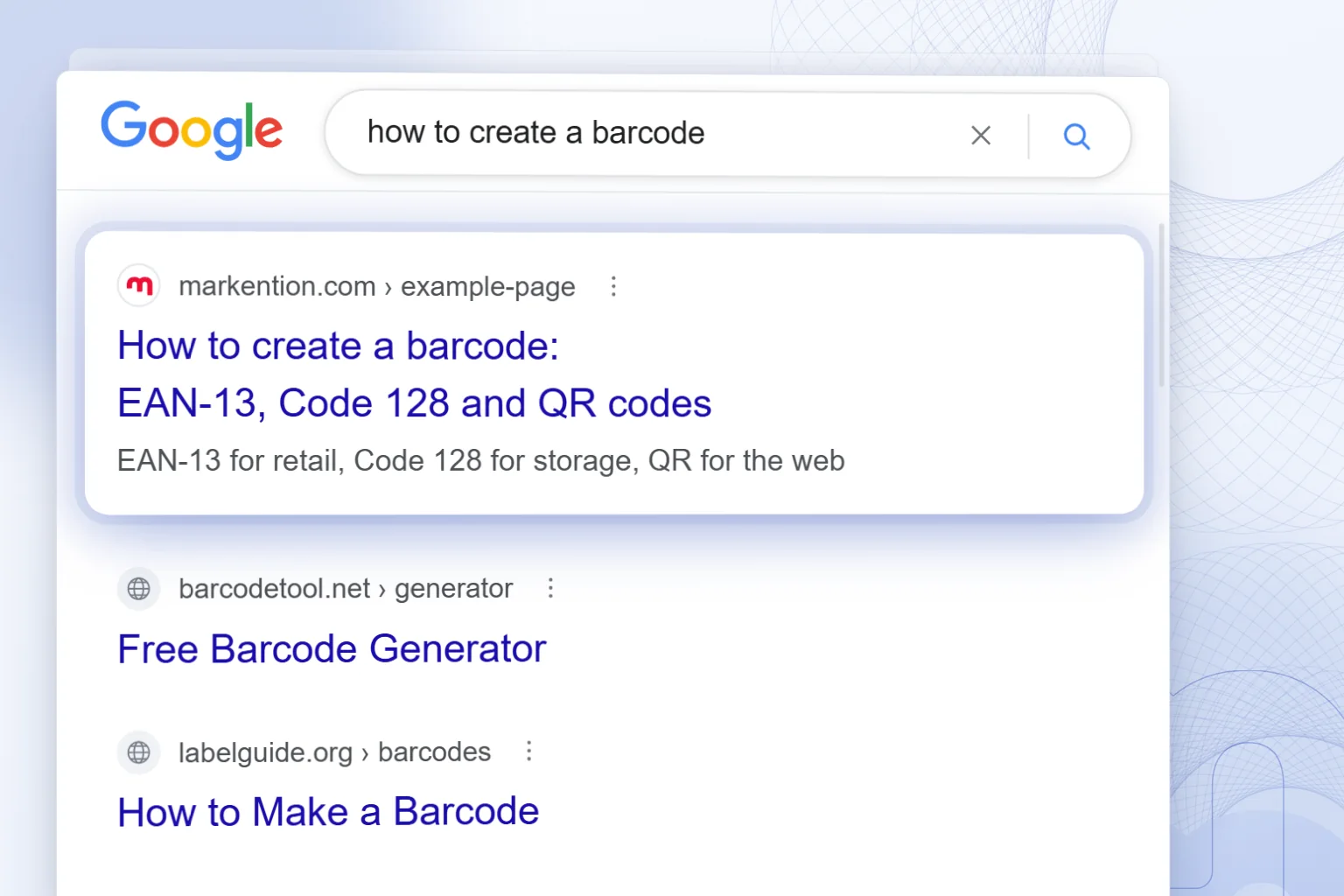
How to create a barcode: EAN-13 for retail, Code 128 for storage, QR codes for links; how a GS1 number differs from a free barcode, and the steps up to print.Pro
Contents 8 sections
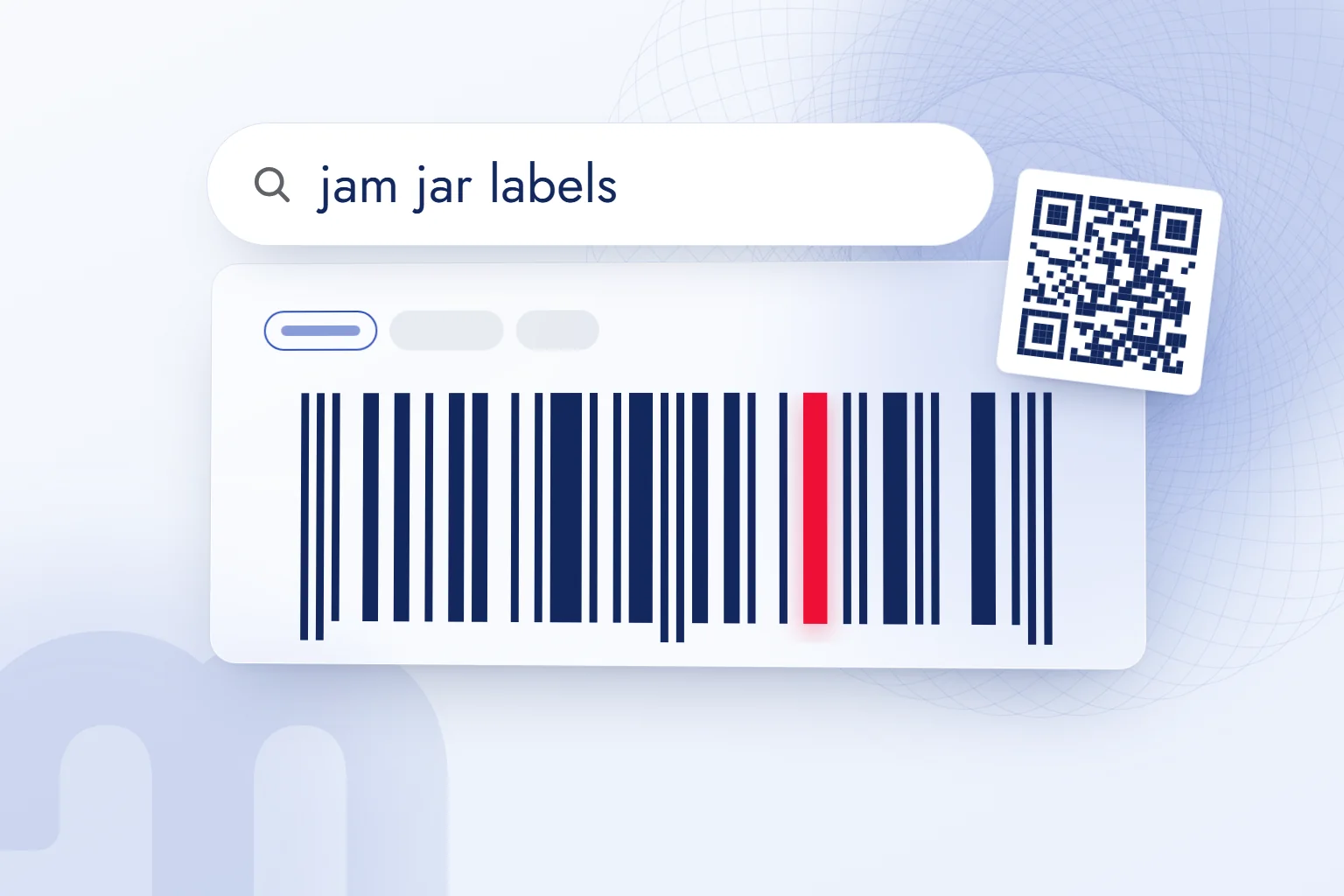
Creating a barcode means turning a product number or text into a bar pattern (, Code 128) or a square pattern (QR) that a scanner can read. Generating the image does not give the product a commercial number; a barcode generator only encodes what it is given.
A shelf product, a warehouse box and a phone menu need different routes. First we settle the number’s source, the barcode type and the print file; this order avoids reprinting labels that will not scan.
A commercial EAN-13 number is obtained from GS1, while the barcode image is generated for free.
Do you need a GS1 number to create a barcode?
Yes for a retail shelf and for most marketplace categories; no for warehouses, boxes, menus and web links. The sales channel decides: retail and marketplace listings require a GS1 product identifier, which an internal code cannot replace.
The route depends on the sales channel: 1) The product goes to a retail shelf or a marketplace → the number is bought through GS1 membership (in Turkey, GS1 Turkey), and the image comes from a free generator. 2) The product is tracked only in the business’s own warehouse, boxes or assets → the business assigns the number and a Code 128 is generated; no GS1 membership is needed. 3) The goal is a menu, campaign page or business card link → we generate a QR code and encode the link, not a product number.
A scannable image does not prove the number belongs to the product. In Turkey, a “barcode number” search means the EAN-13 number GS1 Turkey assigns, and GS1 Turkey publishes the application documents and fees. Large marketplaces make the barcode field mandatory; each one’s seller documentation lists the categories that need a GS1 number. Matching listings with barcodes belongs to the product data side of ecommerce marketing; selling abroad follows the same logic in international marketing.
Turkey’s e-Government portal (e-Devlet) does not issue commercial product barcode numbers; they come from GS1 Turkey. The verification barcode on e-Government documents is unrelated to retail product numbers.
Which barcode type should you choose: EAN-13, Code 128 or a QR code?
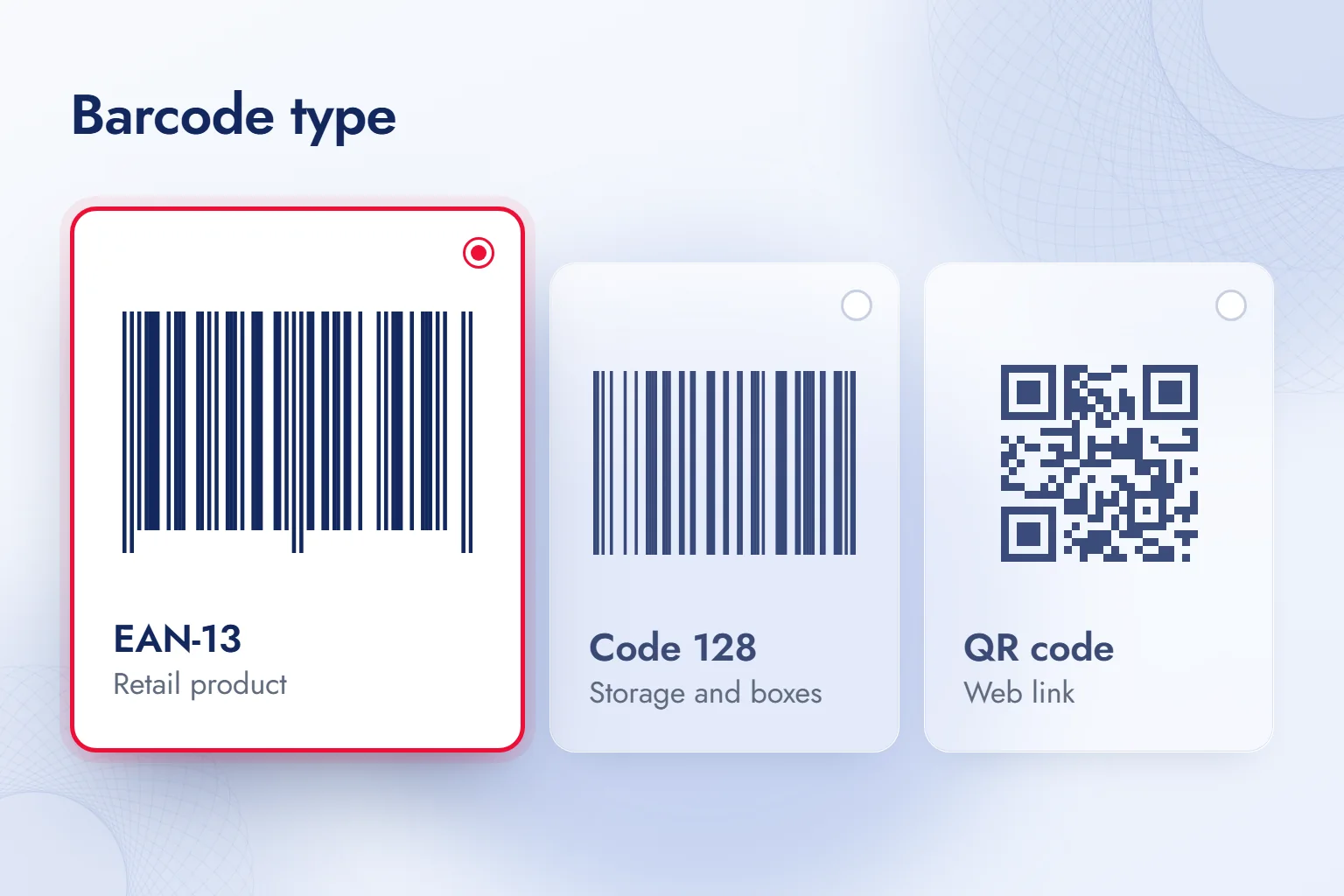
EAN-13 for the shelf, Code 128 for internal logistics, a QR code for a link read from a screen.
Square codes on menus and business cards are QR codes. A QR code exists so a phone opens a link; a checkout recognizing a product is a different job. We choose the type not by how the pattern looks but by the reading device and the system that uses the data.
| Type and what it encodes | Where it is used | Number source | Print format |
|---|---|---|---|
| EAN-13: product number | Retail shelf and product listings | GS1 (GS1 Turkey in Turkey) | SVG or PDF, bar pattern |
| Code 128: tracking code with letters, digits and symbols | Warehouse, box and asset tracking | The business’s own coding system | SVG or PDF, bar pattern |
| QR code: web link or text | Menus, campaigns and business cards | No product number needed | SVG or PDF, square pattern |
The split also decides the record system: a scanned Code 128 makes the warehouse software find the record holding the product name and stock; a scanned QR code opens the encoded link. So a bar barcode for the sale and a QR code for the manual on the same package serve different needs.
How do you create a barcode step by step?
In five steps: choose the type, enter the data, set the size, test the preview with a scanner, download a vector file.
To create a barcode online, we first prepare the source data: the assigned number, the stock code or the full page link. The data is checked before the bars.
- Choose the typeEAN-13, Code 128 or QR is chosen by where it will be used; the scanner is confirmed to support it.
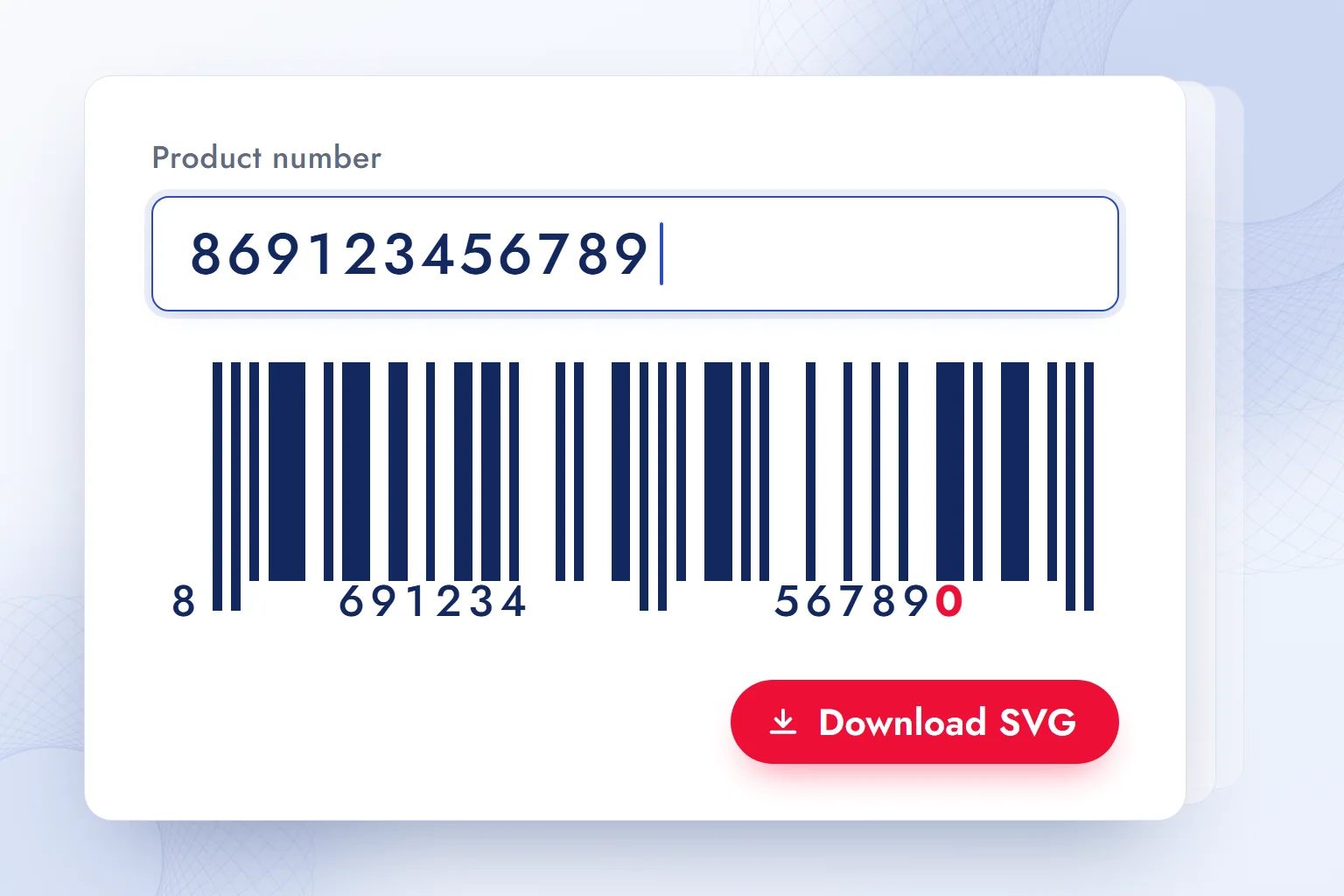
- Enter the dataFor EAN-13, 12 data digits are entered and the tool calculates the 13th, the check digit; the structure comes from the GS1 General Specifications. Numbers assigned by GS1 Turkey start with 868 or 869. Code 128 takes the tracking code with letters, digits and symbols; a QR code takes the full link.
- Set the size and quiet zoneThe space around the pattern is kept; the barcode is never scaled in one direction only, so the aspect ratio stays intact.
- Test with a phone camera or handheld scannerA phone is used for QR codes, a compatible scanner for bar barcodes. The scanned data is compared with the source; the QR link must open the right page.
- Download SVG or PDFVector export is chosen and the file is matched to the product record; after printing, the real label is scanned too.
Our observation: whichever free generator is used, the output follows the same standard; what differs is the export format and whether data is sent to a server. The validates the number’s structure; it does not replace a GS1 assignment.
The check digit can be verified by hand. In 869123456789, the digits in odd positions are added: 8+9+2+4+6+8 = 37. The even-position digits are added and multiplied by three: (6+1+3+5+7+9) × 3 = 93. The total is 130; the gap to the next ten is 0, so the check digit is 0 and the full number is 8691234567890. If the generator shows a different digit, the number was mistyped.
How do you create barcodes in bulk from Excel?
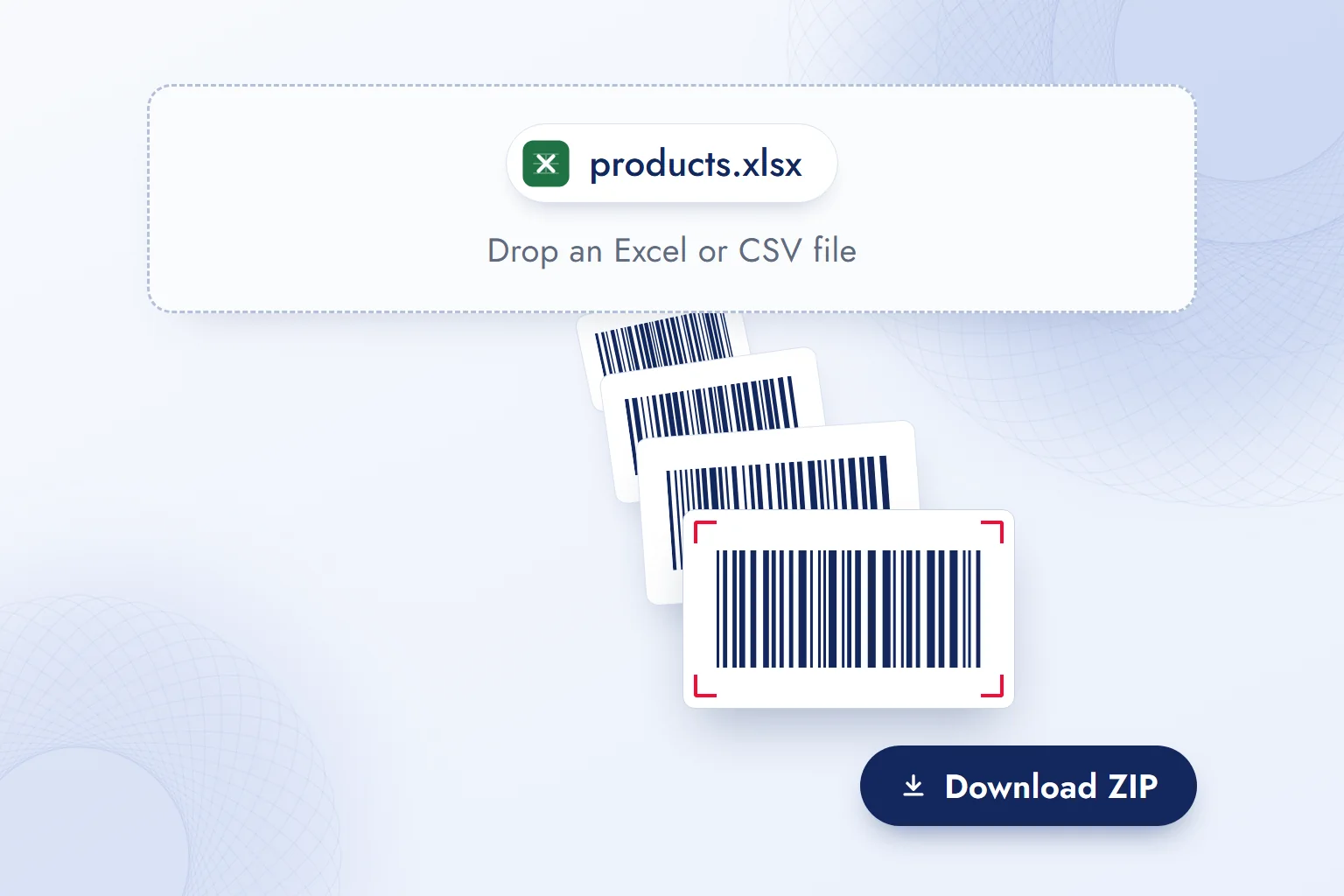
The product code column in Excel is uploaded to a bulk generator or linked to label software; one-by-one generation is not for this job.
The choice depends on the list: 1) Short, one-off list → it goes to a bulk generator that accepts CSV, and the SVG files come back as a ZIP. 2) A list that keeps growing in stock software or an ecommerce panel → a panel that generates barcodes is used, and no data moves to a separate tool. 3) A label printer is in place → the printer’s own label software reads the Excel list and maps it to print fields.
A fourth route needs no installation: Word’s Mail Merge reads the Excel list and, with the MERGEBARCODE field code, prints an EAN-13, Code 128 or QR code on each row’s label.
The product code column is kept as text in Excel so leading zeros survive. Before import, empty cells, duplicate codes and names split from their numbers are checked. Keeping the file’s order in print keeps labels on the right product.
Code 128 is not produced by switching fonts; it needs start, stop and check characters. Working with a barcode font also requires a macro or add-in that does this encoding. We compare the scanner’s output with the product code rather than trusting visible lines.
Vector or PNG for print, and how do you choose the label size?
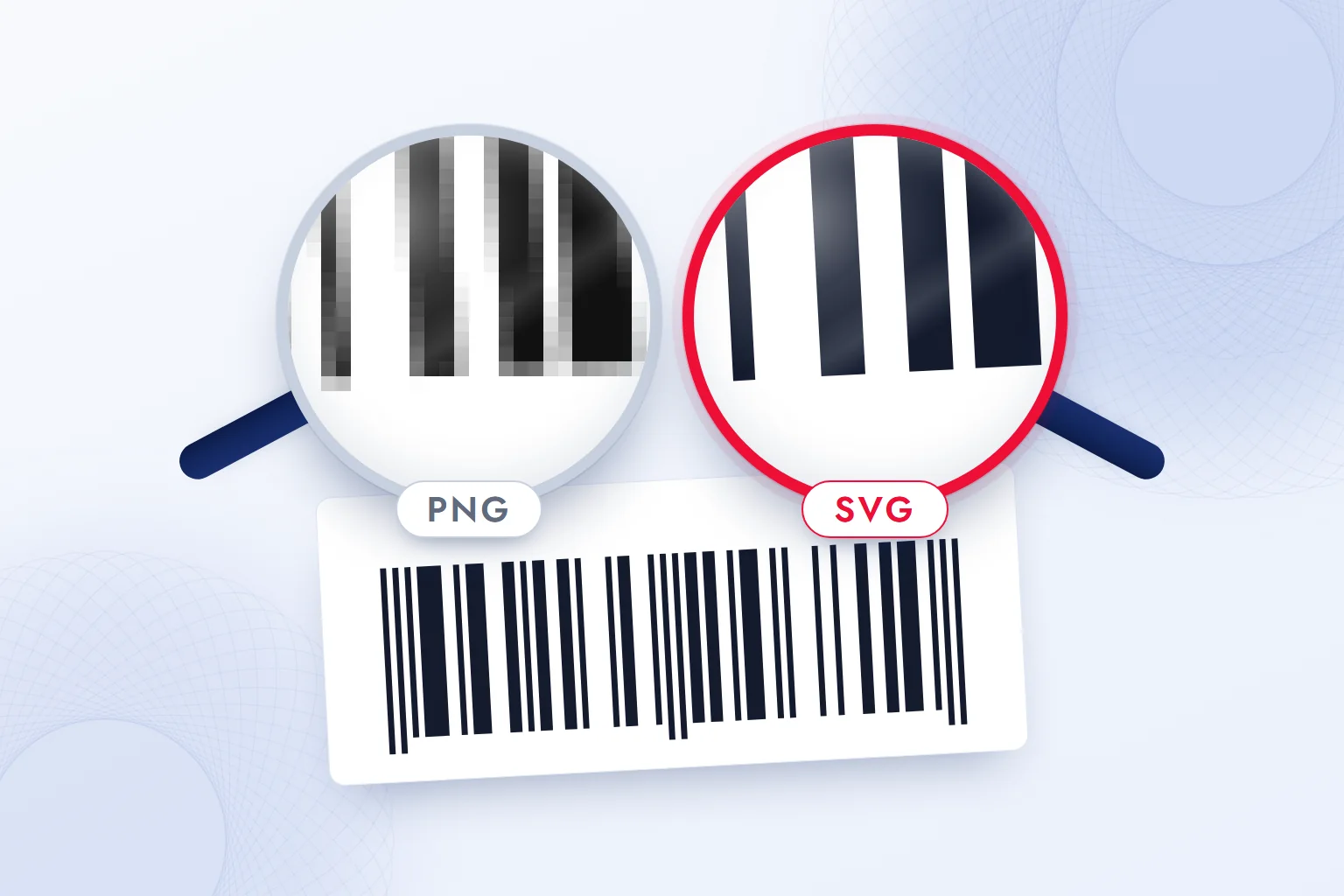
Every barcode that goes to print is downloaded as SVG or PDF; PNG is for screens and email only. This is the standard we recommend: vector lines stay sharp at any size; an enlarged PNG pixelates. Putting a low-quality image inside a PDF does not make it vector.
Under the GS1 General Specifications, an EAN-13 at 100% measures 37.29 × 25.93 mm, and the permitted magnification range is 80%–200%. Labels are designed around these sizes; the on both sides is never trimmed or filled with text or packaging artwork.
Package size changes the decision: 1) Small cosmetics or accessory packaging → a reduction near the permitted lower limit is used, and a test print is scanned first. 2) Standard packaging → the layout uses the 100% size from the GS1 General Specifications, with bleed kept separate from the quiet zone. 3) Shipping box or outer case → the barcode is enlarged; the separate case barcode rules are in the same specifications.
We finish the print check once the label is on the package: a curved surface, a seam or a glossy coating changes how it scans, whatever the file size says.
Free barcode generator: desktop software or a browser tool?
Without printer integration, a browser tool is enough; software is needed only for bulk printing on a label printer. A generator turns data into a pattern; label software manages layout and the printer workflow. A “barcode machine” search is about printing labels; the image is only step one.
Our observation: to limit data sharing, the safest option is a generator that processes input in the browser without sending it to a server. “Free” alone does not guarantee local processing. When choosing a tool, its data processing statement and export options are reviewed together.
Why won’t a barcode scan?
The four most common causes: a trimmed quiet zone, an enlarged PNG, red bars or a wrong check digit. If these check out, scanner support and the print surface come next.
Each cause has its own fix: 1) Trimmed quiet zone → the space around the pattern is restored and the label reprinted. 2) Enlarged PNG → an SVG or vector PDF is taken from the source generator and the print redone. 3) Red bars → dark bars on a light background are used and tested again on the packaging. 4) Wrong check digit → the source number is verified and the digit recalculated with the generator.
The red bar rule comes from the GS1 General Specifications: red-light scanners (laser and LED) read red bars as background. After a fix, we scan with the working device and match the value to the source record.
How to find, with data, which products are in demand on marketplaces is covered in our post on best selling products online. Product data and its flow into digital channels come up throughout our blog posts.
Frequently asked questions
Is it free to create a barcode?
The barcode image is free. A commercial EAN-13 number is paid for through GS1 membership (GS1 Turkey in Turkey); generating an image does not assign a number.
Where do you get a barcode number in Turkey?
From GS1 Turkey; application details are on its website. Turkey’s e-Government portal (e-Devlet) does not issue product barcode numbers.
Is a barcode the same as a QR code?
No; EAN-13 and Code 128 are one-dimensional bar barcodes, a QR code is two-dimensional. The square code on medicine packs in Turkey is a Data Matrix code.
Can you create barcodes in Excel?
Yes; the list is uploaded as CSV to a bulk generator or linked to compatible label software. For Code 128, switching the font is not enough.
What is a GS1 barcode?
An EAN-13 barcode carrying a product number assigned by GS1. Creating a GS1 barcode means turning that number into an image; the number itself comes with membership.
Can we print a barcode as a PNG?
We use PNG for screens and SVG or vector PDF for print. An enlarged PNG distorts the bar edges; a vector print file avoids this.

 What is a buyer persona? How to create one, with a templateRead article
 What is Affiliate Marketing? Commission Models and Building a ProgramRead article
 What is WhatsApp Business? Free app, Platform (API) and how to use itRead article
 What is a podcast? How podcasts work for brands and where to publishRead article
 Best time to post on TikTok: finding it with your own account dataRead article
 What is a URL? Parts of a web address, slugs and their role in SEORead article
 How to advertise on YouTube: campaign types, targeting and costRead article
 What is Shopify? Using it in Turkey, how fees work and vs WooCommerceRead article
Questions & answers
0 commentsNo questions yet; you can ask the first one.