





 Cihat Murat Yüksel
7 min read
Cihat Murat Yüksel
7 min read
What is NotebookLM? Now Gemini Notebook, used with brand documents
NotebookLM is now called Gemini Notebook. We set up our first notebook with brand documents, check the source citations and use Audio Overview where it fits the job.Pro
Contents 8 sections
NotebookLM, now called Gemini Notebook, is Google’s standalone AI research tool that answers questions, writes summaries and creates outputs from the sources we upload, linking each statement to its document through source citations. A takes us straight to the passage the information came from.
In brand work, we set up each notebook for one job. We add the brand voice guidelines, the product catalog and the FAQ, then look for what they say about the text we are preparing. For a product description, the catalog supplies the facts and the guidelines the tone. Before using an answer, we check which document supports which sentence.
In Gemini Notebook, answers built from brand documents are verified through source citations and go through editorial review before publishing.
What is NotebookLM, and why is it now called Gemini Notebook?
NotebookLM is Google’s source-grounded research tool; in July it was renamed Gemini Notebook to reflect its place in Google’s AI ecosystem. According to Google, it remains a standalone research tool. The approach is unchanged: we add documents, ask questions grounded in them, create summaries and inspect where each answer comes from.
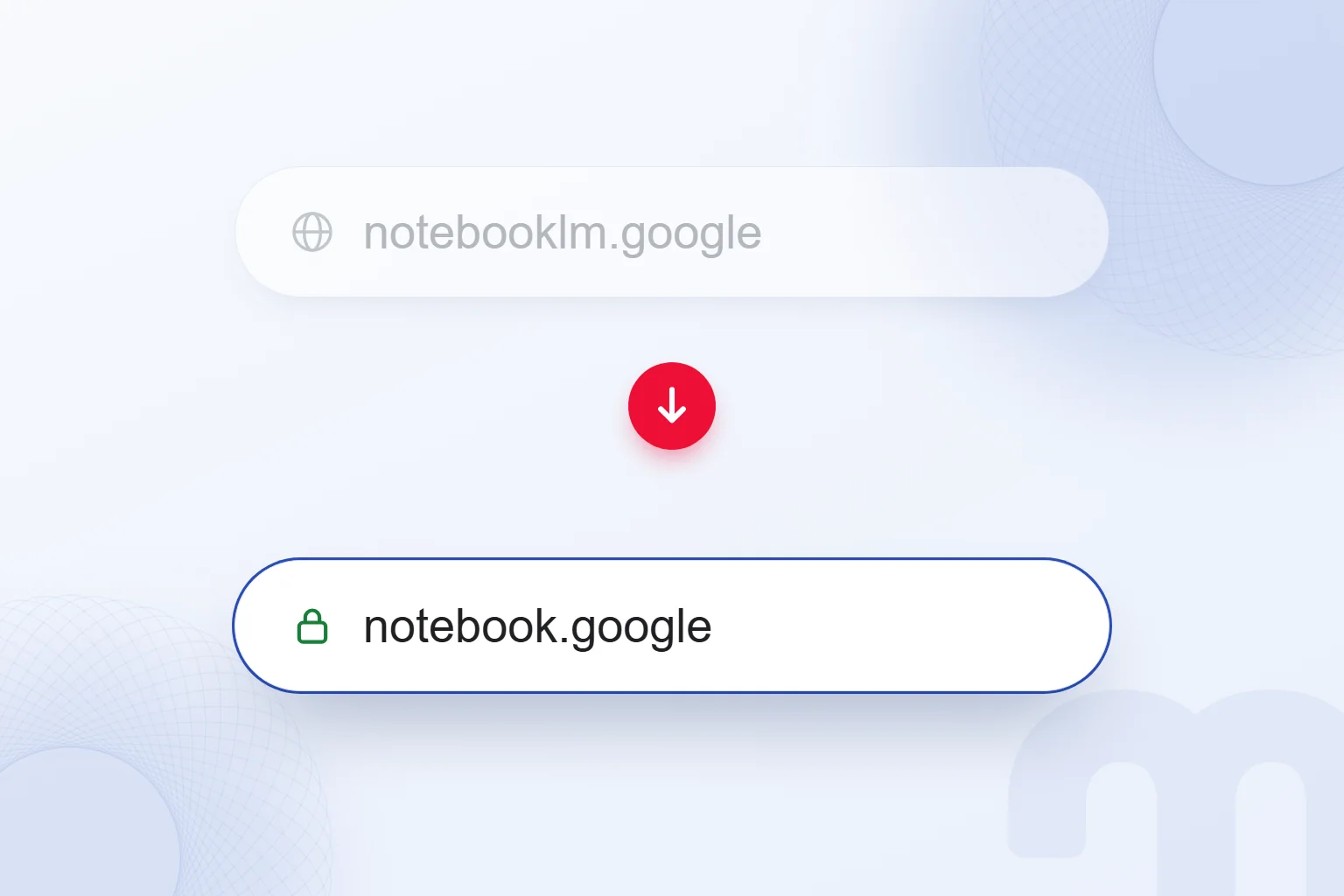
The old address, notebooklm.google, redirects to notebook.google. In internal notes, we write both names, so it stays clear which tool a teammate means. For anyone searching “Google NotebookLM”, Gemini Notebook is simply the same product under its new name.
Our task briefs also list the documents to use. We never stop at “we’ll work in Gemini Notebook”; we write which brand question we will answer with which sources. Whoever takes over works from the same documents.
How does NotebookLM work?
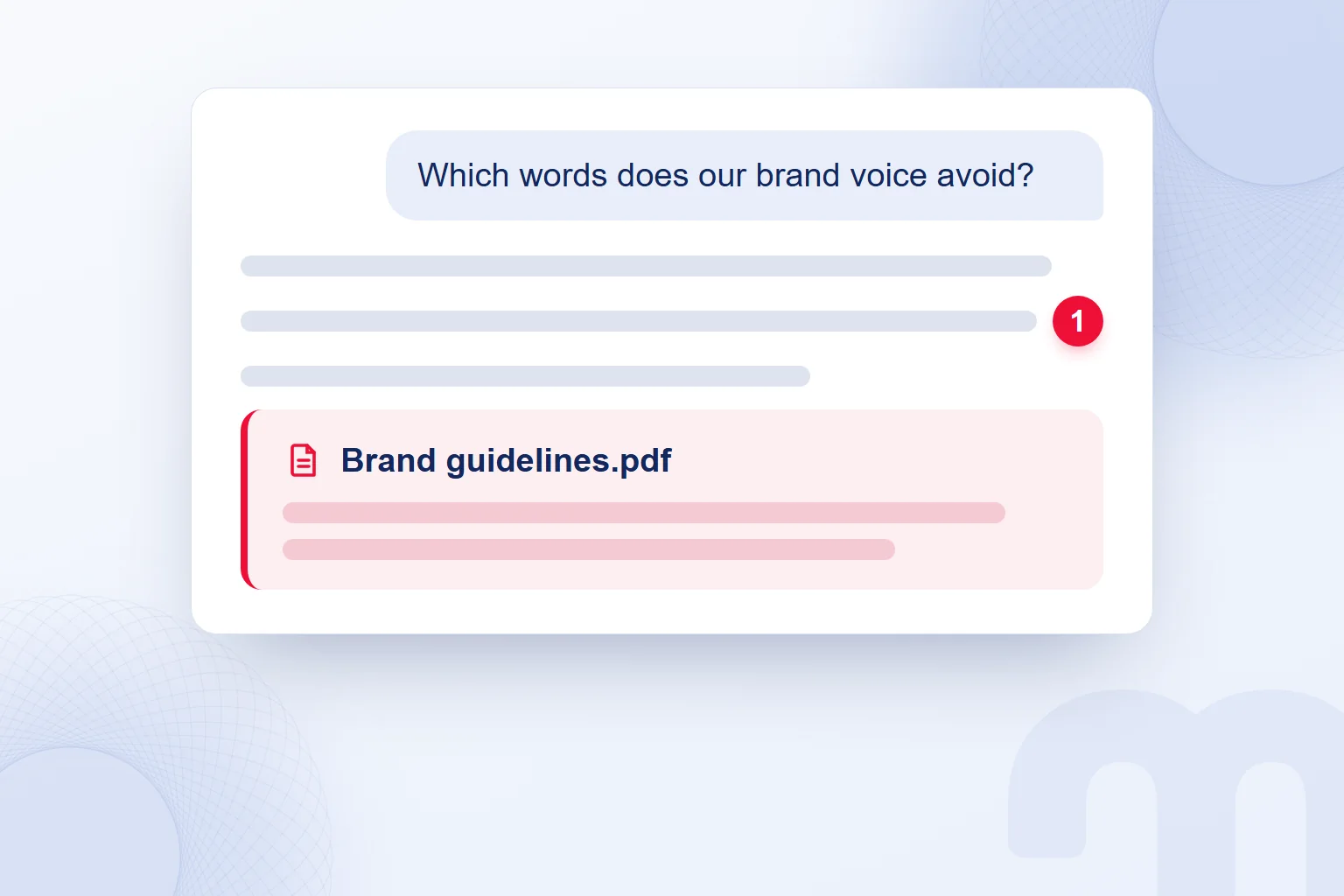
NotebookLM answers from the information in the sources we add and shows citations linking each statement to where it appears. In the question, we state which document to examine and what we want to learn. Then we open the citation and review the quoted passage.
For example, we ask: “According to the brand guidelines, which words do we avoid in product descriptions?” Then we check how each listed word appears in the guidelines. A warning given for one kind of copy is never turned into a rule for every text. The passage behind the citation is where we check the answer’s scope.
When the catalog and the guidelines serve the same job, we read the basis of each claim separately: product features against the catalog, word choices against the guidelines. A detail missing from the documents stays out of the draft; we find the source that would provide it.
We judge the model’s writing skill and the source facts separately, verifying large language model output against the documents.
What sources can you add to NotebookLM?
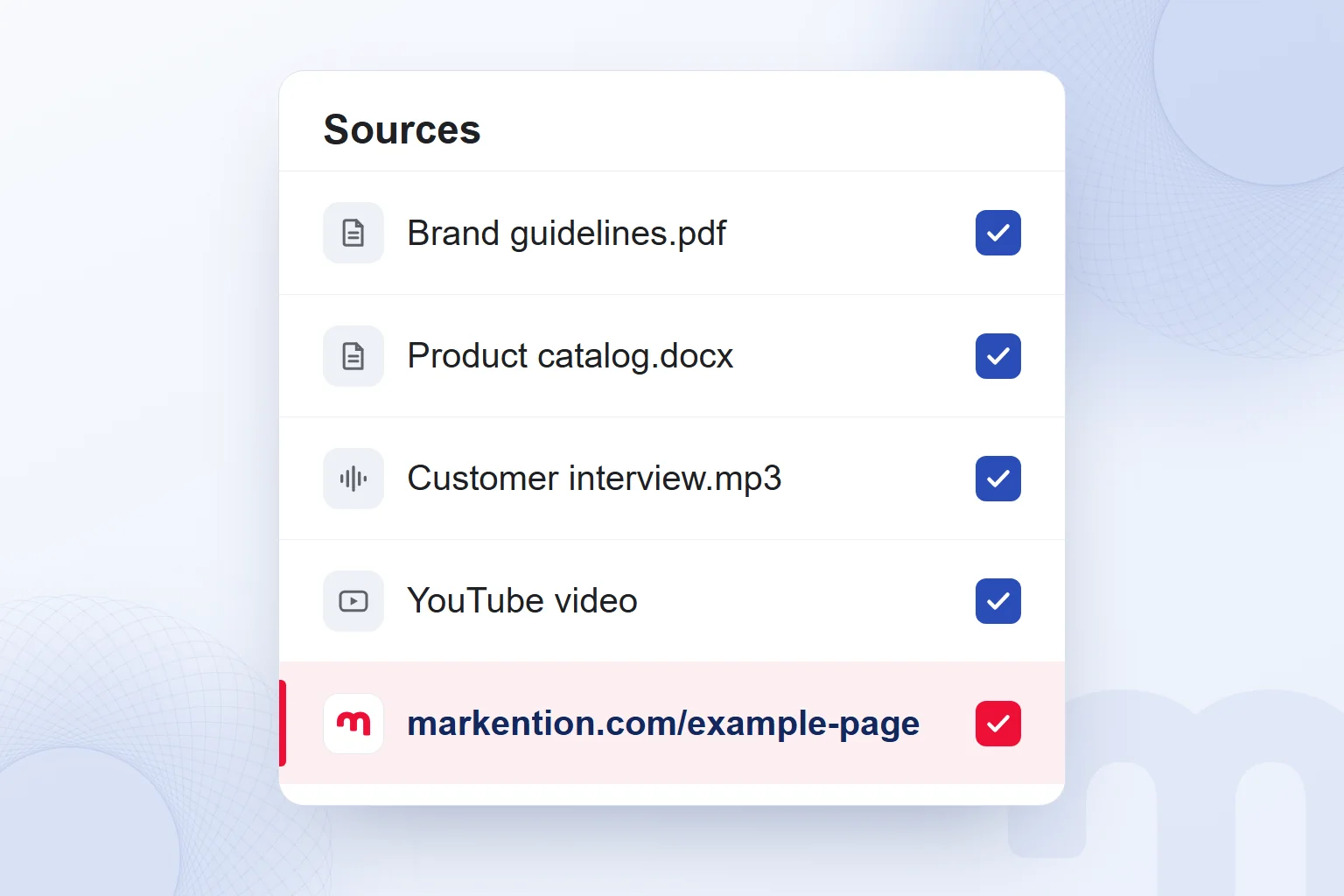
NotebookLM accepts documents, presentations, web URLs, eligible YouTube videos, audio files and other source types. We choose the format by where the brand information lives and prepare the current version of each source.
| Source type | Example in brand work | Note |
|---|---|---|
| Google Docs and Word | Brand voice guidelines, FAQ | We add Word files as docx |
| Product catalog | We use the current version | |
| Google Slides | Brand presentation | Up to 100 slides |
| Web URL | Product or service page | We check the page is current |
| YouTube | Product walkthrough video | Must be public with captions |
| Audio file | Customer interview without personal data | MP3, WAV and other supported formats |
Google’s help pages also list Google Sheets, text files, , images, ePub, Google Play Books and pasted text as sources. In a first notebook, we gather only documents directly related to the question.
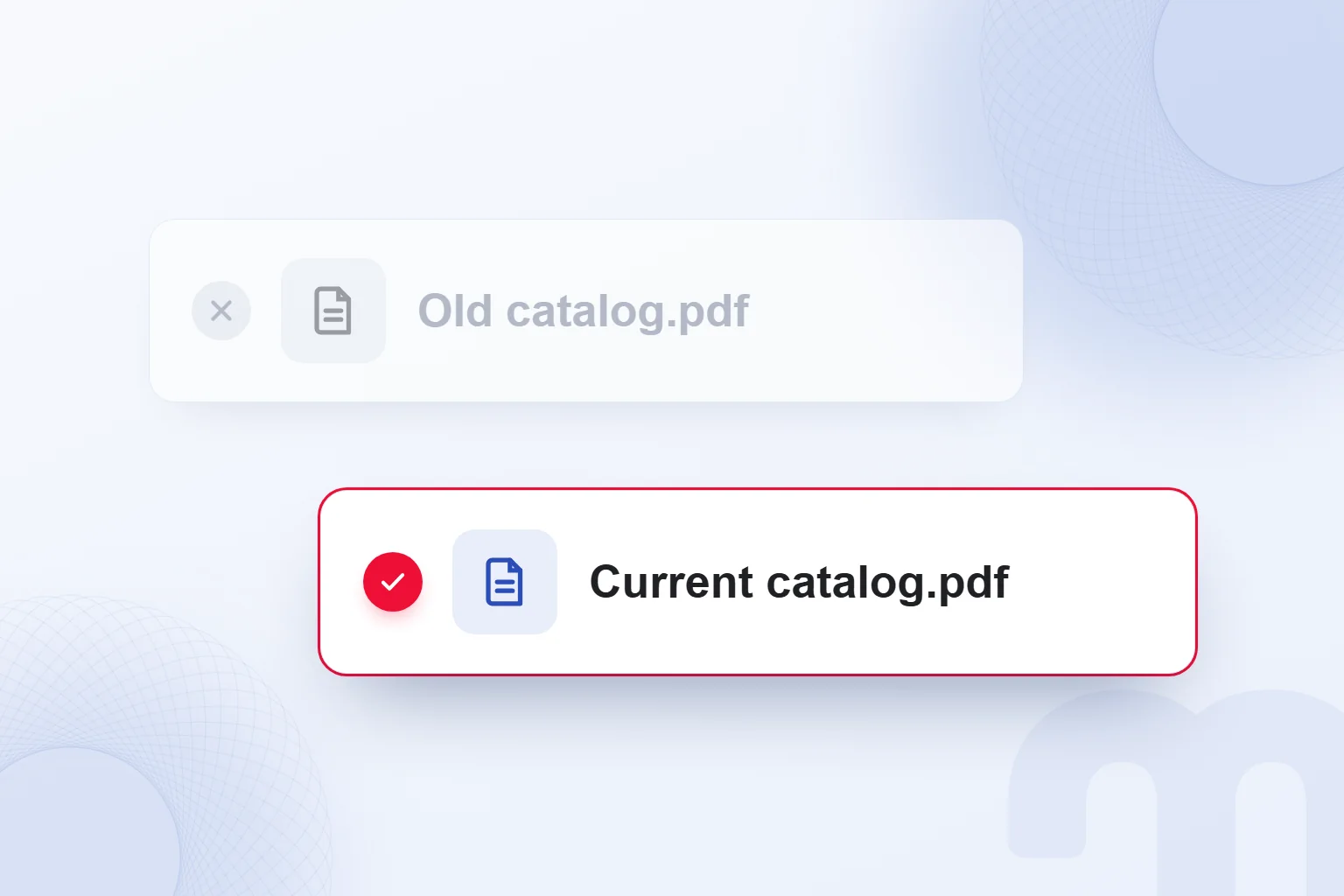
The source limit applies per notebook; the word and file size limits apply per source. To avoid mixing an old catalog with the current one, we check versions before adding. We also review document names in the Sources panel so our questions point to the right one.
Each source gets a role. A customer interview transcript shows which questions customers ask; the product catalog verifies the answers. An expectation voiced in an interview is never treated as an existing feature.
How do you use NotebookLM?
We use NotebookLM by creating a notebook, adding brand documents, asking questions about them and verifying answers against their sources. We keep the first goal narrow, such as a product description draft grounded in the catalog and the brand guidelines.
- We define the jobWe set the output and the brand question; for example, a product description from the catalog.
- We prepare documentsWe pick the voice guidelines, the current catalog and the FAQ, leaving out anything with personal data.
- We create the notebookWe set up our first notebook in Gemini Notebook around that one brand task.
- We add sourcesWe upload the documents and check the names and versions in the Sources panel.
- We write the questionWe name the document, the expected output and the scope, and ask for product facts from the sources only.
- We read the basisWe open the citations, checking features against the catalog and tone against the guidelines.
- We edit the draftWe remove claims without a source and prepare the text for publishing after editorial review.
A sample request: “Rewrite the catalog description following the language rules in the brand guidelines. Don’t add features that aren’t in the catalog. Show the sources for the information you use.” It supplies both facts and tone criteria.
Then we narrow the question: “For each product feature in this description, show where it appears in the catalog.” A separate check covers language: “Which phrases conflict with the rules in the brand guidelines?” This tells us whether a correction comes from the facts or from tone. We complete both checks before signing off.
In each question, we state the task and the source clearly, following the framework in our what is a prompt post.
What is Audio Overview, and what is it for?
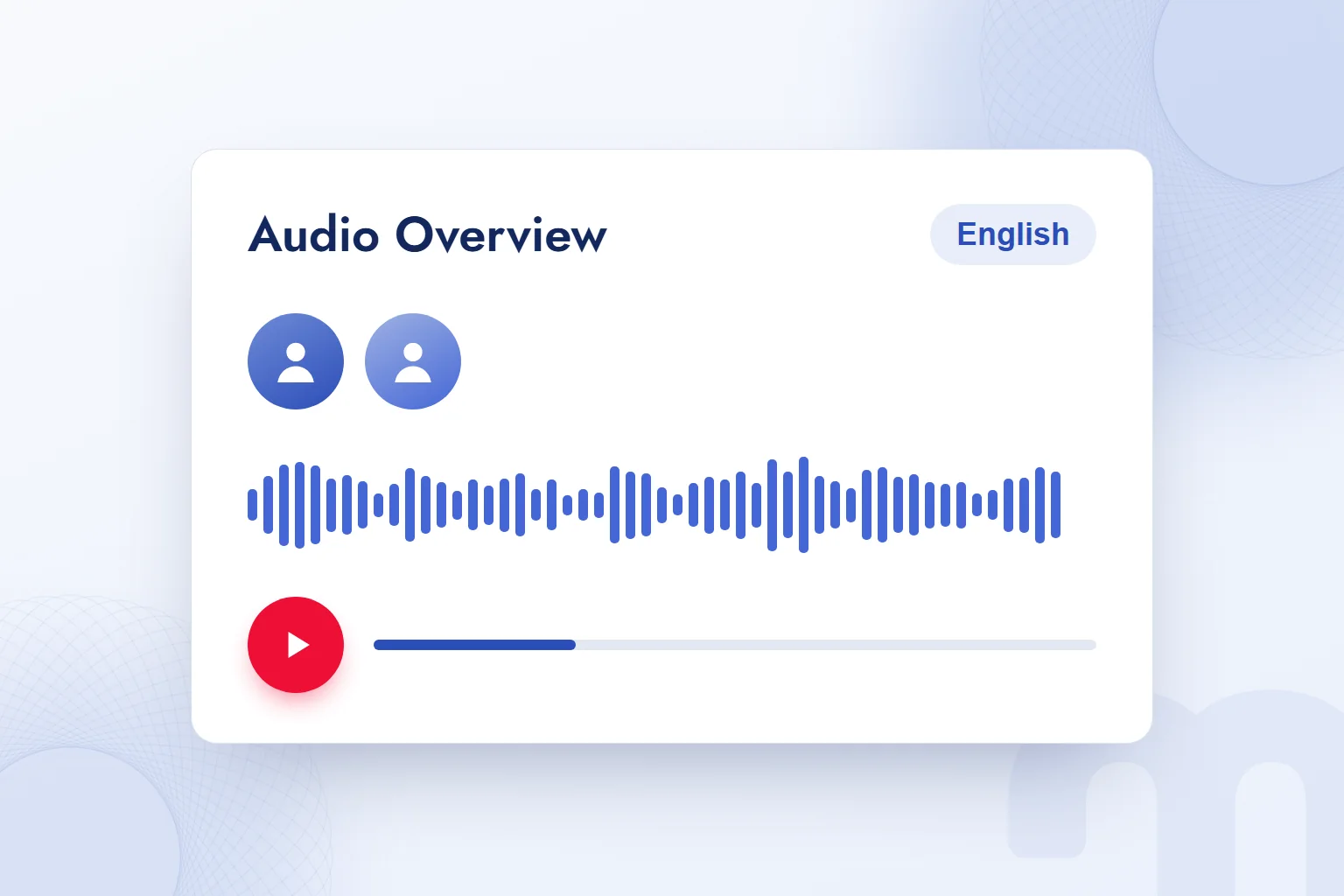
Audio Overview is an audio output in which AI hosts discuss the key topics in our sources; we use it to review the main themes of brand documents by listening. It is available in more than 80 languages.
Before a brand meeting, for example, we listen to the key points of the guidelines and the catalog. We note topics to clarify and return to the document before the meeting.
We also use it to decide what the team will discuss, weighing the tone choices in the guidelines against the facts in the product documents. Every fact that reaches a published text is verified against a written source.
We close our listening notes with a concrete question: “Which brand language rule applies to this product’s description?” Then we open the relevant passage. The meeting topic becomes a verifiable content decision.
NotebookLM or Gemini: which one do we use, and when?
We choose by whether the answer must be grounded in our own documents and by the type of work. First we define the question and the data.
The path splits by situation:
- We need an answer grounded in our documents → We use NotebookLM, now Gemini Notebook, with sources such as the brand guidelines and catalog.
- We need general knowledge or brainstorming → We use the Gemini app and describe the topic and the ideas we want.
- We need to analyze spreadsheet data → If our plan supports it, we use code execution in Gemini Notebook with the source data.
Code execution runs on a secure cloud computer for source-grounded analysis. It is currently available to Google AI Ultra users and eligible Workspace accounts and is rolling out to Pro users on the web. Before analyzing a Search Console export, we confirm access.
Syncing with the Gemini app and integration with AI Mode in Google Search are also rolling out. We build the workflow around features our account can reach.
What do we do when an answer is wrong or incomplete?
When an answer is wrong or incomplete, we check whether the source is complete and current, and whether the answer is grounded in it. The fix follows the problem.
This distinction decides the next step:
- A source is missing → We add the document that answers the question and ask again.
- A source is outdated → We add the current version and remove the old one.
- The answer seems ungrounded → We open the citation, read the quote and ask again, naming the document.
If catalog information has changed, we add the current catalog, ask the same question and check that the update appears correctly. Claims without a source are removed from the draft.
Data hygiene starts with document preparation. We never add customer lists or contracts with personal data, and we strip it from interview transcripts. On a business account, we check the data terms. Before publishing, we review product facts, brand language and source support as editors, the same check we apply across our AI articles.
Frequently asked questions
What is NotebookLM?
Google’s AI research tool that creates answers, summaries and outputs grounded in the sources we upload. We verify its answers through source citations.
What is NotebookLM’s new name?
Gemini Notebook. Google renamed it in July; it remains a standalone research tool.
How many sources can a notebook hold on the free plan?
Up to 50. Each source is limited to 500,000 words, and each uploaded file to 200 MB.
Can you add a YouTube video to NotebookLM?
Yes, public YouTube videos with captions can be added. For brand work, we check that the video’s information is current.
Which languages does Audio Overview support?
More than 80 languages. AI hosts discuss the key topics in the sources we upload.
How do we verify information in a NotebookLM answer?
We open the citation, read the quoted passage and compare it with the claim. If a source is outdated, we add the current version and check again.

 What is Gemini? How to use it, the free plan, Gemini Omni and ChatGPTRead article
 What is Google AI Studio? Free use, API keys and your first projectRead article
 What is ChatGPT and how do you use it? Free version, plans, safetyRead article
 What can you do with ChatGPT? Free plan marketing examplesRead article
 What is MCP? Connecting AI to your data with Model Context ProtocolRead article
 What is superintelligence? From AI to SI and what it means for brandsRead article
 What is vibe coding? First prototypes, tools and limits for marketersRead article
 AI photo editing: remove backgrounds, sharpen and expand photosRead article
Questions & answers
0 commentsNo questions yet; you can ask the first one.