





 Cihat Murat Yüksel
13 min read
Cihat Murat Yüksel
13 min read
What is Google AI Mode? AI Mode vs AI Overviews and your site
What Google AI Mode is and how to open it: asking with files, deleting history, turn-off options, how it differs from Gemini, and what a page needs to be cited as a source.Pro
Contents 14 sections
Google AI Mode is an AI-powered search experience in Google Search that answers detailed questions, accepts questions by text, voice and photo, and lets you go deeper with follow-up questions. To prepare an answer, it uses a method called .
When we assess a site’s AI Mode visibility, we review the question, the answer and the supporting links together. We identify the questions asked about our brand’s subject and check whether our page answers them. Our first check: the page we want cited is indexed and eligible for a text snippet.
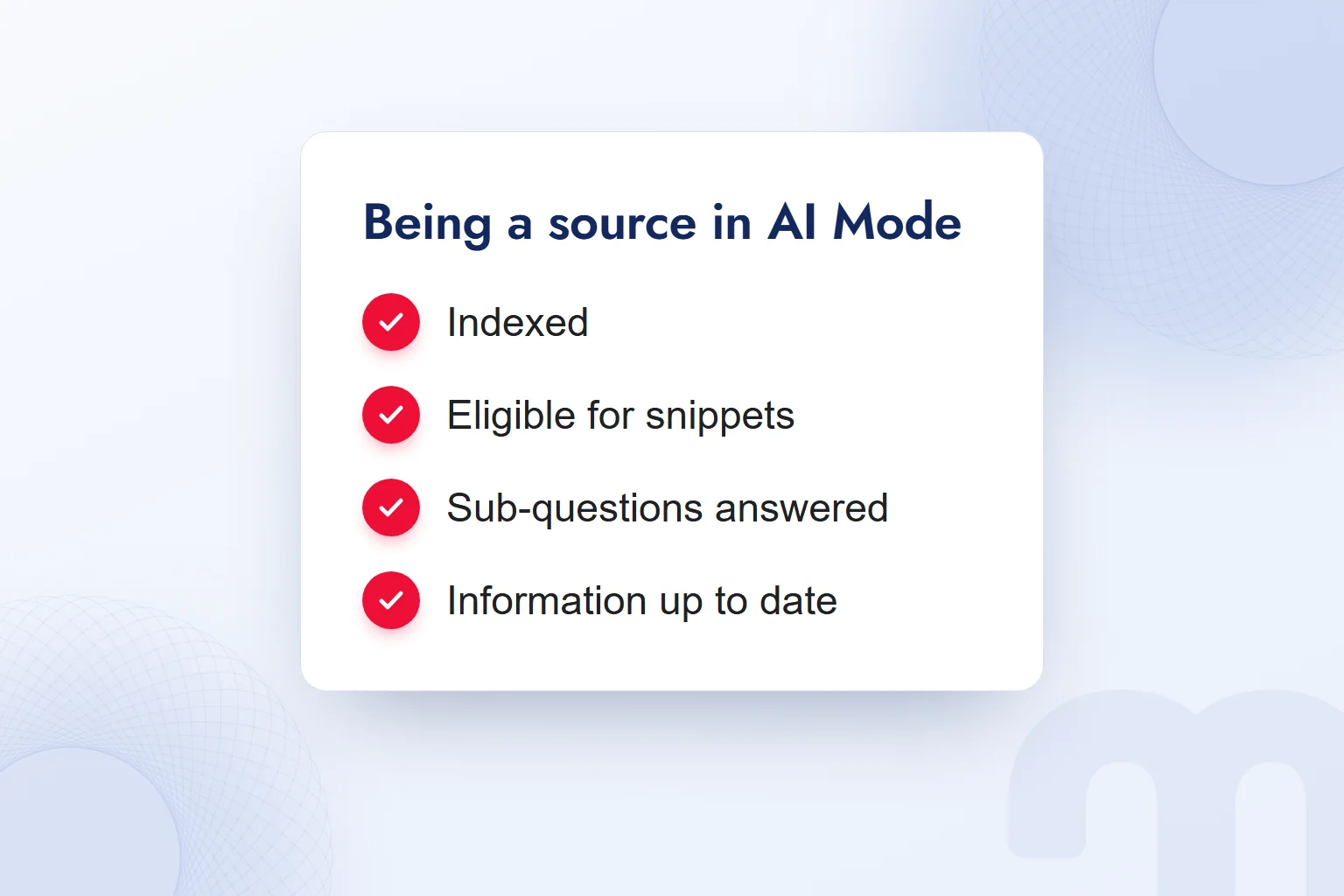
To be cited in AI Mode, a page has to be indexed and eligible to be shown with a snippet; no additional technical requirement applies.
What is Google AI Mode?
Google AI Mode is a Google Search experience that answers detailed questions and lets you explore a topic further through follow-up questions. Google’s announcement highlights advanced reasoning and a multimodal design: you can ask by typing, by voice, or with a photo taken with your camera.
The scope of the question sets how we use it. We might start with “How many pages should a business website have?” and continue with “What should service pages include?”, turning a general need into a specific content question.
For a site, what matters is appearing among the pages that support the answer. We record the question and the sources shown and compare them with our own page. We do not stop at the title; we check that the information the answer needs is stated clearly in the text.
Are “AI Mode”, “Al mode” and “AI search mode” the same thing?
Yes; in Google Search, these terms describe the same feature. The spelling “Al mode” comes from reading the capital I in “AI” as a lowercase l. The product name is AI Mode, and people also call it Google’s AI search mode.
So a search for “google al mode” is not a search for a separate Google product. Opening it, asking questions and managing history all belong to the same AI Mode experience.
What is the difference between AI Mode and AI Overviews?
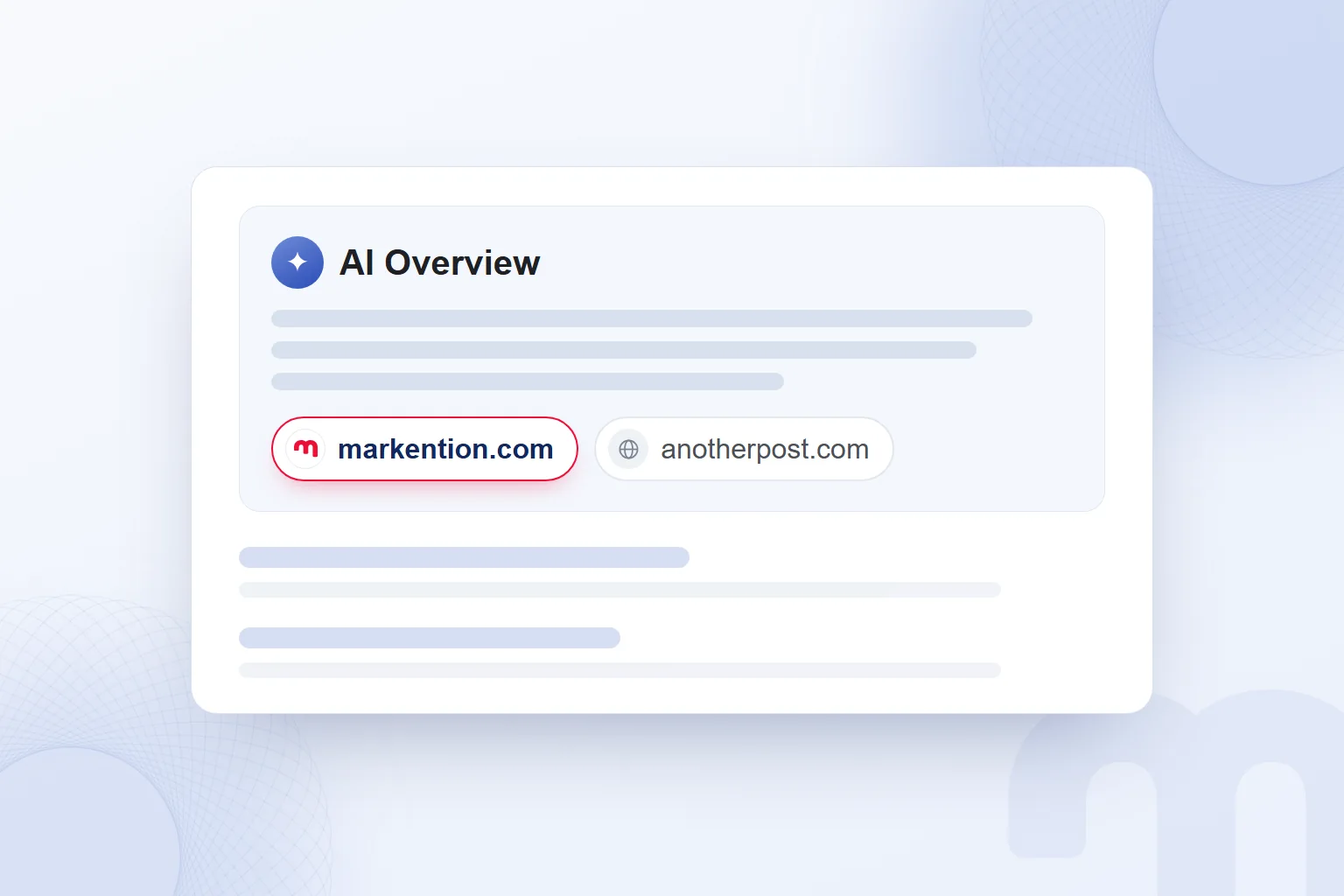
AI Overviews present quick, essential information at the top of the search results; AI Mode is for research that moves through detailed questions and follow-ups. Our choice depends on the scope of the answer we need.
| Criterion | AI Overviews | AI Mode |
|---|---|---|
| Where it appears | At the top of the search results page | In the Google app and on the search results page |
| What it is for | Quick, essential information | Detailed questions and follow-ups to go deeper |
| How you ask | A search query | Text, voice and a photo taken with the camera |
| Source links | Links to pages that support the answer | Links to pages that support the answer |
| Place in Search Console | Web search type in the Performance report | Web search type in the Performance report |
The situation needs sorting first:
- We want quick, essential information → We read the AI Overview at the top of the results page, with its basic explanation and supporting links.
- We have a detailed question that deepens step by step → We use AI Mode and narrow down our need with follow-up questions.
- We are asking by voice or with a photo → We use AI Mode’s multimodal input in the Google app.
We also note which page is cited in which experience; since both are counted under the same search type, this distinction lives in our source-check log.
Where is AI Mode available, and how is it used?
AI Mode is used in the Google app and on the search results page; in Turkey, Google announced on February 18 that it was gradually rolling out in Turkish. The announcement also covers AI Overviews and states that both are powered by Gemini 3.
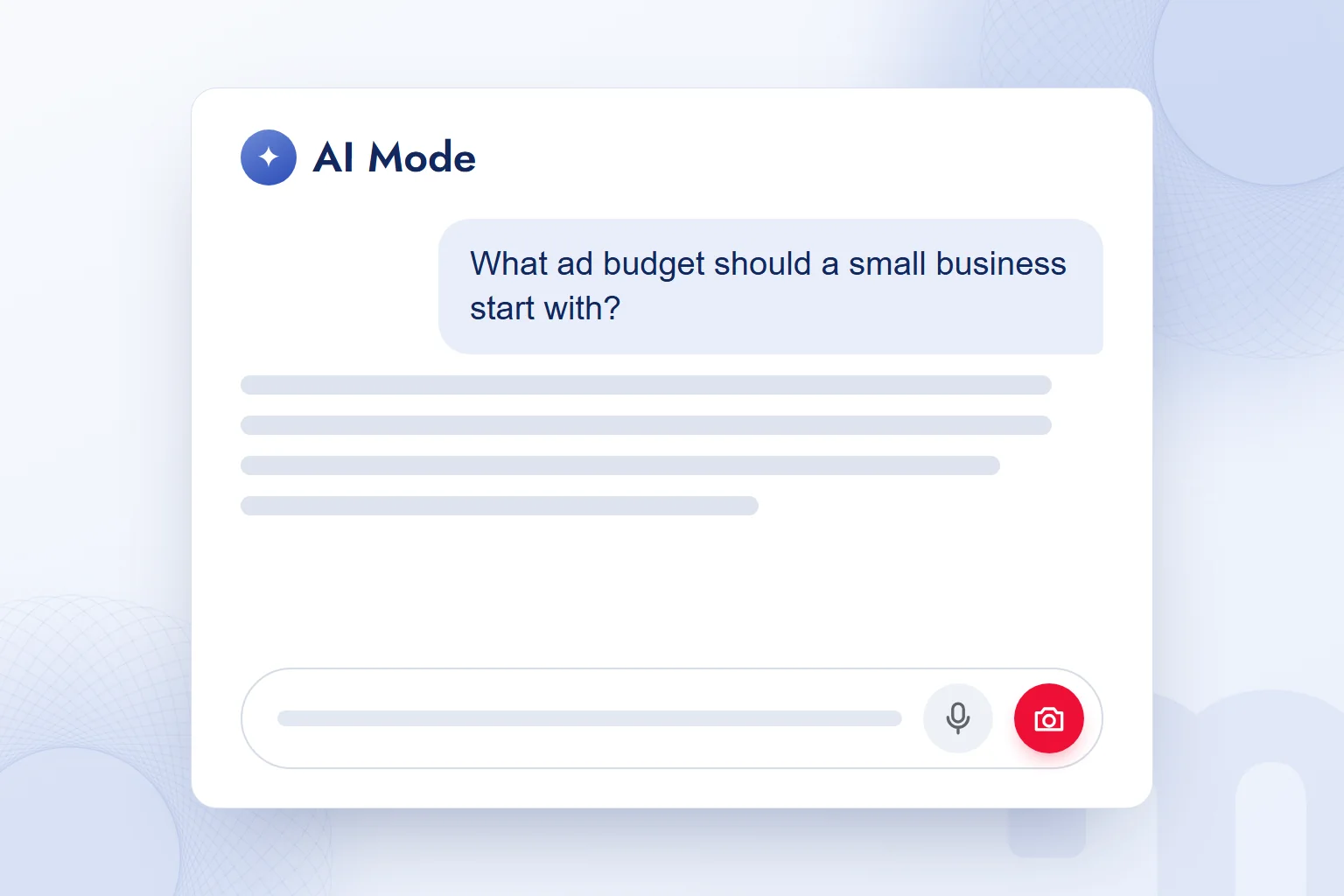
In the Google app for Android and iOS, we ask by text, voice or camera photo. With text, we start with a clear statement of need: after “What ad budget should a small business start with?” we add what the business offers and the need we want to reach with ads.
With voice, we state the topic clearly; for a visual detail, we use a camera photo. We review the explanation and the source links together. A gradual rollout does not mean every user had the feature on the day it was announced.
How do you turn on AI Mode?
We open AI Mode directly at google.com/ai, through the “AI Mode” option after a Google search, or with the AI Mode icon in the Google app. Google Search Help lists these three ways in. They are not consecutive steps; we pick one depending on the screen we are on.
- We go to the addressWe type google.com/ai into the browser’s address bar and land in AI Mode.
- We start from Google SearchWe type our question on google.com and tap “AI Mode”.
- We open the Google appWe tap the AI Mode icon in the Google app.
Stating the topic, goal and needed detail in the first question keeps the research organized. Instead of “website”, we ask “How do you build a website with a menu and contact details for a small cafe?” This guarantees no particular answer; it simply describes the need clearly.
A follow-up can be sent from the “Ask anything” bar or the microphone. In the cafe example, “What should a menu page include?” expands one part of the first question. We open the supporting links too, and build the next question around what is still missing.
Turkish is among the supported languages. On a phone we use the Google app; in a browser, the direct address or the search option. Once AI Mode is open, we pick text, voice or image input to suit the question.

How do you ask AI Mode about a file, image or link?
We can ask AI Mode with an image, a PDF or other file, or a web page address. Google Search Help describes these inputs as ways to bring the material into the question. We also write which information we want examined; a file or address alone does not state the purpose.
For a PDF, we might ask “Under which headings does this document describe the scope of service?” and follow up with “What should be prepared before starting?”
With an image, we state which detail we are asking about. With a photo of a menu, “How can we organize the headings in this menu on a web page?” explains why we shared it, and we assess the answer alongside the image.
With a web page address, we add the goal next to the link: “Which questions does the service description on this page answer?”, then narrow down to one heading. The choice between file, image and link depends on the material the question relies on.
We compare the answer with the content we added and name any phrase we want explained in the follow-up. In our notes, we keep the address we added apart from any address cited in the answer.
How do you view and delete AI Mode history?
AI Mode history appears in the “AI Mode history” area on the left; entries there can be deleted one by one or all at once. According to Google Search Help, deleted entries may stay in My Activity for a few more hours, so the two views should not be expected to change at the same moment.
To clear a single piece of research we delete that entry; to clear everything we delete all. Reviewing past research shows which detail we asked about before; deleting is a separate choice.
Deleting history and turning history off are different actions. The first removes existing entries; the second concerns the history setting. AI Mode can still be used with history and Personalized Recommendations turned off, so the choice about records is separate from the decision to use the feature.
Seeing a deleted entry in My Activity right away should not be read as a failed deletion, given the few hours stated on the help page.
How do you turn off AI Mode?
Google Search Help’s AI Mode page does not describe a way to turn the feature off completely. Search Labs experiments, history and personalization settings are not the same as switching off AI Mode as a whole. So answering “how to turn off AI Mode” with a single switch or a fixed menu path would be inaccurate.
We first look at what “turning it off” covers. To remove old questions, the single or bulk delete options are used. To continue with history and recommendations off, those settings are reviewed; AI Mode remains usable with both off.
Search Labs experiment settings are handled separately; a preference about one experiment does not remove AI Mode from Google Search. The age requirement stated for Personal Intelligence personalization and Search Labs is 18; it is not a general age requirement for AI Mode.
Removing history, changing personalization and not using AI Mode are different needs; we never assume the feature is off once history is deleted.
What is the difference between AI Mode and Gemini?
AI Mode is a search experience inside Google Search; Gemini is named in Google’s announcement as the technology powering it. The announcement states that AI Mode and AI Overviews are offered with Gemini 3. This does not mean the names AI Mode and Gemini describe the same interface.
In AI Mode, we research through questions, follow-ups and supporting links, reached through AI Mode’s own entry points. When we see the name Gemini, we check which Google experience is meant rather than assuming the same use. We cover the concept in our What is Gemini article. For our site’s source visibility in Google Search, the experience we check is AI Mode.
How does AI Mode prepare its answers?
AI Mode prepares answers with query fan-out, running several related searches across subtopics and data sources. Google Search Central states that this method can show more supporting links than classic search.
Query fan-out means splitting one question into subtopics and searching them at the same time. This is why we do not review content against the main question alone; we also look at which details within its scope expect an answer.
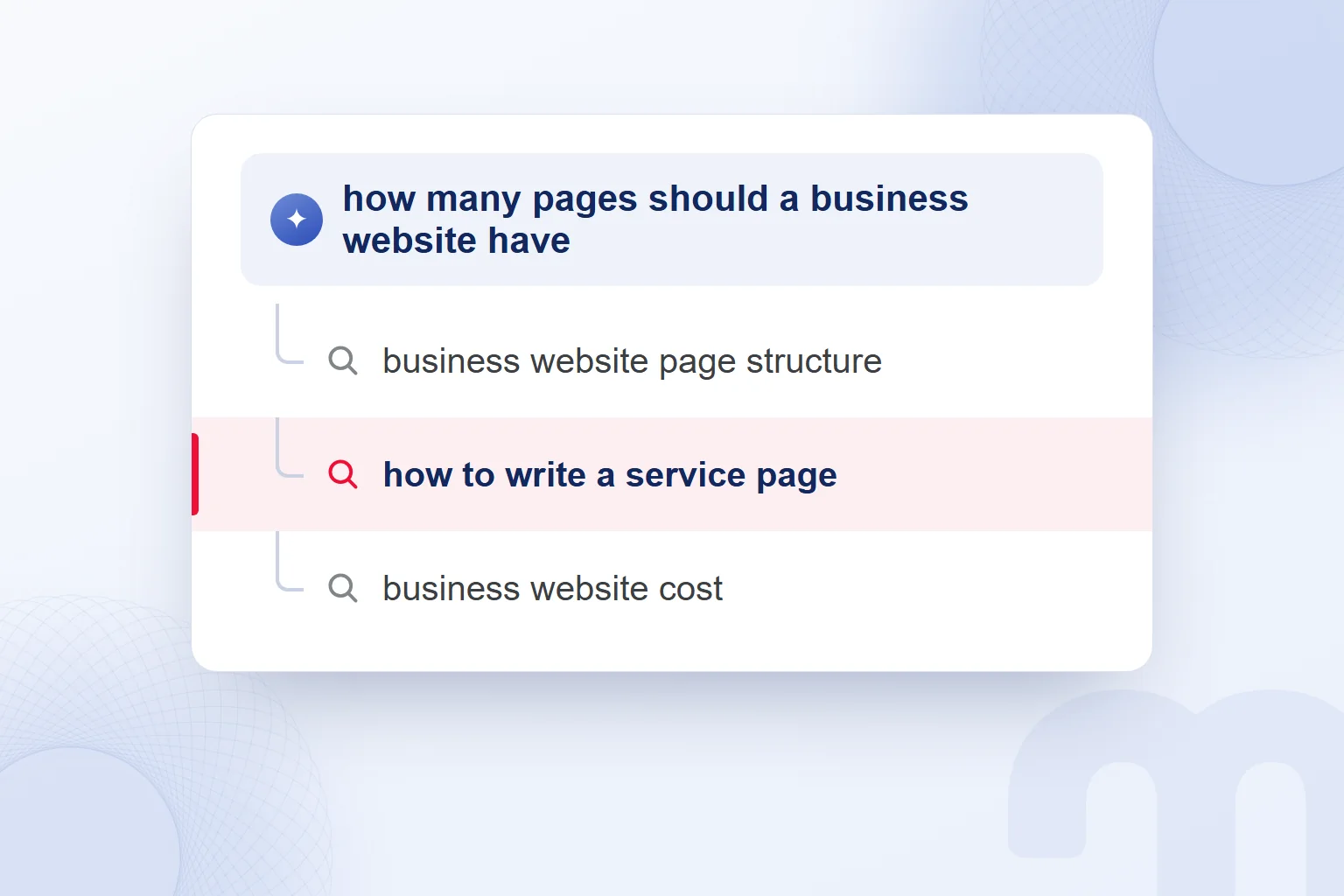
In a sample content review, we split “How many pages should a business website have?” into page structure, service page content and cost. We use these sample subtopics to find gaps on our own page; we do not claim to know the searches Google ran for a specific answer.
When we open the supporting links, we check which part of the question each page answers and assess our own scope accordingly. Rather than piling every topic onto one page, we fill the gaps related to its main question.
We give a direct answer under the heading, then develop it. On a service page we do not settle for “We introduce our services”; we cover the scope, the need it meets and the delivery process, then answer sub-questions such as “What is needed before starting?”
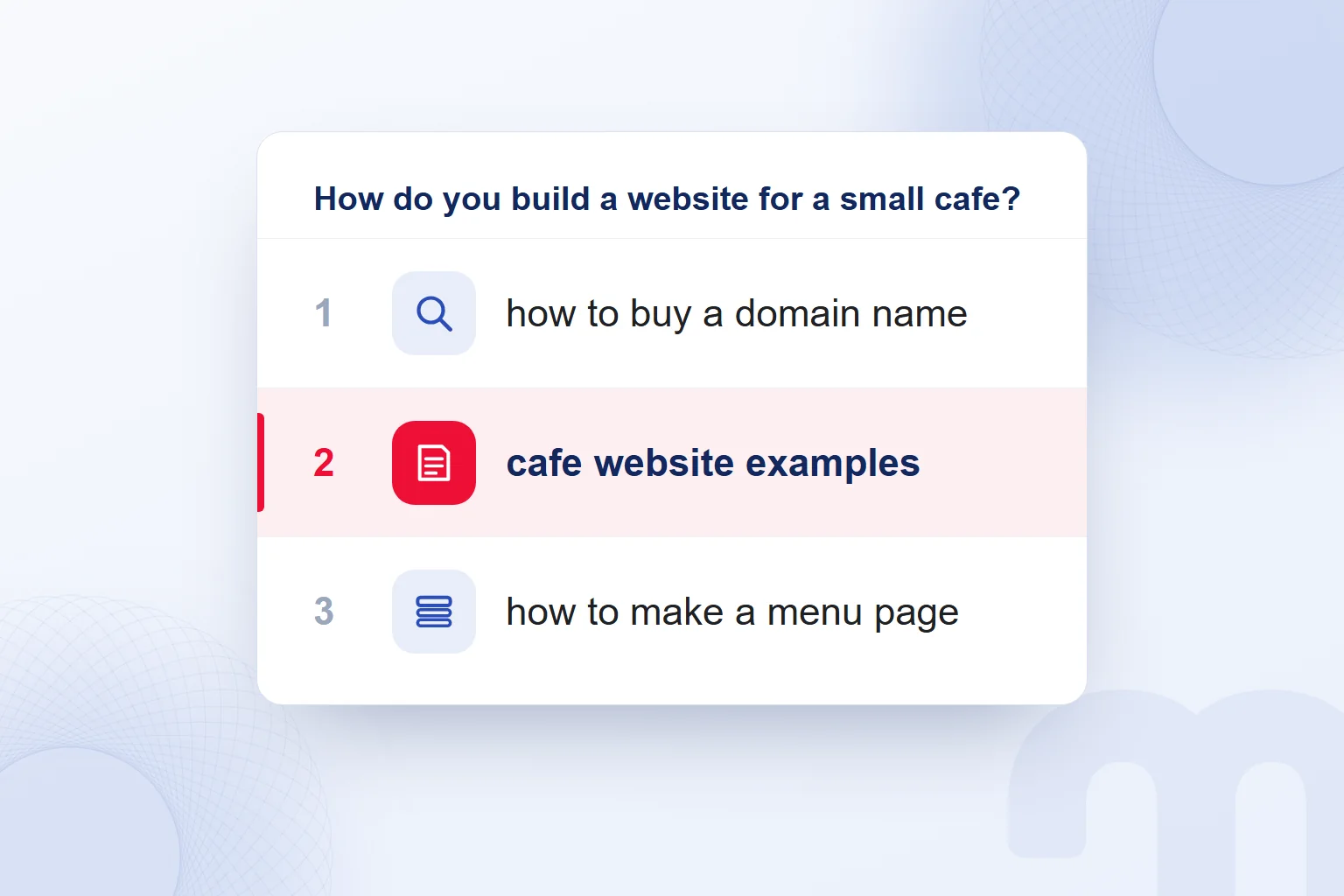
Another example: “How do you build a website for a small cafe?” relates to the domain name, cafe website examples and the menu page. “How to buy a domain name”, “cafe website examples” and “how to make a menu page” are sample sub-searches that illustrate this; we do not present them as searches Google actually ran in a given session.
This makes the content plan concrete. If our cafe website page lacks how to prepare the menu, we add a clear answer; if the domain name is already explained, we do not repeat it in other words.
Google Search Central states that appearing in AI features requires no additional requirements or special optimization. A new file, extra markup or special schema is not a condition either. The existing Search technical requirements, indexing and snippet eligibility apply.
This does not mean there is no work to do; it means no extra files specific to AI features. If the content has a missing answer or a setting that limits display, the review continues there. In content terms, query fan-out means answering related sub-questions clearly, not adding keywords.
How does our site become a source in AI Mode?
For a page on our site to appear as a supporting link in AI Mode, it has to be indexed, meet the Search technical requirements and be eligible to be shown with a . Google Search Central asks for no additional technical requirement for these features.
Technical eligibility and how well the content answers the question are the two parts of the review. No additional technical requirement does not remove the existing index and snippet conditions. We define the page’s main question, answer related sub-questions under subheadings and keep the information current.
We check our site’s AI Mode visibility in this order:
- We pick the questionWe choose a question related to our brand’s subject and match it with the page we want cited.
- We check index statusWe inspect the page’s address in Search Console and see whether it is indexed.
- We review snippet eligibilityWe check directives that limit the page from being shown with a text snippet, and the Search technical requirements.
- We read the main answerWe assess the page’s core question together with the first answer it gives.
- We complete the sub-questionsWe answer the missing details under subheadings and update outdated information.
- We compare sourcesWe ask the chosen question in AI Mode and review the links shown alongside the answer on our page.
- We log the resultWe write the question, check date, cited page and planned change in our working log.
In our Google AI Overview consulting work, we run these checks page by page. On the Google side, we carry out GEO work, which aims for citations in AI answers, through index, snippet and content review. We tie every editing decision to a concrete gap: an unanswered sub-question, outdated information or a setting that limits display.
How do you measure AI Mode traffic?
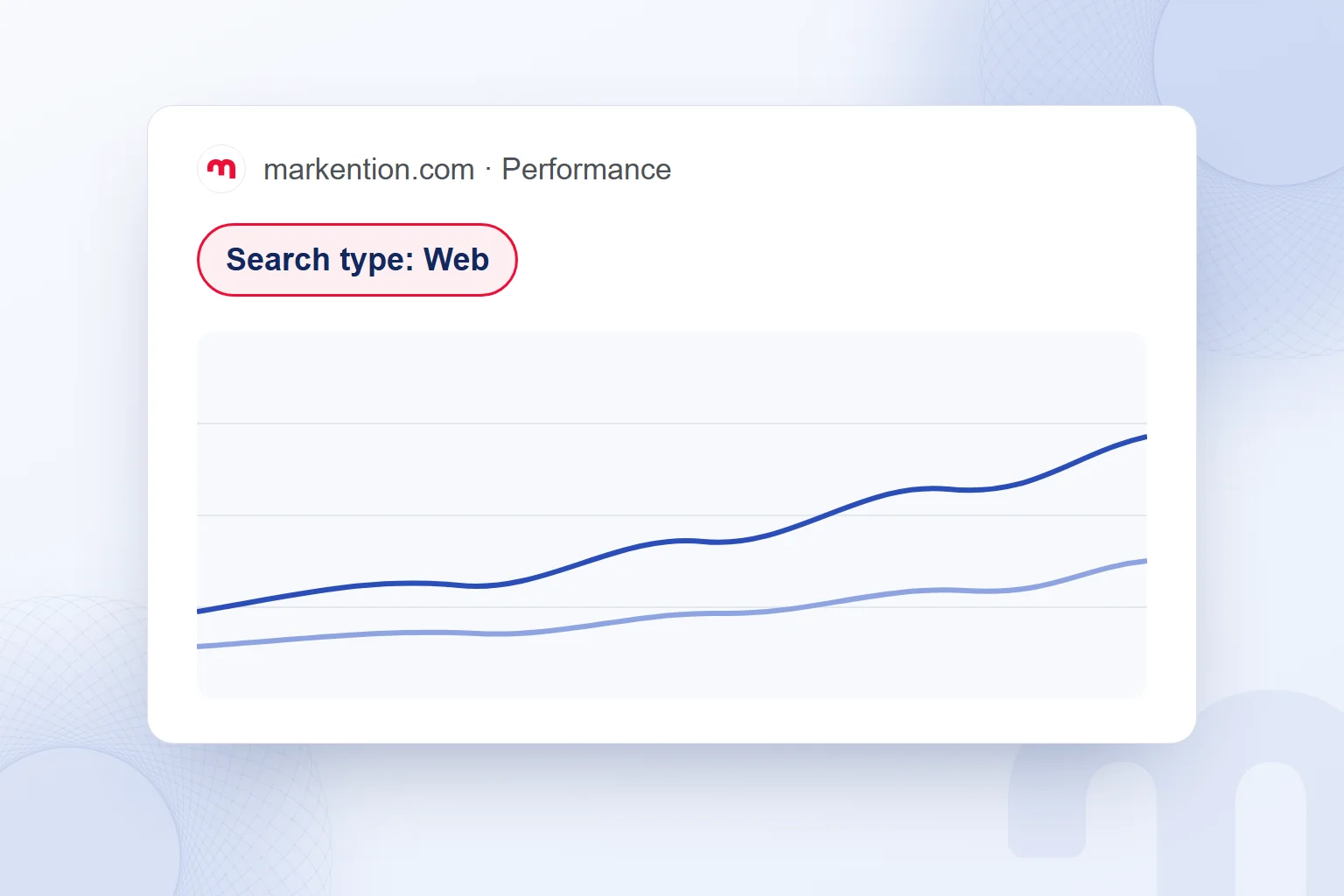
Traffic from AI Mode and AI Overviews is counted within the Web search type in Search Console’s Performance report; there is no separate category for these features. This scope, stated by Google Search Central, determines how we read the report’s totals.
The Web search type is the starting point of our traffic review; whether we are cited in AI Mode we check separately, by asking the question. We do not attribute a change in total traffic directly to AI Mode or extract an AI Mode-only total from this report.
In our working log we write the exact question, the check date and the cited page, and reuse the same question in the next review. When the question changes, we record that too.
In reporting, we keep appearing in the source list apart from receiving visits; a citation we see is not a click count. We note each content change with its page to set the scope of the next review.
What do we do if our site does not appear in AI Mode?
If our site does not appear as a source in AI Mode, we check the page’s index status, snippet settings, answers to sub-questions and how current the information is. We run the review through the address of the page we want cited and fix the gap we find.
Each case has its own response:
- The page is not indexed → We run URL Inspection in Search Console and review the page’s index status.
- A snippet block exists → We check the page’s nosnippet and max-snippet settings and assess directives that limit display with a text snippet.
- The page does not answer sub-questions → We take query fan-out into account and answer the related sub-questions under subheadings.
- The information is outdated → We update what has changed and reread other explanations of the same topic for consistency.
Google Search Central states that display is limited by the , data-nosnippet, max-snippet and noindex directives. Noindex in particular removes the page from search entirely. We weigh the page being findable in search together with our preference about how its content is shown.
We run source reviews through AI Mode and AI Overviews on Google and through Copilot on Bing. We cover another search tool that cites sources in our What is Perplexity article. As we keep editing content, we draw on our GEO articles.
Frequently asked questions
What is Google AI Mode?
Google AI Mode is a Google Search experience that answers detailed questions. It supports asking by text, voice and camera photo, and going deeper with follow-ups.
What are AI Overviews?
AI Overviews are a Google feature that presents essential information at the top of the search results page. They link to web pages that support the answer.
Is AI Mode available in Turkish?
Yes; Google announced on February 18 that AI Mode and AI Overviews were gradually rolling out in Turkish, in the Google app and on the search results page.
Is there an extra technical requirement to be cited in AI Mode?
No; the page has to be indexed, meet the Search technical requirements and be eligible for a snippet.
What does query fan-out mean?
Running several related searches across subtopics and data sources while an answer is prepared. That is why we look at related sub-questions as well as the main question.
Does Search Console show AI Mode traffic separately?
No; AI Mode and AI Overviews traffic is included in the Web search type of the Performance report.
How do you turn on AI Mode?
Go to google.com/ai, tap “AI Mode” after typing a question on google.com, or use the AI Mode icon in the Google app.
What does “Al mode” mean?
“Al mode” is a misspelling caused by reading the capital I in “AI” as a lowercase l. It refers to the same feature as AI Mode.

 What is Microsoft Copilot? How it works and how to get citedRead article
 What is an LLM? How large language models work and know your brandRead article
 What is robots.txt? How to create it and allow AI crawlersRead articleMost read
 What is GEO? Generative Engine Optimization and AI answer citationsRead article
 What is ROAS? Formula, ROAS vs ROI and how to set target ROASRead article
 What is ChatGPT and how do you use it? Free version, plans, safetyRead article
 What is a dashboard? Marketing dashboards, KPIs and Looker StudioRead article
 ChatGPT image prompts and Gemini prompt examples for ad visualsRead article
Questions & answers
0 commentsNo questions yet; you can ask the first one.